Entwodiksyon
This manual provides essential instructions for setting up, operating, maintaining, and troubleshooting your Chuwi Hi13 Tablet PC. Please read this guide thoroughly to ensure proper use and to maximize the performance and longevity of your device.
The Chuwi Hi13 is a versatile 13.5-inch tablet PC running Windows 10, powered by an Intel Apollo Lake Celeron N3450 Quad Core processor, featuring 4GB RAM and 64GB eMMC storage. It is designed for both productivity and entertainment, offering a high-resolution display and various connectivity options.

Image: The Chuwi Hi13 Tablet PC showcasing its Windows 10 operating system interface.
Pwodwi souview
Physical Components and Ports
Familiarize yourself with the physical layout and available ports on your Chuwi Hi13 tablet.

Imaj: Bò kote view diagram of the Chuwi Hi13 tablet, highlighting its dimensions and port locations including earphone jack, Micro HDMI, Micro USB, Type-C, and TF Card slot.
- Pò konè: 3.5mm jack for audio output.
- Mikwo SD kat plas: For expanding storage up to 128GB.
- Micro HDMI Slot: Pou konekte ak ekran ekstèn.
- Mikwo USB Port: Pou transfè done ak chaje.
- Kalite-C Port: Versatile port for charging, data, and display output.
- Bouton pouvwa: Located on the side for turning the device on/off and sleep/wake.
- Bouton Volim: Pou ajiste nivo odyo yo.
Display and Cameras
The Chuwi Hi13 features a high-resolution display and dual cameras for various applications.

Image: Close-up of the Chuwi Hi13's 13.5-inch IPS capacitive screen, demonstrating its 3000x2000 resolution and vibrant color reproduction.
- Ekran: 13.5-inch IPS Capacitive Touch Screen with 3000 x 2000 resolution, offering wide viewing angles and impressive clarity.
- Kamera devan: 2.0MP, apwopriye pou apèl videyo ak selfie.
- Kamera dèyè: 5.0MP, for capturing photos and videos.

Image: Two Chuwi Hi13 tablets, one showing the front 2.0MP camera and the other highlighting the rear 5.0MP camera, indicating their use for photos and video calls.
Gid Enstalasyon
Initial Power On and Windows 10 Setup
- Chaje aparèy la: Before first use, connect the provided charger to the Type-C or Micro USB port and allow the tablet to charge fully. The battery indicator will show charging status.
- Pouvwa sou: Press and hold the Power button on the side of the tablet until the Chuwi logo appears.
- Konfigirasyon Windows 10: Follow the on-screen prompts to complete the initial Windows 10 setup. This includes selecting your region, language, connecting to a Wi-Fi network, and creating a user account.
- Mizajou: After setup, it is recommended to check for and install any available Windows updates to ensure optimal performance and security.

Image: The Chuwi Hi13 tablet connected to its docking keyboard, displaying the Windows 10 operating system, indicating its dual-mode functionality.
Koneksyon Pwodwi pou Telefòn
- Docking Keyboard: Align the tablet with the magnetic connector on the docking keyboard and gently press until it clicks into place. The keyboard will be automatically recognized by Windows 10.
- Dyaman: If using a compatible active stylus (sold separately), follow its specific pairing instructions, typically involving Bluetooth pairing through Windows settings.
- Depo ekstèn: Insert a Micro SD card into the designated slot to expand storage capacity.
Enstriksyon Operasyon
Navigating Windows 10
The Chuwi Hi13 runs Windows 10 Home 64-bit, offering a familiar desktop environment and tablet mode functionality.
- Start Menu: Access applications, settings, and power options via the Start Menu.
- Navigatè Edge: Utilize the pre-installed Microsoft Edge browser for web Navigasyon.
- Mòd tablèt: Windows 10 can switch between desktop and tablet modes, optimizing the interface for touch input.
Touch Screen and Input
The 13.5-inch IPS 10-point touch screen supports multi-touch gestures for intuitive navigation.
- Tape: Ekivalan a yon klik sourit.
- Tape epi kenbe: Ekivalan a yon klike sou bò dwat la.
- Zoom-pou-Zoom: Sèvi ak de dwèt pou agrandi oswa diminye kontni an.
- Glise: Navige nan meni yo oubyen defile kontni an.
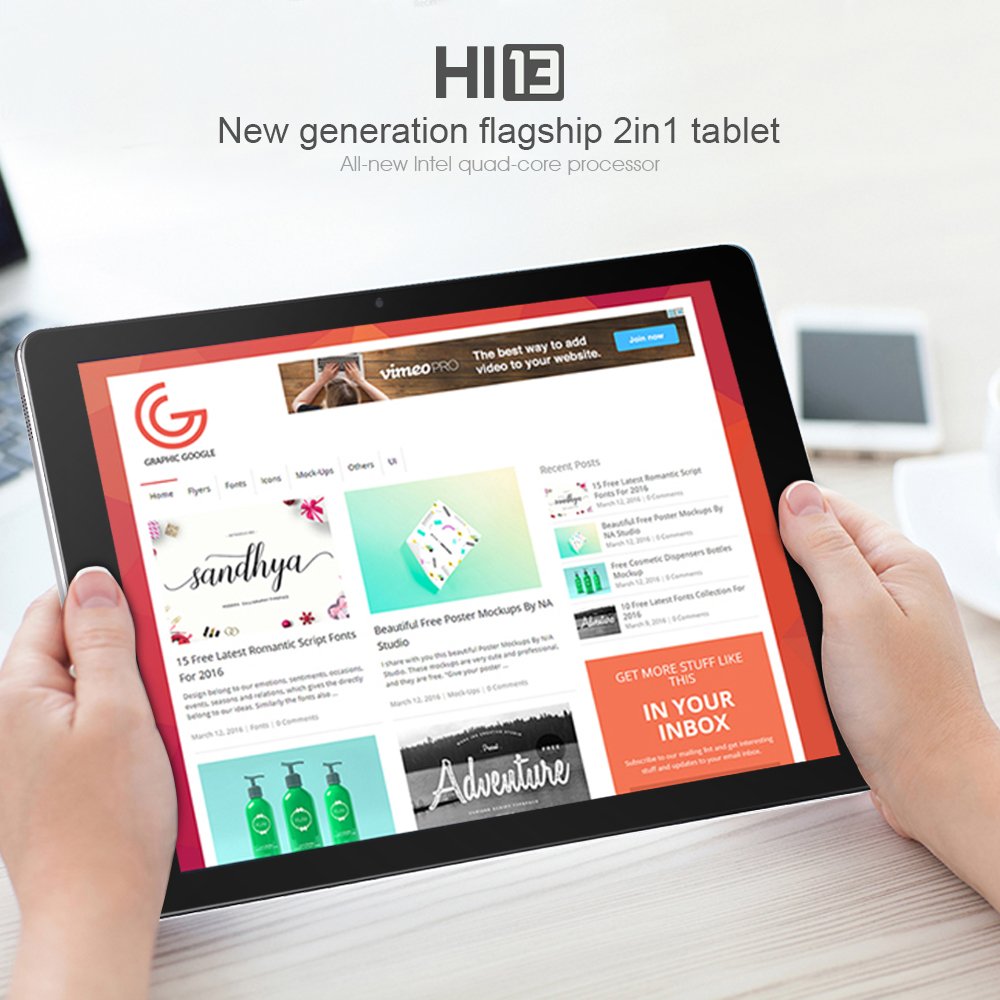
Image: A user holding the Chuwi Hi13 tablet in landscape orientation, browsing a website, demonstrating its use for media consumption and web aksè.
Koneksyon
- Wi-Fi: Connect to wireless networks using the built-in 802.11a/ac/b/g/n dual-band Wi-Fi (2.4GHz / 5.0GHz).
- Bluetooth: Pair with Bluetooth 4.0 devices such as headphones, speakers, or input devices.
- HDMI: Use the Micro HDMI port to connect to an external monitor or TV for a larger display.
- OTG: The tablet supports On-The-Go (OTG) functionality, allowing you to connect USB peripherals via an adapter.
Antretyen
Netwaye Aparèy la
- Ekran: Sèvi ak yon twal mou, ki pa gen pousyè, yon ti kras mouyeampened with water or a screen cleaner, to gently wipe the display. Avoid harsh chemicals.
- Kò: Wipe the tablet's body with a soft, dry cloth.
- Pò: Keep ports free of dust and debris. Use a can of compressed air if necessary, but avoid inserting objects into the ports.
Swen batri
- Evite tanperati ekstrèm, paske yo ka diminye lavi batri a.
- For optimal battery health, try to keep the charge level between 20% and 80% when possible.
- Sèvi sèlman ak plato orijinal la oswa yon plato konpatib ki sètifye.
Mizajou lojisyèl
Regularly check for and install Windows updates to ensure your system has the latest features, security patches, and performance improvements. Go to Anviwònman > Mizajou ak Sekirite > Mizajou Windows.
Depanaj
Pwoblèm komen ak solisyon yo
- Aparèy pa limen:
- Ensure the device is fully charged. Connect the charger and wait a few minutes before attempting to power on again.
- Eseye kenbe bouton pouvwa a pandan 10-15 segonn pou yon reset konplè.
- Pèfòmans Ralanti:
- Fèmen aplikasyon ki pa nesesè k ap fonksyone nan background nan.
- Tcheke epi enstale nenpòt mizajou Windows ki annatant.
- Ensure sufficient free storage space (at least 10-15% of total capacity).
- Run a disk cleanup and defragmentation (for HDD, though eMMC benefits less from defrag).
- Consider performing a factory reset if performance issues persist after other steps (back up data first).
- Pwoblèm chaj:
- Verify the charger and cable are securely connected to both the tablet and the power outlet.
- Try a different compatible charger and cable if available.
- Inspect the charging port for any visible damage or debris.
- Display Problems (No image, flickering):
- Rekòmanse tablèt la.
- If connected to an external display, ensure the HDMI cable is properly connected and the correct input is selected on the external display.
- Check display settings in Windows.
- Pwoblèm koneksyon Wi-Fi/Bluetooth:
- Toggle Wi-Fi/Bluetooth off and on in Windows settings.
- Restart the tablet and your router/modem.
- Ensure drivers are up to date via Device Manager.
Espesifikasyon
Detailed technical specifications for the Chuwi Hi13 Tablet PC.
| Karakteristik | Spesifikasyon |
|---|---|
| Mak | Chuwi |
| Modèl | Hi13 |
| Sistèm operasyon | Windows 10 Kay 64-bit |
| Processeur | Intel Apollo Lake Celeron N3450 Quad Core (up to 2.2GHz) |
| Grafik | Intel HD Graphics 500 |
| RAM | 4GB DDR3L |
| Depo | 64GB eMMC (Expandable up to 128GB via Micro SD) |
| Gwosè ekran | 13.5 pous |
| Rezolisyon ekran | 3000 x 2000 IPS Capacitive (10-Point) |
| Kamera devan | 2.0MP |
| Kamera dèyè | 5.0MP |
| Wi-Fi | 802.11a/ac/b/g/n Dual Band (2.4GHz / 5.0GHz) |
| Bluetooth | Wi (Bluetooth 4.0) |
| Pò | 1x 3.5mm Earphone, 1x Micro SD, 1x Micro HDMI, 1x Micro USB, 1x Type-C |
| Batri | 10000mAh |
| Dimansyon | 334 x 222 x 8.9 mm |
| Pwa | 1080g (1.08 kg) |
Garanti ak sipò
Enfòmasyon sou Garanti
The Chuwi Hi13 Tablet PC comes with a Garanti manifakti 1 zanGaranti sa a kouvri domaj nan materyèl ak nan fabrikasyon anba itilizasyon nòmal. Tanpri konsève prèv acha ou pou reklamasyon garanti.
Garanti a pa kouvri domaj ki koze pa move itilizasyon, aksidan, modifikasyon san otorizasyon, oswa mete ak chire nòmal.
Sipò pou Kliyan
For technical assistance, warranty claims, or further inquiries, please refer to the official Chuwi support channels. You can typically find support contact information, FAQs, and driver downloads on the official Chuwi websit.
It is recommended to visit the Chuwi Store on Amazon or the official Chuwi global websit la pou jwenn resous sipò ki pi ajou yo.


