1. Entwodiksyon
The VSDINSIDE K1 Pro Mechanical Keyboard is a versatile and highly customizable input device designed to enhance productivity and gaming experiences. Featuring full-key programmability, a macro pad with an integrated screen and knob, and multi-mode connectivity, this keyboard offers advanced control and a premium typing feel.
Key features include a gasket mount structure for reduced vibration, hot-swappable Linear Red Switches for personalized tactile feedback, and vibrant RGB backlighting with extensive customization options. Its ergonomic design ensures comfort during extended use, while universal compatibility makes it suitable for Windows, Mac, PC, and laptops.

Image 1.1: VSDINSIDE K1 Pro Mechanical Keyboard with programmable LCD keys for one-tap execution of tasks.
2. Pake kontni
Tanpri asire w ke tout atik yo prezan nan pakè a:
- VSDINSIDE K1 Pro Mechanical Keyboard
- USB-A to USB-C Cable (for wired connection and charging)
- 2.4G USB Wireless Dongle
- Keycap Puller
- Chanje Puller
- Spare Switches (Linear Red Switches)
- Manyèl Itilizatè (dokiman sa a)

Image 2.1: The VSDINSIDE K1 Pro Mechanical Keyboard shown with its standard accessories, including cables and tools.
3. Enstalasyon
3.1 Mòd Konektivite
The K1 Pro keyboard supports three flexible connectivity modes: Wired, 2.4G Wireless, and Bluetooth. A switch on the side of the keyboard allows you to select your preferred mode.
- Branche Mode: Connect the keyboard directly to your device using the provided USB-A to USB-C cable. This mode offers stable performance without the need for batteries.
- 2.4G Wireless Mode: Insert the 2.4G USB wireless dongle into your computer's USB port. Switch the keyboard to 2.4G mode for a low-latency wireless connection.
- Mòd Bluetooth: Switch the keyboard to BT mode. Pair with up to 5 different devices, allowing seamless switching between them. This is ideal for users with multiple computers or mobile devices.
3.2 Enstalasyon fizik
Adjust the keyboard's height and angle using the integrated adjustable stands (3-6-13° options) on the underside for optimal ergonomic comfort during long sessions. The non-slip silicone feet ensure stability on any desk surface.
3.3 Lojisyèl ak pèsonalizasyon
The K1 Pro offers multiple customization options:
- Hardware-Only Mode: For quick, stable performance without software. Adjust RGB, switch OS (Windows/Mac), and control volume directly from the keyboard.
- App-Controlled Mode: Download the companion app to unlock custom icons, LCD shortcuts, and access over 100 downloadable plugins for multi-tasking.
- Web-Based Custom Mode: Utilize the intuitive web pòtal (https://device.vsdinside.com/auth) for full-key programming and macro editing without coding skills.
Video 3.1: Tutorial on software download and installation for VSDINSIDE keyboards.
Video 3.2: Tutorial on downloading plugins for VSDINSIDE keyboards.
4. Operasyon Enstriksyon
4.1 Fonksyon debaz klavye a
The K1 Pro functions as a standard mechanical keyboard for typing and input. Its 81-key layout includes number rows and function keys (F1-F12), along with dedicated page navigation and delete keys.
4.2 Programmable LCD Keys & Knob
The keyboard features 6 programmable LCD keys and a custom knob for enhanced control:
- LCD Keys: Assign macros, launch applications, open URLs, or auto-fill text with a single tap.
- Custom Knob: Control system volume, adjust RGB lighting effects, and switch between operating systems (Windows/Mac).
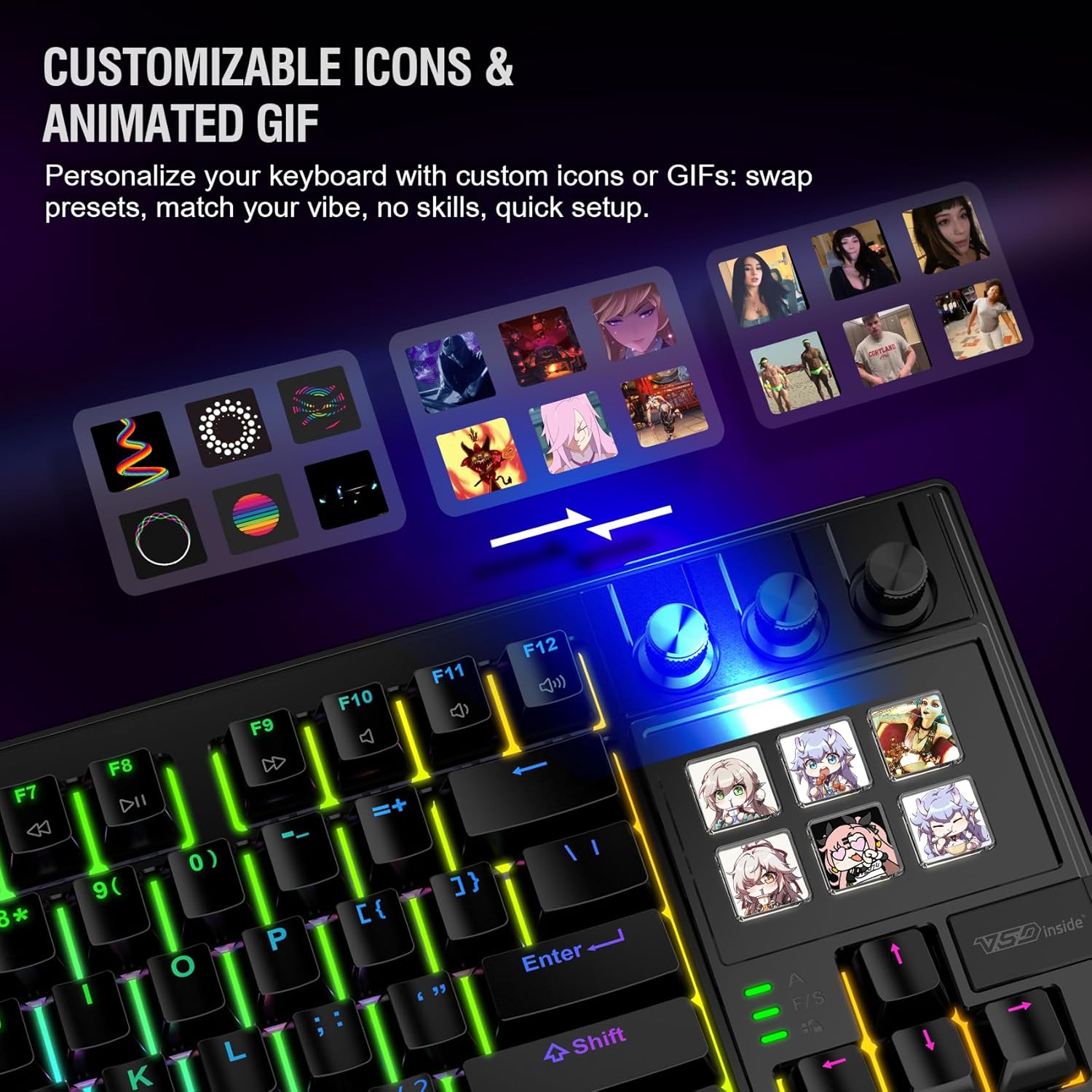
Image 4.1: Personalize your keyboard with custom icons or GIFs on the LCD keys.

Image 4.2: App-Controlled Mode allows for customizable icons, LCD shortcuts, and multi-task execution.
Imaj 4.3: Web-Based Custom Mode provides full-key programming and macro editing.
4.3 Kontwòl ekleraj RGB
The keyboard features over 70 RGB light effects with brightness control. Use the knob or companion software to cycle through effects, adjust colors, and modify animation speed.
4.4 Switch ki ka ranplase a cho
The K1 Pro comes with pre-lubricated Linear Red Switches, offering a smooth and quiet typing experience. The hot-swappable design supports both 3-pin and 5-pin switches, allowing you to easily customize your typing feel without soldering. Use the included switch puller to remove and replace switches.

Image 4.4: Close-up of the Linear Red Switches and the hot-swappable design.
Video 4.1: Demonstration of the VSDINSIDE K1 Pro Mechanical Keyboard's features, including LCD customization and hot-swappable switches.
5. Antretyen
To ensure the longevity and optimal performance of your K1 Pro keyboard, regular maintenance is recommended:
- Netwayaj: Use a soft, dry cloth to wipe down the keyboard surface. For deeper cleaning, remove keycaps using the provided keycap puller and use compressed air to clear debris from beneath the switches.
- Swen Chanjman: While switches are pre-lubricated, you may re-lube them if desired for a customized feel. Refer to online guides for proper switch lubing techniques.
- Jesyon kab: Keep the USB-C cable tidy to prevent damage and ensure stable wired connections.
NAN. Depanaj
If you encounter issues with your VSDINSIDE K1 Pro keyboard, try the following:
- Pwoblèm Koneksyon: Ensure the mode switch (Wired/2.4G/BT) is correctly set. For wireless modes, check battery levels. For Bluetooth, ensure proper pairing.
- Ekleraj RGB: Use the knob or software to adjust brightness and effects. If lights are unresponsive, check software settings or restart the keyboard.
- Lojisyèl konpatibilite: Some users have reported software compatibility issues with macOS. Ensure you have the latest software version and drivers for optimal performance. If issues persist, try the hardware-only mode.
- Kle ki pa reponn: Check if the switch is properly seated. If not, remove and reinsert the switch using the switch puller. If the issue persists, replace the switch with a spare.
For persistent issues not resolved by these steps, please contact VSDINSIDE customer support.
7. Espesifikasyon
| Karakteristik | Detay |
|---|---|
| Dimansyon pake | 16.93 x 7.64 x 2.44 pous |
| Pwa atik | 2.29 liv |
| Manifakti | Shenzhen An Rui Xin Technology Co.,Ltd. |
| Mak | VSDINSIDE |
| Aparèy konpatib | Laptop, PC, Windows, macOS |
| Koneksyon Teknoloji | USB-C, 2.4G Wireless, Bluetooth |
| Deskripsyon klavye | Macro, Mechanical |
| Karakteristik espesyal | Backlit, Customizable Display Key Icons, Full-Key Programmable, Hot-Swappable, Hotkeys and Media Keys |
| Koulè | Black (RGB Backlighting) |
| Materyèl | Plastik, Kawotchou |
| Sous pouvwa | Fil elektrik (USB-C) |
| Chanje Kalite | Mechanical (Pre-lubricated Linear Red Switches) |
8. Garanti ak sipò
Pou enfòmasyon sou garanti a ak sipò teknik, tanpri gade dokiman ki vini ak acha ou a oswa kontakte manifakti a dirèkteman. Kenbe prèv acha ou a pou nenpòt reklamasyon garanti.


