1. Entwodiksyon
This manual provides essential information for setting up, operating, and maintaining your Thunderobot Storm 15 4050 Gaming Laptop. Please read this manual thoroughly before using your device to ensure optimal performance and longevity.
2. Pake kontni
Verifye ke tout atik yo prezan nan anbalaj pwodwi ou a:
- Thunderobot Storm 15 4050 Gaming Laptop
- Adaptè pouvwa ak kab
- Manyèl Itilizatè (dokiman sa a)
- Kat Garanti
Note: Additional accessories may be included depending on your specific purchase configuration.
3. Fizik Plis paseview
3.1. Laptop Exterior
Familiarize yourself with the external components of your laptop.
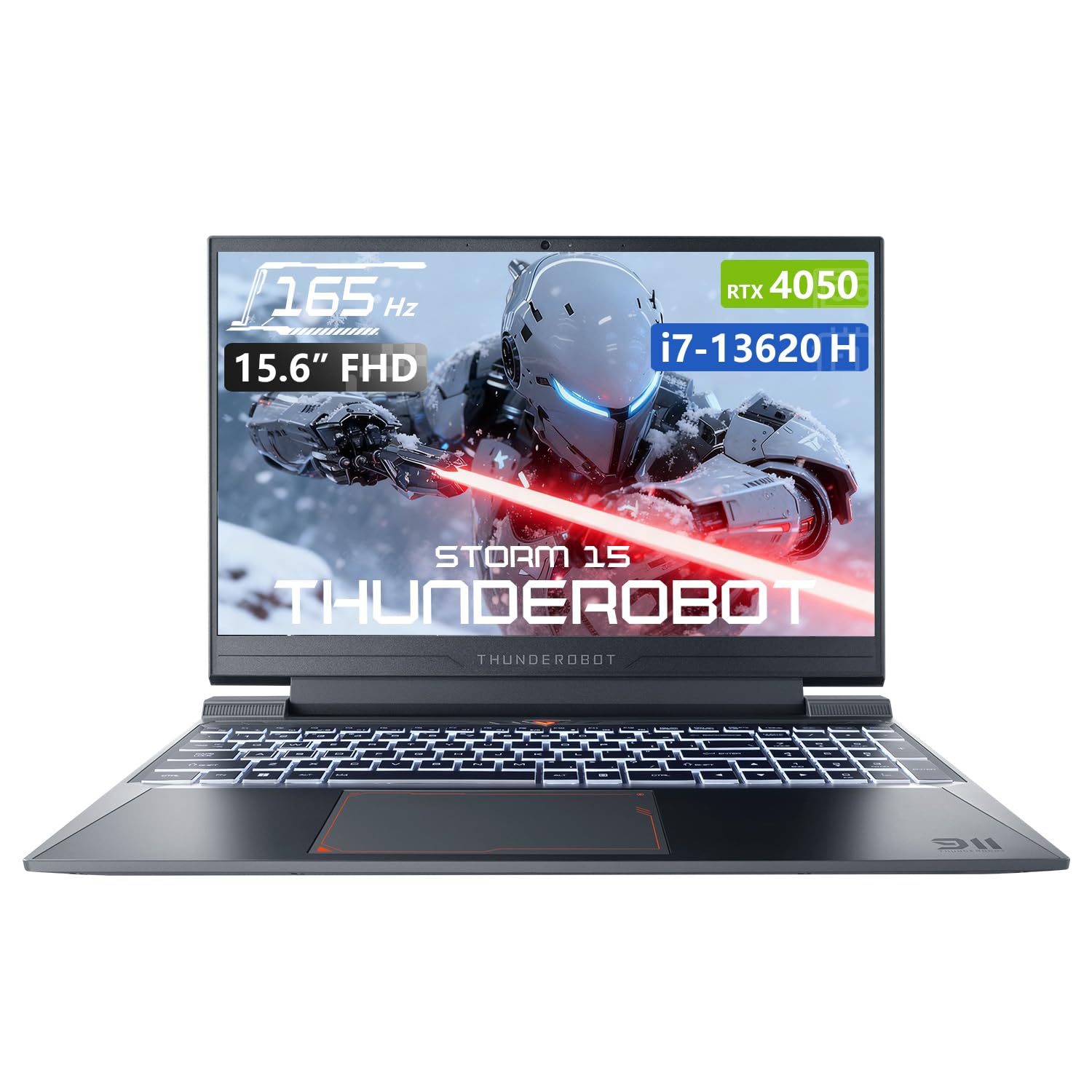
Figi 3.1: Anwo-anba view of the Thunderobot Storm 15 4050 Gaming Laptop.

Figure 3.2: Open view of the Thunderobot Storm 15 4050 Gaming Laptop, highlighting the keyboard and display.
3.2. Pò ak Konektè
The Thunderobot Storm 15 4050 is equipped with various ports for connectivity. Refer to the diagram below for port locations and functions.

Figure 3.3: Port layout of the Thunderobot Storm 15 4050 Gaming Laptop.
- USB 3.1 Jen 2 Kalite-C: For high-speed data transfer and display output.
- RJ-45 Ethernet Port: Pou koneksyon rezo filaire.
- USB 3.1 Kalite-A (x3): Pou konekte aparèy USB yo.
- HDMI Port: Pou konekte ak ekran ekstèn.
- 3.5mm Combo Jack: Pou kas ekoutè oswa kas ekoutè ak mikwofòn.
- Antre pouvwa: Pou konekte adaptè pouvwa a.
3.3. Klavye ak Touchpad
The laptop features a full-size backlit keyboard with a numeric keypad for enhanced usability. The touchpad supports multi-touch gestures.

Figi 3.4: Detaye view of the backlit keyboard.
4. Enstalasyon
4.1. Premye Limen
- Konekte adaptè kouran an nan pò antre kouran laptop la epi answit nan yon priz kouran.
- Louvri kouvèti laptop la.
- Peze bouton pouvwa a pou limen laptop la.
- Swiv enstriksyon ki sou ekran an pou konplete konfigirasyon Windows 11 Home la.
4.2. Konekte nan yon rezo
Ou ka konekte sou entènèt la atravè Wi-Fi oubyen yon koneksyon Ethernet filaire.
- Wi-Fi: After initial setup, click the Wi-Fi icon in the taskbar, select your network, and enter the password.
- Ethernet: Connect an Ethernet cable from your router or modem to the RJ-45 port on the laptop.
5. Kijan pou itilize òdinatè pòtab ou a
5.1. Pèfòmans mòd
The Thunderobot Storm 15 4050 features an Intelligent Control Center allowing you to switch between different performance modes to optimize for various tasks. These modes typically include:
- Berserk Mode: Full performance release for demanding applications and gaming.
- Mòd jwèt: Optimized for smooth gaming performance.
- Audio and Video Office Mode: Balances performance with power efficiency for everyday tasks.
Access the Control Center by searching for "Control Center" in the Windows search bar or by using dedicated function keys (if available). Note: System mode switching in Control Center requires the device to be connected to a power source.

Figure 5.1: Intelligent Control Center interface.
5.2. Sistèm refwadisman
The laptop incorporates an advanced Frost Cooling System designed for efficient heat dissipation, crucial during intensive use. This system includes multi-heat-pipe design, high-pressure turbine fans, and high-density copper fins.
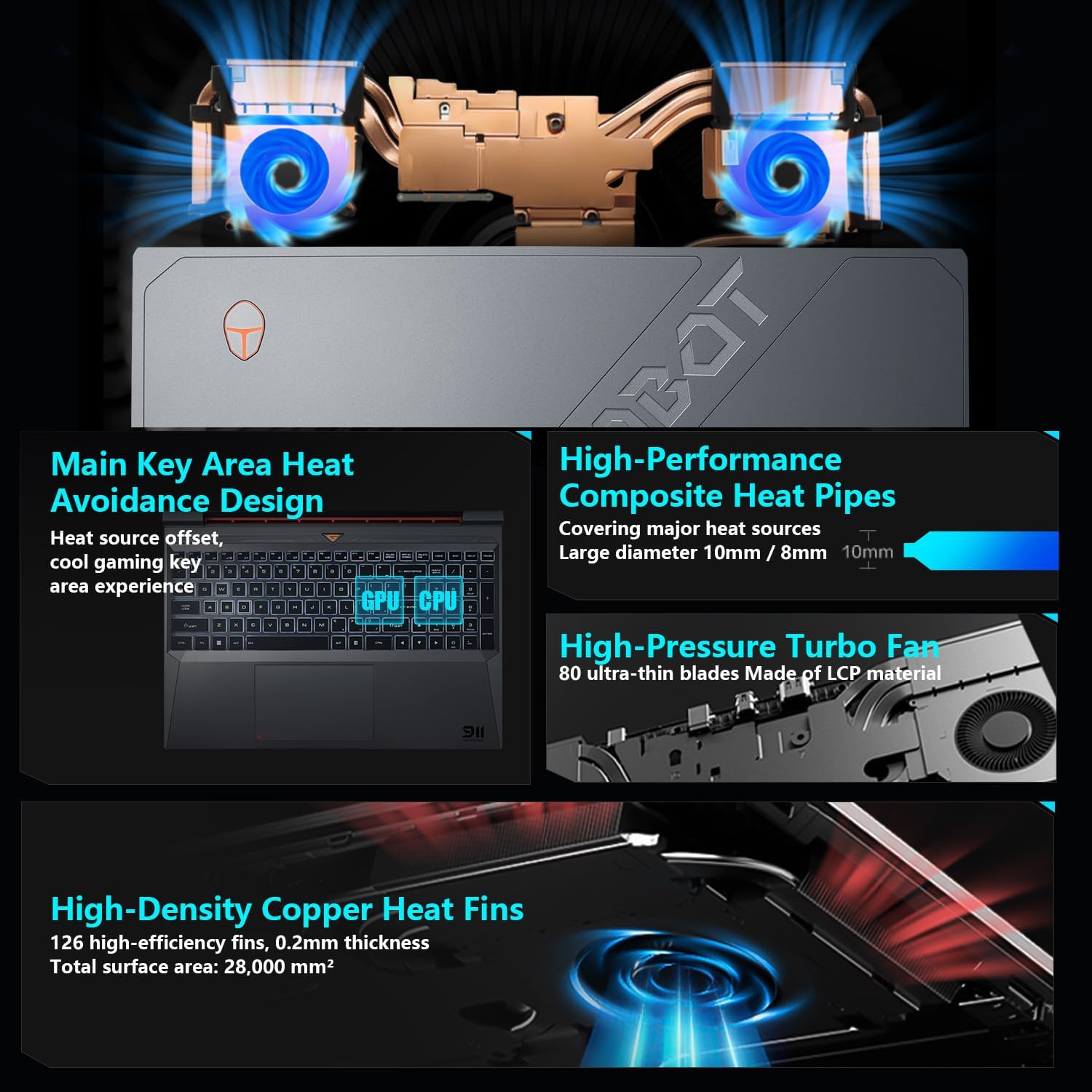
Figi 5.2: Entèn view of the Frost Cooling System.
Ensure that the air vents are not obstructed to maintain optimal cooling performance. Fan speed can be adjusted via the Control Center.
5.3. Display Anviwònman
Your laptop features a 15.6-inch Full HD (1920x1080) display with a 165Hz refresh rate. You can adjust display settings through Windows settings (Right-click on desktop > Display settings) to customize resolution, refresh rate, and color profiles.
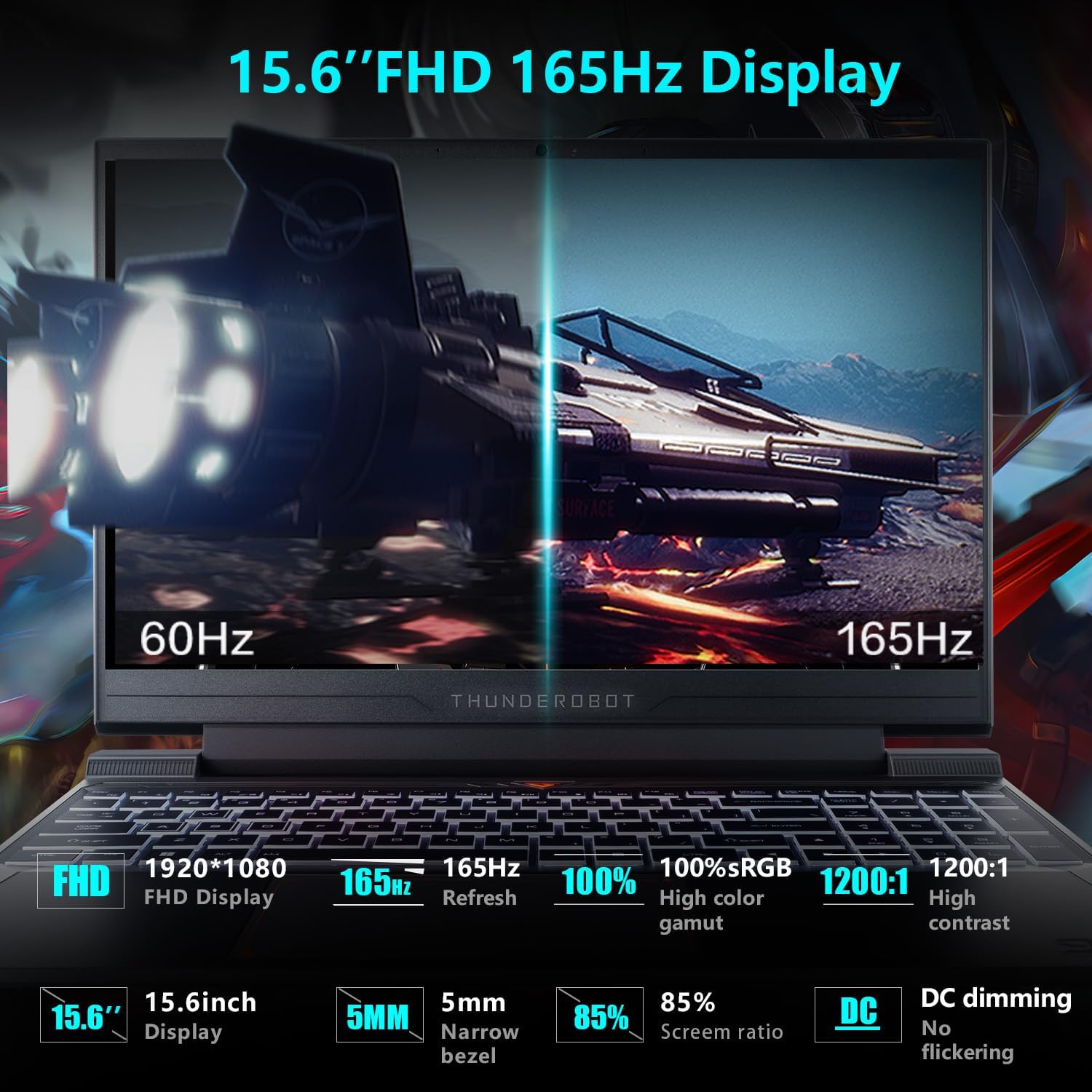
Figure 5.3: Display features of the Thunderobot Storm 15 4050.
5.4. Sistèm Odyo
The laptop is equipped with a professional sound system for an immersive audio experience. Adjust volume and sound settings through the Windows sound control panel.
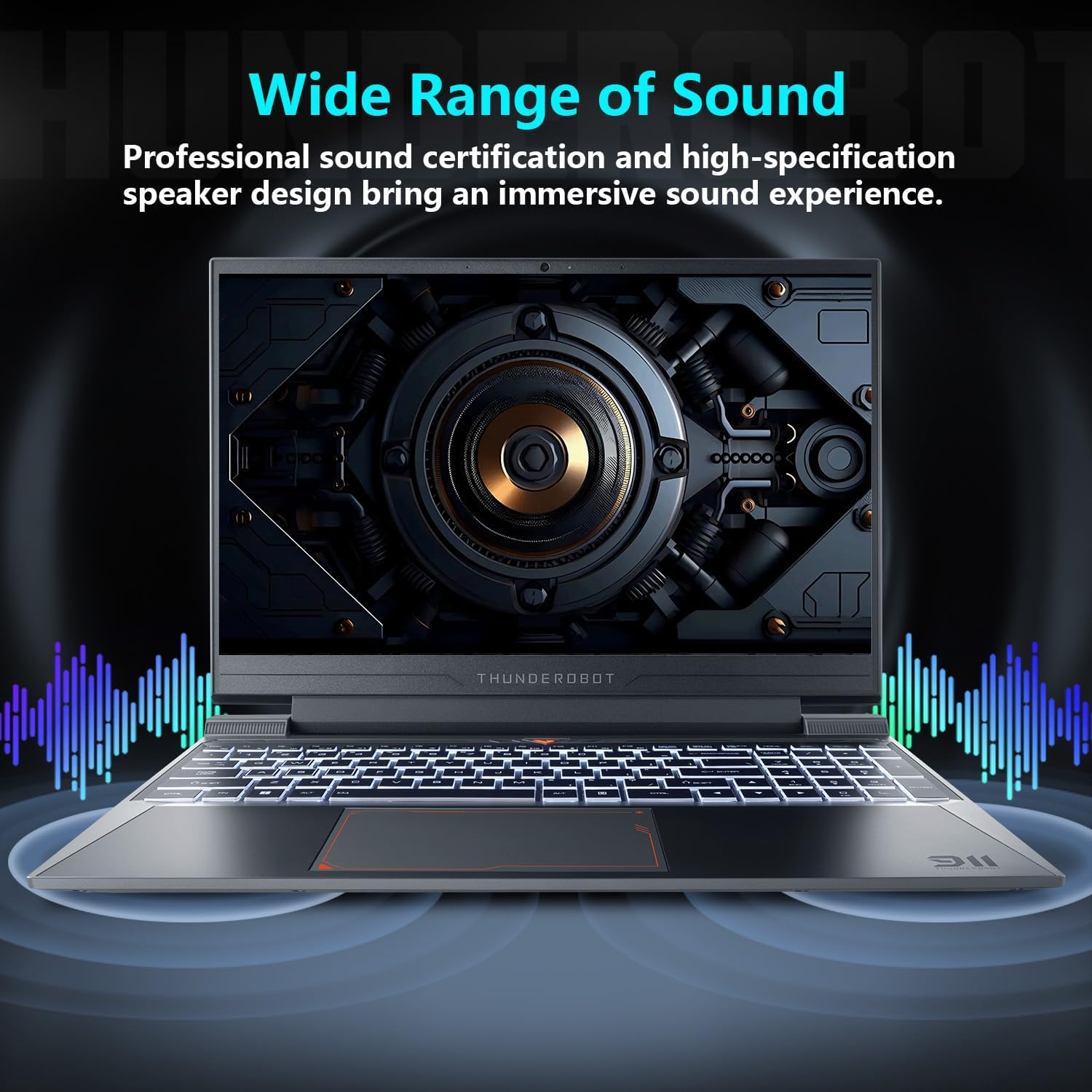
Figure 5.4: Audio system overview.
6. Antretyen
Bon antretyen asire lonjevite ak pèfòmans laptop ou.
- Netwayaj: Use a soft, dry cloth to clean the screen and chassis. For stubborn marks, a slightly damp cloth with a mild cleaning solution can be used, ensuring no liquid enters the device.
- Vantilasyon: Regularly check and clean the air vents to prevent dust buildup, which can hinder cooling performance.
- Swen batri: For optimal battery life, avoid consistently discharging the battery completely or keeping it at 100% charge for extended periods.
- Mizajou lojisyèl: Keep your operating system and drivers updated to ensure stability and security.
NAN. Depanaj
Seksyon sa a adrese pwoblèm komen ou ka rankontre.
| Pwoblèm | Kòz posib | Solisyon |
|---|---|---|
| Laptop la pa limen. | Battery depleted, power adapter not connected properly. | Ensure the power adapter is securely connected and the laptop is charging. Try a different power outlet. |
| Screen remains black after power on. | External display connected, display driver issue. | Disconnect any external displays. Try pressing Fn + F1 (or the appropriate function key for display toggle) to switch display output. |
| Pwoblèm koneksyon Wi-Fi. | Wi-Fi enfim, modpas ki pa kòrèk, pwoblèm routeur. | Ensure Wi-Fi is enabled in Windows settings. Verify the Wi-Fi password. Restart your router. |
| Laptop is running slow or overheating. | Too many applications running, obstructed vents, outdated drivers. | Close unnecessary applications. Clean air vents. Update drivers. Adjust fan speed in Control Center. |
Si ou rankontre pwoblèm ki pa nan lis la a oswa si solisyon yo sijere yo pa rezoud pwoblèm nan, tanpri kontakte sèvis kliyan.
8. Espesifikasyon
Detailed technical specifications for the Thunderobot Storm 15 4050 Gaming Laptop:
- Modèl: Tanpèt 15
- Processeur: Intel Core i7-13620H (10 Nwayo, 16 Fil, jiska 4.9 GHz)
- Grafik: NVIDIA GeForce RTX 4050 Laptop GPU (Dedicated)
- Ekspozisyon: 15.6-inch Full HD (1920x1080) 165Hz
- RAM: 16GB DDR4 3200MHz
- Depo: SSD PCIe M.1 2TB
- Sistèm operasyon: Windows 11 Kay
- Koneksyon Wireless: Wi-Fi 802.11ac, Bluetooth
- Pò: USB 3.1 Gen 2 Type-C, 3x USB 3.1 Type-A, HDMI, RJ-45 Ethernet, 3.5mm Combo Jack, Power Input
- Klavye: Full-size Backlit Keyboard with Numeric Keypad
- Dimansyon: 14.12 x 10.14 x 0.94 pous
- Pwa: Apeprè 12 liv
9. Garanti ak sipò
Every Thunderobot laptop includes a 12-month warranty, offering expert support, thorough diagnostics, and genuine parts if a repair is needed. We also provide a 90-day warranty on all warranty replacement parts, ensuring hassle-free repairs.
For technical support, warranty claims, or service inquiries, please visit the official Thunderobot website or contact their customer service department. Keep your purchase receipt and warranty card for reference.
Videyo 9.1: Yon ti prezantasyonview prezantasyon videyoasing the Thunderobot Storm 15 4050 Gaming Laptop's features and design. This video is provided by the seller and offers a quick visual overview nan pwodwi a.
Video 9.2: Another short preview video highlighting the Thunderobot Storm 15 4050 Gaming Laptop's design elements and user interaction. This video is provided by the seller and offers a quick visual overview nan pwodwi a.


