Pwodwi souview
The TP-Link RE515X AX1500 WiFi 6 Range Extender is designed to expand your existing Wi-Fi coverage, eliminate dead zones, and provide a more stable and faster internet experience throughout your home or office. This device supports the latest Wi-Fi 6 standard, offering enhanced performance for multiple devices.
Karakteristik kle
- Dual-Band WiFi 6 Connectivity: Extends your home network with speeds of up to 1201 Mbps on the 5 GHz band and 300 Mbps on the 2.4 GHz band, totaling 1.5 Gbps for seamless streaming, gaming, and downloading.
- Pwoteksyon Maksimize: Two high-gain directional antennas with Beamforming technology enhance signal strength and reliability, providing Wi-Fi coverage up to 1800 square feet and supporting up to 64 devices.
- Konpatib ak EasyMesh: Seamlessly expands your network for whole-home mesh connectivity when paired with any EasyMesh-compatible router.
- Pò Gigabit Ethernet: Provides a wired connection for devices such as smart TVs, computers, or game consoles, ensuring stable and high-speed access.
- Smart Adaptive Roaming: Ensures uninterrupted coverage and optimal performance by automatically connecting your devices to the strongest signal as you move throughout your home.
- Mode Pwen Aksè (AP): Converts any wired internet connection into a powerful dual-band Wi-Fi hotspot using the Gigabit Ethernet port.
- Enstalasyon fasil: Set up and manage your Wi-Fi network in minutes using the intuitive TP-Link Tether app (available for Android and iOS). The app also features an intelligent signal indicator to help you find the optimal placement for the extender.
- Inivèsèl konpatibilite: The AX1500 range extender is compatible with almost all Wi-Fi-enabled devices, routers, or access points, including new AX phones and laptops.
Nòt enpòtan
- Maximum wireless signal rates are physical rates derived from IEEE Standard 802.11 specifications. Actual wireless data throughput and coverage are not guaranteed and may vary due to network conditions, client limitations, and environmental factors (e.g., building materials, obstacles, traffic volume, client location).
- Utilization of Wi-Fi 6 (802.11ax) features, including OFDMA and MU-MIMO, requires client devices to also support these corresponding features.
- The product may not be compatible with routers or gateways that have altered firmware, are based on open-source programs, or are non-standard or outdated.
- Smart Roaming is designed for devices that support the 802.11k/v standard.
- TP-Link EasyMesh-compatible products can network with other EasyMesh devices. Failed connections may occur due to firmware conflicts between different vendors. The EasyMesh-compatible function is under continuous development and will be supported in subsequent software updates for some models. This product is compatible with standardized EasyMesh technology but has not obtained Wi-Fi EasyMesh™ certification.
- Wireless extenders are designed to increase or improve Wi-Fi coverage, not to directly increase internet speed. Improved signal reliability can, however, affect overall throughput.
- Actual network speed may be limited by the rate of the product's Ethernet WAN or LAN port, the network cable's rate, Internet service provider factors, and other environmental conditions.
Gid Enstalasyon
1. Plasman Inisyal
For optimal initial setup, plug the RE515X into a power outlet located near your main Wi-Fi router. This ensures a strong connection during the configuration process.
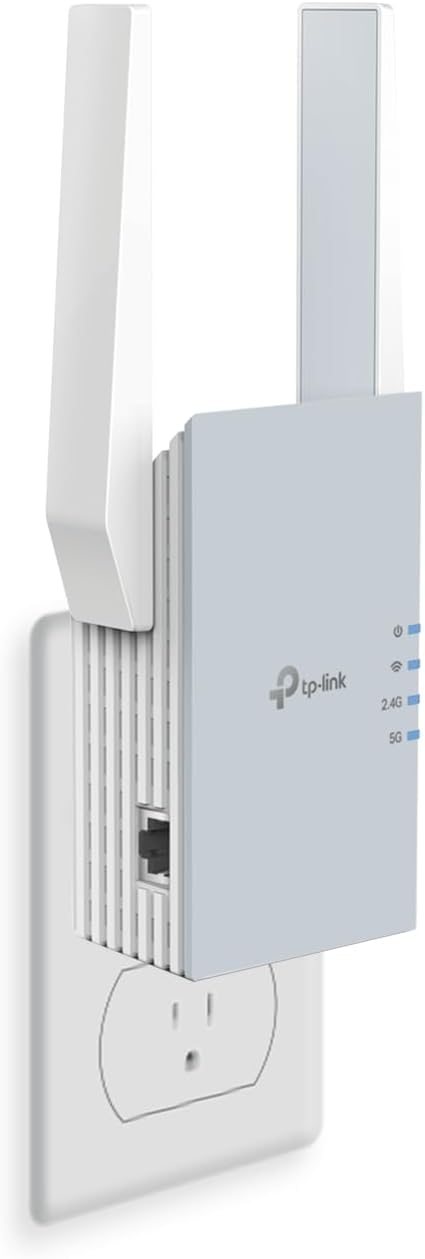
Image: The TP-Link RE515X Range Extender plugged into a standard wall outlet. The device is white with two foldable antennas and indicator lights on the front.
2. Using the TP-Link Tether App for Setup
- Telechaje App a: Download the TP-Link Tether app from the Apple App Store (for iOS devices) or Google Play Store (for Android devices).
- Lanse epi konekte: Open the Tether app and log in with your TP-Link ID. If you do not have one, create an account.
- Ajoute Aparèy: Tap the '+' icon in the app to add a new device. Select 'Range Extender' and follow the on-screen prompts.
- Konekte ak Wi-Fi Extender a: The app will instruct you to connect your mobile device to the extender's temporary Wi-Fi network (e.g., 'TP-Link_Extender').
- Konfigirasyon rezo a: Select your main Wi-Fi network from the list provided in the app and enter its password. The extender will then connect to your main router.
- Kreye Modpas Aparèy: You will be prompted to create a new password for accessing and managing the extender through the Tether app. This is separate from your Wi-Fi password.

Image: A smartphone displaying the TP-Link Tether app interface, showing the RE515X extender and its network status. QR codes and links to download the app from the App Store and Google Play are also visible.
3. Relocating the Extender
After successful initial setup, unplug the RE515X and move it to a location that is roughly halfway between your main router and the area where you need improved Wi-Fi coverage. Ensure this new location is still within the range of your main router to maintain a strong connection. Use the signal indicator lights on the extender or the Tether app to verify optimal placement (typically, solid blue lights indicate a good connection).

Image: A diagram illustrating how the RE515X extends Wi-Fi coverage from a main router to previously uncovered areas within a home, showing coverage up to 1800 Sq. Ft.
Operating Your Range Extender
Range Extender Mode
In Range Extender Mode, the RE515X wirelessly connects to your existing router and rebroadcasts its signal. This mode is ideal for extending Wi-Fi to areas of your home that suffer from weak signals or dead zones. Devices connected to the extended network will automatically switch between your main router and the extender for the strongest possible signal, thanks to Smart Adaptive Roaming.
Pwen Aksè (AP) Mode
The RE515X can also function as an Access Point. To use this mode, connect an Ethernet cable from your main router to the Gigabit Ethernet port on the extender. The extender will then create a new dual-band Wi-Fi network, converting your wired internet connection into a wireless hotspot. This is useful for adding Wi-Fi capability to a wired-only network or for creating a separate Wi-Fi network in a specific area.

Image: The TP-Link RE515X plugged into a wall outlet with an Ethernet cable connected to its port, illustrating its use in Access Point Mode.
EasyMesh konpatibilite
The RE515X is EasyMesh-compatible, allowing it to integrate seamlessly with other EasyMesh-compatible routers or extenders to create a unified mesh Wi-Fi network. This provides a single Wi-Fi name and password across your entire home, simplifying network management and ensuring consistent connectivity.

Image: A diagram depicting a home with a main router and an RE515X extender, illustrating how EasyMesh creates a seamless, unified Wi-Fi network with Smart Roaming and a single Wi-Fi name.
Antretyen
To ensure the longevity and optimal performance of your TP-Link RE515X, consider the following maintenance tips:
- Mizajou mikrolojisyèl: Regularly check for and install the latest firmware updates via the TP-Link Tether app. Firmware updates often include performance improvements, security enhancements, and bug fixes.
- Plasman: Ensure the extender is placed in a well-ventilated area, away from direct sunlight or heat sources, to prevent overheating.
- Netwayaj: Periodically clean the exterior of the device with a soft, dry cloth to prevent dust buildup, which can affect ventilation.
- Rekòmanse: If you experience persistent issues, try restarting the extender by unplugging it from the power outlet for 10 seconds and then plugging it back in.
Depanaj
If you encounter issues with your TP-Link RE515X, refer to the following common troubleshooting steps:
Weak or No Signal After Setup
- Demenajman: The most common cause of poor performance is improper placement. Ensure the extender is positioned roughly halfway between your main router and the area needing coverage. Avoid placing it too far from the main router or in areas with significant physical obstructions (e.g., thick concrete walls, large metal appliances).
- Endikatè siyal: Use the LED signal indicator on the extender or the TP-Link Tether app to find the best placement. Solid blue lights typically indicate a strong connection to the main router.
- Entèferans: Electronic devices such as microwaves, cordless phones, or Bluetooth devices can interfere with Wi-Fi signals. Try moving the extender away from such devices.
Connection Drops or Instability
- Tcheke mikrolojisyèl: Ensure both your main router and the RE515X extender have the latest firmware installed. Outdated firmware can lead to compatibility issues and instability.
- Client Device Support: For optimal performance, especially with Wi-Fi 6 features, ensure your connected client devices also support the relevant Wi-Fi 6 standards.
- Network Load: While the extender supports many devices, an extremely high number of simultaneous high-bandwidth activities (e.g., 4K streaming on multiple devices) might strain the network. Consider reducing simultaneous usage or upgrading your main router if this is a persistent issue.
Ethernet Port Issues
- Koneksyon kab: Verify that the Ethernet cable is securely connected to both the extender's Gigabit Ethernet port and the wired device.
- Fonksyonalite aparèy: Confirm that the wired device's Ethernet port is functional by testing it with a direct connection to your main router if possible.
- Konfigirasyon Mòd AP: If using the extender in Access Point mode, ensure it has been correctly configured as an AP via the Tether app.
Espesifikasyon teknik
- Mak: TP-Link
- Modèl: RE515X
- Kalite san fil: 802.11a/b/g/n, 802.11ac, 802.11ax (Wi-Fi 6)
- Pousantaj transfè done: Jiska 1500 Mbps (1201 Mbps sou 5 GHz, 300 Mbps sou 2.4 GHz)
- Gwoup Gwoup Frekans: Doub-Band
- Karakteristik espesyal: Access Point Mode, LED Indicator
- Pwa atik: 10.2 ons
- Dimansyon pake: 8.03 x 5 x 3.82 pous
- Koulè: Blan
Ki sa ki nan bwat la
- 1 x TP-Link RE515X AX1500 WiFi 6 Range Extender
- 1 x Gid Enstalasyon Rapid
Garanti ak sipò
TP-Link is committed to providing secure and reliable products. The RE515X is designed, built, and maintained with advanced security as a core requirement, aligning with the U.S. Cybersecurity and Infrastructure Security Agency’s (CISA) Secure-by-Design pledge.
For detailed warranty information, technical support, or to access additional resources, please visit the official TP-Link website or contact their customer service directly. Support resources typically include FAQs, troubleshooting guides, and contact options for personalized assistance.

Image: An illustration highlighting TP-Link's commitment to cybersecurity and privacy, referencing the CISA Secure-by-Design pledge and HomeShield services.


