1. Entwodiksyon
Welcome to the Dragon Touch 10.1-inch Digital Calendar & Chore Chart. This interactive touchscreen device is designed to help families organize schedules, manage tasks, plan meals, and display cherished photos. This manual provides detailed instructions for setup, operation, maintenance, and troubleshooting to ensure you get the most out of your device.
2. Pake kontni
Tanpri tcheke kare a pou atik sa yo:
- Dragon Touch 10.1-inch Digital Calendar & Chore Chart
- Adaptè pouvwa
- Gid Quick Start
3. Pwodwi souview
The Dragon Touch 10.1-inch Digital Calendar & Chore Chart serves as a central hub for family organization. Its intuitive touchscreen interface allows for easy navigation and interaction with various features.

Figi 1: The Dragon Touch 10.1-inch device showing a weekly calendar view with tasks assigned to different family members, alongside a smartphone displaying the eCalendar app interface.
4. Enstalasyon
4.1 Limen
- Connect the power adapter to the device's power port.
- Ploge adaptè pouvwa a nan yon priz miray.
- The device will automatically power on. Follow the on-screen prompts for initial setup.
4.2 Konekte ak Wi-Fi
- During the initial setup, select your preferred Wi-Fi network from the list.
- Antre modpas Wi-Fi a epi tape sou 'Konekte'.
- Ensure a stable internet connection for optimal performance and synchronization.
4.3 Installing and Syncing with the eCalendar App
The eCalendar app allows for remote management and synchronization with your device.
- Download the 'eCalendar' app from your smartphone's app store (iOS or Android).
- Kreye yon kont oswa konekte.
- Follow the in-app instructions to link your Dragon Touch device. This typically involves scanning a QR code displayed on the device or entering a pairing code.
4.4 Integrating External Calendars
The device supports seamless integration with multiple personal calendars (e.g., iOS Calendar, Google Calendar).

Figi 2: The device demonstrating its ability to effortlessly auto-sync with various popular calendar services, including Outlook, Cozi, Yahoo, Apple, and Google.
- Within the eCalendar app or directly on the device settings, navigate to the 'Sync' or 'Calendar Integration' section.
- Select the calendar services you wish to integrate (e.g., Google, Apple, Outlook).
- Grant the necessary permissions for the app to access your external calendars.
- Once authorized, events from your external calendars will appear on the Dragon Touch device.
5. Operasyon Enstriksyon
5.1 Navige nan Entèfas la
The device features a touchscreen interface. Swipe left/right to navigate between different views (Day, Week, Month) and tap on icons to access specific features like Calendar, Tasks, Rewards, Meals, Photos, Lists, Sleep, and Settings.
5.2 Managing Calendar Events
View and add events directly on the device or through the eCalendar app. Events can be assigned different colors and tasks to individual family members for clear organization.
5.3 Using the Chore Chart
The interactive chore chart helps organize household tasks and motivates family members. Assign tasks, set deadlines, and track completion.

Figi 3: A family interacting with the digital calendar to manage and track family tasks, illustrating the intuitive nature of the chore chart feature.
5.4 Planning Meals
Display your family's dinner plans directly on the device. This feature helps keep everyone informed about upcoming meals.

Figi 4: The device showcasing its meal planning display, allowing users to easily view and organize daily and weekly meal schedules.
5.5 Digital Picture Frame Mode
When not actively using the calendar or other features, the device can transform into a digital picture frame, displaying cherished family photos.
5.6 Using the Mobile App (eCalendar)
The eCalendar app provides powerful remote management capabilities, allowing you to access and update your calendar, chore chart, dinner plan, and grocery lists from anywhere.
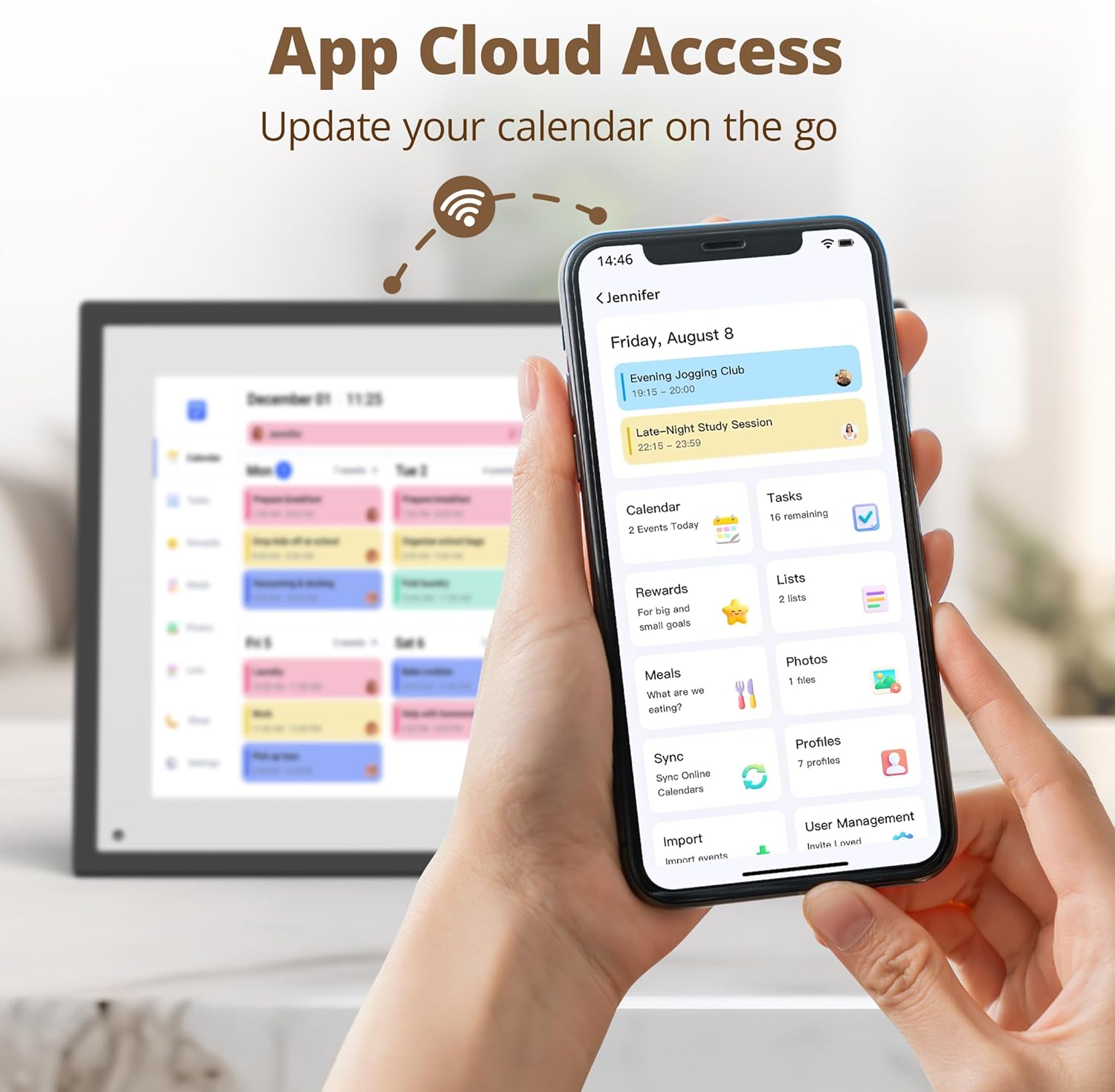
Figi 5: The eCalendar mobile app interface, demonstrating cloud access for managing schedules, tasks, and other features remotely.
5.7 Customizing Settings and Profiles
Personalize your experience by creating custom profiles for each family member, assigning different colors, and customizing lists (e.g., grocery list, to-do list). Adjust brightness, volume, and other system settings as needed.

Figi 6: Various customization screens, including list customization, color selection, user profile management, and different calendar view options (Day, Week, Month).
5.8 Rewards System
The device includes a rewards system designed to encourage positive habits, particularly for children. Tasks can be linked to rewards, which can be redeemed once tasks are completed.

Figi 7: A child interacting with the device to complete tasks and earn rewards, fostering independence and habit formation.
6. Antretyen
- Netwayaj: Use a soft, dry, lint-free cloth to clean the screen and exterior. Avoid abrasive cleaners or solvents.
- Mizajou lojisyèl: Ensure your device is connected to Wi-Fi to receive automatic software updates, which provide new features and performance improvements.
- Plasman: Place the device on a stable, flat surface away from direct sunlight, excessive heat, or moisture.
NAN. Depanaj
Si ou rankontre pwoblèm, gade tablo ki anba a pou pwoblèm ak solisyon komen yo.
| Pwoblèm | Solisyon |
|---|---|
| Aparèy pa limen. | Asire w adaptè kouran an byen konekte ak aparèy la ak yon priz kouran ki fonksyone. |
| Pa ka konekte ak Wi-Fi. | Check your Wi-Fi password. Ensure the device is within range of your router. Try restarting your router. |
| Calendar events are not syncing. | Verify your device has an active internet connection. Check the eCalendar app settings to ensure external calendars are correctly linked and permissions are granted. |
| Ekran taktil la pa reponn. | Restart the device by unplugging and re-plugging the power adapter. Ensure the screen is clean and free of debris. |
8. Espesifikasyon
| Karakteristik | Detay |
|---|---|
| Mak | Dragon Touch |
| Modèl | 10.1 inch Digital Calendar & Chore Chart |
| Gwosè ekran | 10.1 pous |
| Rezolisyon | 1080p |
| Aparèy konpatib | Smartphone (for app integration) |
| Koulè | Nwa |
9. Garanti ak sipò
Dragon Touch products come with a standard manufacturer's warranty. For specific warranty details, please refer to the warranty card included in your package or visit the official Dragon Touch website. For technical support, product inquiries, or service requests, please contact Dragon Touch customer support through their official channels.


