1. Entwodiksyon
This manual provides instructions for the SOVMIKU Vicohome 2K AI Solar Security Camera and 5G Wi-Fi Indoor Camera. These cameras offer advanced surveillance features including 2K resolution, AI motion detection, two-way audio, and flexible storage options. The solar-powered outdoor camera provides continuous operation, while the indoor camera offers versatile monitoring with dual-band Wi-Fi connectivity.
Please read this manual carefully before using the product to ensure proper installation and operation.
2. Pake kontni
Verifye ke tout atik yo prezan nan pakè ou a:
- Camera body (Solar Outdoor or 5G Wi-Fi Indoor model)
- Mounting bracket
- Solar panel (for outdoor model)
- USB kab
- Manyèl itilizatè
- Vis ak lankr miray
- SIM card & SD card (if included with specific model)

Figi 2.1: Egzample of package contents for a SOVMIKU camera.
3. Enstalasyon
3.1 Telechaje Aplikasyon an ak Kreye yon Kont
Telechaje gratis la "Vicohome" App from Google Play Store (for Android) or Apple App Store (for iOS). Follow the in-app instructions to create an account and log in.
3.2 Camera Charging
Before initial use, fully charge the camera battery using the provided USB cable and a standard 5V 1A charger. For solar-powered models, ensure the solar panel is connected and placed in direct sunlight.

Figure 3.1: Solar panel connected to the camera for continuous charging.
3.3 Enstalasyon Kat MicroSD (Si ou vle)
To store recordings locally, insert a microSD card (up to 128GB, not included) into the designated slot on the camera. Ensure the camera is powered off before inserting or removing the card.

Figure 3.2: Installing a microSD card for local storage.
3.4 Koneksyon Wi-Fi
The cameras support dual-band Wi-Fi (2.4GHz and 5GHz). Follow the in-app instructions to connect your camera to your home Wi-Fi network. Ensure your router is within range and provides a stable signal.

Figure 3.3: Dual-band Wi-Fi compatibility for flexible network connection.
3.5 Enstalasyon Kamera
Mount the camera using the provided bracket and screws. For solar-powered outdoor cameras, ensure the solar panel is positioned to receive maximum direct sunlight throughout the day. Avoid shaded areas.

Figure 3.4: Outdoor camera dimensions and weather resistance.

Figure 3.5: Two-way audio feature in use.
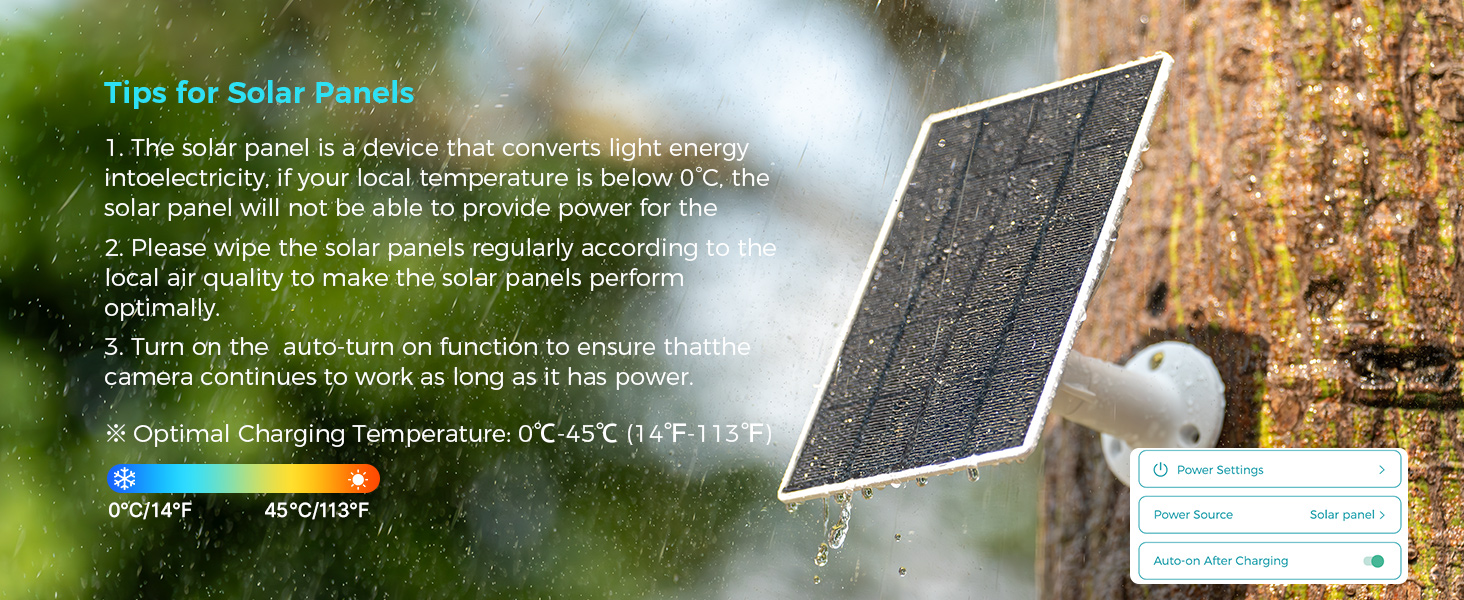
Figure 3.6: Outdoor camera designed for durability in various weather conditions.
4. Operasyon Enstriksyon
4.1 Viv View and Multi-Camera Monitoring
Open the Vicohome App to view live feeds from your cameras. The app allows simultaneous viewing of up to four cameras without an NVR. Click the second button in the top right corner of the app to access this feature.

Figure 4.1: Vicohome App interface showing multiple camera feeds.
4.2 Deteksyon ak Suivi Mouvman
The camera is equipped with a High Tolerance CMOS and PIR Sensor for accurate motion detection. When motion is detected, the device will automatically track the movement and send push notifications to your phone. For the CB2 camera, an emergency SOS call can be initiated with one click.

Figure 4.2: Motion tracking in action, highlighting detected movement.

Figure 4.3: Motion detection alerts on a smartwatch.
4.3 Odyo De-fason
Utilize the two-way audio feature to communicate through the camera. This allows you to speak to visitors or deter intruders remotely via the Vicohome App.

Figure 4.4: Engaging in two-way communication via the camera.
4.4 Night Vision and Alerts
The cameras provide color night vision for clear images in low-light conditions. When motion is detected at night, the camera can activate a flashlight and an audible siren to deter unwanted activity.

Figure 4.5: Flashlight and audible alarm activation upon motion detection.
4.5 Storage Options (Local & Cloud)
Recordings can be stored locally on a microSD card (up to 128GB) or securely in the cloud. Cloud storage offers encrypted backup, ensuring your recordings are safe even if the camera is compromised.

Figure 4.6: Flexible local and encrypted cloud storage solutions.
4.6 Multi-User and Multi-Device Support
The Vicohome App supports connecting up to 50 devices. You can share camera access with up to 10 different users, setting specific permissions for each. Up to three accounts can view kamera a an menm tan.

Figure 4.7: Ecosystem of Vicohome devices managed through a single app.
5. Antretyen
5.1 Antretyen Panèl Solè
Regularly wipe the solar panels to remove dust and debris, ensuring optimal charging efficiency. Install the solar panel in a location that receives maximum direct sunlight.

Figure 5.1: Proper solar panel placement and settings for optimal charging.
5.2 Optimal Charging Temperature
The optimal charging temperature for the solar panel is 0°C to 45°C (14°F to 113°F). If the local temperature is below 0°C, the solar panel may not provide power effectively.
Figure 5.2: Tips for maintaining solar panel performance.
5.3 Netwayaj jeneral
Wipe the camera lens and body with a soft, dry cloth. Avoid using harsh chemicals or abrasive materials that could damage the device.
NAN. Depanaj
6.1 Pwoblèm koneksyon
- Kamera a pa konekte ak Wi-Fi a: Ensure your Wi-Fi network is 2.4GHz or 5GHz (depending on camera model compatibility) and the signal is strong. Restart your router and the camera.
- Remote viewing not working: Check your internet connection. Ensure the Vicohome App has necessary network permissions on your smartphone.
6.2 Pwoblèm pouvwa
- Solar camera not charging: Verify the solar panel is clean and positioned in direct sunlight. Check the cable connection between the solar panel and the camera. Ensure the auto-on after charging function is enabled in the app settings.
- Batri a vide byen vit: Reduce motion detection sensitivity or frequency of recordings. Ensure the camera is receiving adequate sunlight for solar charging.
6.3 Image/Video Quality Issues
- Imaj flou: Clean the camera lens. Ensure there is sufficient lighting.
- Night vision not clear: Ensure there are no obstructions blocking the infrared lights.
6.4 SIM Card Questions (for LTE models, if applicable)
Some models may support SIM cards for 4G connectivity. If you have an LTE model:
- Can I use my own SIM card? Yes, this camera supports Verizon, T-Mobile, and AT&T SIM cards.
- Can the SIM card be used on a phone? No, the SIM card is exclusively for Sovmiku cameras.
Figure 6.1: Common questions and answers regarding camera connectivity.
7. Espesifikasyon
| Karakteristik | Deskripsyon |
|---|---|
| Rezolisyon videyo | 2K (3 Megapiksèl) |
| Koneksyon Wi-Fi | 2.4GHz ak 5GHz Doub-Band |
| Depo | Kat MicroSD (jiska 128GB), Depo nan nwaj la |
| Deteksyon Mouvman | AI Human/Pet/Vehicle Detection, PIR Sensor |
| Vizyon lannwit | Koulè lannwit Vizyon |
| Odyo | De-fason odyo |
| Rezistans move tan | IP65 (for outdoor models) |
| Tanperati Fonksyònman | -10 ° C a 45 ° C (14 ° F a 113 ° F) |
| Pan/Tilt (for specific models) | 355° Pan, 90° Panche |
| Sous pouvwa | Battery Powered, Solar Charging (for outdoor models) |

Figure 7.1: Camera features including 2K resolution and PIR motion detection.

Figure 7.2: High-resolution imaging capabilities.
8. Garanti ak sipò
8.1 180-Day Exchange Policy
SOVMIKU offers a 180-day exchange policy. If you are not satisfied with the product, you may submit a request for a solution within 24 hours.
8.2 Kontakte Sipò
For technical assistance or customer service, please contact us via email:
Imèl: Sovmiku@163.com
We aim to provide the best solution within 24 hours.

Figure 8.1: Contact information for support.


