1. Enstalasyon
This section guides you through the initial setup of your OPPO Reno 14 5G smartphone.
1.1 Debale ak Kontni Pakè a
Carefully unbox your device. The standard package typically includes:
- OPPO Reno 14 5G Smartphone
- USB Kalite-C kab
- Adaptè pouvwa
- Zouti èkstrè SIM
- Gid Quick Start
- Gid Sekirite
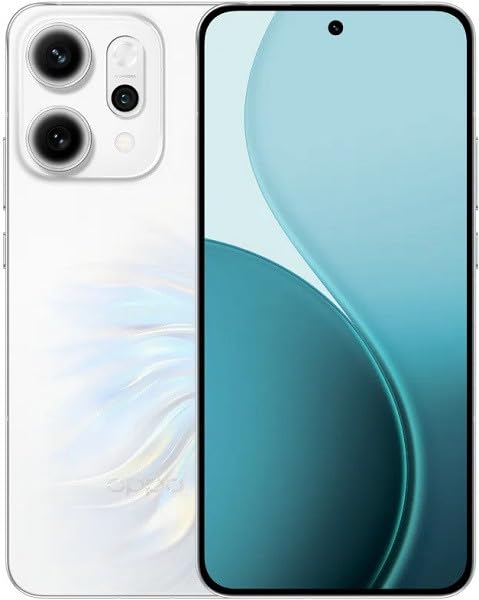
Image: OPPO Reno 14 5G smartphone and typical package contents. This image provides a general overview of the device and what you might find in the box.
1.2 Mete Kat SIM lan
- Jwenn plato kat SIM lan sou bò telefòn ou an.
- Mete zouti pou retire kat SIM lan nan ti twou ki akote plato a epi peze byen fèm jiskaske plato a soti.
- Place your Nano-SIM card(s) into the tray with the gold contacts facing down, ensuring they are correctly aligned. This device supports Dual SIM functionality.
- Pouse plato a tounen nan telefòn nan ak anpil atansyon jiskaske li fè yon klik.
Note: Ensure the phone is powered off before inserting or removing SIM cards.
1.3 Premye Limen ak Konfigirasyon
- Peze epi kenbe bouton Pouvwa a (anjeneral sou bò dwat la) jiskaske logo OPPO a parèt.
- Swiv enstriksyon ki sou ekran an pou chwazi lang ou, rejyon ou, konekte sou Wi-Fi a, epi konfigire kont Google ou.
- You will be prompted to set up security features like a PIN, pattern, fingerprint, or face unlock.
1.4 Chaje Aparèy la
Anvan premye itilizasyon an, li rekòmande pou chaje aparèy ou an nèt.
- Konekte kab USB Kalite-C a nan pò chaje ki anba telefòn nan.
- Konekte lòt bout kab la nan adaptè kouran an, answit branche adaptè a nan yon priz kouran.
- Endikatè chaj la ap parèt sou ekran an.
2. Opere aparèy ou an
Learn how to navigate and use the core functions of your OPPO Reno 14 5G.
2.1 Navigasyon debaz
- Bouton pouvwa: Peze pou limen/etenn ekran an. Peze epi kenbe pou etenn oswa rekòmanse.
- Bouton Volim: Ajiste volim medya a, volim apèl la, oswa volim sonri a.
- Jès ekran taktil: Swipe up for app drawer, swipe down for notifications/quick settings, pinch to zoom, tap to select.
2.2 Fè apèl epi voye mesaj
- Apèl: Louvri aplikasyon Telefòn nan, antre nimewo a oswa chwazi yon kontak, epi tape ikòn apèl la.
- Mesaj: Louvri aplikasyon Mesaj yo, tape ikòn nouvo mesaj la, antre non moun k ap resevwa mesaj la ak mesaj ou a, epi tape voye.
2.3 Itilizasyon Kamera
Your OPPO Reno 14 5G features a high-quality camera system.
- Louvri aplikasyon Kamera a nan ekran prensipal ou a oswa nan tiwa aplikasyon yo.
- Chwazi mòd ou vle a (Foto, Videyo, Pòtrè, Lannwit, elatriye).
- Tape bouton deklanchè a pou pran yon foto oswa pou kòmanse/sispann anrejistreman yon videyo.
- Tap on the screen to focus on a specific area.
2.4 Konekte ak Wi-Fi ak Bluetooth
- Wi-Fi: Ale nan Anviwònman> Wi-Fi, turn Wi-Fi on, select your network, and enter the password if required.
- Bluetooth: Ale nan Anviwònman> Bluetooth, turn Bluetooth on, select the device you wish to pair with from the available devices list.
3. Antretyen
Bon antretyen asire lonjevite ak pèfòmans optimal aparèy ou an.
3.1 Netwaye aparèy ou an
- Sèvi ak yon twal mou ki pa gen pousyè pou siye ekran an ak kò a.
- Evite itilize pwodui chimik ki agresif, materyèl abrazif, oswa espre ayewosòl.
- Pa ekspoze aparèy la nan imidite twòp.
3.2 Mizajou lojisyèl
Regularly check for and install software updates to enhance security, stability, and introduce new features.
- Ale nan Anviwònman > Konsènan aparèy la > Mizajou (or similar path depending on ColorOS version).
- Swiv enstriksyon ki sou ekran an pou telechaje epi enstale nenpòt mizajou ki disponib.
3.3 Swen Batri
- Evite tanperati ekstrèm, ki ka diminye lavi batri a.
- Use only the original OPPO charger and cable or certified compatible accessories.
- Pa kite batri a dechaje nèt souvan.
3.4 Jesyon Depo
To maintain optimal performance, regularly manage your device's storage.
- Ale nan Anviwònman > Depo pou view itilizasyon depo.
- Efase pa nesesè files, aplikasyon, epi efase done kach la.
- Consider backing up photos and videos to cloud storage or an external device.
NAN. Depanaj
This section addresses common issues you might encounter with your OPPO Reno 14 5G.
4.1 Aparèy la pa limen
- Asire w batri a chaje. Konekte chajè a epi tann kèk minit anvan ou eseye limen l.
- Fè yon rekòmanse fòse: Peze epi kenbe bouton Pouvwa a ak bouton Volim Monte a an menm tan pandan apeprè 10-15 segonn jiskaske logo OPPO a parèt.
4.2 Network Issues (No Signal, Cannot Make Calls)
- Tcheke si kat SIM lan byen mete.
- Ensure Airplane Mode is off (swipe down from the top for Quick Settings).
- Rekòmanse aparèy la.
- Ale nan Anviwònman > Rezo mobil and check network settings.
4.3 Aplikasyon ki kraze oswa bloke
- Fèmen aplikasyon an epi relouvri li.
- Efase kach aplikasyon an: Ale nan Settings > Apps > [App Name] > Storage usage > Clear cache.
- Mete aplikasyon an ajou nan Google Play Store la.
- Si pwoblèm nan pèsiste, dezenstale epi reenstale aplikasyon an.
4.4 Reyajisteman faktori (Dènye rekou)
Avètisman: Yon reset faktori ap efase tout done ki sou telefòn ou an. Fè yon kopi done enpòtan yo anvan ou kontinye.
- Ale nan Anviwònman > Anviwònman sistèm > Fè backup epi Reyajiste > Reyajiste telefòn nan.
- Chwazi Efase tout done yo.
- Konfime desizyon ou epi antre modpas ekran fèmen ou si yo mande w.
5. Espesifikasyon
Key technical specifications for the OPPO Reno 14 5G CPH2737.
| Karakteristik | Spesifikasyon |
|---|---|
| Mak | OPPO |
| Modèl | Reno 14 5G (CPH2737) |
| Kapasite Depo memwa | 256 GB |
| Gwosè memwa RAM enstale | 12 GB |
| Kalite ekspozisyon | AMOLED |
| Teknoloji selilè | 5G |
| Koneksyon Teknoloji | 5G |
| Kantite plas kat SIM | Doub SIM |
| Faktè fòm | Bar |
| Founisè Sèvis San Fil | Debloke |
| Koulè | Blan |
6. Garanti ak sipò
Information regarding your product's warranty and how to obtain support.
6.1 Pwodwi Garanti
Your OPPO Reno 14 5G is covered by a limited manufacturer's warranty. The specific terms and duration of the warranty may vary by region and local laws. Please refer to the warranty card included in your product packaging or visit the official OPPO websit pou enfòmasyon detaye sou garanti.
The warranty typically covers defects in materials and workmanship under normal use. It does not cover damage caused by accidents, misuse, unauthorized modifications, or normal wear and tear.
6.2 Sipò pou Kliyan
If you encounter any issues that cannot be resolved using the troubleshooting steps in this manual, or if you require further assistance, please contact OPPO customer support.
- Sipò sou entènèt: Vizite OPPO ofisyèl la website and navigate to the 'Support' section for FAQs, online chat, and service center locations.
- Sipò nan telefòn: Refer to your region-specific OPPO website or the quick start guide for local customer service contact numbers.
- Sant sèvis: For hardware-related issues, you may need to visit an authorized OPPO service center. Check the official website for the nearest location.
When contacting support, please have your device's model number (CPH2737) and IMEI number ready. The IMEI can usually be found by dialing *#06# on your phone's dialer, on the product packaging, or in Settings > About device > Status.


