1. Entwodiksyon
Thank you for choosing the GTRACING Mechanical Gaming Keyboard. This manual provides detailed instructions for setting up, operating, and maintaining your new keyboard. Designed for gamers and typists, this keyboard features tactile blue switches, customizable RGB lighting, and an ergonomic design for extended comfort.
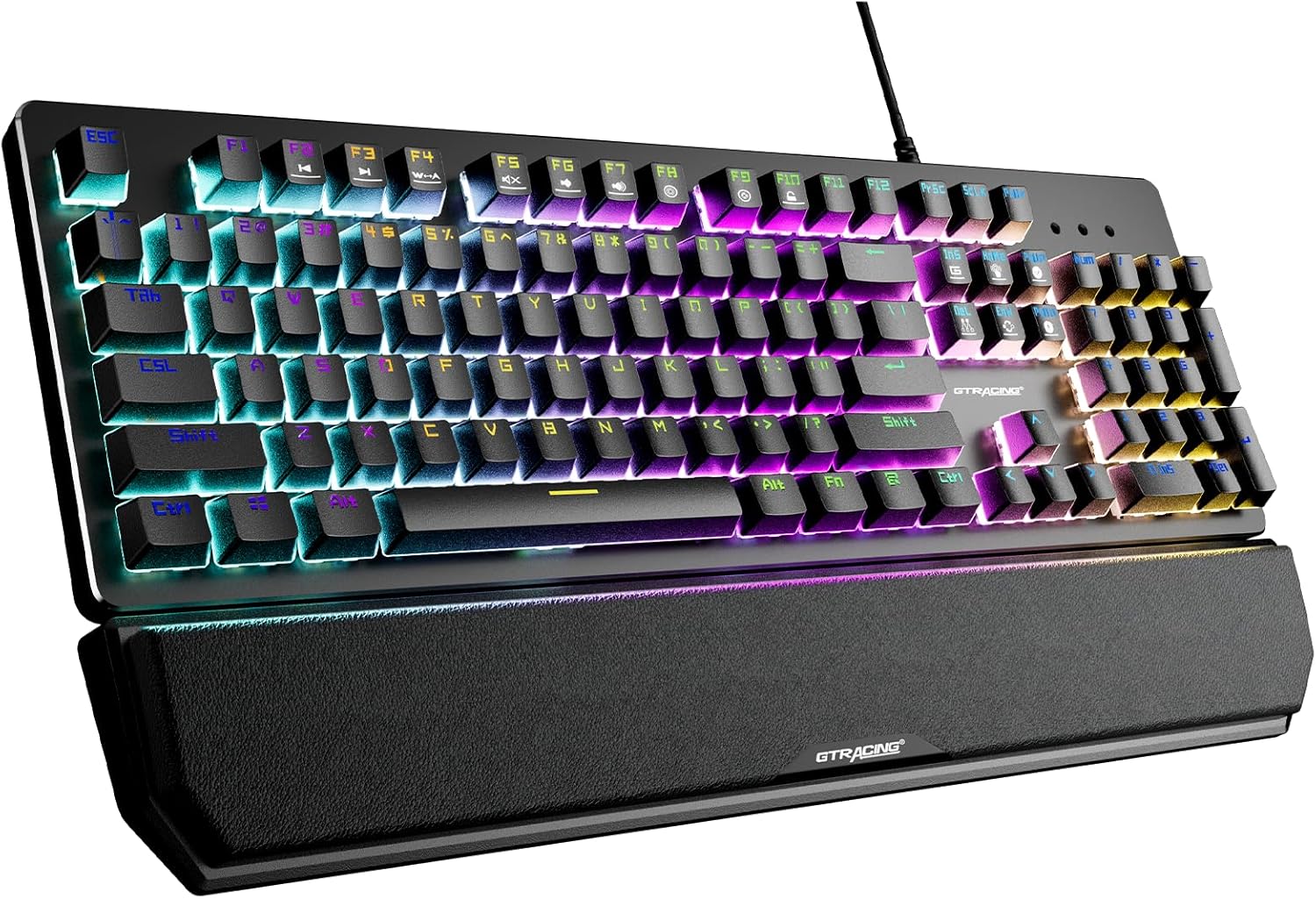
This image displays the GTRACING Mechanical Gaming Keyboard, showcasing its full layout, vibrant RGB backlighting, and the detachable wrist rest. The keyboard features a sleek black design with illuminated keys.
2. Enfòmasyon sou Sekirite
- Kenbe klavye a lwen likid ak imidite twòp pou anpeche li domaje.
- Avoid extreme temperatures. Operate and store the keyboard in a moderate environment.
- Pa eseye demonte oswa modifye klavye a. Sa ka anile garanti a epi lakòz domaj.
- Sèvi sèlman ak kab USB ki vini ak li a pou koneksyon.
3. Pake kontni
Tanpri verifye ke tout atik yo prezan nan pakè ou a:
- GTRACING Mechanical Gaming Keyboard
- Repoze ponyèt detachable
- USB Koneksyon Kab
- Manyèl Itilizatè (dokiman sa a)

This image shows the GTRACING Mechanical Gaming Keyboard alongside its retail packaging box, indicating the product and its primary container.
4. Pwodwi Features
4.1. Blue Mechanical Switches
The keyboard is equipped with professional blue mechanical switches, providing a distinct tactile bump and an audible click sound. These switches are designed for accurate and responsive key commands, ideal for both typing and gaming. They offer a two-stage paragraph feeling with a light force and strong mechanical feedback.
- Trigger Stroke: 2.4mm
- Pressure Grams: 60g
- Click Lifespan: 20 milyon

This close-up image highlights the tactile blue mechanical switches of the GTRACING keyboard, with some keycaps removed to reveal the switch mechanism. It also provides key specifications for the blue switch.
4.2. RGB ekleraj
Experience immersive lighting with 12 different RGB lighting modes and effects. The backlight brightness can be adjusted across 7 levels, and the breathing speed is also customizable. Additionally, you can create and save up to 5 personalized DIY lighting modes.

This image illustrates the vibrant RGB LED backlighting of the GTRACING keyboard, emphasizing the 12 different lighting modes, 7 brightness levels, and the option for 5 DIY lighting modes.
4.3. Ergonomic Design & Detachable Wrist Rest
The keyboard features a high and low stepped button arrangement for a comfortable typing experience. Adjustable double kickstand feet help reduce hand fatigue during prolonged use. The magnetic detachable wrist rest provides natural 6-degree angle support, relieving wrist discomfort for long working or gaming sessions.

Bò sa a view image demonstrates the ergonomic angle of the GTRACING keyboard when its kickstands are extended, illustrating how it helps reduce wrist strain compared to a flat keyboard.

This image shows the GTRACING keyboard with its magnetic detachable wrist rest, highlighting the ease of attachment and removal for user comfort and preference.
4.4. Durability and Build Quality
Constructed with an aluminum metal panel, the keyboard offers a matte texture, ensuring sturdiness and resistance to scratches. The keycaps feature bold font with double-colored laser carving, designed not to fade even after extensive use. The keyboard is also spill-resistant, built to withstand accidental liquid exposure.
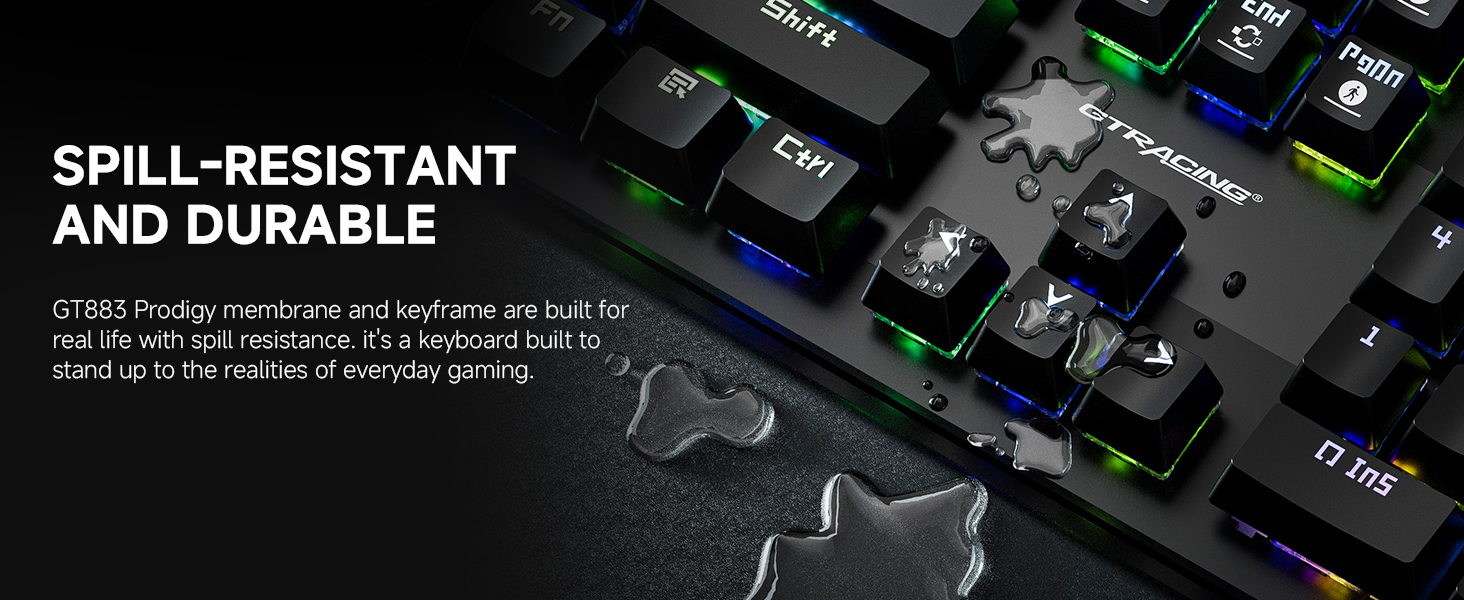
This image visually represents the spill-resistant feature of the GT883 keyboard, showing water droplets on the keycaps, demonstrating its durability against accidental spills.
4.5. Anti-Ghosting
The keyboard features anti-ghosting technology, which ensures that multiple key presses are registered accurately and simultaneously. This is crucial for gaming, preventing missed commands during intense gameplay.
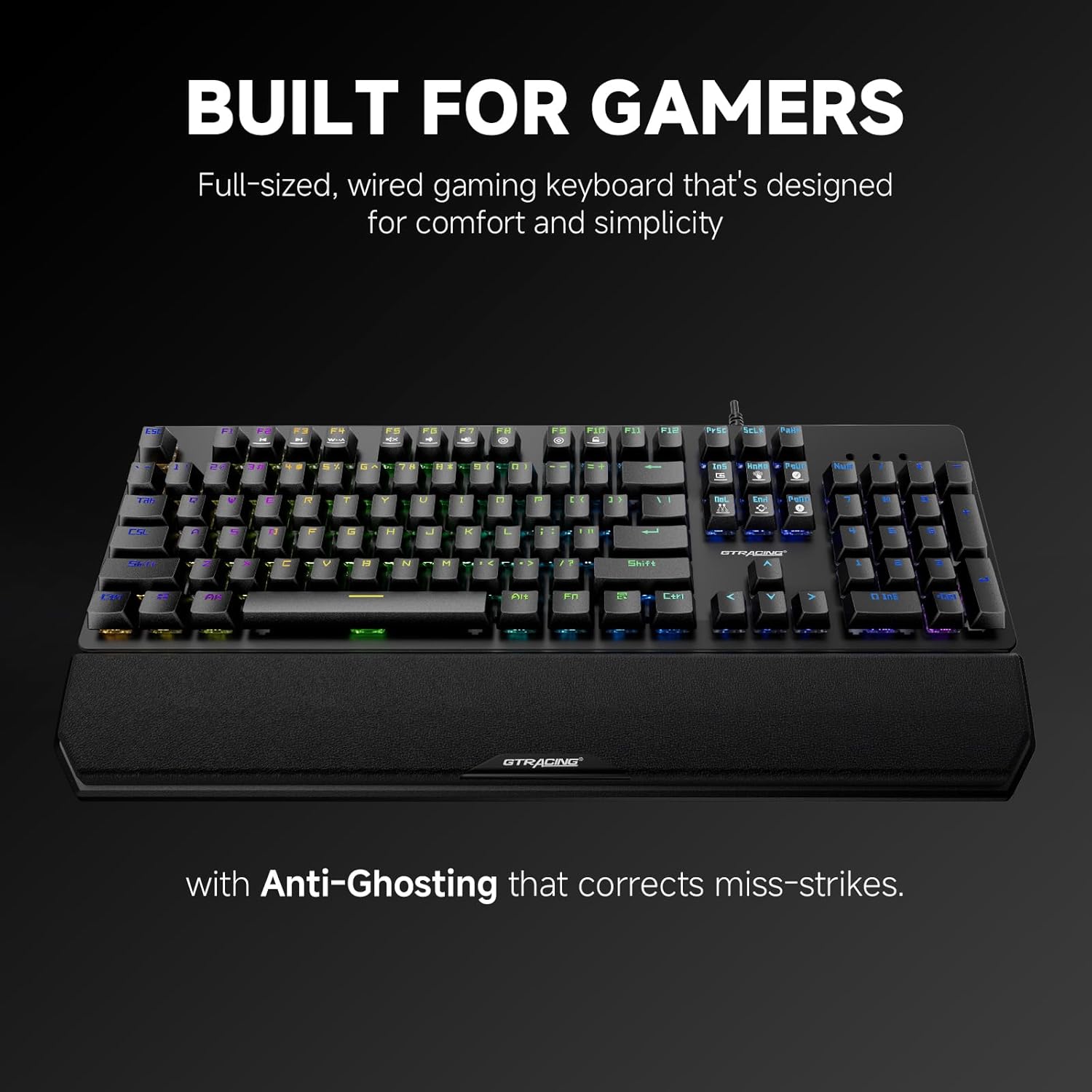
This image highlights the keyboard's design for gamers, specifically mentioning its full-sized layout and the inclusion of anti-ghosting technology to correct miss-strikes.
5. Gid Enstalasyon
Follow these steps to set up your GTRACING Mechanical Gaming Keyboard:
- Dekonpoze: Retire klavye a ak tout akseswa yo nan anbalaj la avèk prekosyon.
- Attach Wrist Rest (Optional): Aliyen repo ponyèt mayetik la ak kwen devan klavye a. Li pral anfòm nan plas li.
- Konekte kab USB: Plug the USB-A connector of the keyboard cable into an available USB port on your computer (PC, Mac, Laptop).
- Ploge epi jwe: The keyboard is plug-and-play, meaning no additional drivers are required for basic functionality. Your operating system (Windows 7/8/10/XP/VISTA, Mac OS) will automatically detect and install the necessary drivers.
- Adjust Kickstands: Flip out the adjustable kickstands on the underside of the keyboard to achieve your preferred typing angle.
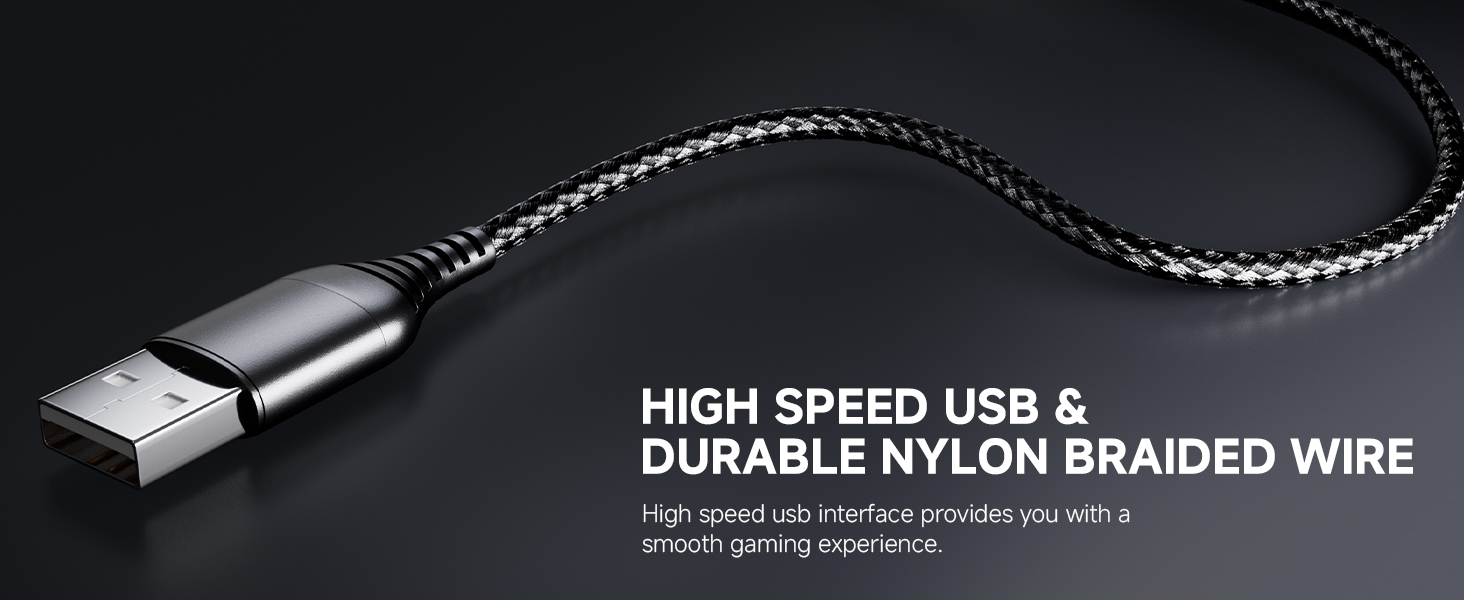
This image focuses on the high-speed USB connector and the durable nylon braided wire, emphasizing the quality of the connection cable for a smooth gaming experience.
6. Operasyon Enstriksyon
6.1. Kontwòl ekleraj RGB
The keyboard offers various lighting effects and customization options:
- Chanje mòd ekleraj: Use the dedicated lighting control keys or Fn + specific keys (refer to keyboard legends) to cycle through the 12 preset RGB lighting modes.
- Ajiste klète: Press Fn + Up/Down arrow keys to increase or decrease the backlight brightness (7 levels available).
- Adjust Breathing Speed: Use Fn + Left/Right arrow keys to change the speed of breathing effects.
- DIY Lighting Modes: The keyboard supports 5 customizable DIY lighting modes. Consult the keyboard's specific key combinations (often Fn + 1-5) to enter DIY mode, select keys to illuminate, and save your preferences.
6.2. Kle Fonksyon (Konbinezon Fn)
The keyboard features multimedia and shortcut functions accessible via the Fn key. Press and hold the Fn key, then press the corresponding F-key or other designated key to activate the function.
| Konbinezon kle | Fonksyon |
|---|---|
| Fn+F1-F12 | Multimedia controls (e.g., Play/Pause, Volume Up/Down, Mute, Previous/Next Track) |
| Fn + genyen | Fèmen/Debloke Windows kle |
| Fn + PrtSc | Cycle through lighting modes |
| Fn + Scroll Lock | Ajiste klète ekleraj |
| Fn + Pause Break | Adjust lighting speed |
6.3. Programmable Macro Keys
The keyboard supports programmable macro keys. Specific instructions for macro programming may require dedicated software or advanced key combinations not detailed in this general manual. Please refer to the manufacturer's website or additional software documentation for advanced macro setup.
7. Antretyen ak Swen
Pou asire lonjevite ak pèfòmans optimal klavye ou a, swiv gid antretyen sa yo:
- Netwayaj: Disconnect the keyboard from your computer before cleaning. Use a soft, dry cloth to wipe down the surface. For dust and debris between keys, use compressed air. For stubborn dirt, a slightly damp Ou ka itilize yon twal ak savon dou, pou asire pa gen likid ki antre nan klavye a.
- Retire kouvèti kle a: The floating keycap design allows for easy removal and cleaning. Gently pull keycaps straight up to remove them. Realign and press down firmly to reattach.
- Swen Repoze Ponyèt: Wipe the wrist rest with a damp twal jan sa nesesè. Evite pwodui chimik ki agresif.
- Depo: When not in use for extended periods, store the keyboard in a clean, dry place away from direct sunlight.

This image illustrates the floating keycap design and UV process, highlighting how these features contribute to accurate tactile feedback and facilitate easy disassembly for cleaning.
NAN. Depanaj
If you encounter issues with your GTRACING keyboard, please refer to the following common solutions:
- Klavye a pa reponn:
- Asire w kab USB a byen branche nan tou de klavye a ak òdinatè a.
- Eseye branche klavye a nan yon lòt pò USB sou òdinatè w la.
- Rekòmanse òdinatè w lan.
- Teste klavye a sou yon lòt òdinatè pou detèmine si pwoblèm nan se ak klavye a oswa ak òdinatè a.
- Ekleraj RGB pa fonksyone/pa kòrèk:
- Check if the lighting is turned off or set to the lowest brightness level (Fn + Scroll Lock).
- Cycle through different lighting modes (Fn + PrtSc) to see if other modes function.
- Ensure no software conflicts are present if you are using third-party lighting control software.
- Keys Not Registering/Double Typing:
- Clean under the affected keycap using compressed air to remove any debris.
- If the issue persists, it may indicate a switch malfunction. Contact customer support.
- Wrist Rest Not Attaching Securely:
- Ensure there is no debris or obstruction on the magnetic contact points of either the keyboard or the wrist rest.
- Verify that the wrist rest is aligned correctly before attempting to attach it.
9. Espesifikasyon teknik
| Karakteristik | Spesifikasyon |
|---|---|
| Nimewo Modèl | GT883 |
| Koneksyon Teknoloji | USB-A (Avèk fil) |
| Chanje Kalite | Blue Mechanical Switches |
| Ekleraj | RGB (12 modes, 7 brightness levels, 5 DIY modes) |
| Aparèy konpatib | PC (Mac OS, Windows 7/8/10/XP/VISTA) |
| Materyèl | Aluminum Metal Panel, Plastic |
| Pwa atik | 1 liv |
| Dimansyon pake | 18 x 9.49 x 2 pous |
| Karakteristik espesyal | Detachable Magnetic Wrist Rest, Anti-Ghosting, Spill-Resistant |

This image provides a visual summary of key specifications for the GTRACING keyboard, including its 20 million click lifespan, 2.4mm trigger stroke, and 60g action force.
10. Garanti ak sipò
GTRACING stands behind the quality of its products. This keyboard is backed by a 2-year warranty.
- Kouvèti garanti: The 2-year warranty covers manufacturing defects and malfunctions under normal use. It does not cover damage caused by misuse, accidents, unauthorized modifications, or normal wear and tear.
- Sipò Kliyan: For any product-related inquiries, technical assistance, or warranty claims, please reach out to the GTRACING support team. Contact information can typically be found on the official GTRACING website or through your purchase platform. Our team is committed to providing prompt solutions to ensure your satisfaction.


