1. Entwodiksyon
This manual provides detailed instructions for the setup, operation, and maintenance of your Dierya M1 Wireless Gaming Mouse. Please read this manual thoroughly before using the product to ensure proper functionality and to maximize your user experience.

Figure 1: Dierya M1 Wireless Gaming Mouse and 2.4G USB Receiver.
2. Pwodwi Features
- 24,000 DPI Optical Sensor: Adjustable DPI range from 200 to 24,000, with 6 preset levels (400-6400 DPI). Features a 125-1000 Hz polling rate, 300 IPS tracking speed, and 35G acceleration.
- Koneksyon Tri-Mòd: Supports ultra-fast 2.4 GHz wireless (1000 Hz polling rate), energy-efficient Bluetooth 5.2 (125 Hz polling rate), and stable USB-C wired connection (1000 Hz polling rate).
- Pwolonje lavi batri: Equipped with a 1000 mAh battery, providing up to 180 hours of use in ECO mode or 48 hours with RGB lighting enabled. Fully recharges in approximately 1 hour via USB-C. Includes an automatic power-saving mode after 1-5 minutes of inactivity.
- Konsepsyon lejè ak ergonomik: Weighs 90g with a breathable honeycomb shell. Symmetrical design (125x63x41 mm) suitable for various grip styles.
- Eleman dirab: Features Huano switches rated for 20 million clicks and 100% PTFE feet for smooth gliding.
- Bouton pwogramasyon: Six customizable buttons for macros and reassignments.
- Ekleraj RGB dinamik: 13 integrated dynamic RGB lighting effects with 16.8 million customizable colors.
- Sistèm konpatibilite: Compatible with Windows, macOS, Linux, and Chrome OS.
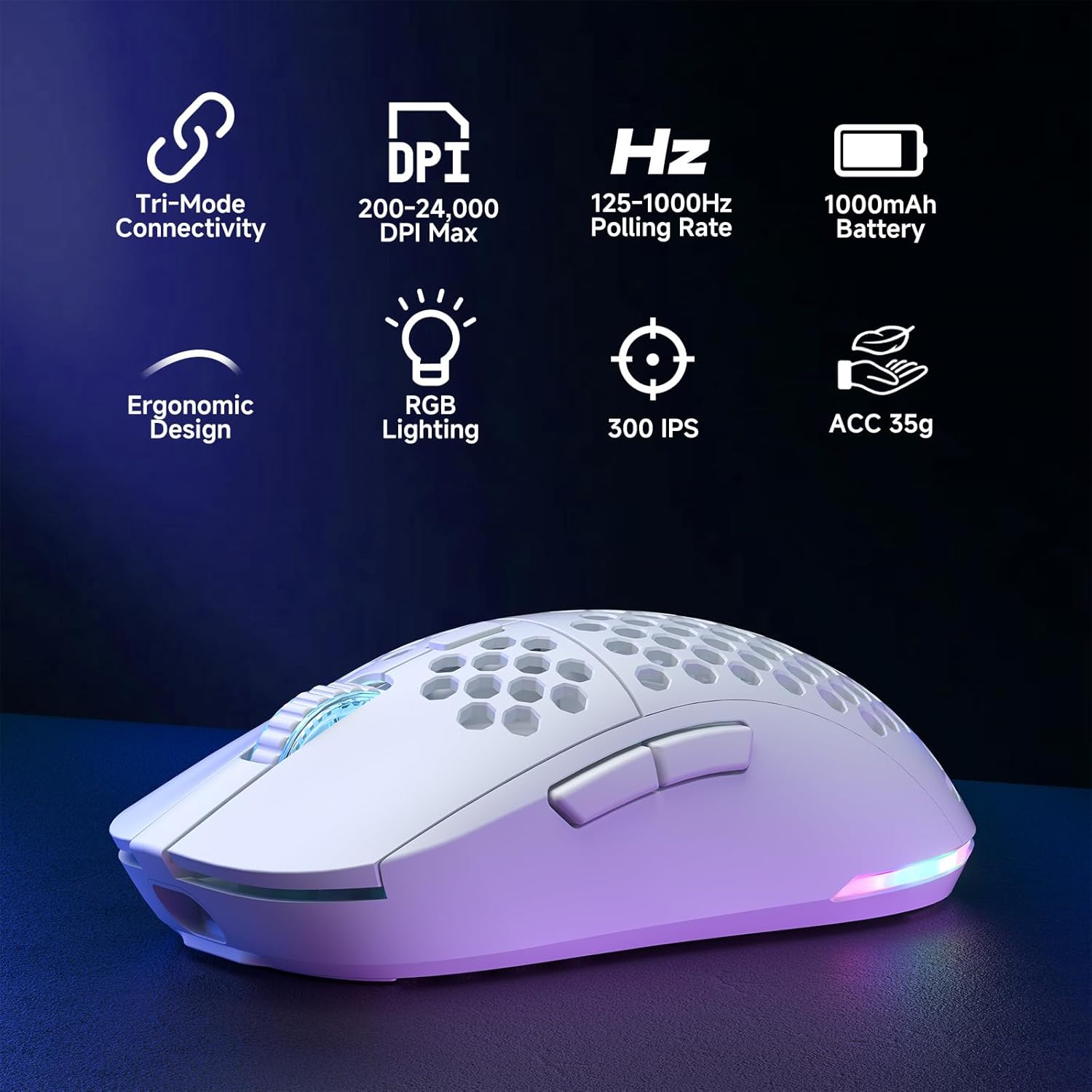
Figure 2: Key features of the Dierya M1 Wireless Gaming Mouse.
3. Dyagram pwodwi ak konpozan
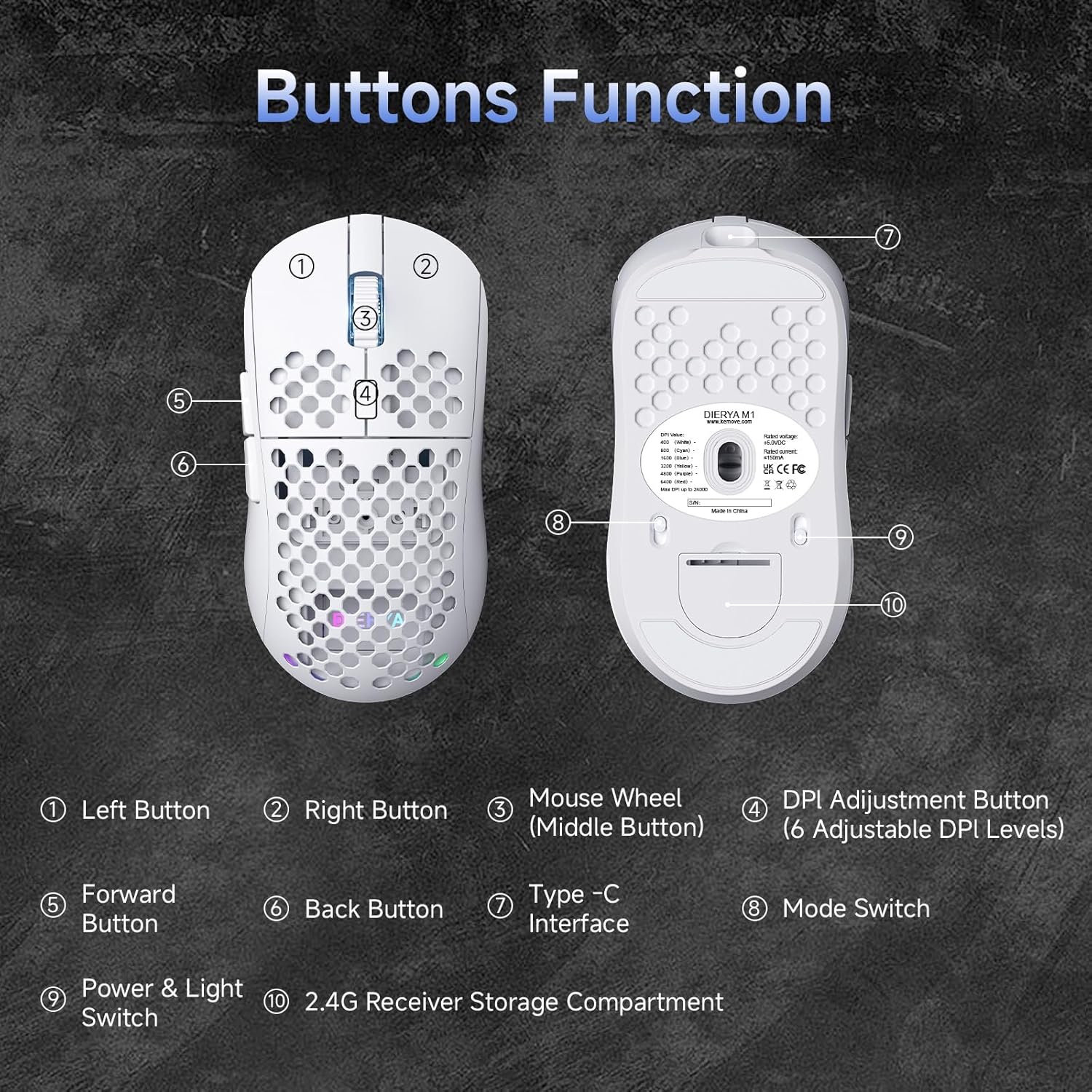
Figi 3: Anlè ak anba view of the Dierya M1 mouse with labeled components.
- Bouton Goch
- Dwa bouton
- Mouse Wheel (Middle Button)
- DPI Adjustment Button (6 Adjustable DPI Levels)
- Bouton Avant
- Bouton tounen
- Kalite-C Entèfas
- Mode Switch (2.4G / Bluetooth / Wired)
- Power & Light Switch
- 2.4G Receiver Storage Compartment
4. Enstalasyon ak Koneksyon
The Dierya M1 mouse offers three connection modes: 2.4 GHz Wireless, Bluetooth 5.2, and USB-C Wired.

Figi 4: Plis paseview nan twa mòd koneksyon yo.
4.1. Koneksyon san fil 2.4 GHz
- Locate the 2.4G USB receiver in the storage compartment on the bottom of the mouse.
- Ploge reseptè USB a nan yon pò USB ki disponib sou òdinatè w lan.
- Set the mode switch on the bottom of the mouse to the '2.4G' position.
- Sourit la ta dwe konekte otomatikman.
4.2. Koneksyon Bluetooth 5.2
- Set the mode switch on the bottom of the mouse to the 'Bluetooth' position.
- Sou òdinatè w la oswa aparèy ou an, ouvri paramèt Bluetooth yo.
- Chèche pou new devices and select 'Dierya M1' from the list.
- Swiv nenpòt envit ki sou ekran pou konplete pwosesis kouple a.
4.3. Koneksyon filaire USB-C
- Connect the provided USB-C cable to the Type-C interface on the front of the mouse.
- Konekte lòt bout kab USB-C a nan yon pò USB ki disponib sou òdinatè w la.
- Set the mode switch on the bottom of the mouse to the 'Wired' position.
- Sourit la ap fonksyone tankou yon sourit filaire epi li pral chaje an menm tan.
5. Operasyon Enstriksyon
5.1. Ajisteman DPI
The DPI Adjustment Button (4) on the top of the mouse allows you to cycle through preset DPI levels. Each DPI level is indicated by a specific color on the scroll wheel LED for a few seconds after adjustment.
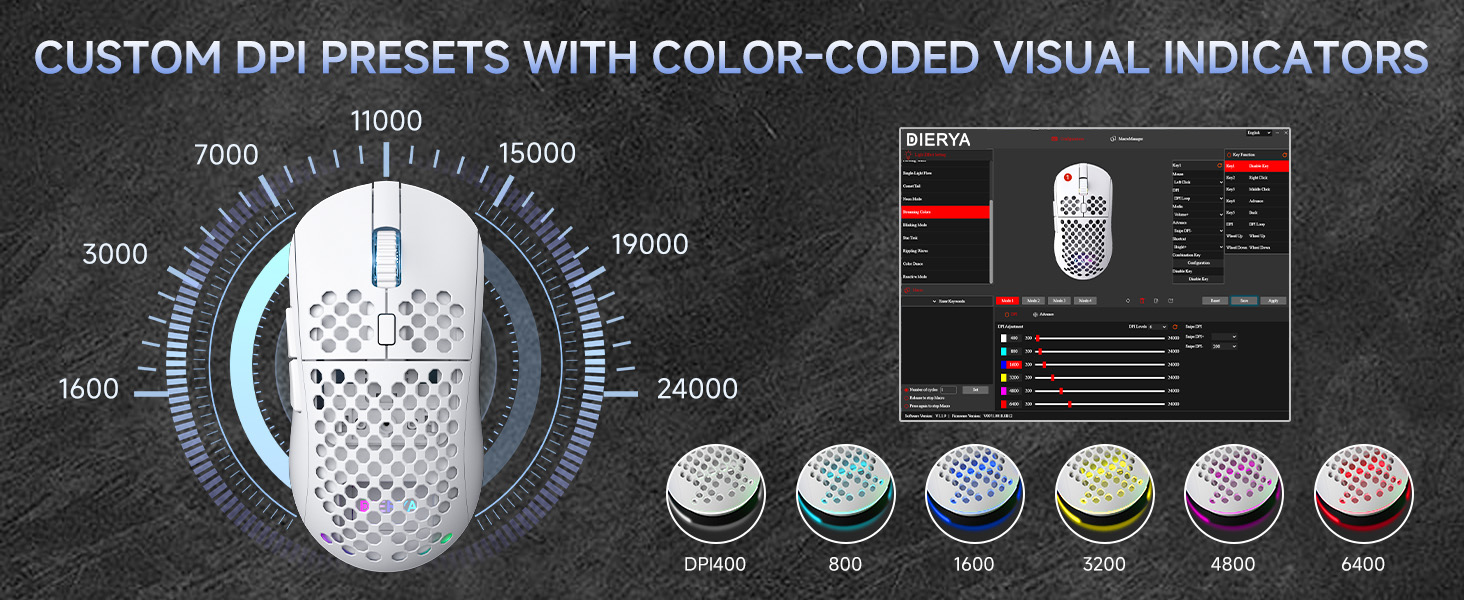
Figure 5: DPI levels and their corresponding scroll wheel LED colors.
- Press the DPI button to switch between 6 preset DPI levels.
- Default presets: 400 DPI (Red), 800 DPI (Green), 1600 DPI (Blue), 3200 DPI (Yellow), 4800 DPI (Purple), 6400 DPI (Cyan).
- For custom DPI settings and a wider range (200-24,000 DPI), use the M1 Driver Software (Windows only).
5.2. Kontwòl ekleraj RGB
The mouse features 13 dynamic RGB lighting effects. You can control the lighting directly on the mouse or customize it further with the software.
- To cycle through RGB effects: Press and hold the DPI Adjustment Button (4) for 3 seconds.
- To turn RGB lighting On/Off: Use the Power & Light Switch (9) on the bottom of the mouse.
- For advanced customization of colors and effects, use the M1 Driver Software (Windows only).
5.3. Bouton pwogramasyon
The Dierya M1 has 6 programmable buttons (Left, Right, Middle, DPI, Forward, Back). These buttons can be customized for various functions, macros, or key reassignments using the M1 Driver Software.
6. Charging and Battery Management
The Dierya M1 mouse is equipped with a 1000 mAh rechargeable battery.

Figure 6: Charging the Dierya M1 mouse and battery life indicators.
- Chaje: Connect the mouse to your computer using the provided USB-C cable. The mouse will charge while in wired mode or when connected to a power source. A full charge takes approximately 1 hour.
- Lavi batri: Expect up to 180 hours of use in ECO mode (RGB off) and up to 48 hours with RGB lighting enabled.
- Ekonomize pouvwa: The mouse automatically enters a power-saving sleep mode after 1-5 minutes of inactivity. This duration can be adjusted via the M1 Driver Software.
- Endikatè batri ki ba: The RGB lighting or a specific LED will indicate when the battery is low. Charge the mouse promptly to avoid interruption.
7. M1 Driver Software (Windows Only)
The M1 Driver Software allows for advanced customization of your mouse settings. This software is currently available for Windows operating systems only.

Figure 7: M1 Driver Software interface.
7.1. Karakteristik lojisyèl
- Devwa kle: Customize the function of all 6 buttons.
- Macro Editè: Kreye epi asiyen makro konplèks.
- Ajisteman DPI: Fine-tune DPI settings from 200 to 24,000 in increments.
- Pousantaj biwo vòt: Adjust the polling rate (125-1000 Hz).
- Pèsonalizasyon RGB: Personalize lighting effects, colors, and brightness.
- Tan dòmi: Configure the automatic power-saving sleep mode duration.
- Profile Jesyon: Save and load different profiles for various applications or games.
7.2. Enstalasyon
Download the latest M1 Driver Software from the official Dierya website. Follow the on-screen instructions to install the software on your Windows computer.
8. Antretyen
- Netwayaj: Sèvi ak yon twal mou epi sèk pou netwaye sourit la. Pou pousyè tè ki difisil pou netwaye, yon ti kras mouye.amp Ou ka itilize twal, pou asire pa gen likid ki antre nan sourit la.
- Depo: Sere sourit la nan yon kote ki fre epi sèk, lwen limyè solèy dirèk ak tanperati ekstrèm.
- Swen batri: Avoid fully discharging the battery frequently. For long-term storage, charge the mouse to about 50% and store it in a cool, dry place.
NAN. Depanaj
- Sourit la pa reponn:
- Asire w sourit la mache.
- Check the connection mode switch (2.4G, Bluetooth, Wired) is set correctly.
- For 2.4G, ensure the USB receiver is securely plugged in.
- Pou Bluetooth, konekte aparèy la ankò.
- Try connecting via USB-C cable to check if it works in wired mode.
- Charge the mouse; the battery might be depleted.
- Koneksyon ki ralanti oswa ki pa mache byen:
- Ensure the mouse is within range of the receiver/device (for wireless connections).
- Diminye entèferans ki soti nan lòt aparèy san fil yo.
- Asire w ke batri a chaje ase.
- Update mouse drivers if available (Windows only).
- Ekleraj RGB a pa fonksyone:
- Check the Power & Light Switch (9) on the bottom of the mouse.
- Ensure the mouse is not in ECO mode or a low-power state.
- If using the software, verify RGB settings.
- Ajisteman DPI a pa fonksyone:
- Ensure you are pressing the correct DPI Adjustment Button (4).
- If using custom settings, check the M1 Driver Software.
10. Espesifikasyon
| Karakteristik | Spesifikasyon |
|---|---|
| Mak | Dierya |
| Non modèl | M1 |
| Koulè | Blan |
| Koneksyon Teknoloji | 2.4GHz san fil, Bluetooth 5.2, USB-C ak fil |
| Sensor Teknoloji | Optik |
| Ranje DPI | 200 - 24,000 DPI |
| Pousantaj biwo vòt | 125-1000 Hz |
| Tracking vitès | 300 ONSÈY |
| Akselerasyon | 35G |
| Kantite bouton | 6 (Pwogramasyon) |
| Chanjman | Huano (20 Million Clicks) |
| Feet Material | 100% PTFE |
| Kapasite batri | 1000 mAh (Ityòm-ion) |
| Battery Life (ECO Mode) | Jiska 180 èdtan |
| Battery Life (RGB Mode) | Jiska 48 èdtan |
| Tan pou chaje | Apeprè. 1 èdtan |
| Pwa | 90 gram |
| Dimansyon | 125 x 63 x 41 mm |
| Sistèm operasyon konpatibilite | Windows, macOS, Linux, Chrome OS |
11. Garanti ak sipò
The Dierya M1 Wireless Gaming Mouse comes with a 1-ane garanti manifakti. Garanti sa a kouvri domaj nan materyèl ak atizan konn fè nan itilizasyon nòmal.
For warranty claims, technical support, or further inquiries, please contact Dierya customer service through the official website or your point of purchase. Please have your product model number (M1) and proof of purchase ready when contacting support.


