1. Entwodiksyon
This manual provides essential information for the setup, operation, and maintenance of your Thunderobot Zero 18 Pro 5080 Gaming Laptop. Please read this manual thoroughly before using the device to ensure proper functionality and to maximize your user experience. Keep this manual for future reference.
2. Karakteristik kle
2.1. Performance Hardware
The Thunderobot Zero 18 Pro is equipped with high-performance components designed for demanding applications and gaming.
- Processeur: Intel Core Ultra 9 275HX (24 Cores, 24 Threads, up to 5.40GHz)
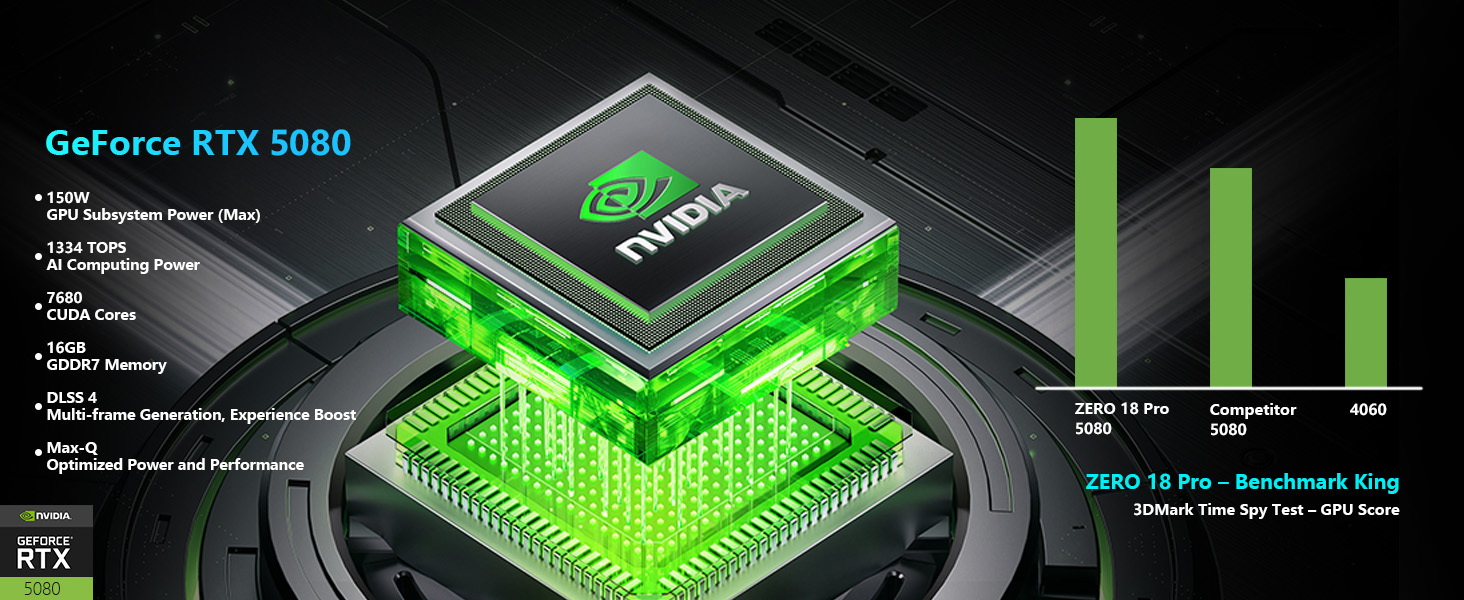
- Grafik: NVIDIA GeForce RTX 5080
- memwa: 32GB DDR5 RAM
- Depo: SSD PCIe M.1 2TB
Imaj: Detaye view of the Intel Core Ultra 9 275HX processor and NVIDIA GeForce RTX 5080 graphics card, highlighting their specifications and capabilities.
2.2. Teknoloji Ekspozisyon
The laptop features an advanced display for clear and fluid visuals.
- Gwosè: 18-inch QHD+ (2560x1600)
- Pousantaj rafrechisman: 240Hz
- Teknoloji: Bionic Hummingbird Eye-Care Display with Anti-Glare and Anti-Reflection properties.
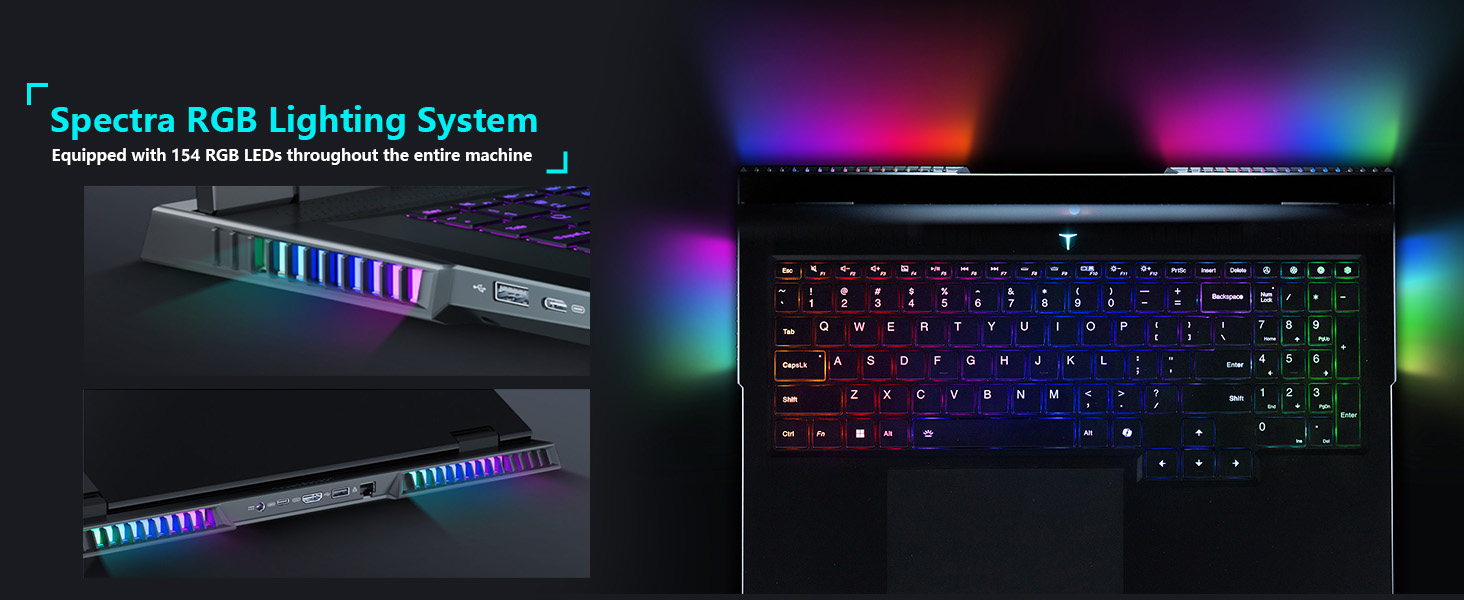
Image: The 18-inch Bionic Hummingbird Eye-Care Display showcasing its QHD+ resolution, 240Hz refresh rate, and anti-glare features.
Videyo: Finiview of the THUNDEROBOT Series Display features, including refresh rate and resolution.
2.3. Sistèm refwadisman
The laptop incorporates an advanced cooling system to maintain optimal performance during intensive use.
- Fanatik: 3 Night Owl fans with high air volume.
- Tiyo chalè: 7 high-efficiency heat pipes.
- Najwar: 338 pieces of 0.075mm ultra-thin copper fins.
- Power Release: Up to 270W total power release.
Imaj: Yon entèn view illustrating the laptop's heat dissipation architecture, including fans and heat pipes.
2.4. Keyboard and Lighting
The laptop features a customizable keyboard and integrated lighting.
- Klavye: Per-Key RGB Backlit Keyboard with numeric keypad.
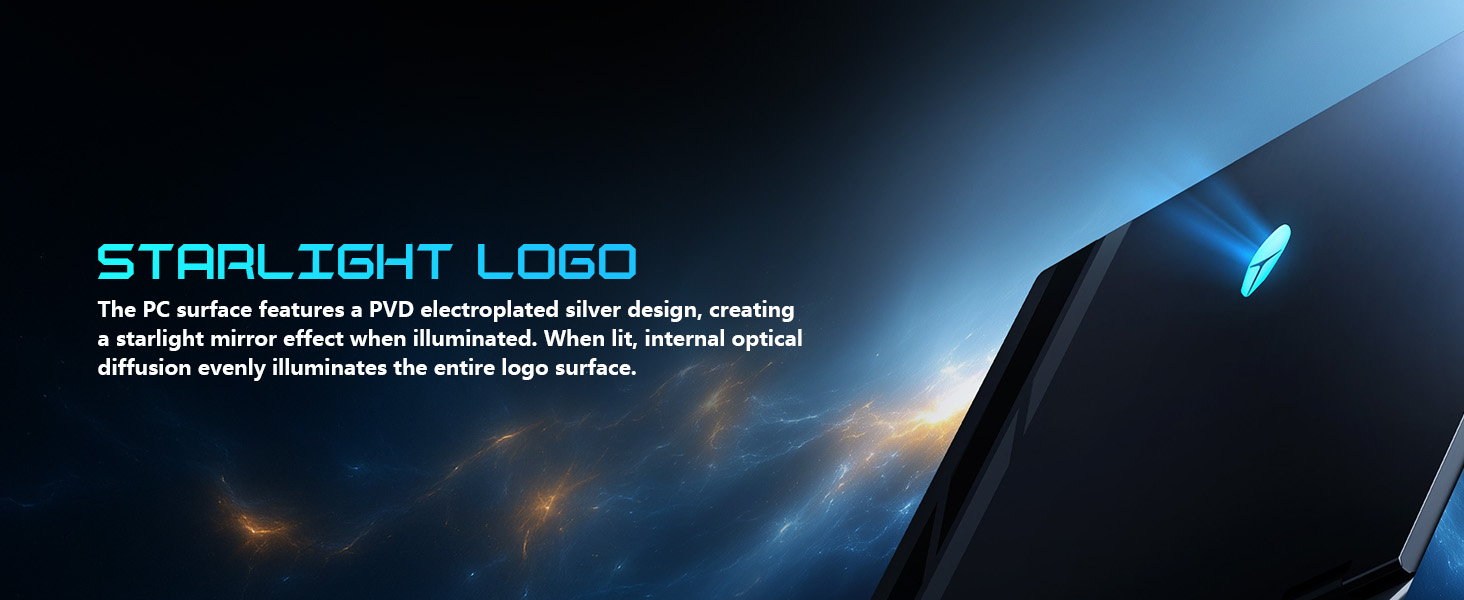
- Sistèm ekleraj: "Spectra" RGB Lighting System with 154 RGB light beads.
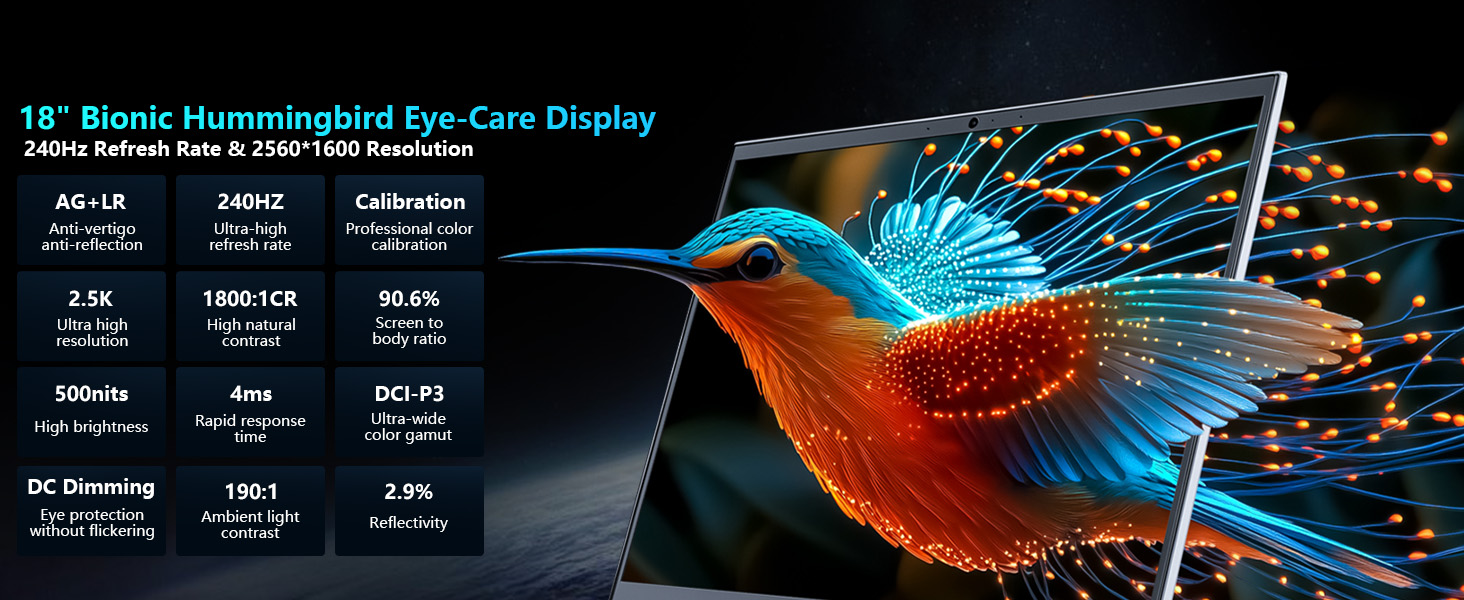
Image: Close-up of the laptop keyboard, highlighting the Per-Key RGB backlighting and dedicated mode switching keys.
Video: Demonstration of the Thunderobot RGB lighting features and customization options.
2.5. Koneksyon
The Zero 18 Pro offers a range of ports for external devices and network connectivity.
- Pò USB: 3 x Superspeed USB Type-A, 2 x Superspeed USB Type-C (Thunderbolt 5 compatible).
- Sòti videyo: 1 x HDMI 2.1.
- Rezo: 1 x RJ-45 (Ethernet), Wi-Fi 6E.
- Odyo: 1 x Audio Port.
- San fil: Bluetooth.
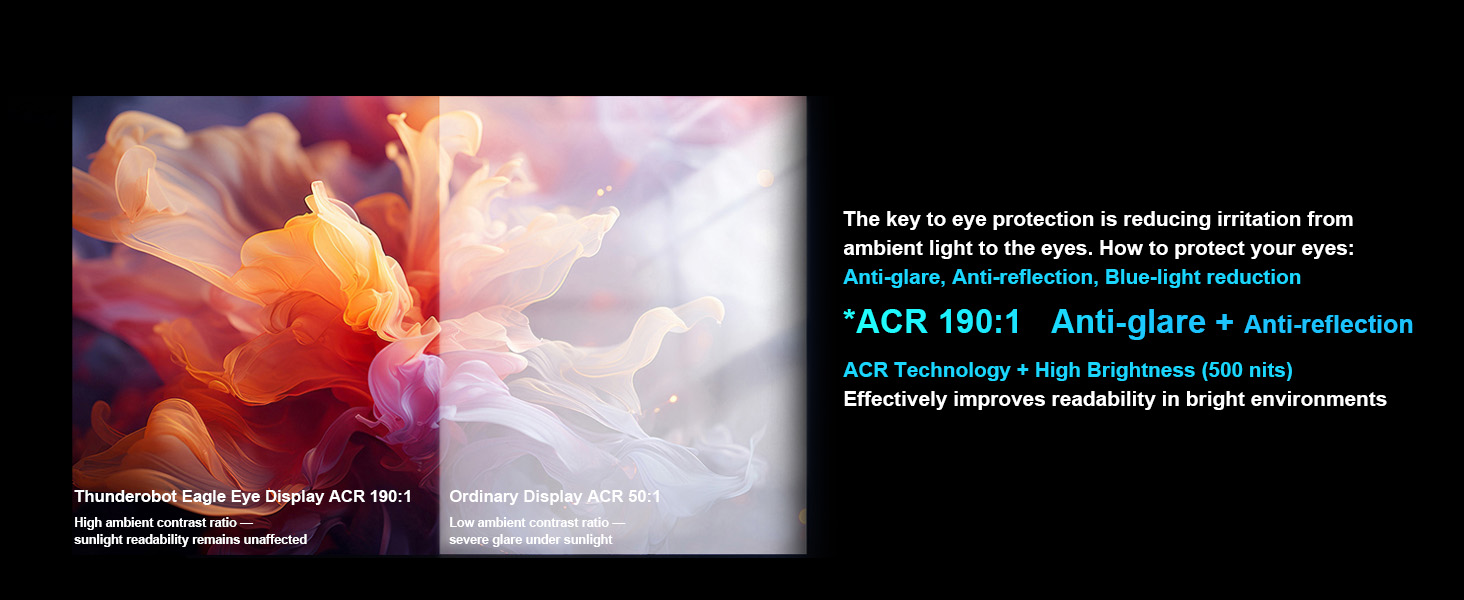
Image: Diagram illustrating the location and types of ports available on the Thunderobot Zero 18 Pro laptop.
3. Gid Enstalasyon
3.1. Unboxing ak Inisyal Enspeksyon
- Retire laptop la ak tout akseswa yo nan anbalaj la avèk anpil atansyon.
- Verify that all components listed in the 'What's in the Box' section are present.
- Enspekte laptop la pou wè si li gen nenpòt domaj fizik. Si ou jwenn domaj, kontakte sèvis kliyan imedyatman.
3.2. Konekte pouvwa
- Connect the AC adapter to the power port on the laptop.
- Ploge kòd elektrik la nan yon priz elektrik ki gen tè.
- Li rekòmande pou chaje batri a nèt anvan premye itilizasyon an.
3.3. First Boot and Operating System Setup
- Louvri kouvèti laptop la epi peze bouton pouvwa a.
- Follow the on-screen instructions to complete the Windows 11 Home setup process. This includes selecting your region, language, and setting up user accounts.
- Connect to a Wi-Fi network when prompted to ensure the operating system can download necessary updates.
4. Operasyon Enstriksyon
4.1. Power On/Off
- Pouvwa sou: Peze bouton pouvwa a ki sitiye sou platfòm klavye a.
- Pouvwa Off: Klike sou bouton Start la nan Windows, answit chwazi Power > Shut down.
- Mòd dòmi: Close the laptop lid or click the Start button, then select Power > Sleep.
4.2. Fonksyon klavye
The keyboard features Per-Key RGB backlighting and dedicated function keys.
- Kle Fonksyon (Fn): Kenbe la Fn key and press the corresponding F-key (F1-F12) for special functions like volume control, brightness adjustment, or toggling Wi-Fi.
- Pèsonalizasyon RGB: Use the pre-installed control software to customize the Per-Key RGB lighting effects and colors.
- Performance Mode Switching: Dedicated keys (Fn+Space) allow quick switching between performance profiles (e.g., Quiet, Balance, Turbo).
4.3. AI Intelligent Control Center
The AI Intelligent Control Center software provides comprehensive control over your laptop's performance, lighting, and system settings.
- Ajisteman pèfòmans: Adjust CPU/GPU power limits and fan speeds.
- Intelligent Light Adjustment: Customize RGB lighting zones (keyboard, strip, logo) with various effects.
- Comprehensive Adjustment: Access system monitoring, power plans, and other advanced settings.
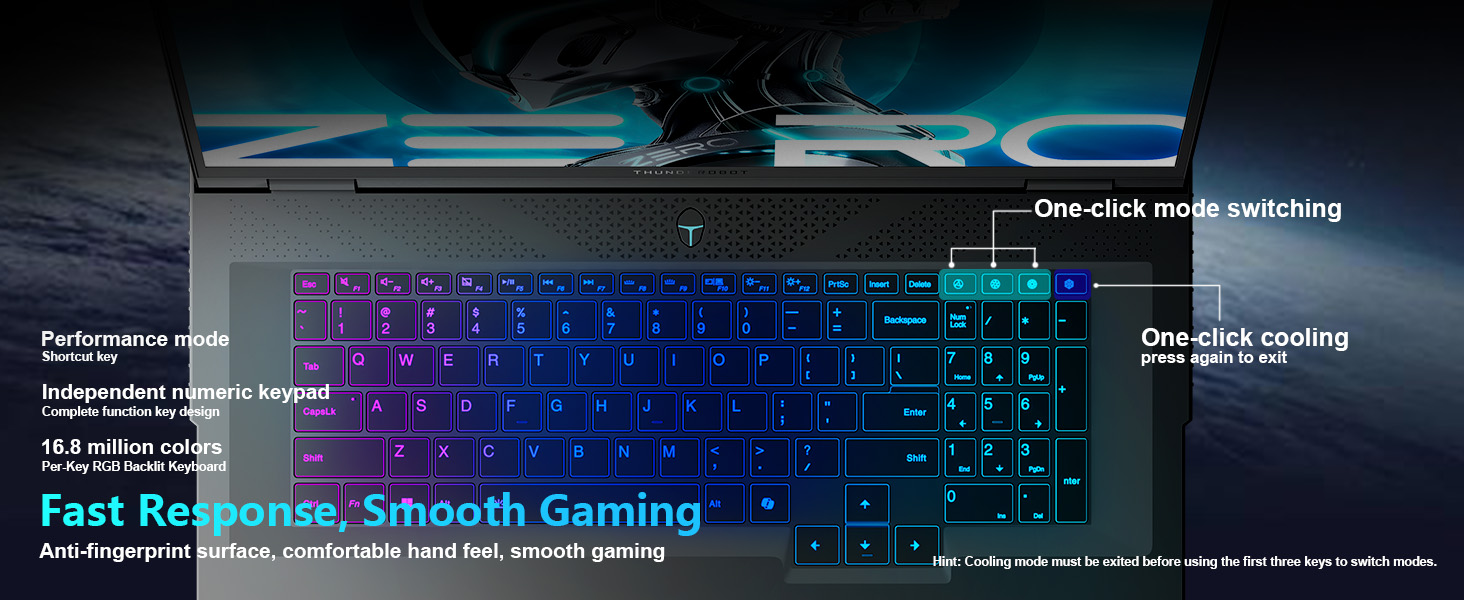
Image: Screenshot of the AI Intelligent Control Center, showing options for system, lighting, and settings adjustments.
Videyo: Yon detay souview of the THUNDEROBOT Zero 18 Pro, showcasing its design, features, and the AI Intelligent Control Center.
5. Antretyen
5.1. Netwayaj
- Ekran: Sèvi ak yon moso twal mou, ki san pèl dampLave avèk dlo oswa yon pwodui netwayaj ekran. Evite pwodui chimik ki agresif.
- Klavye ak chasi: Use a soft cloth to wipe surfaces. A can of compressed air can remove dust from between keys and vents.
- Vantilasyon: Regularly check and clean the cooling vents to prevent dust buildup, which can hinder airflow and lead to overheating.
5.2. Mizajou lojisyèl
- Tcheke epi enstale mizajou Windows regilyèman pou asire estabilite ak sekirite sistèm nan.
- Update graphics drivers (NVIDIA GeForce) and other device drivers through the manufacturer's website or dedicated software.
- Keep the AI Intelligent Control Center software updated for new features and performance optimizations.
5.3. Swen batri
- Evite dechaje batri a nèt souvan.
- If storing the laptop for an extended period, charge the battery to about 50-60% and store it in a cool, dry place.
- Use only the original AC adapter provided with the laptop.
NAN. Depanaj
6.1. Laptop la pa limen
- Asire w ke adaptè AC a byen konekte ak laptop la ak yon priz kouran ki fonksyone.
- Tcheke si priz kouran an ap fonksyone lè w branche yon lòt aparèy ladan l.
- Si batri a konplètman vid, kite l chaje pou omwen 30 minit anvan ou eseye limen l.
6.2. Pwoblèm Afichaj (Pa gen Imaj, Ap Tranble)
- Asire w ke laptop la limen epi li pa nan mòd dòmi.
- Adjust screen brightness using the function keys (Fn + F-keys).
- If an external monitor is connected, try disconnecting it or switching display modes (Fn + F-key, usually F7 or F8).
- Mizajou chofè grafik yo.
6.3. Surchof
- Ensure the cooling vents are not obstructed.
- Netwaye pousyè ki nan ouvèti yo avèk lè konprese.
- Use the AI Intelligent Control Center to set the cooling mode to a higher fan speed (e.g., Turbo mode).
- Ensure the laptop is used on a hard, flat surface to allow proper airflow.
6.4. Pwoblèm koneksyon Wi-Fi
- Asire w ke Wi-Fi a aktive (tcheke kle fonksyon yo oswa paramèt Windows yo).
- Rekòmanse routeur ou ak modèm ou.
- Update your Wi-Fi adapter drivers.
- Try connecting to a different Wi-Fi network to isolate the issue.
7. Espesifikasyon
| Karakteristik | Detay |
|---|---|
| Mak | Thunderobot |
| Non modèl | ZERO 18 Pro |
| Gwosè ekran | 18 pous |
| Rezolisyon ekran | 2560 x 1600 piksèl (QHD+) |
| Processeur | Intel Core Ultra 9 275HX (up to 5.4 GHz) |
| RAM | 32 GB DDR5 |
| Vitès memwa | 4800 MHz |
| Disk Drive | SSD 1 TB (PCIe x 4) |
| Koprosesè grafik | GeForce RTX 5080 (Dedicated) |
| Sistèm operasyon | Windows 11 Kay |
| Kalite san fil | 802.11ax (Wi-Fi 6E) |
| Pò USB 3.0 | 3 |
| Pwa atik | 15 liv |
| Dimansyon pwodwi | 16.04 x 11.78 x 1.41 pous |
| Koulè | Nwa |
| Sous pouvwa | AC & batri |
| Karakteristik espesyal | Nimerik klavye |
8. Garanti ak sipò
Every Thunderobot laptop includes a 12-month warranty. This warranty offers expert support, thorough diagnostics, and genuine parts if a repair is needed. Additionally, a 90-day warranty is provided on all warranty replacement parts, ensuring hassle-free repairs. Your satisfaction is our commitment.
Image: Graphic detailing Thunderobot's warranty and service policy, including 12-month laptop warranty and 90-day replacement parts warranty.
8.1. Kontakte Sipò
For technical assistance, warranty claims, or service inquiries, please refer to the contact information provided in your product packaging or visit the official Thunderobot support websit.


