1. Enfòmasyon enpòtan sou sekirite
Please read this section carefully before using your Veidoo W40 tablet to ensure safe and proper operation. Keep this manual for future reference.
Prekosyon Jeneral
- Evite ekspoze tablèt la nan tanperati ekstrèm, limyè solèy dirèk, oswa imidite ki wo.
- Do not drop, bend, or puncture the tablet.
- Keep the tablet away from water and other liquids. If it gets wet, power it off immediately and allow it to dry completely before use.
- Use only accessories approved by Veidoo. Unauthorized accessories may damage the tablet or pose safety risks.
- Do not attempt to disassemble, repair, or modify the tablet yourself. Contact customer support for assistance.
Sekirite batri
- The tablet contains a non-removable lithium-ion battery. Do not attempt to replace it yourself.
- Pa ekspoze batri a nan dife oswa chalè ekstrèm.
- Dispose of the tablet and its battery responsibly, following local regulations.
Chaje Sekirite
- Charge the tablet using the provided USB-C cable and a compatible power adapter.
- Do not charge the tablet in damp kondisyon yo.
- Unplug the charger when the tablet is fully charged or not in use.
2. Pwodwi souview
The Veidoo W40 is an 11-inch Android tablet designed for versatile use, featuring an Octa-Core processor, ample storage, and modern connectivity options.
Karakteristik kle
- Ekspozisyon: 11-inch In-Cell HD Touch Screen with 1280x800 resolution.
- Processeur: 2.0 GHz Octa-Core processor for smooth performance.
- Memwa ak Depo: 8GB RAM (4GB + 4GB expandable) and 128GB internal storage, expandable up to 1TB via MicroSD card.
- Sistèm operasyon: Android 14.
- Kamera: 2MP front camera and 5MP rear camera.
- Koneksyon: WiFi 6 (802.11ax) and Bluetooth 5.0.
- Batri: 5000mAh kapasite.

Image: Veidoo W40 Tablet configuration summary, highlighting key features like Android 14, 11-inch In-Cell display, 1280x800 resolution, Octa-Core processor, 8GB RAM, 128GB ROM, 5000mAh battery, WiFi 6, Bluetooth 5.0, and dual cameras.
3. Ki sa ki nan bwat la
The standard package for your Veidoo W40 tablet typically includes the following items:
- Veidoo W40 11-inch Android Tablet
- USB-C Chaje Kab
- Adaptè pouvwa
- Manyèl itilizatè
Note: Contents may vary slightly depending on region or retailer.
4. Pou kòmanse (Enstalasyon)
4.1 Chaje tablèt la
- Connect the USB-C cable to the tablet's charging port.
- Connect the other end of the USB-C cable to the power adapter.
- Ploge adaptè pouvwa a nan yon priz miray.
- Kite tablèt la chaje nèt anvan premye itilizasyon an. Endikatè batri a sou ekran an ap montre eta chaj la.
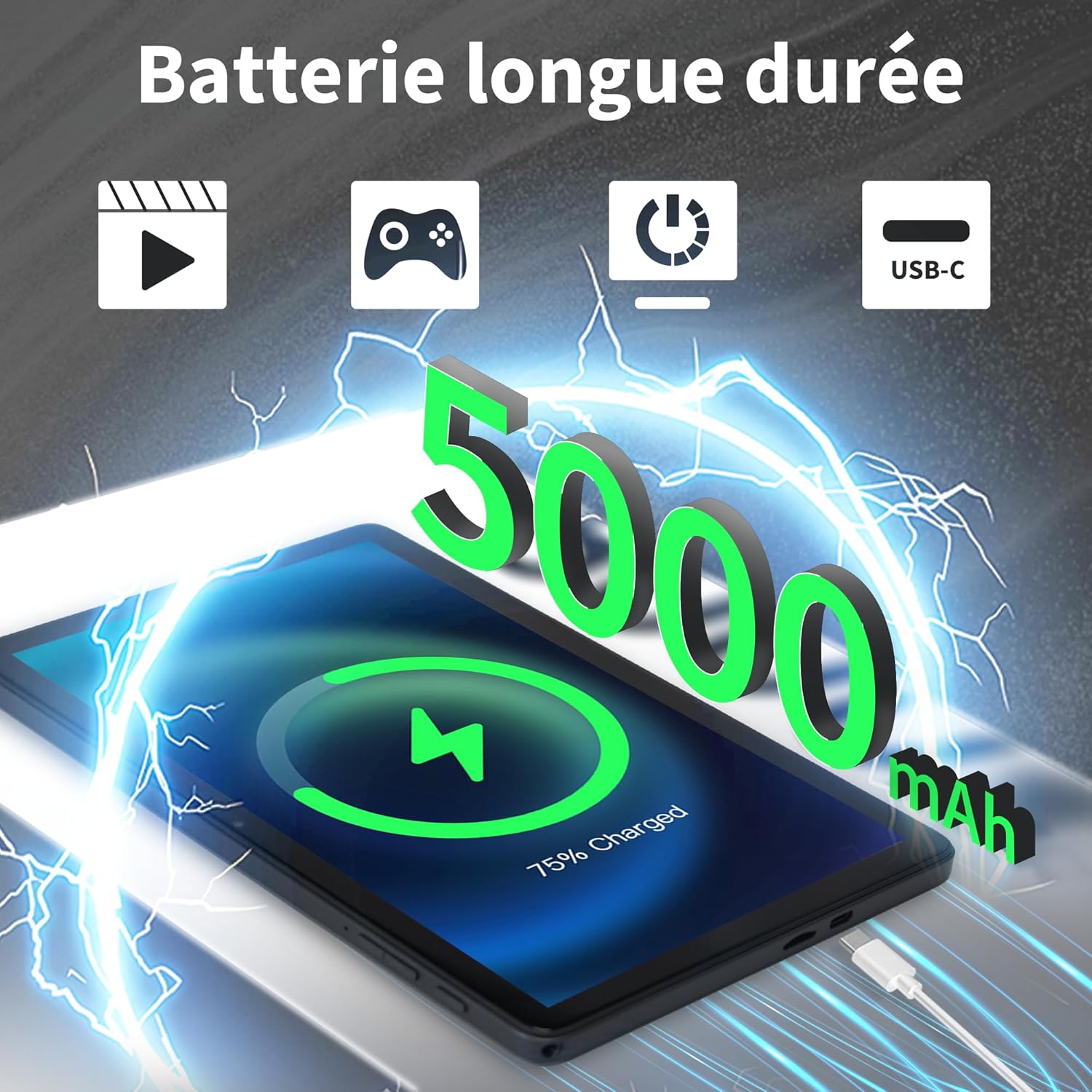
Image: Veidoo W40 Tablet connected to a USB-C charger, showing the battery icon and 5000mAh capacity.
4.2 Limen/Etenyen
- Pou limen: Press and hold the Power button until the Veidoo logo appears on the screen.
- Pou etenn: Peze epi kenbe bouton pouvwa a jiskaske meni opsyon pouvwa a parèt. Chwazi "Etenn" epi konfime.
- Pou rekòmanse: Nan meni opsyon pouvwa a, chwazi "Rekòmanse" epi konfime.
4.3 Asistan Enstalasyon Inisyal
Upon first power-on, the tablet will guide you through an initial setup process:
- Chwazi lang ou pi pito.
- Konekte nan yon rezo Wi-Fi.
- Aksepte tèm ak kondisyon yo.
- Konekte avèk kont Google ou a oubyen kreye yon nouvo. Sa nesesè pou telechaje aplikasyon nan Google Play Store la.
- Set up screen lock (PIN, pattern, or password) and other security features.
- Review epi ajiste lòt paramèt yo jan yo mande w la.
4.4 Mete yon Kat MicroSD
The tablet supports expandable storage up to 1TB using a MicroSD card.
- Jwenn fant kat MicroSD a sou bò tablèt la.
- Mete kat MicroSD a dousman nan fant lan ak kontak lò yo anba jiskaske li fè yon klik.
- The tablet will detect the card and may prompt you to format it for use as portable or internal storage. Follow the on-screen instructions.
5. Operasyon debaz
5.1 Manyen Jès
- Tape: Touche ekran an yon fwa pou chwazi yon atik oswa louvri yon aplikasyon.
- Manyen epi kenbe: Press and hold an item to access contextual menus or drag items.
- Glise: Trennen dwèt ou sou ekran an pou defile paj yo oswa lis yo.
- Zongle: Sèvi ak de dwèt pou agrandi oswa diminye foto yo epi web paj.
5.2 Konekte ak Wi-Fi
- Ale nan Anviwònman > Rezo ak entènèt > Wi-Fi.
- Aktive Wi-Fi a On.
- Chwazi rezo Wi-Fi ou vle a nan lis la.
- Antre modpas la si yo mande w epi tape Konekte.
5.3 Konekte ak aparèy Bluetooth
- Ale nan Anviwònman > Aparèy ki konekte > Preferans koneksyon > Bluetooth.
- Aktive Bluetooth On.
- Asire w aparèy Bluetooth ou a nan mòd koneksyon.
- Select the device from the list of available devices and follow any on-screen prompts to complete pairing.
5.4 Sèvi ak Kamera yo
The tablet features a 2MP front camera and a 5MP rear camera.
- Louvri a Kamera app.
- Tape ikòn kamera a pou chanje ant kamera devan ak dèyè.
- Tape bouton deklanchè a pou pran yon foto oswa pou kòmanse/sispann anrejistreman videyo.
- Access photos and videos in the Gallery app.

Image: Tablet cameras (2MP front, 5MP rear) with example photos, demonstrating its capability to capture moments.
5.5 Jesyon Depo
The tablet comes with 128GB of internal storage and supports up to 1TB expandable storage.
- Ale nan Anviwònman > Depo pou view itilizasyon depo.
- You can free up space by uninstalling unused apps, deleting old photos/videos, or moving files to a MicroSD card.

Image: Tablet storage illustration, showing how photos, videos, and music can be stored on the 128GB ROM and expanded with 8GB RAM.
5.6 Installing/Uninstalling Apps
- Enstale Aplikasyon: Louvri a Google Play Store aplikasyon an, chèche aplikasyon ou vle a, epi tape Enstale.
- Dezenstale aplikasyon yo: Touch and hold the app icon on the home screen or app drawer, then drag it to "Uninstall" or select "App info" and tap "Uninstall". Alternatively, go to Anviwònman > Aplikasyon yo > select the app > Dezenstale.

Image: Tablet in use for various activities such as watching movies, playing games, working, and video calls, demonstrating its versatility.
6. Antretyen ak Swen
6.1 Netwaye Tablèt la
- Sèvi ak yon twal mou ki pa gen pousyè pou netwaye ekran an ak kò tablèt la.
- Pou tach ki difisil pou retire, yon ti kras dampRense twal la avèk dlo oswa yon pwodui netwayaj ekran ki fèt pou aparèy elektwonik.
- Evite itilize pwodui chimik ki agresif, pwodui netwayaj abrazif, oswa espre ayewosòl.
6.2 Optimizasyon Batri
To maximize battery life (5000mAh):
- Diminye klète ekran an.
- Etenn Wi-Fi ak Bluetooth lè w pa ap itilize yo.
- Fèmen aplikasyon ki an background.
- Enable battery saver mode in Settings.
- Evite tanperati ekstrèm pandan w ap chaje ak itilize.
6.3 Mizajou lojisyèl
Tcheke epi enstale mizajou lojisyèl regilyèman pou asire pèfòmans ak sekirite optimal.
- Ale nan Anviwònman > Sistèm > Aktyalizasyon sistèm lan.
- Swiv enstriksyon ki sou ekran an pou tcheke epi enstale nenpòt mizajou ki disponib.
6.4 Reset faktori
Yon reset faktori ap efase tout done ki sou tablèt ou a epi retabli li nan konfigirasyon faktori orijinal li yo. Fè yon kopi done enpòtan yo anvan ou kontinye.
- Ale nan Anviwònman > Sistèm > Reyajiste opsyon.
- Chwazi Efase tout done (reset faktori).
- Konfime desizyon w lan epi antre kòd PIN/modèl/modpas ou si yo mande w.
NAN. Depanaj
If you encounter issues with your Veidoo W40 tablet, try the following solutions:
Tablèt la pa limen
- Ensure the tablet is sufficiently charged. Connect it to a power source and wait a few minutes before attempting to power on.
- Peze epi kenbe bouton Pouvwa a pandan 10-15 segonn pou fòse yon rekòmanse.
Pwoblèm Koneksyon Wi-Fi
- Asire w ke Wi-Fi a aktive nan Anviwònman yo.
- Rekòmanse routeur Wi-Fi ou a.
- Bliye rezo a nan paramèt tablèt la epi rekonekte.
- Asire w ou nan zòn siyal Wi-Fi a.
Pèfòmans ki ba oswa aplikasyon ki kraze
- Fèmen aplikasyon ki pa itilize nan background nan.
- Clear the cache of problematic apps (Settings > Apps > [App Name] > Storage & cache > Clear cache).
- Rekòmanse tablèt la.
- Asire w ke gen ase espas depo ki disponib.
- Check for system and app updates.
Ekran pa reponn
- Rekòmanse tablèt la lè w kenbe bouton Pouvwa a peze.
- Asire w ekran an pwòp epi li pa gen okenn debri.
8. Espesifikasyon
Below are the technical specifications for the Veidoo W40 11-inch Android Tablet:
| Karakteristik | Spesifikasyon |
|---|---|
| Modèl | W40 |
| Gwosè ekspozisyon | 11 pous |
| Rezolisyon ekran | 1280 x 800 pixels (In-Cell HD Touch Screen) |
| Processeur | 2.0 GHz Octa-Core (Allwinner) |
| RAM | 8GB (4GB + 4GB Ekspansyon) |
| Depo Entèn (ROM) | 128GB |
| Depo dilatabl | Jiska 1TB atravè kat MicroSD |
| Sistèm operasyon | Android 14 |
| Kamera devan | 2MP |
| Kamera dèyè | 5MP |
| Wi-Fi | Wifi 6 (802.11ax) |
| Bluetooth | Bluetooth 5.0 |
| Kapasite batri | 5000mAh |
| Dimansyon (LxWxH) | 9.57 x 6.34 x 0.31 pous |
| Pwa | 1.13 liv |
| Koulè | Gri |

Image: Octa-Core processor illustration, highlighting the 2.0 GHz speed and performance benefits.
9. Garanti ak sipò
Enfòmasyon sou Garanti
Your Veidoo W40 tablet is covered by a standard manufacturer's warranty. Please refer to the warranty card included in your package or visit the official Veidoo websit la pou wè kondisyon detaye konsènan pwoteksyon garanti a, dire a, ak pwosesis reklamasyon an.
Sipò pou Kliyan
If you require technical assistance, have questions about your product, or need to report an issue, please contact Veidoo customer support. For inquiries, you may consult via email. Contact details are typically available on the official Veidoo websit la oubyen atravè platfòm acha ou a.


