Entwodiksyon
This manual provides detailed instructions for the AULA F99 Pro Wireless Mechanical Keyboard. Please read this guide thoroughly to ensure proper setup, operation, and maintenance of your device. This keyboard features multiple connection modes, hot-swappable switches, and customizable RGB lighting, designed for both productivity and gaming.
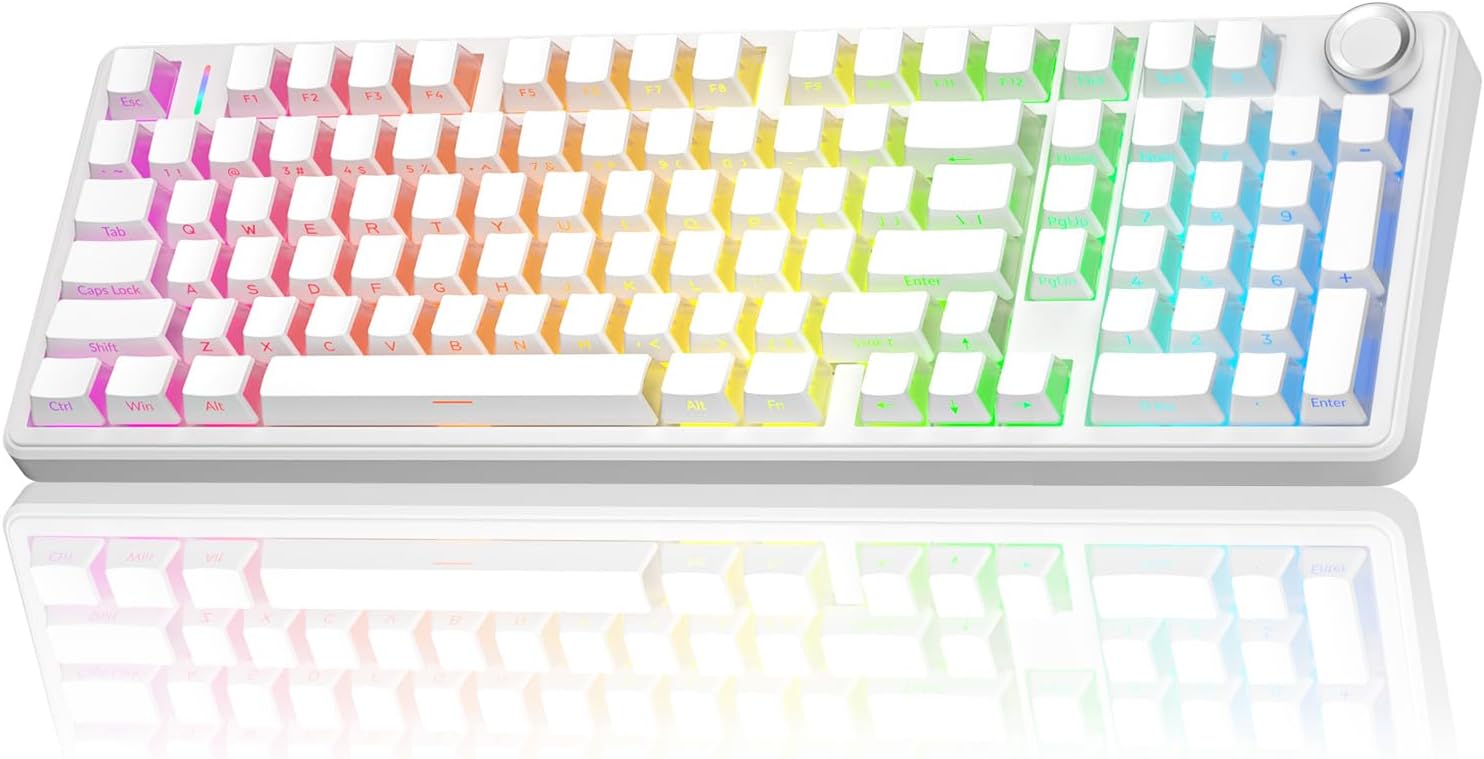
Image: The AULA F99 Pro Wireless Mechanical Keyboard in white, showcasing tout layout li yo ak ekleraj dèyè RGB.
Ki sa ki nan bwat la
- AULA F99 Pro Wireless Mechanical Keyboard
- Keycap/Switches Puller x1
- USB kab (Tip-C)
- Kouvèti Pousyè x1
- Extra Replacement Switches x 2
Pwodwi souview
The AULA F99 Pro is engineered with several advanced features to enhance user experience:
- Koneksyon plizyè aparèy: Supports BT5.0, 2.4GHz wireless, and USB-C wired modes. Connects to up to five devices simultaneously.
- Konsepsyon ranplasabl a cho: Allows for easy replacement of 3-pin/5-pin switches without soldering.
- Estrikti Joint: Features an advanced gasket-mounted design with integrated silicone pad and PCB single key slotting for improved typing feel and reduced noise.
- Pre-lubed Linear Switches: Equipped with quiet, pre-lubed switches for a smooth and responsive typing experience.
- Ekleraj RGB: Offers 16 RGB lighting effects and supports macro customization via driver software.
- Multi-Function Control Knob: A dedicated knob for switching between backlight and multimedia modes, controlling brightness, volume, and lighting effects.
- Kle PBT yo: Side-printed PBT keycaps provide durability, resistance to fading, and a soft touch.
- Batri ki gen gwo kapasite: Built-in 8000mAh battery for extended wireless use.

Imaj: Yon plis paseview of the AULA F99 Pro's key features, including BT5.0/2.4G/Wired connectivity, Gasket-Structure, Pre-lubed Silent Switches, RGB Backlit, 8000mAh Battery, Side-engraved PBT Keycaps, Hot Swappable, and 96% Layout with Knob.
Enstalasyon
1. Mòd Koneksyon
The AULA F99 Pro supports three connection methods:
- Bluetooth (BT5.0): Ideal for connecting to multiple devices wirelessly.
- 2.4GHz san fil: Uses a USB dongle for a stable wireless connection.
- USB-C branche: Connects directly via the included USB-C cable, also charges the keyboard.
To switch between modes, use the FN + key combination or the side button as indicated in the keyboard's layout. The keyboard can connect to PCs, laptops, tablets, gaming consoles, and mobile phones.

Image: The AULA F99 Pro keyboard demonstrating its three connection modes: Bluetooth 5.0, 2.4GHz wireless, and USB-C wired, compatible with various devices like Switch, Xbox, PlayStation, PC, Laptop, Tablet, and Phone.
2. Chaje batri
The keyboard features a built-in 8000mAh battery. To charge, connect the keyboard using the provided USB-C cable to a power source. Refer to the charging instructions in the manual for optimal battery life maintenance.
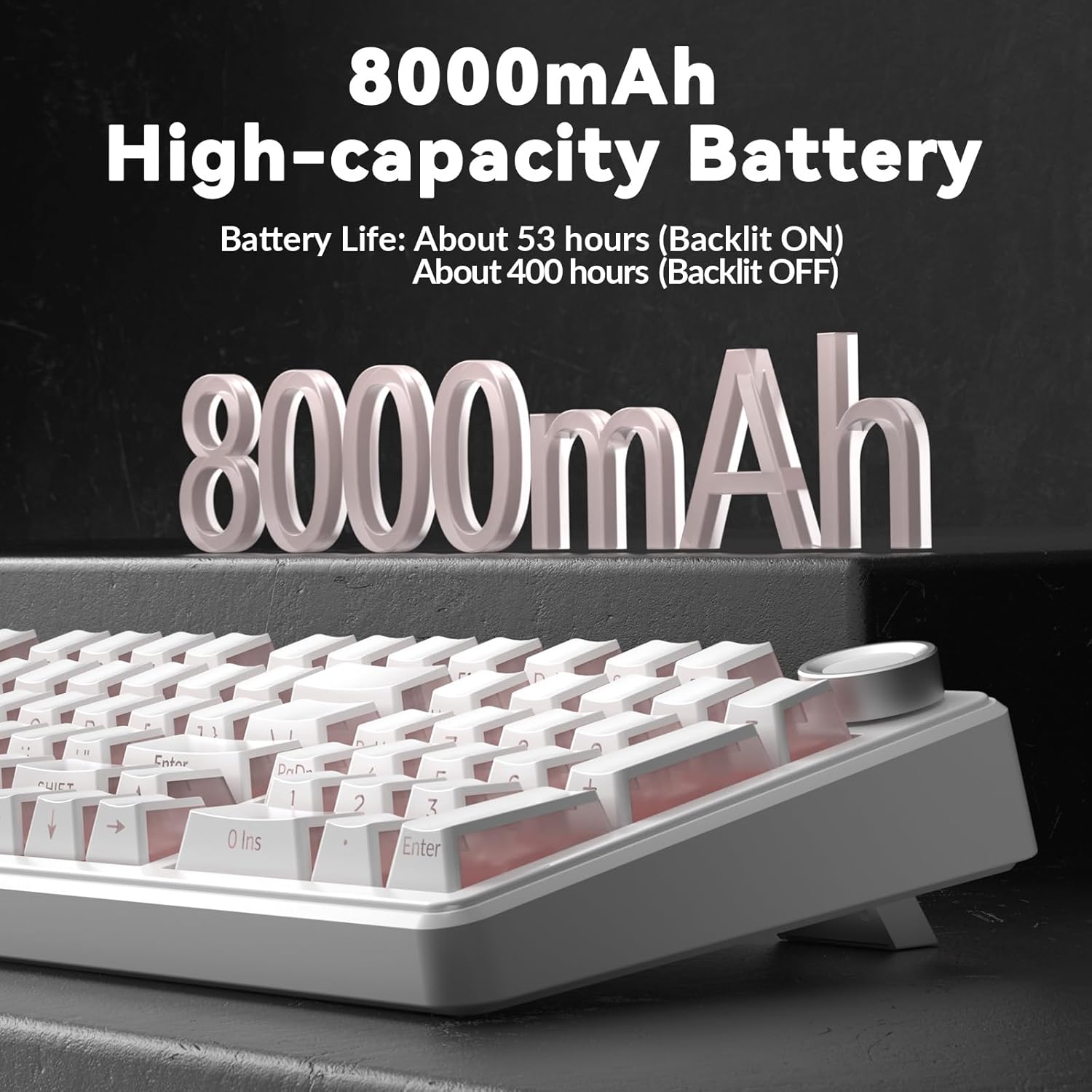
Imaj: Yon gwo plan view highlighting the 8000mAh high-capacity battery of the AULA F99 Pro keyboard, with battery life estimates of 53 hours (backlit on) and 400 hours (backlit off).
Enstriksyon Operasyon
1. Fonksyon debaz klavye a
The AULA F99 Pro features a 96% layout, retaining essential arrow keys and a number pad. All keys support N-key rollover, allowing simultaneous key presses to be registered accurately.
2. Kontwòl ekleraj RGB
The keyboard offers 16 RGB lighting effects. Use the following key combinations and the multi-function knob to control the backlighting:
- Fn + Shift (Right): Switch light bar mode or turn off the bar backlight.
- Fn + \| Switch between 15 RGB light effects or turn off backlight.
- Fn + Tab: Switch lighting color.
- Fn + ↑: Ogmante klète ekleraj la.
- Fn + ↓: Diminye klète limyè a.
- Fn + →: Increase lighting speed.
- Fn + ←: Decrease lighting speed.
In Lighting Control Mode (activated by long-pressing the knob for 5 seconds), rotate the knob to adjust brightness and click to switch lighting effects.
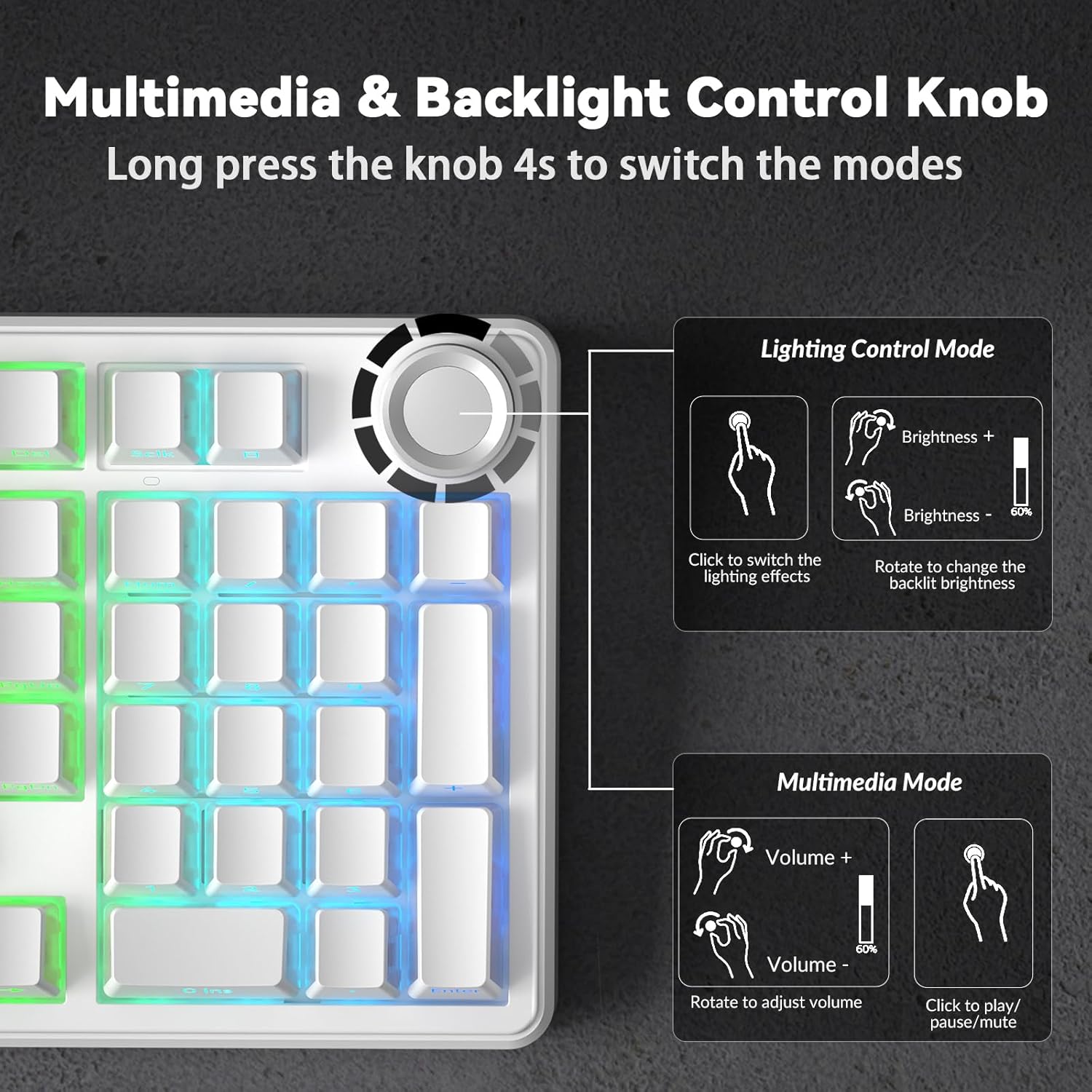
Image: A detailed diagram illustrating the functions of the Multimedia & Backlight Control Knob on the AULA F99 Pro keyboard, showing how to adjust brightness, switch lighting effects, adjust volume, and play/pause media.
3. Multimedia Control
In Mòd miltimedya (activated by long-pressing the knob for 5 seconds), rotate the knob to adjust the volume and click to play or pause media.
4. Macro Customization
The keyboard supports macro customization, allowing users to record and edit macros, customize key functions, and set 16.8 million light colors. It also supports musical rhythm lighting effects. Driver software is required for these advanced customizations. The driver currently supports Windows systems under wired mode.
Users can download the driver via the provided link in the product documentation or manufacturer's websit.

Image: A screenshot of the AULA F99 Pro's driver software interface, demonstrating options for customizing RGB backlighting, macro recording and editing, and custom shortcut keys. The image notes that the driver supports Windows systems under wired mode.
Antretyen
1. Ranplasman kle ak switch
The AULA F99 Pro is hot-swappable, allowing for easy replacement of keycaps and switches. Use the included keycap/switch puller tool for this process. Ensure the keyboard is powered off before attempting to remove or install switches.
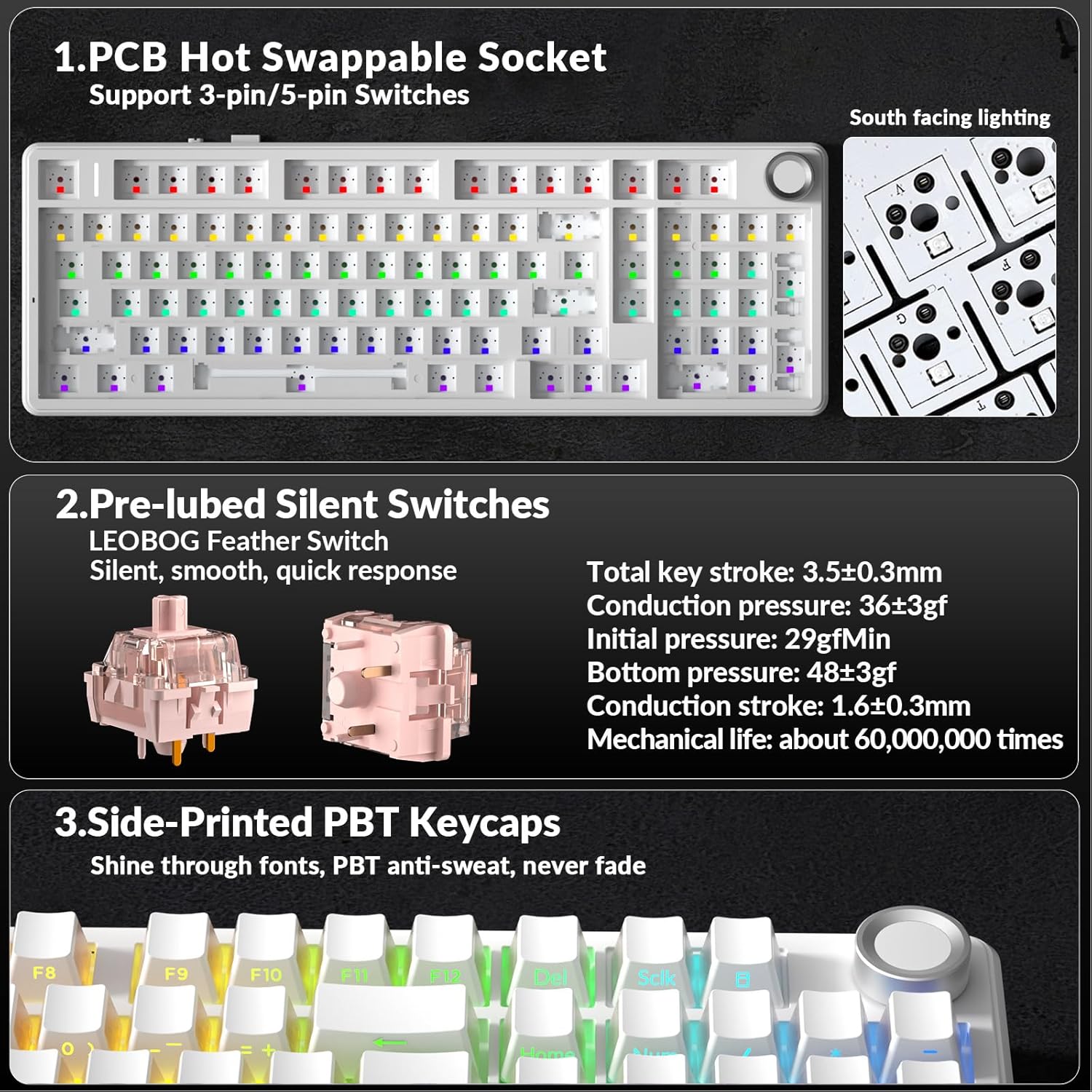
Imaj: Yon imaj detaye view of the AULA F99 Pro's PCB hot-swappable sockets, supporting 3-pin/5-pin switches, and a close-up of the pre-lubed LEOBOG Feather Silent Switches with their specifications.
2. Netwayaj
Regularly clean your keyboard to maintain performance. Use a soft brush or compressed air to remove dust and debris from between the keycaps. For deeper cleaning, remove keycaps using the puller and wipe the surface with a damp twal. Evite itilize pwodwi chimik piman bouk yo.
3. Swen batri
To prolong battery life, avoid fully discharging the battery frequently. Charge the keyboard when the battery indicator suggests low power. Store the keyboard in a cool, dry place when not in use for extended periods.
Depanaj
- Klavye a pa reponn: Ensure the keyboard is charged and properly connected (wired, 2.4GHz dongle, or Bluetooth paired). Try switching between connection modes.
- Pwoblèm koneksyon san fil: For 2.4GHz, ensure the dongle is securely plugged into a USB port. For Bluetooth, re-pair the device if connection is lost. Ensure no strong interference sources are nearby.
- Ekleraj RGB a pa fonksyone: Check lighting settings using Fn key combinations or the control knob. Ensure the keyboard is not in a mode where lighting is disabled.
- Kle yo pa anrejistre: If specific keys are not working, ensure the switches are properly seated. If the issue persists, consider replacing the switch using the included puller and spare switches.
- Batri a vide byen vit: Reduce RGB brightness or turn off backlighting when not needed. Ensure the keyboard is fully charged before use.
Espesifikasyon
| Karakteristik | Detay |
|---|---|
| Mak | AULA |
| Nimewo Modèl | F99 Pro |
| Koneksyon Teknoloji | 2.4GHz Wireless, BT3.0/5.0, USB Wired |
| Deskripsyon klavye | Mekanik |
| Aparèy konpatib | Konsole jwèt, Laptop, PC, Smartphone, Tablèt |
| Karakteristik espesyal | Backlit, Hot-Swappable, Programmable Keys, Silent, Volume Roller |
| Sipò pou koulè ekleraj klavye | RGB |
| Materyèl | Plastik |
| Pwa atik | 3.32 liv |
| Dimansyon pake | 17.32 x 6.73 x 1.93 pous |
| Batri | 2 pil ki pa estanda obligatwa (enkli) |
Garanti ak sipò
For warranty information and technical support, please refer to the documentation included with your product or visit the official AULA websit. Kenbe resi acha ou pou reklamasyon garanti.


