1. Entwodiksyon
The TESmart MST USB-C/HDMI/DP KVM Switch (Model: HDC202-P23-USBK-V1) is designed to allow two computers to share two monitors and a single set of USB peripherals (keyboard, mouse, etc.). This device supports high-resolution video output up to 4K@60Hz, provides 60W Power Delivery for laptops, and includes a Gigabit Ethernet port. It is suitable for environments requiring seamless switching between a desktop computer and a laptop, enhancing workspace efficiency.

Image: The TESmart KVM Switch unit shown with its various included cables.
2. Pake kontni
Tanpri verifye ke tout atik ki nan lis anba a yo enkli nan pakè ou a. Si gen nenpòt atik ki manke oswa ki domaje, tanpri kontakte sèvis kliyan.
- 1 x 2x2 Hybrid KVM Switch (HDC202-P23-USBK-V1)
- 1 x KVM Cable
- 1 x DisplayPort kab
- 2 x USB-C Câbles
- 1 x IR Remote Control
- 1 x DC 20V pouvwa adaptè
- 1 x manyèl itilizatè

Image: All components included in the TESmart KVM Switch package, laid out for inspection.
3. Pwodwi souview
3.1 Aranjman Panèl Devan ak Dèyè
Familiarize yourself with the ports and controls on the KVM switch before beginning installation.

Image: A detailed diagram illustrating the front and rear panel ports of the KVM switch, including connections for monitors, computers, and peripherals.
Panèl devan:
- Pò USB 3.0: For connecting USB peripherals such as keyboards, mice, USB drives, or printers.
- Chwazi bouton: Chanje ant òdinatè ki konekte yo manyèlman.
- IR Reseptè: For receiving signals from the included IR remote control.
Dèyè Panel:
- DC 20V Antre pouvwa: Konekte adaptè kouran ki founi an.
- Display A/B Outputs (HDMI): Connect to your two monitors.
- Pò Gigabit Ethernet: For network connectivity shared between computers.
- Pò USB 3.0: Additional ports for USB peripherals.
- PC1 Antre: USB-C (for laptop), HDMI, DisplayPort (for desktop).
- PC2 Antre: USB-C (for laptop), HDMI, DisplayPort (for desktop).
4. Enstriksyon Enstalasyon
Follow these steps to connect your computers and monitors to the KVM switch.
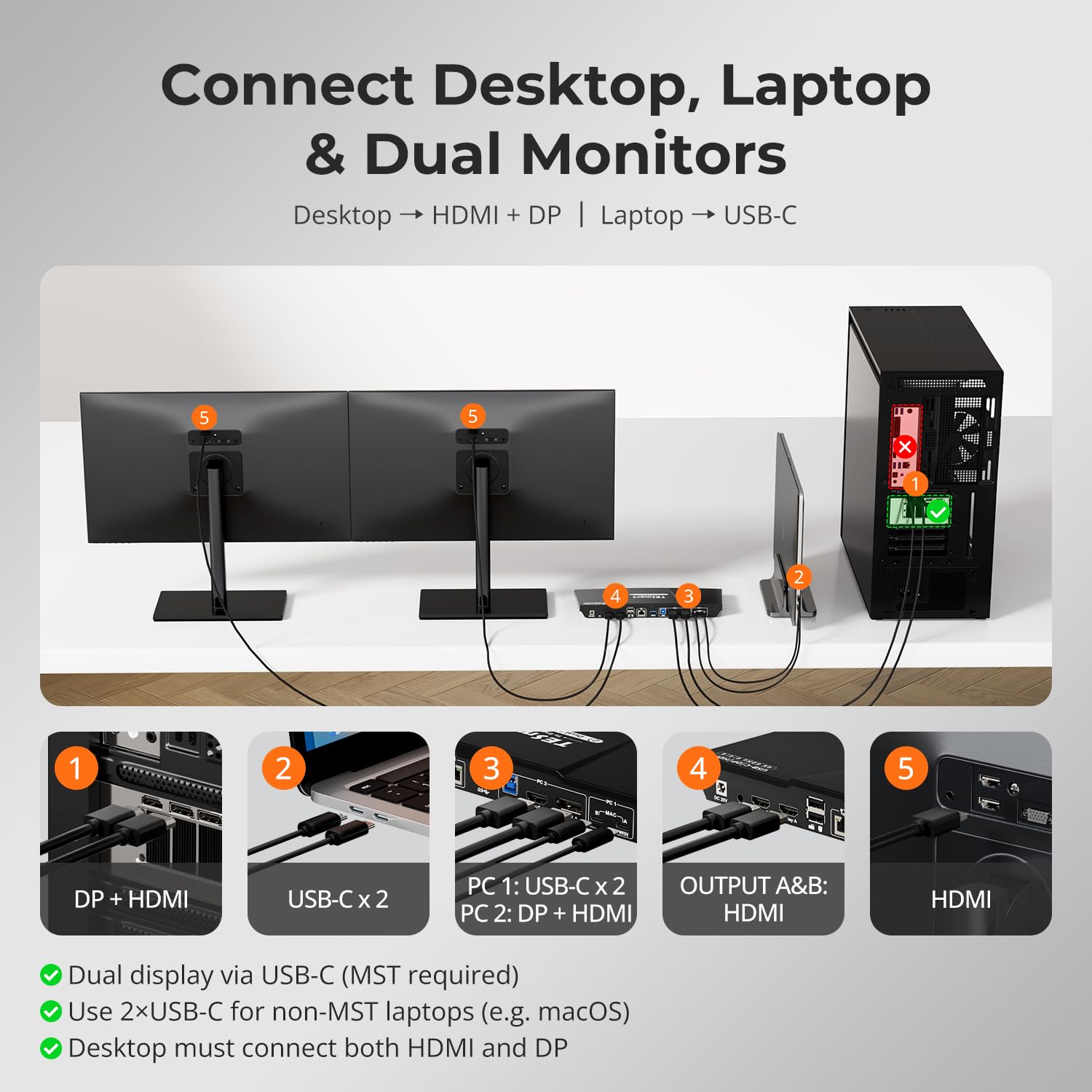
Image: Visual guide for connecting a desktop (HDMI+DP) and a laptop (USB-C) to the KVM switch for dual monitor output.
- Aparèy koupe pouvwa: Ensure all computers and monitors are powered off before making connections.
- Konekte monitè yo: Connect your two monitors to the KVM switch's Display A and Display B HDMI output ports using HDMI cables.
- Connect Desktop PC:
- Connect the desktop's HDMI output to one of the KVM's PC input HDMI ports.
- Connect the desktop's DisplayPort output to one of the KVM's PC input DisplayPort ports.
- Connect the KVM cable (USB-A to USB-B) from the desktop's USB port to the corresponding PC input USB-B port on the KVM.
- Connect Laptop:
- Connect the laptop to the KVM switch using the provided USB-C cables. For dual display on Windows, ensure your laptop supports Multi-Stream Transport (MST). For macOS, use both included USB-C cables to achieve dual extended displays, provided your Mac supports multi-display output.
- Konekte periferik: Connect your USB keyboard, mouse, and other USB devices to the USB 3.0 ports on the KVM switch.
- Konekte Rezo a (Si ou vle): Connect an Ethernet cable from your router to the KVM switch's Gigabit Ethernet port.
- Pouvwa sou: Connect the DC 20V power adapter to the KVM switch and then plug it into a power outlet. Power on your monitors and computers.
4.1 USB-C Port Compatibility
Before connecting your laptop via USB-C, ensure its USB-C port supports video output and data transfer. Not all USB-C ports have full functionality.
- Thunderbolt 3/4/5: Full function (Power, Video, Data).
- Port USB-C konplè: Supports Power, Video, Data.
- USB-C with DisplayPort Alternate Mode: Supports Data Transfer & Video Output.
- USB-C (Data Transfer Only): Not compatible for video output.
- USB-C (Charging Only): Not compatible for video or data transfer.
5. Operasyon
5.1 Chanje ant òdinatè
The KVM switch offers multiple methods for switching between connected computers:

Image: Illustration of the four available switching methods: Custom Hotkey, Front Panel Button, IR Remote Control, and Mouse Wheel Switching.
- Bouton Panèl devan: Press the 'Select' button on the front of the KVM switch to cycle through connected computers.
- Chanjman rakoursi klavye: Use predefined keyboard hotkeys to switch inputs. Refer to the detailed user manual for specific hotkey combinations.
- IR Remote Control: Use the included IR remote control to switch between computers.
- Mouse Wheel Switching: Double-click the middle scroll wheel of your mouse to switch inputs.
5.2 Montre mòd
The KVM switch supports two primary display configurations:

Image: Visual representation of Mode 1 (one PC extending or mirroring across two monitors) and Mode 2 (two separate PCs each using one monitor).
- Mode 1: One PC Across Two Monitors: A single computer can extend or mirror its display across both connected monitors.
- Mode 2: Two PCs on Two Monitors: Each connected computer utilizes one dedicated monitor.
5.3 EDID Emulation
The KVM switch features EDID (Extended Display Identification Data) emulation to prevent issues such as desktop icon rearrangement, screen flickering, and window clutter when switching between computers or after a computer wakes from sleep.

Image: A comparison showing how EDID emulation maintains desktop icon and window positions after switching, unlike systems without it.
5.4 Independent USB & Audio Focus Lock
This feature allows USB and audio connections to remain active with the current source even when the display is switched to another computer. This is useful for maintaining ongoing tasks like video calls or file transfers without interruption.
6. Antretyen
To ensure optimal performance and longevity of your TESmart KVM Switch, follow these maintenance guidelines:
- Netwayaj: Sèvi ak yon twal mou epi sèk pou netwaye deyò aparèy la. Evite itilize pwodui netwayaj likid oswa solvan, paske yo ka domaje fini an oswa konpozan entèn yo.
- Vantilasyon: Asire w ke switch KVM a mete nan yon zòn ki byen ayere pou anpeche li chofe twòp. Pa bloke okenn ouvèti vantilasyon.
- Jesyon kab: Keep cables organized and free from kinks or excessive bending to prevent damage and ensure stable connections.
- Pwovizyon pou pouvwa: Sèvi sèlman ak adaptè kouran orijinal ki vini ak aparèy la.
NAN. Depanaj
Si ou rankontre pwoblèm ak switch KVM ou a, gade pwoblèm ak solisyon komen sa yo:
7.1 No Display on Monitors
- Tcheke pouvwa: Ensure the KVM switch is properly powered on and the power adapter is securely connected.
- Verifye koneksyon kab: Confirm that all HDMI, DisplayPort, and USB-C cables are securely connected between the computers, KVM switch, and monitors.
- Seleksyon Antre: Ensure the correct computer input is selected on the KVM switch using the front panel button, hotkey, or remote control.
- Antre pou kontwole: Verify that your monitors are set to the correct HDMI input source.
- Sòti Odinatè: Check your computer's display settings to ensure it is configured to output to the connected monitors.
7.2 USB Peripherals Not Responding
- Tcheke kab USB: Ensure the USB-B cable (for desktop) or USB-C cables (for laptop) are securely connected from the computers to the KVM switch.
- Eseye diferan pò USB: If a peripheral (e.g., a wireless mouse dongle) is not working correctly in the dedicated K&M ports, try connecting it to one of the USB 3.0 hub ports on the KVM switch.
- Power Cycle KVM: Disconnect and reconnect the KVM's power adapter.
- Pwoblèm chofè: Ensure your computer has the necessary drivers for the USB peripherals.
7.3 Desktop Icons Rearrange or Screen Flickers
- Emulation EDID: The KVM switch is designed with EDID emulation to prevent these issues. Ensure your system is configured to utilize this feature.
- Kalite kab: Use high-quality HDMI/DisplayPort cables, especially for 4K resolutions.
7.4 Laptop Issues After Sleep (macOS)
- Some macOS systems may require a power cycle of the KVM switch after waking from sleep to restore full functionality. Disconnect and reconnect the KVM's power adapter if issues persist.
8. Espesifikasyon
| Karakteristik | Detay |
|---|---|
| Nimewo Modèl | HDC202-P23-USBK-V1 |
| Dimansyon pwodwi | 11.81 x 4.33 x 1.18 pous |
| Pwa atik | 3.88 liv |
| Manifakti | TESmart |
| Mòd operasyon | ON-OFF |
| Rating aktyèl | 5 Amps |
| Opere Voltage | 20 Volts |
| Kalite Connector | Ploge nan |
| Sipò pou rezolisyon videyo | Jiska 4K@60Hz 4:4:4 |
| Sipò pou To Rafrechisman | 1080P@240Hz/165Hz/144Hz/120Hz, 2560x1440@120Hz |
| Livrezon pouvwa | 60W for laptop charging |
| Rezo | 1000 Mbps Gigabit LAN |
| Pò USB | USB 3.0, USB 2.0 |
9. Garanti ak sipò
TESmart products are designed for reliability and performance. For information regarding warranty coverage, technical support, or service, please refer to the warranty card included in your package or visit the official TESmart website. Please have your product model number (HDC202-P23-USBK-V1) and purchase details ready when contacting support.