Entwodiksyon
Thank you for choosing the acer OMR241 Ergonomic Wireless Vertical Mouse. This mouse is designed to provide a comfortable and efficient user experience, reducing wrist and arm strain during prolonged use. Its vertical design promotes a natural hand posture, and the wireless connectivity ensures a clutter-free workspace. This manual provides detailed instructions for setting up, operating, maintaining, and troubleshooting your new mouse.
Enstalasyon
1. Pake kontni
- acer OMR241 Ergonomic Wireless Vertical Mouse
- USB-A Reseptè
- USB Chaje Kab
- Manyèl itilizatè
2. Locating the USB-A Receiver
The USB-A receiver is conveniently stored within the mouse itself, typically in a compartment on the underside. Gently open the compartment to retrieve the receiver.

The USB-A receiver is located in a dedicated slot on the bottom of the mouse for secure storage and easy access.
3. Konekte sourit la
- Take out the USB-A receiver from its storage slot on the mouse.
- Insert the USB-A receiver into an available USB-A port on your computer, laptop, or other compatible device.
- Turn on your mouse using the power switch located on the underside. The mouse will automatically connect to the receiver.

Visual guide for connecting the USB-A receiver to your device and powering on the mouse.
4. Chaje Sourit la
The mouse is equipped with a rechargeable 300mAh lithium battery. When the battery is low, the LED indicator may flash. Use the provided USB charging cable to recharge the mouse.
- Connect the USB-C end of the charging cable to the USB-C charging port on the front of the mouse.
- Connect the USB-A end of the charging cable to a USB power source (e.g., computer USB port, USB wall adapter).
- A full charge typically takes approximately 1.5 hours and can last up to a month depending on usage.
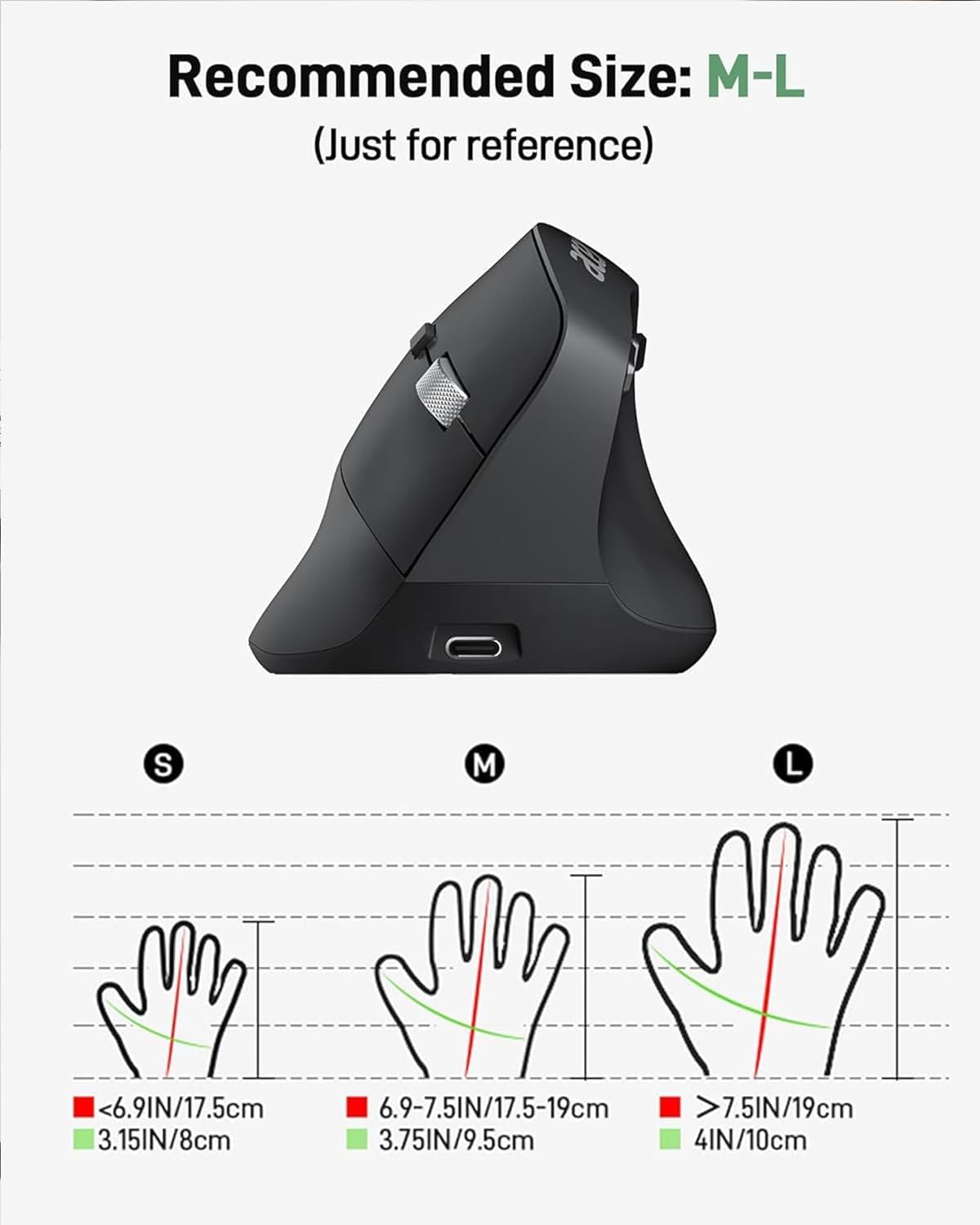
The mouse features a USB-C charging port for convenient recharging.
Enstriksyon Operasyon
1. Deskripsyon bouton
Familyarize w avèk diferan bouton yo ak fonksyon yo:

Detaye view of the mouse with all buttons and features clearly labeled.
- Bouton Goch: Fonksyon klike estanda.
- Dwa bouton: Fonksyon estanda klike sou bò dwat la.
- wou woulo liv: Scroll up/down, and middle-click function.
- Bouton Ajisteman DPI: Chanje nan paramèt DPI yo (1000/1200/1600).
- Bouton Avant: Navige pi devan nan web navigatè oswa file eksploratè.
- Bouton dèyè: Navige bak nan web navigatè oswa file eksploratè.
- Pouvwa switch: Turns the mouse On or Off.
- Endikatè ki ap dirije: Montre estati koneksyon an ak nivo batri a.
2. Ajisteman DPI
The mouse offers three adjustable DPI levels (1000/1200/1600) to suit your preference and task requirements. Press the DPI adjustment button, located near the scroll wheel, to cycle through the settings. Each press will change the cursor sensitivity.

Adjust cursor sensitivity by pressing the DPI button to switch between 1000, 1200, and 1600 DPI.
3. Forward and Backward Buttons
The dedicated forward and backward buttons on the side of the mouse allow for quick navigation through web pages and folders, enhancing your workflow efficiency.

Utilize the forward and backward buttons for efficient navigation.
4. Ergonomik konsepsyon
The 57° vertical design of the mouse promotes a natural handshake position, reducing pronation of the forearm and wrist. This design aims to minimize muscle activity and discomfort during extended periods of use.

The 57° ergonomic design helps reduce wrist and arm pressure for greater comfort.
Antretyen
1. Netwayaj
Pou kenbe pèfòmans ak ijyèn optimal, netwaye sourit ou regilyèman:
- Disconnect the mouse from your device and turn it off.
- Sèvi ak yon ti moso twal mou, ki san pèl dampRense avèk dlo oswa yon solisyon netwayaj dou pou siye sifas sourit la.
- Evite itilize pwodui chimik ki fò, abrazif, oswa solvan.
- Pou detèktè optik la, sèvi ak yon ti koton sèk pou retire dousman nenpòt pousyè oswa debri.
2. Swen batri
Pou pwolonje lavi pil rechargeable entegre a:
- Evite dechaje batri a nèt souvan.
- Charge the mouse when the low battery indicator appears.
- If storing the mouse for an extended period, charge it to about 50% before storage and recharge every few months.
3. Depo
Store the mouse in a cool, dry place away from direct sunlight and extreme temperatures. When transporting, ensure the USB-A receiver is securely stored in its compartment to prevent loss.
Depanaj
| Pwoblèm | Kòz posib | Solisyon |
|---|---|---|
| Sourit pa reponn | Mouse is off or battery is low. USB receiver not properly connected. | Turn on the mouse and ensure it has sufficient charge. Reinsert the USB receiver into a different USB port. |
| Mouvman kurseur a pa regilye oswa ralanti | Low battery. DPI setting is too low. Dirty optical sensor. | Charge the mouse. Press the DPI button to increase sensitivity. Clean the optical sensor. |
| Forward/Backward buttons not working on Mac | Operating system limitation. | The side buttons may not be fully functional on macOS without additional software or customization. This is a known compatibility aspect. |
| Sourit la dekonekte souvan | Distance from receiver too far. Interference. Low battery. | Ensure the mouse is within 32 feet (10 meters) of the receiver. Move away from other wireless devices. Charge the mouse. |
| Sourit la pa chaje | Kab oswa sous kouran ki defektye. | Try a different USB charging cable or a different USB power source. |
Espesifikasyon
| Karakteristik | Detay |
|---|---|
| Nimewo Modèl | OMR241 |
| Dimansyon pwodwi | 4.3 x 3.1 x 0.1 pous |
| Pwa atik | 5.1 ons |
| Koneksyon Teknoloji | 2.4GHz san fil (Reseptè USB-A) |
| Anviwònman DPI | 1000 / 1200 / 1600 |
| Bouton | 6 (Agoch, Adwat, Motè woulo, DPI, Avanse, Aryè) |
| Batri | 300mAh Rechargeable Lithium Battery (included) |
| Port chaje | USB-C |
| Mouvman Deteksyon | Optik |
| Karakteristik espesyal | Ergonomic Design, Vertical Orientation, Rechargeable |
Konpatibilite
The acer OMR241 mouse is compatible with a wide range of operating systems and devices:
- Windows (PC, Laptop)
- macOS (iMac, MacBook Pro/Air)
- Linux
- Chrome OS
The mouse offers universal compatibility across various operating systems and devices.
Garanti ak sipò
For warranty information, technical support, or service inquiries, please refer to the warranty card included in your product packaging or visit the official acer support websit la. Kenbe resi acha ou kòm prèv acha pou reklamasyon garanti.
Gid videyo
Gade videyo ofisyèl sa a pou yon vizyon anplis.view of the acer Ergonomic Wireless Mouse, demonstrating its features and usage.


