1. Entwodiksyon
This manual provides essential information for the safe and efficient use of your KOORUI G2711P 27-inch IPS Full HD Gaming Monitor. Please read it thoroughly before operating the device and retain it for future reference.
The KOORUI G2711P monitor features a 27-inch IPS non-glare panel with Full HD (1920x1080) resolution, a 200Hz refresh rate, and a 1ms MPRT response time, designed for an immersive gaming and viewing experience. It includes multiple connectivity options and eye-care features.

Imaj 1.1: Devan view of the KOORUI G2711P 27-inch IPS Full HD Gaming Monitor.
2. Enfòmasyon sou Sekirite
- Pa ekspoze monitè a anba lapli oswa imidite pou evite dife oswa chòk elektrik.
- Pa ouvri monitè a casing. Pa gen pyès ki ka sèvi ak men itilizatè a anndan an. Konfye tout antretyen bay pèsonèl sèvis kalifye.
- Mete monitè a sou yon sifas ki plat e ki estab pou anpeche l tonbe.
- Asire w ke gen bon vantilasyon toutotou monitè a. Pa bloke ouvèti vantilasyon yo.
- Sèvi sèlman ak adaptè kouran ki vini ak monitè a.
- Debranche monitè a nan priz kouran an pandan tanpèt zèklè oswa lè ou pa itilize li pou yon bon bout tan.
3. Enstalasyon
3.1 Debake
Carefully remove all components from the packaging. Ensure all parts listed in the packing list are present and undamaged. Keep packaging materials for future transport or return.
3.2 Asanblaj Sipò a
- Tache baz la kanpe nan kou a kanpe.
- Secure the assembled stand to the back of the monitor panel. Refer to the product images for visual guidance on the attachment method.

Image 3.1: Monitor dimensions and side view, illustrating the stand attachment area.
3.3 Konekte ak yon Aparèy
The monitor supports various input options:
- HDMI: Connect an HDMI cable from your computer or other device to one of the two HDMI 2.0 ports on the monitor.
- DisplayPort (DP): Connect a DisplayPort cable from your computer to the DP 1.4 port on the monitor.
- Audio Out (A/O): Connect external speakers or headphones to the audio output port if desired, as the monitor does not have built-in speakers.

Imaj 3.2: Dèyè view of the monitor showing HDMI, DisplayPort, and Audio Out connections, along with the 75x75mm VESA mount.
3.4 Koneksyon pouvwa
Connect the power adapter to the monitor's power input, then plug the power cable into a wall outlet. The monitor is designed for 110V power input.
4. Operasyon Enstriksyon
4.1 Power On/Off
Press the power button, typically located on the back or bottom of the monitor, to turn the monitor on or off. An indicator light will show the power status.
4.2 Navigasyon meni sou ekran (OSD)
The monitor features a 5-way joystick for intuitive OSD menu navigation. This joystick allows you to access and adjust various display settings.
- Peze joystick la: Konfime seleksyon an.
- Move joystick up/down: Adjust or select options.
- Move joystick left/right: Adjust or select options.
- Move joystick back (usually left): Exit menu or go back.

Image 4.1: Illustration of the 5-way joystick control for OSD menu navigation.
4.3 Anviwònman ekspozisyon
- Rezolisyon: The native resolution is 1920x1080 Full HD. Ensure your device is set to this resolution for optimal display quality.
- Pousantaj rafrechisman: The monitor supports up to 200Hz. Adjust your graphics card settings to utilize the higher refresh rate for smoother visuals.
- Tan repons (MPRT): The monitor features 1ms MPRT (Moving Picture Response Time) for reduced motion blur. This setting can usually be enabled or adjusted in the OSD menu.
- Adaptive Sync: This technology synchronizes the monitor's refresh rate with your graphics card's frame rate to eliminate screen tearing and stuttering. Enable it in the OSD menu and your graphics card control panel.
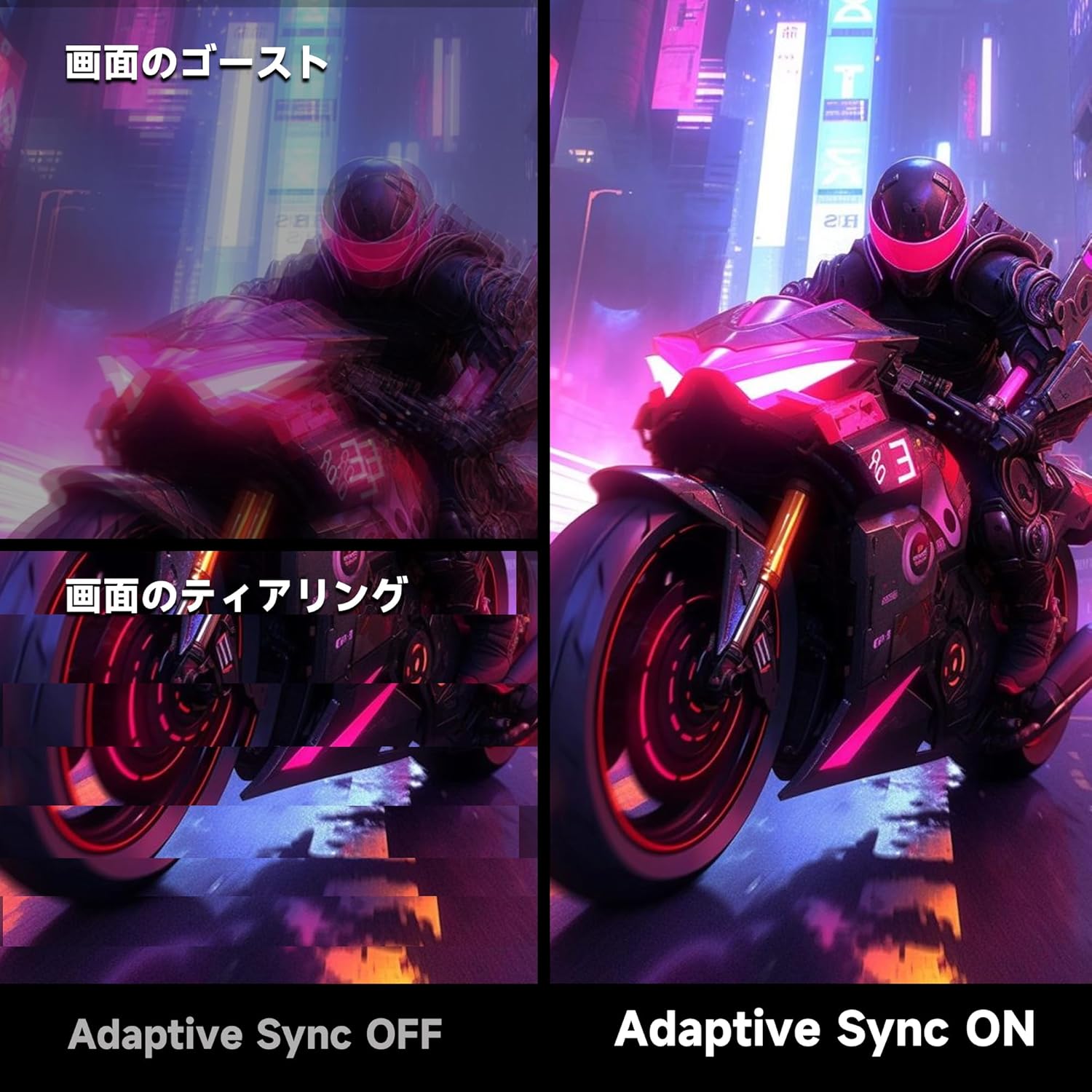
Image 4.2: Visual comparison demonstrating the effect of Adaptive Sync being OFF (showing ghosting and tearing) versus ON (smooth image).

Image 4.3: Comparison illustrating the difference in motion clarity between 200Hz 1ms MPRT and 75Hz 5ms settings.
- HDR 400: The monitor supports HDR 400 for enhanced contrast and color depth. Enable HDR in your operating system settings for compatible content.

Image 4.4: Visual representation of HDR 400 providing more impressive and vibrant images compared to standard HDR 10.
- Anviwònman koulè: The monitor offers 93% DCI-P3 color gamut for accurate and vibrant color reproduction. Adjust brightness, contrast, and color temperature via the OSD menu.

Image 4.5: Display showing a wide range of colors, indicating 93% DCI-P3 color gamut coverage for accurate and vivid visuals.
- Karakteristik Swen Je: The monitor incorporates 'Blue Light Reduction' and 'Flicker-Free' technologies to minimize eye strain during prolonged use. These settings can be adjusted in the OSD menu.
- Fonksyon kwazèt: For shooting games, a built-in crosshair overlay can be enabled via the OSD menu to assist with aiming.

Image 4.6: A gaming scene demonstrating the monitor's crosshair function, which can be toggled ON or OFF to assist players in shooting games.
5. Antretyen
5.1 Netwaye ekran an
Siye ekran an dousman avèk yon twal mou ki pa gen pousyè. Pou mak ki difisil pou retire,ampSiye twal la ak yon ti kantite pwodui netwayaj ekran ki fèt espesyalman pou monitè. Pa flite pwodui netwayaj la dirèkteman sou ekran an.
5.2 Netwayaj C aasing
Sèvi ak yon twal mou epi sèk pou siye monitè a.asing. Avoid using abrasive cleaners or solvents that may damage the surface.
NAN. Depanaj
- Pa gen pouvwa: Asire w kab kouran an byen konekte ak monitè a ak priz kouran an. Tcheke si priz kouran an ap fonksyone.
- Pa gen siyal: Verify that the video cable (HDMI or DisplayPort) is correctly connected to both the monitor and your computer. Ensure the correct input source is selected in the monitor's OSD menu.
- Ekran k ap flache: Tcheke koneksyon kab videyo a. Eseye yon lòt kab oswa yon lòt pò. Asire w ke chofè kat grafik ou yo ajou.
- Image Distortion/Tearing: Ensure Adaptive Sync is enabled in both the monitor's OSD and your graphics card settings. Check for correct resolution and refresh rate settings.
- Poor Color Quality: Adjust color settings (brightness, contrast, color temperature) in the OSD menu. Ensure HDR is enabled for HDR content.
7. Espesifikasyon
| Karakteristik | Spesifikasyon |
|---|---|
| Mak | KOORUI |
| Modèl | G2711P |
| Gwosè ekran | 27 pous |
| Kalite Panel | IPS, Non-Glare |
| Rezolisyon | 1920 x 1080 (Full HD) |
| Aspè rapò | 16:9 |
| Rafrechisman pousantaj | 200Hz |
| Tan repons | 1ms MPRT (GTG) |
| Klète | 300 cd/m² |
| Pwopòsyon kontras | 1000:1 |
| Viewing Ang | 178° (Orizontal/Vètikal) |
| Gamut koulè | 93% DCI-P3 |
| Sipò HDR | HDR 400 |
| Koneksyon | 2x HDMI 2.0, 1x DisplayPort 1.4, 1x Audio Out |
| Moun kap pale | Pa enkli |
| VESA Mount konpatibilite | 75x75mm |
| Dimansyon (W x H x P) | 61.34 x 47.23 x 21.49 cm (ak sipò a) |
| Pwa | 5.8 kg |
| Antre pouvwa | 110V |
8. Garanti
The KOORUI G2711P monitor screen is covered by a 1-ane garanti from the date of purchase. All other included accessories are covered by a 3-ane garantiTanpri konsève prèv acha ou a pou reklamasyon garanti. Garanti a kouvri domaj fabrikasyon ak fonksyònman ki pa kòrèk nan kondisyon itilizasyon nòmal.
9. Sipò
For technical assistance, troubleshooting, or warranty inquiries, please contact KOORUI customer support through the retailer where you purchased the product or visit the official KOORUI website for contact information. When contacting support, please have your monitor model number (G2711P) and proof of purchase readily available.


