1. Entwodiksyon
Thank you for choosing the ATTACK SHARK×Magic-Refiner G6 Wireless Gaming Mouse. This manual provides detailed instructions on how to set up, operate, and maintain your new gaming mouse. The G6 mouse features tri-mode connectivity, a high-precision PixArt PAW3311 sensor, and a lightweight ergonomic design, making it ideal for various computing tasks and gaming scenarios.
2. Pake kontni
Tanpri tcheke kare a pou atik sa yo:
- ATTACK SHARK×Magic-Refiner G6 Wireless Gaming Mouse
- 2.4G USB reseptè
- USB-C Chaje Kab
- Anti-Slip Grip Tape Set

Image: The ATTACK SHARK G6 Wireless Gaming Mouse in white, shown with its accompanying USB receiver.
3. Pwodwi souview
The G6 gaming mouse is designed for versatility and performance. Familiarize yourself with its key components and features.

Image: Detailed diagram of the G6 mouse, highlighting its buttons and features including the Left Button, Scroll Wheel + Middle Button, Right Button, Back Button, Forward Button, Power Toggle Switch (2.4G-OFF-Bluetooth), DPI Cycle Button, Atmosphere Light Switch & Wireless Mode Frequency Binding Button, Battery & DPI Indicator Light, Atmosphere Light, and USB Receiver storage.
3.1. Karakteristik kle
- Koneksyon Tri-Mòd: Seamlessly switch between USB-C wired, 2.4GHz wireless, and Bluetooth 5.0 connections. The 2.4GHz mode offers a polling rate of 125-1000Hz, while Bluetooth operates at 125Hz. This allows for flexible use across various devices and scenarios.
- High-Precision Sensor: Equipped with the PixArt PAW3311 optical sensor, offering six adjustable DPI levels from 800 to 24000. Features a 1000Hz polling rate, 1ms response time, 300 IPS tracking, and 35G acceleration for precise control.
- Lightweight Design & Long Battery Life: Weighs approximately 72±3g, minimizing hand fatigue during extended use. The built-in 750mAh battery provides over 150 hours of wireless usage on a single charge.
- Durable Switches & Customization: Features 10M micro switches with a 10 million click lifespan. Includes a 1.5m braided USB-C cable. Customize rear RGB lighting via a bottom button for various effects.
- Anti-Slip Grips: Comes with a set of 6 DIY anti-slip grip tapes for enhanced control and sweat resistance.

Image: The G6 mouse illustrating its 2.4GHz Wireless, USB-C Wired, and Bluetooth connection modes.
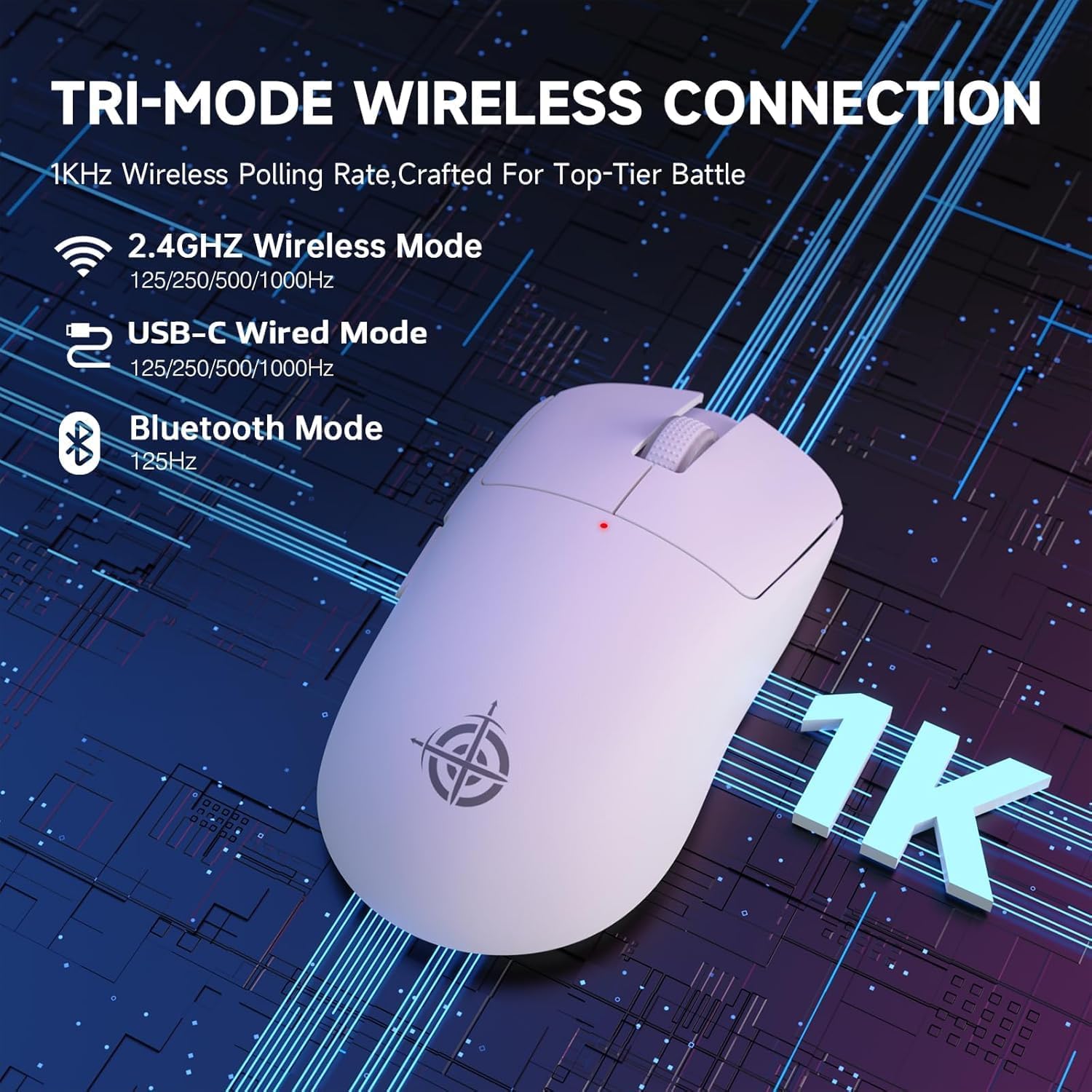
Image: The G6 mouse with an overlay indicating DPI levels (800-24000) and their associated indicator light colors (Red, Green, Blue, Yellow, Cyan, Purple).

Image: The G6 mouse displaying its customizable RGB lighting effects, including rainbow and single color options.

Image: The G6 mouse with its practical non-slip stickers applied, showing the textured surface for improved grip.
4. Gid Enstalasyon
The G6 mouse offers three connection methods. Choose the one that best suits your needs.
4.1. Mòd san fil 2.4GHz
- Locate the 2.4G USB receiver stored in the compartment on the bottom of the mouse.
- Ploge reseptè USB a nan yon pò USB ki disponib sou òdinatè w lan.
- Slide the power toggle switch on the bottom of the mouse to the '2.4G' position.
- The mouse should automatically connect. If not, press the 'Atmosphere light switch & wireless mode frequency binding button' on the bottom of the mouse to initiate pairing.
4.2. Bluetooth mòd
- Slide the power toggle switch on the bottom of the mouse to the 'Bluetooth' position.
- Limyè endikatè sourit la ap kòmanse flache, sa vle di li an mòd koneksyon.
- Sou òdinatè w la oswa aparèy ou an, ale nan paramèt Bluetooth yo epi chèche nouvo aparèy.
- Select 'ATTACK SHARK G6' (or similar name) from the list of available devices to pair.
4.3. Mòd USB-C Filaire
- Konekte kab USB-C ki vini ak li a nan pò devan sourit la.
- Konekte lòt bout kab USB-C a nan yon pò USB ki disponib sou òdinatè w la.
- Sourit la ap chanje otomatikman nan mòd filaire epi li pral kòmanse chaje.
5. Operasyon Enstriksyon
5.1. Ajisteman DPI
The G6 mouse has a dedicated DPI cycle button on the bottom. Press this button to cycle through the preset DPI levels (800, 1600, 2400, 3200, 6400, 24000). The indicator light will change color to reflect the current DPI setting (Red, Green, Blue, Yellow, Cyan, Purple respectively).
5.2. Fonksyon bouton
The G6 mouse features 5 programmable buttons:
- Bouton Goch: Standard left click.
- Dwa bouton: Standard right click.
- Scroll Wheel + Middle Button: Defile monte/desann, klike sou bouton mitan bouton an.
- Bouton Avant: Navige pi devan nan web navigatè oswa file eksploratè.
- Bouton dèyè: Navige bak nan web navigatè oswa file eksploratè.
For advanced customization of button functions and macros, please download the official driver software from the ATTACK SHARK websit.
5.3. Kontwòl ekleraj RGB
The G6 mouse features customizable RGB lighting. Use the 'Atmosphere light switch' button on the bottom of the mouse to cycle through different lighting effects (e.g., Rainbow Lighting, Single Lighting) or to turn the lighting off.
6. Antretyen
To ensure the longevity and optimal performance of your G6 gaming mouse, follow these maintenance guidelines:
- Netwayaj: Sèvi ak yon twal mou epi sèk pou siye sifas sourit la. Pou pousyè tè ki difisil pou retire, siye l yon ti kras.ampRense twal la avèk dlo oswa yon solisyon netwayaj dou. Evite pwodui chimik ki agresif oswa materyèl abrazif.
- Swen Capteur: Kenbe detèktè optik ki anba sourit la pwòp epi san pousyè oswa debri. Sèvi ak yon ti sèvyèt koton oswa lè konprese si sa nesesè.
- Depo: Lè w pa itilize sourit la pou yon bon bout tan, sere l nan yon kote ki fre epi sèk, lwen limyè solèy dirèk ak tanperati ekstrèm.
- Batri: Evite dechaje batri a nèt souvan. Chaje sourit la regilyèman pou kenbe batri a an bon eta.
NAN. Depanaj
If you encounter any issues with your G6 gaming mouse, please refer to the following common solutions:
- Sourit la pa reponn:
- Asire w sourit la chaje. Konekte l atravè yon kab USB-C pou chaje l.
- Check the power toggle switch on the bottom of the mouse is in the correct position (2.4G, BT, or OFF for wired).
- Pou mòd 2.4GHz la, asire w ke reseptè USB a byen branche nan yon pò USB ki fonksyone. Eseye yon lòt pò USB.
- For Bluetooth mode, ensure Bluetooth is enabled on your device and the mouse is paired. Try unpairing and re-pairing.
- Mouvman kurseur a pa regilye oswa pa presi:
- Netwaye detèktè optik ki anba sourit la.
- Ensure you are using the mouse on a suitable surface. Some surfaces (e.g., plain black neoprene pads, highly reflective surfaces) may interfere with optical tracking. Try a different mouse pad or surface.
- Adjust the DPI setting using the DPI cycle button.
- 2.4GHz dongle not working:
- Asire w ke sourit la chanje sou mòd 2.4G.
- Eseye branche kle USB a nan yon lòt pò USB sou òdinatè w la.
- If issues persist, try re-pairing the mouse with the dongle by pressing the binding button on the mouse while the dongle is connected.
- Pwoblèm koneksyon Bluetooth:
- Ensure the mouse is in Bluetooth pairing mode (indicator light blinking).
- Retire sourit la nan lis Bluetooth aparèy ou an epi eseye konekte li ankò.
- Asire w ke chofè Bluetooth aparèy ou an yo ajou.
8. Espesifikasyon
| Karakteristik | Spesifikasyon |
|---|---|
| Nimewo Modèl | G6 |
| Koneksyon Teknoloji | 2.4Ghz / Bluetooth / USB-C Wired |
| Teknoloji deteksyon mouvman | Optical (PixArt PAW3311) |
| Nivo DPI | 800-24000 (6 nivo reglabl) |
| Pousantaj biwo vòt | 125-1000Hz (2.4Ghz), 125Hz (Bluetooth) |
| Kapasite batri | 750mAh |
| Pwa atik | 72±3g (2.54 ounces) |
| Dimansyon | 116.2 x 62.2 x 37.3mm (apeprè) |
| Chanje validite | 10 milyon klik |
| Longè kab | 1.5m (Braided USB-C) |
| Konpatibilite | Windows, macOS, Linux, Chrome OS, Consoles, Tablets, Smartphones |
9. Garanti ak sipò
The ATTACK SHARK×Magic-Refiner G6 Wireless Gaming Mouse comes with a standard manufacturer's warranty. Please refer to the product packaging or the official ATTACK SHARK websit la pou wè tèm ak kondisyon garanti espesifik yo.
For technical support, troubleshooting assistance, or warranty claims, please contact ATTACK SHARK customer service through their official websit entènèt la oubyen magazen kote ou te achte pwodwi a.
Nòt: Pa gen okenn videyo pwodwi ofisyèl nan men vandè a ki te disponib pou entegre nan manyèl sa a.


