1. Entwodiksyon
The Sonim Zenith H100 is a compact and powerful 4G mobile Wi-Fi hotspot designed to provide reliable internet connectivity on the go. With impressive download and upload speeds, LTE Cat-13 capabilities, Wi-Fi 5 features, and a color screen, the H100 allows you to connect up to 32 devices simultaneously. This manual provides essential information for setting up, operating, maintaining, and troubleshooting your Sonim H100 hotspot.

Figure 1: Sonim Zenith H100 Mobile Wi-Fi Hotspot. The device features a clear display showing connection details and signal strength.
2. Ki sa ki nan bwat la
Anvan ou kòmanse, tanpri asire w ke tout atik sa yo enkli nan pakè w la:
- Sonim Spot H100 4G mobil Hotspot
- USB-C kab
- Batri
- Charger
- Gid Quick Start
3. Aparèy souview
Familiarize yourself with the physical components of your Sonim H100 hotspot.
3.1 Devan View

Figure 2: Front of the H100, featuring the display screen.
The front of the device primarily features the color display, which provides real-time information about network status, battery level, and connected devices.
3.2 Bò View and Power Button
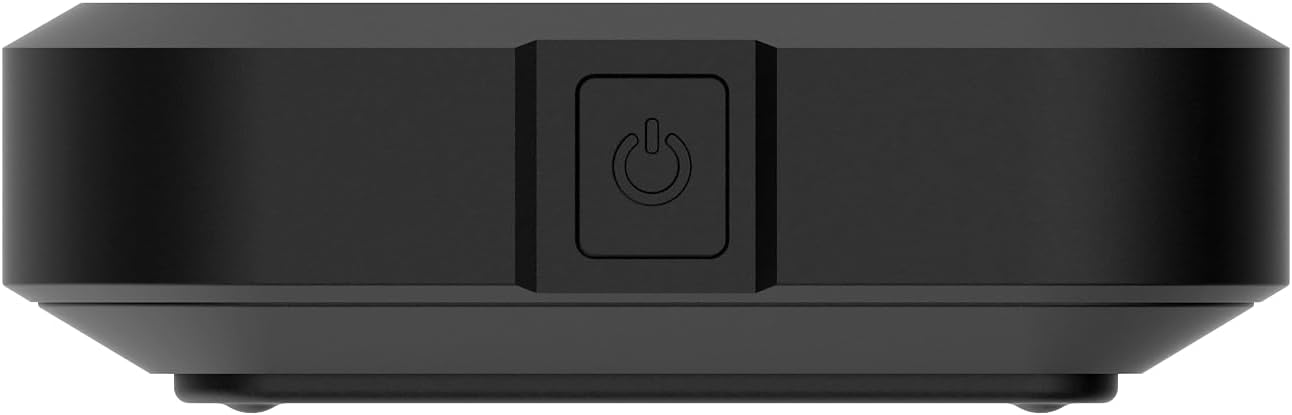
Figi 3: Side view of the H100, showing the power button.
The power button is located on the side of the device. Press and hold to power on or off. A short press can wake the screen or navigate menus.
3.3 Retounen View

Figure 4: Back of the H100.
The back of the device features a removable cover, under which the battery and SIM card slot are located.
4. Enstalasyon
4.1 Chaje Aparèy la
Before first use, fully charge your Sonim H100. Connect the provided USB-C cable to the device's USB-C port and the other end to the charger. Plug the charger into a power outlet. The screen will indicate charging status.

Figure 5: USB-C charging port on the Sonim H100.
4.2 Mete Kat SIM lan
- Asire w ke aparèy la etenn.
- Retire kouvèti dèyè aparèy la.
- Jwenn plas kat SIM la.
- Carefully insert your activated 4G LTE SIM card into the slot, ensuring correct orientation.
- Ranplase kouvèti dèyè a.
4.3 Limen/Etenyen
- Pou limen: Press and hold the power button (refer to Figure 3) until the Sonim logo appears on the screen.
- Pou etenn: Press and hold the power button until the power-off options appear on the screen, then select "Power Off".
5. Operasyon Enstriksyon
5.1 Connecting Devices to the Hotspot
The Sonim H100 broadcasts a Wi-Fi network that other devices can connect to.
- Ensure the H100 is powered on and has an active cellular connection.
- Sou aparèy ou an (telefòn entelijan, òdinatè pòtab, tablèt), ouvri paramèt Wi-Fi ou yo.
- Look for the Wi-Fi network name (SSID) displayed on the H100's screen.
- Select the H100's network and enter the Wi-Fi password (also displayed on the H100's screen).
- Aparèy ou a ta dwe konekte ak entènèt la atravè hotspot la kounye a.

Figure 6: H100 screen displaying connection information.
5.2 Managing Connections (Primary and Guest)
The H100 supports both a primary and a guest Wi-Fi network. This allows you to provide internet access to guests without sharing your main network password or access to your primary connected devices.
- Rezo Prensipal: Your main Wi-Fi network, typically with full access and higher priority.
- Rezo Guest: A separate Wi-Fi network with its own password, often with limited access or bandwidth, ideal for temporary users.
Navigate the H100's on-screen menu using the navigation button (often the power button or a dedicated navigation button) to view and manage settings for both networks.
5.3 Sèvi ak Display la
The color display provides crucial information at a glance. Use the navigation button to cycle through different screens, which may include:
- Network status (4G LTE, signal strength)
- Nivo batri
- Connected devices (Primary and Guest)
- SSID ak modpas Wi-Fi
- Itilizasyon done
5.4 Anviwònman rezo
Advanced network settings can typically be accessed via a web interface. Connect a device to the H100's Wi-Fi, then open a web browser and enter the IP address displayed on the H100's screen (e.g., 192.168.1.1). Log in using the default credentials (usually found in the Quick Start Guide or on a sticker inside the device) to configure settings such as:
- Changing Wi-Fi SSID and password
- Setting up security protocols
- Jere aparèy ki konekte
- Mizajou mikrolojisyèl yo
6. Antretyen
6.1 Swen Batri
- Evite ekspoze aparèy la nan tanperati ekstrèm.
- Pa dechaje batri a nèt regilyèman. Chaje l anvan li desann anba 20%.
- If storing the device for an extended period, charge the battery to about 50% and power off the device.
6.2 Netwayaj
Use a soft, dry, lint-free cloth to clean the device. Do not use liquid cleaners or aerosols directly on the device. Avoid getting moisture into any openings.
6.3 Mizajou lojisyèl
Periodically check for software updates through the device's web interface. Updates can improve performance, add new features, and enhance security. Ensure the device is fully charged before performing any updates.
NAN. Depanaj
If you encounter issues with your Sonim H100, refer to the following common problems and solutions:
| Pwoblèm | Solisyon posib |
|---|---|
| Pa gen koneksyon entènèt |
|
| Pa ka konekte ak Wi-Fi |
|
| Vitès Entènèt Ralanti |
|
| Aparèy pa Limen |
|
8. Espesifikasyon
Key technical specifications for the Sonim Zenith H100 Mobile Wi-Fi Hotspot:
| Karakteristik | Detay |
|---|---|
| Mak | Sonim |
| Non modèl | H100 |
| Nimewo Modèl | 04.F010.373100-000 |
| Koneksyon Teknoloji | Wi-Fi, LTE |
| Wireless Kominikasyon Creole | 802.11a/b/g/n/ac (Wi-Fi 5) |
| LTE Kategori | Cat-13 |
| Kapasite batri | 3400 mAh |
| Max Konekte Aparèy | Jiska 32 |
| Koulè | Nwa |
| Pwa atik | 149 gram |
| Dimansyon (L x W x H) | 15 x 20 x 15 santimèt |
| UPC | 096962278601 |
9. Garanti ak sipò
9.1 Garanti manifakti a
The Sonim Zenith H100 comes with a Garanti manifakti 2 zanTanpri konsève prèv acha ou a pou reklamasyon garanti. Garanti a kouvri domaj nan materyèl ak nan fabrikasyon anba itilizasyon nòmal. Li pa kouvri domaj ki koze pa move itilizasyon, aksidan, modifikasyon san otorizasyon, oswa dezas natirèl.
9.2 Sipò pou Kliyan
For technical assistance, warranty claims, or further inquiries, please contact Sonim customer support. Refer to the official Sonim website or the Quick Start Guide for the most up-to-date contact information.
Note: Information regarding spare parts availability and software updates guaranteed until dates is not available at this time.


