Entwodiksyon
This manual provides detailed instructions for the installation, operation, and maintenance of your Imou Cruiser SC 4G 5MP Outdoor IP Camera. This camera features UHD 3K resolution for detailed images, 4G LTE connectivity for independent operation without Wi-Fi, four spotlights that emit white or infrared light, and two red and blue indicator lights to enhance alarm visibility. Please read this manual thoroughly before use and retain it for future reference.
Enfòmasyon sou Sekirite
- Asire ekipman pou pouvwa a voltage matches the camera's requirements to prevent damage.
- Install the camera in a location where it is protected from extreme weather conditions, unless specifically designed for such environments.
- Evite mete kamera a toupre sous chalè oswa anba limyè solèy dirèk pou peryòd pwolonje.
- Pa eseye demonte oswa modifye kamera a. Konfye tout antretyen bay pèsonèl kalifye.
- Kenbe kamera a ak akseswa li yo lwen timoun yo.
Kontni pake
Tanpri verifye sa ki nan pake a lè w ap ouvri l. Si gen nenpòt atik ki manke oswa ki domaje, kontakte machann ou an.
- Imou Cruiser SC 4G 5MP Camera
- Adaptè pouvwa
- Mounting Modèl
- Pakè vise
- Konektè ki enpèmeyab
- Gid Quick Start
Pwodwi souview
Familiarize yourself with the main components of your Imou Cruiser SC 4G 5MP camera.
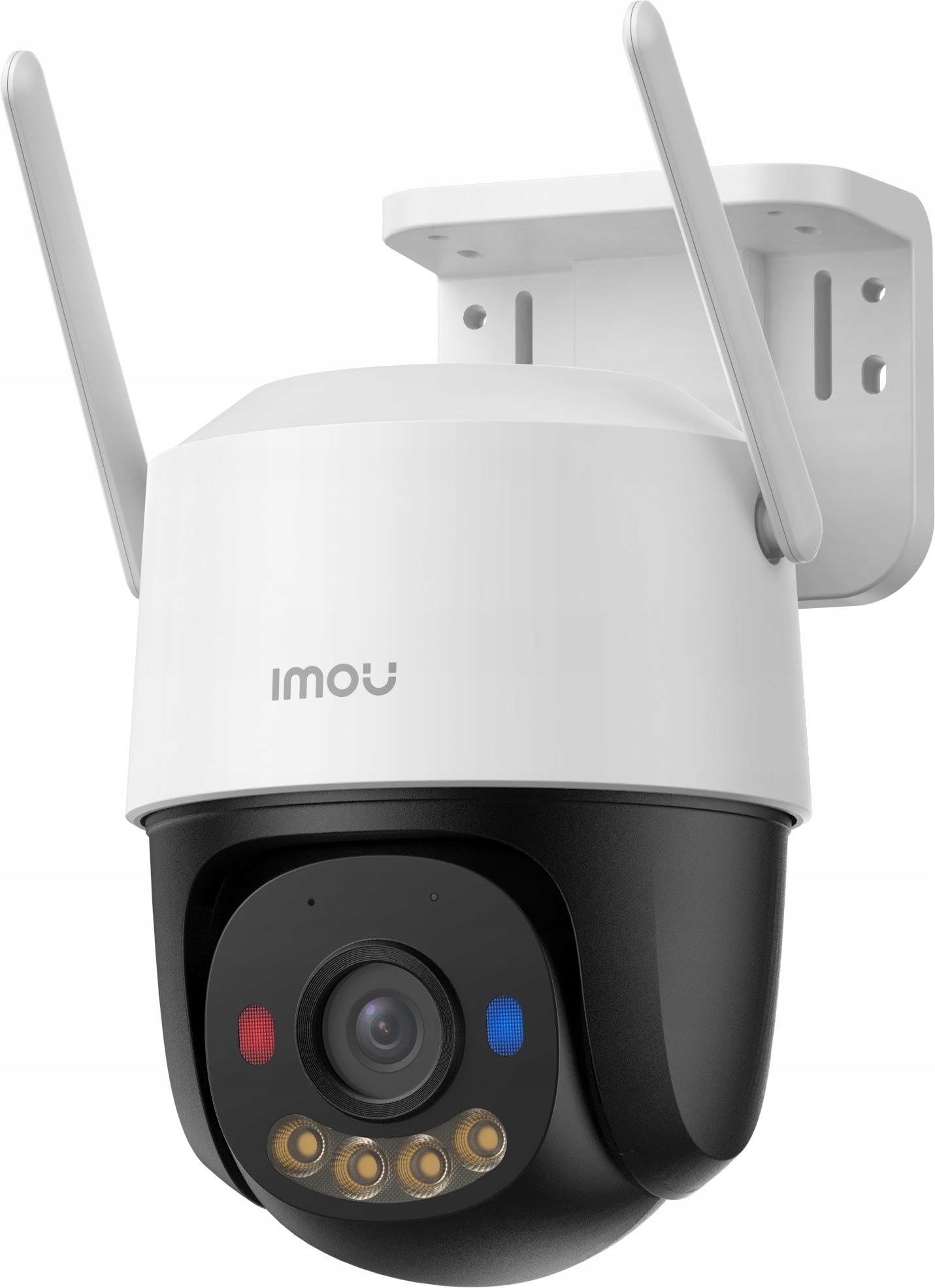
Figi 1: Imou Cruiser SC 4G 5MP Outdoor IP Camera. This image shows the front view of the camera, highlighting its lens, spotlights, and overall design.
The camera features a high-resolution lens, four integrated spotlights (for both white light and infrared illumination), two prominent red and blue alarm indicator lights, a built-in microphone, a speaker for two-way audio, a SIM card slot for 4G connectivity, a reset button, and a power input port.
Enstalasyon
1. Prepare pou Enstalasyon
- Choose a suitable outdoor location with good 4G signal reception.
- Asire w ke sifas kote kamera a pral monte a solid ase pou sipòte pwa li.
2. Enstalasyon Kat SIM
- Locate the SIM card slot on the camera (refer to the Quick Start Guide for exact location).
- Insert a standard 4G LTE SIM card into the slot, ensuring correct orientation.
- Secure the waterproof connector cover if applicable.
3. Power On
- Konekte adaptè kouran an nan pò antre kouran kamera a.
- Plug the power adapter into a power outlet. The camera will begin to power on and initialize.
4. App Setup (Imou Life App)
- Telechaje aplikasyon 'Imou Life' la nan magazen aplikasyon telefòn entelijan ou an (iOS oubyen Android).
- Register for an Imou account or log in if you already have one.
- Tape ikòn '+' ki nan kwen anwo dwat aplikasyon an pou ajoute yon nouvo aparèy.
- Eskane kòd QR ki sou kamera a oswa sou anbalaj li.
- Follow the on-screen prompts to complete the device setup.
5. Enstalasyon Fizik
- Use the provided mounting template to mark screw positions on the wall or ceiling.
- Fè twou gid epi mete lank miray si sa nesesè.
- Secure the camera mounting base with the provided screws.
- Ajiste ang kamera a jan sa nesesè pou pwoteksyon optimal.
Opere
1. Viv View
- Louvri aplikasyon Imou Life la epi chwazi kamera ou nan lis aparèy yo.
- The live video feed will appear, allowing you to monitor your property in real-time.
2. Anrejistreman ak Lekti
- The camera supports continuous recording or event-triggered recording (e.g., motion detection).
- Pou view anrejistre footage, access the playback feature within the Imou Life app. You can browse by date and time.
3. Motion Detection & Alarm
- Configure motion detection sensitivity and detection zones in the app settings.
- When motion is detected, the camera can trigger an alarm, activate the spotlights, and flash the red and blue indicator lights to deter intruders.
- You will receive notifications on your smartphone when an alarm is triggered.
4. De-fason pale
- Pandan w ap viv la view, tap the microphone icon in the Imou Life app to speak through the camera's speaker.
- The camera's built-in microphone allows you to hear audio from the camera's location.
5. Mòd Vizyon Lannwit
- The camera automatically switches to infrared (IR) night vision in low light conditions, providing clear black and white images.
- You can also configure the camera to use its white light spotlights for full-color night vision when motion is detected or on a schedule.
Antretyen
1. Netwayaj
- Netwaye lantiy kamera a regilyèman avèk yon twal mou epi sèk pou asire yon bon jan kalite imaj klè.
- Wipe the camera casing ak piblisiteamp twal jan sa nesesè. Pa sèvi ak pwodui chimik ki agresif oswa pwodui netwayaj abrazif.
2. Mizajou Firmware
- Periodically check for firmware updates via the Imou Life app.
- Keeping your camera's firmware updated ensures optimal performance, security, and access to new features.
3. Jesyon Depo
- If using a local storage card (e.g., microSD), ensure it is functioning correctly and has sufficient space.
- Manage cloud storage subscriptions and settings through the Imou Life app.
Depanaj
- Q: Camera is not powering on.
- A: Check if the power adapter is securely connected to both the camera and the power outlet. Ensure the outlet is functional.
- Q: No 4G connection.
- A: Verify that the SIM card is correctly inserted and activated. Check 4G signal strength in the camera's location. Contact your mobile carrier if necessary.
- Q: Cannot add device to the Imou Life app.
- A: Ensure your smartphone has a stable internet connection. Reset the camera by pressing the reset button for 10 seconds and try adding it again. Make sure you are scanning the correct QR code.
- Q: Poor image quality.
- A: Clean the camera lens. Ensure there are no obstructions in front of the lens. Check network conditions; a weak 4G signal can affect streaming quality.
- Q: Motion detection is not working or is too sensitive.
- A: Adjust the motion detection sensitivity and detection zones in the Imou Life app settings. Ensure the camera's firmware is up to date.
Espesifikasyon
| Mak | Imou |
| Nimewo Modèl | modèl134 |
| Rezolisyon | UHD 3K (5MP) |
| Koneksyon | 4G LTE (independent of Wi-Fi) |
| Pwen enpòtan | 4 (emit white or infrared light) |
| Limyè alam | 2 (red and blue indicator lights) |
| Eleman enkli | Delivered as a kit |
| Kantite Atik | 1 |
Garanti ak sipò
For warranty information and technical support, please refer to the warranty card included with your product or visit the official Imou website. You can also contact Imou customer service through the Imou Life app for assistance.