1. Entwodiksyon
Welcome to your new HP 14 Laptop. This manual provides comprehensive instructions to help you get started, operate, maintain, and troubleshoot your device. Designed for portability and productivity, your HP 14 Laptop features a thin, lightweight design with a micro-edge display, making it ideal for daily tasks and on-the-go use.
Key features include an Intel Celeron N4120 processor, 16GB RAM, 192GB storage (64GB eMMC + 128GB SD card), and Windows 11 Home in S Mode. A 1-year subscription to Microsoft 365 is also included to enhance your productivity.

Figure 1.1: The HP 14 Laptop, showcasing its sleek design and open display.
2. Enstalasyon
2.1 Premye Limen ak Konfigirasyon Windows
- Konekte pouvwa: Branche adaptè AC a nan pò smart pin AC laptop la epi answit nan yon priz kouran.
- Pouvwa sou: Open the laptop lid and press the power button. The laptop will start.
- Windows 11 Home S Mode Setup: Follow the on-screen instructions to complete the initial Windows 11 Home S Mode setup. This includes selecting your region, language, connecting to a Wi-Fi network, and setting up your Microsoft account.
- Microsoft 365 Activation: Activate your included 1-year Microsoft 365 subscription by following the prompts during Windows setup or by opening any Office application (Word, Excel, PowerPoint) after setup is complete.
2.2 Konekte periferik
Your HP 14 Laptop offers various ports for connecting external devices:
- Aparèy USB: Connect USB drives, external keyboards, or mice to the USB 3.1 Gen 1 Type-A ports or the USB 3.1 Gen 1 Type-C port.
- Ekspozisyon ekstèn: Use the HDMI 1.4b port to connect an external monitor or projector. The laptop supports up to FHD (1920x1080)@60Hz resolution on external displays.
- Aparèy odyo: Plug headphones or a headset with a microphone into the headphone/microphone combo jack.
- Kat SD: Insert an SD card into the multi-format SD media card reader for expanded storage or data transfer.

Figi 2.1: Plis paseview of core components including Intel Celeron processor and integrated graphics.
3. Operasyon Enstriksyon
3.1 Itilizasyon Touchpad la
The integrated precision touchpad supports multi-touch gestures for efficient navigation:
- Tape: Single tap to click.
- Two-finger Scroll: Place two fingers on the touchpad and slide them up or down to scroll.
- Pinch Zoom: Place two fingers on the touchpad and pinch them together or spread them apart to zoom in or out.
- Klike sou bò dwat la: Tap with two fingers or press the bottom-right corner of the touchpad.

Figure 3.1: The laptop's keyboard and touchpad area.
3.2 Koneksyon san fil
- Wi-Fi: To connect to a Wi-Fi network, click the network icon in the taskbar, select your desired network, and enter the password if required.
- Bluetooth: To pair Bluetooth devices, go to Windows Settings > Devices > Bluetooth & other devices, and follow the instructions to add a new device.
3.3 Sèvi ak Webcam and Microphones
The integrated HD 720p webcam and dual array microphones are suitable for video calls and online meetings. Ensure your internet connection is stable for optimal performance.

Figure 3.2: Laptop in use for a video conference.
3.4 Windows 11 S Mode
Your laptop comes with Windows 11 Home in S Mode, which offers enhanced security and performance by exclusively running apps from the Microsoft Store. If you need to install apps from outside the Microsoft Store, you can switch out of S Mode to standard Windows 11 Home. This is a one-way switch; you cannot revert to S Mode after switching.
Pou chanje mòd S la:
- Ale nan Anviwònman > Sistèm > Aktivasyon.
- In the "Switch to Windows 11 Home" section, select Ale nan magazen an.
- Sou la Switch out of S mode (oswa yon paj ki sanble) ki parèt nan Microsoft Store la, klike sou Jwenn bouton.
- Follow the on-screen prompts to complete the switch.
4. Antretyen
4.1 Swen Batri
Your HP 14 Laptop features an 11-hour battery life and HP Fast Charge technology. To maximize battery lifespan:
- Evite tanperati ekstrèm.
- Pa dechaje batri a nèt souvan.
- Sere laptop la ak yon chaj pasyèl (anviwon 50%) si ou pa itilize li pou yon bon bout tan.
4.2 Netwayaj
- Ekspozisyon: Sèvi ak yon moso twal mou, ki san pèl dampLave avèk dlo oswa yon pwodui netwayaj ekran. Pa flite likid dirèkteman sou ekran an.
- Klavye ak chasi: Sèvi ak yon twal mou epi sèk. Pou pousyè tè ki difisil pou retire, yon ti kras mouye.amp Ou ka itilize twal, pou asire pa gen likid ki antre nan ouvèti yo.
4.3 Mizajou lojisyèl
Regularly update your Windows operating system and drivers to ensure optimal performance, security, and compatibility. Windows Update typically handles this automatically, but you can manually check for updates in Anviwònman > Mizajou Windows.
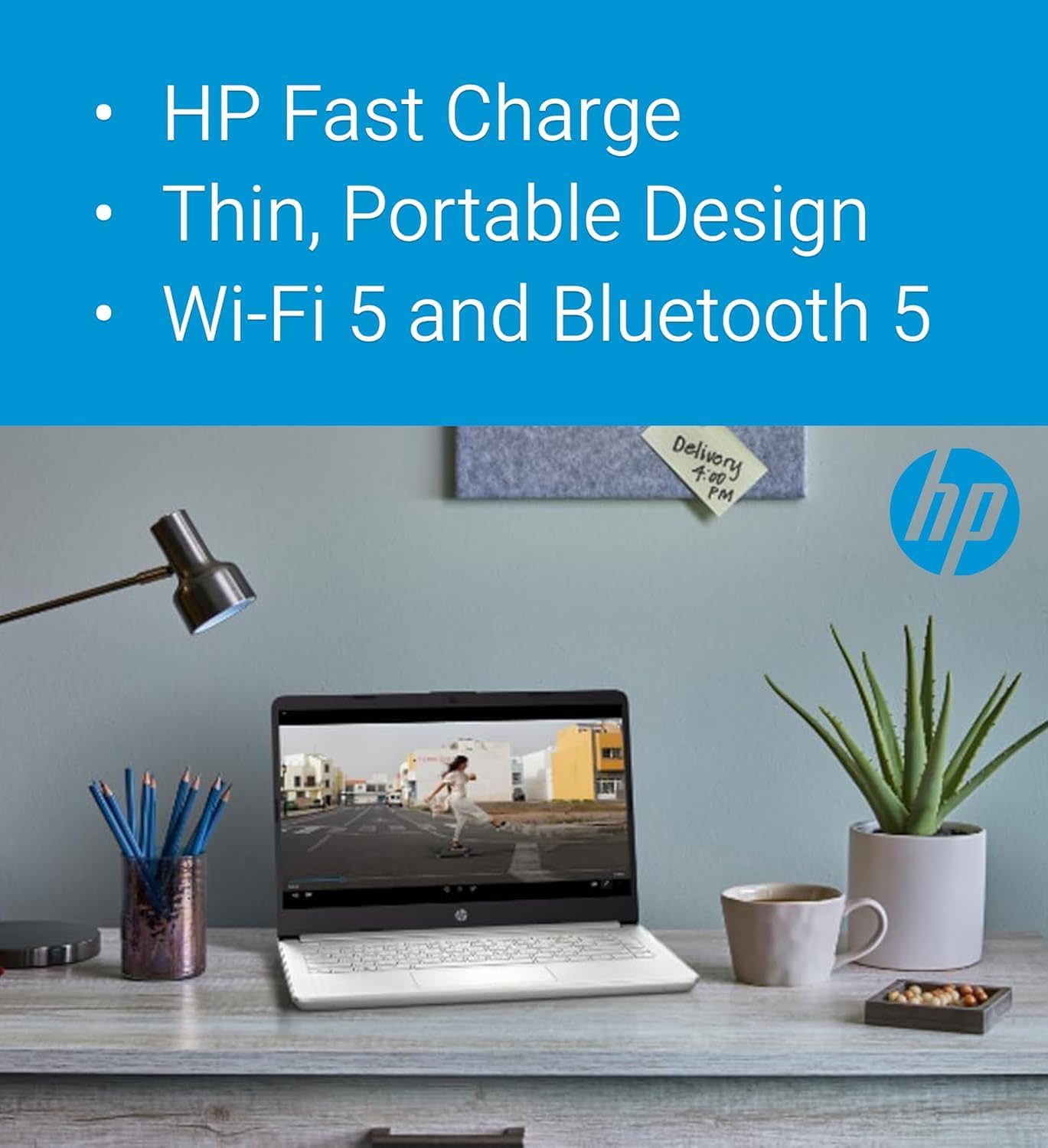
Figure 4.1: Features like HP Fast Charge contribute to easy maintenance and portability.
NAN. Depanaj
Seksyon sa a adrese pwoblèm komen ou ka rankontre ak òdinatè pòtab HP 14 ou a.
5.1 Pwoblèm pouvwa
- Laptop la pa limen: Ensure the AC adapter is securely connected to both the laptop and a working power outlet. Try a different outlet. If the battery is completely drained, it may take a few minutes of charging before the laptop powers on.
- Batri pa chaje: Verify the AC adapter is functioning correctly. Check for any damage to the cable or port.
5.2 Pwoblèm ekspozisyon
- Ekran vid: Connect an external monitor to the HDMI port to check if the issue is with the laptop's display or the graphics output. Try pressing Fn + F4 (or the display toggle key) to switch display modes.
- Ekran k ap flache: Update your graphics drivers. If the issue persists, it might indicate a hardware problem.
5.3 Pwoblèm koneksyon
- Wi-Fi a pa konekte: Ensure Wi-Fi is enabled. Restart your router and the laptop. Check if other devices can connect to the network.
- Aparèy Bluetooth la pa konekte: Ensure the Bluetooth device is in pairing mode and within range. Check laptop's Bluetooth settings.
For more advanced troubleshooting or issues not covered here, please refer to the HP support websit oswa kontakte sèvis kliyan.
6. Espesifikasyon
Below are the detailed technical specifications for the HP 14 Laptop:
| Eleman | Spesifikasyon |
|---|---|
| Processeur | Intel Celeron N4120 (4 cores, 4 threads, 1.1 GHz base, up to 2.6 GHz turbo, 4MB L3 cache) |
| Ekspozisyon | 14-inch HD (1366x768), Micro-edge, BrightView, 220 nits, 45% NTSC |
| Grafik | Intel UHD Graphics entegre 600 |
| memwa (RAM) | 16GB DDR4-2400MHz |
| Depo | 192GB (64GB eMMC + 128GB SD card) |
| Sistèm operasyon | Mòd S nan Windows 11 Home |
| Koneksyon san fil | Realtek RTL8822CE 802.11a/b/g/n/ac (2x2) Wi-Fi, Bluetooth 5 |
| Odyo | Doub oratè |
| Batri | 3-cell, 41Wh Lithium-ion (Up to 11.5 hours battery life) |
| Webkam | HD 720p Webkam |
| Sekirite | Firmware TPM 2.0 |
| Klavye | English, non-backlit |
| Dimansyon (W x P x H) | 12.8 x 8.8 x 0.7 pous (32.4 x 22.5 x 1.8 cm) |
| Pwa | 3.5 liv (1.47 kg) |
| Pò | 1x USB 3.1 Gen 1 Type-C (data transfer only), 2x USB 3.1 Gen 1 Type-A (data transfer only), 1x HDMI 1.4b, 1x Multi-format SD card reader, 1x Headphone/microphone combo, 1x AC smart pin |

Figure 6.1: Physical dimensions of the HP 14 Laptop.
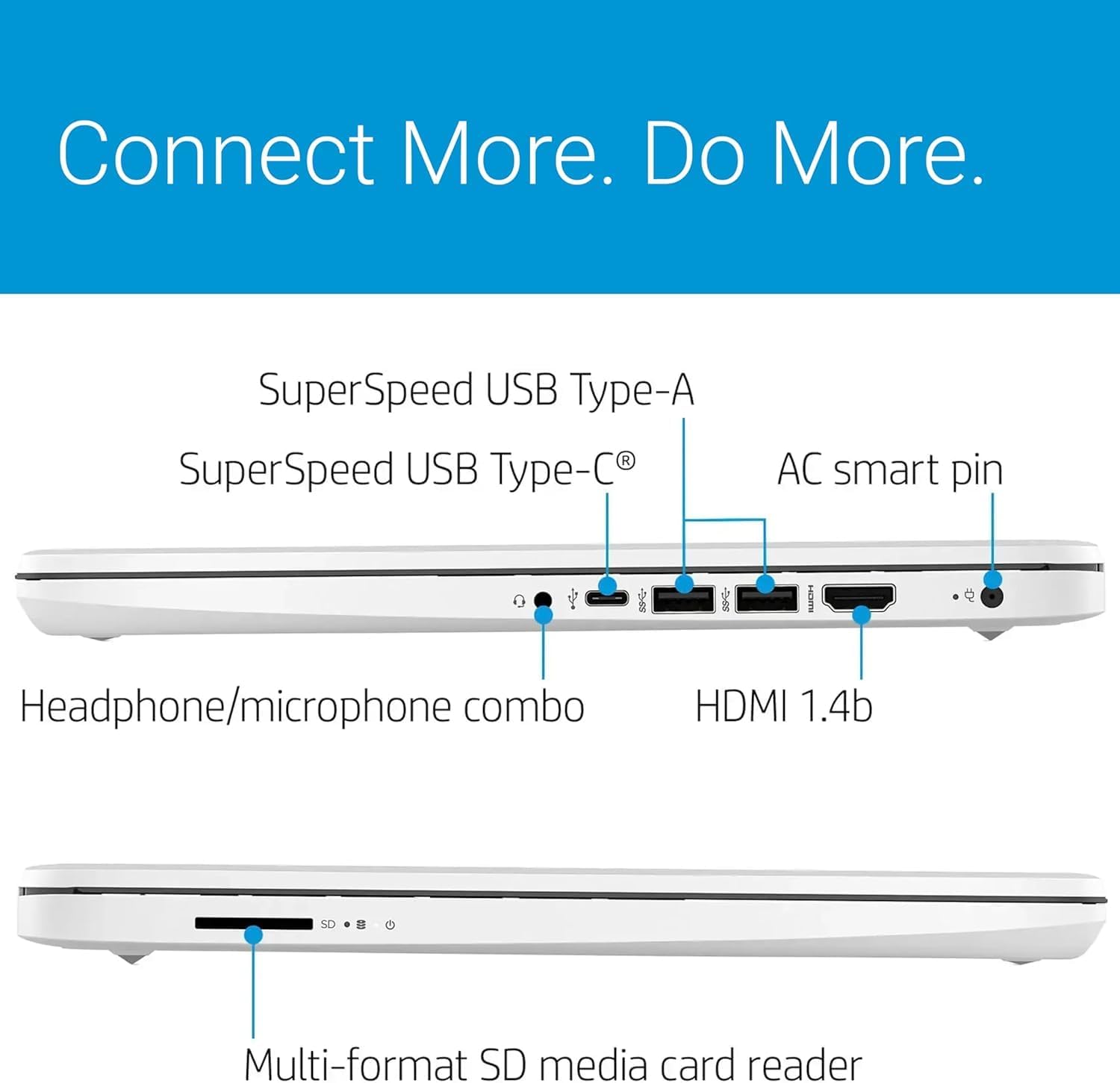
Figure 6.2: Available ports for connectivity on the HP 14 Laptop.

Figure 6.3: The included 128GB SD card for expanded storage.
7. Garanti ak sipò
7.1 Pwodwi Garanti
Your HP 14 Laptop comes with a 1-year manufacturer's warranty covering most components. The expanded 128GB SD card storage, if provided by Issaquah Highlands Tech, includes a separate 3-year warranty. Please retain your proof of purchase for warranty claims.
7.2 Sipò pou Kliyan
For technical assistance, warranty service, or additional information, please visit the official HP support website or contact HP customer service. You can find contact details and support resources on the HP websit espesifik nan rejyon ou an.
Souvan, resous sou entènèt yo gen ladan yo:
- Driver and software downloads
- Gid depanaj
- FAQ
- Fowòm kominote yo