1. Entwodiksyon
This manual provides detailed instructions for the setup, operation, and maintenance of your Itari M102 Label Maker Machine. Please read this manual thoroughly before using the device to ensure proper function and longevity.
2. Pake kontni
Verifye ke tout atik yo prezan nan pakè ou a:
- Itari M102 Label Maker Machine
- 3 Rolls of Thermal Labels (1.57" x 1.18" / 40mm x 30mm)
- USB Kalite-C Chaje Kab
- Manyèl Itilizatè (dokiman sa a)

Image 2.1: The Itari M102 Label Maker Machine shown with the included label rolls.
3. Pwodwi souview
Familyarize w ak konpozan ki nan machin etikèt ou a.
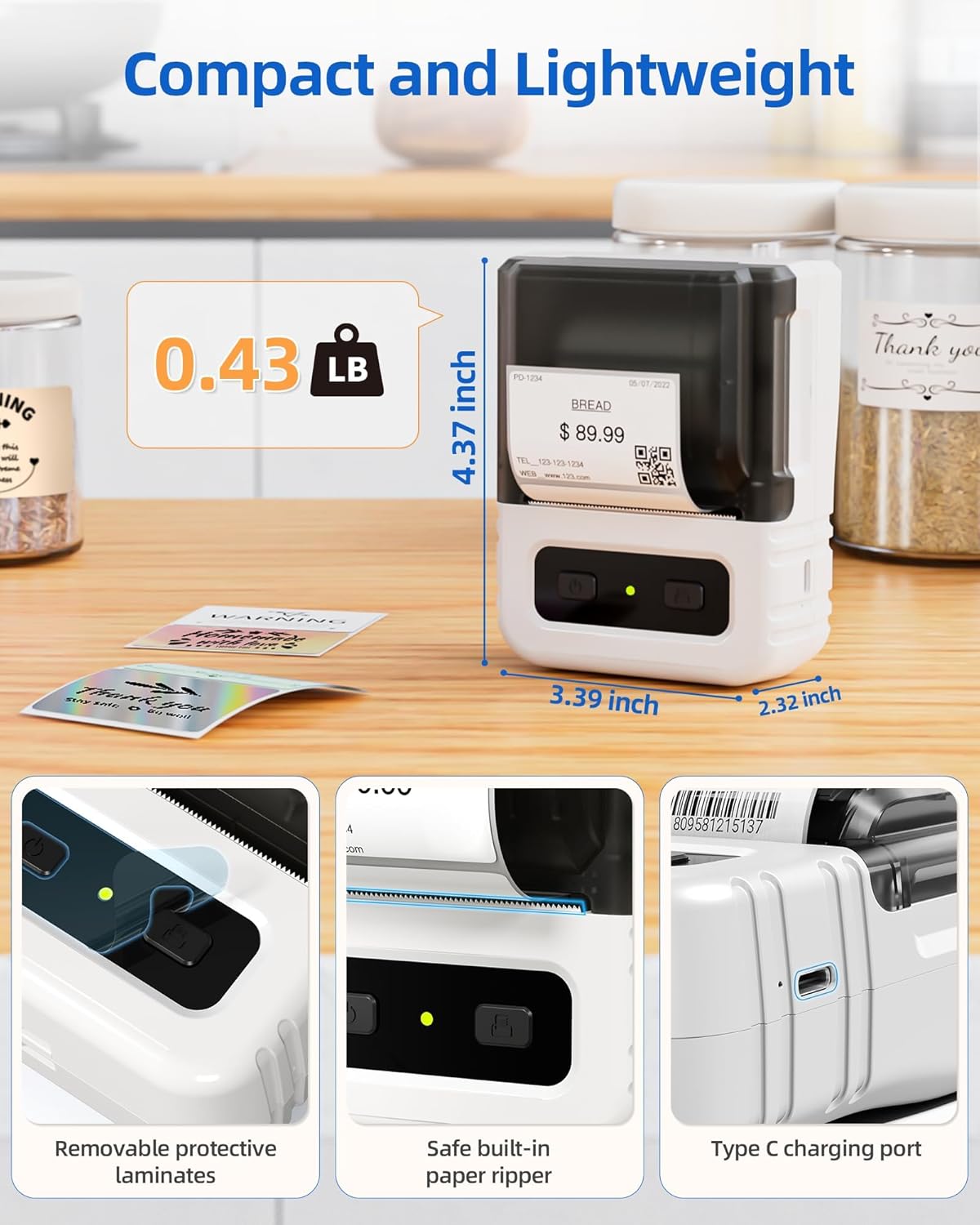
Imaj 3.1: Detaye view highlighting the dimensions, safe built-in paper ripper, removable protective laminates, and Type-C charging port.
Karakteristik kle:
- Bouton pouvwa: Itilize pou vire aparèy la sou / sou.
- Label Compartment: Holds the label roll.
- Adjustable Guide: Ensures proper alignment for various label widths (supports 20-50mm wide labels).
- Fant sòti papye a: Where printed labels emerge.
- Built-in Paper Ripper: For cleanly detaching printed labels.
- Kalite-C chaje pò: Pou rechaje batri entèn lan.
4. Enstalasyon
4.1. Chaje Aparèy la
Before first use, fully charge the label maker. Connect the provided USB Type-C cable to the charging port on the device and a compatible USB power adapter (not included). A full charge takes approximately 2 hours and provides up to 1 month of typical usage.
4.2. Loading Labels
- Louvri kouvèti konpatiman etikèt la.
- Insert a roll of thermal labels into the compartment, ensuring the labels feed from the bottom and the printing side faces upwards.
- Adjust the label guides to fit the width of your label roll snugly. The device supports labels from 20mm to 50mm wide.
- Pull a small portion of the label paper out through the paper exit slot.
- Fèmen kouvèti konpatiman etikèt la byen fèm.

Image 4.1: The label compartment open, illustrating how to insert a label roll and adjust the width guides.
4.3. Enstalasyon ak Konektivite Aplikasyon an
The Itari M102 Label Maker connects wirelessly via Bluetooth to your smartphone or tablet, and via USB to computers. Download the dedicated label editing application from your device's app store (e.g., Apple App Store for iOS, Google Play Store for Android).
- Pou koneksyon Bluetooth:
- Turn on the label maker.
- Pèmèt Bluetooth sou aparèy mobil ou.
- Open the Itari label app and follow the in-app instructions to search for and pair with your M102 device. Pairing typically takes less than 2 seconds.
- Pou koneksyon USB:
- Connect the label maker to your computer using the USB Type-C cable.
- Install the necessary drivers or software for your operating system (Windows, macOS, Chrome OS, Linux) as prompted or available on the Itari support websit.

Image 4.2: Illustrates wireless Bluetooth connectivity for iOS and Android, and USB connectivity for Chrome OS, Windows, Mac OS, and Linux.
5. Operasyon Enstriksyon
5.1. Creating and Customizing Labels
The Itari label app provides extensive customization options:
- Modèl: Access over 300 free label templates for various uses (address, price, food, clothing, cable, jewelry, folder labels, etc.).
- Fonts & Symbols: Choose from over 100 fonts and 1000 symbols to personalize your labels.
- Imaj: Embed images into your label designs.
- Koreksyon tèks: Adjust text size, style, alignment, and add multiple lines.
- Kòd bar ak kòd QR: Generate and print various types of barcodes and QR codes.
5.2. Enpresyon Etikèt
- Ensure the label maker is powered on and connected to your device (Bluetooth or USB).
- Open the Itari label app and create or select your desired label design.
- Confirm the label size in the app matches the loaded label roll.
- Tap the 'Print' button in the app.
- The label maker will print the label. Use the built-in paper ripper to cleanly detach the label from the roll.
6. Antretyen
6.1. Netwayaj
To maintain print quality and device longevity:
- Turn off the label maker before cleaning.
- Gently wipe the print head with a soft, lint-free cloth moistened with isopropyl alcohol. Allow it to dry completely before use.
- Netwaye deyò aparèy la avèk yon twal mou epi sèk. Pa sèvi ak pwodui chimik ki agresif oswa pwodui netwayaj abrazif.
6.2. Label Storage
Sere etikèt tèmik yo nan yon kote ki fre epi sèk, lwen limyè solèy dirèk ak chalè pou anpeche yo defòme twò bonè oswa domaje kouch tèmik la.
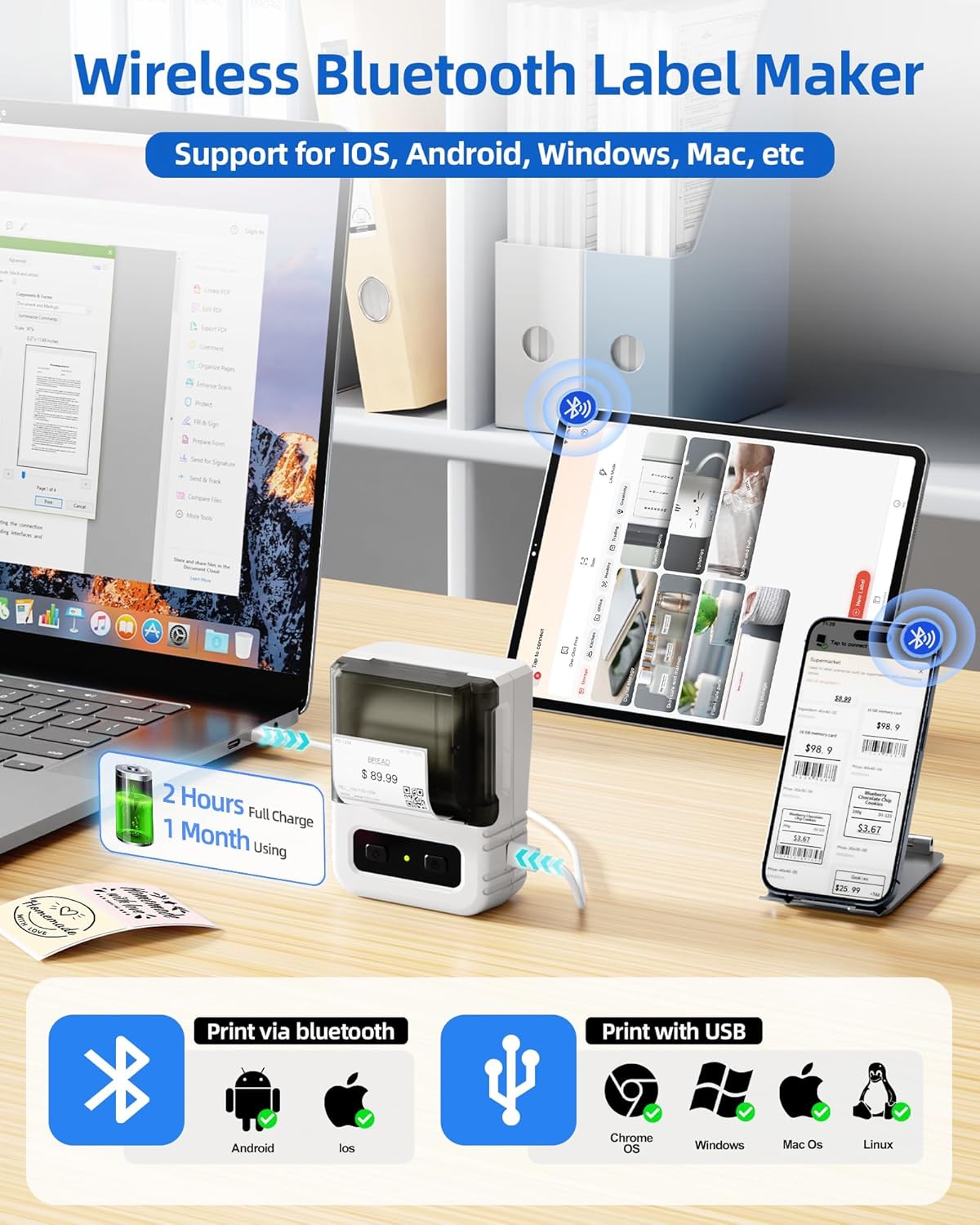
Image 6.1: Itari thermal label rolls, highlighting the 1.57" x 1.18" (40mm x 30mm) size, 230 sheets per roll, and high-quality thermal paper.
NAN. Depanaj
If you encounter issues with your Itari M102 Label Maker, refer to the following common problems and solutions:
| Pwoblèm | Kòz posib | Solisyon |
|---|---|---|
| Aparèy pa limen | Batri ki ba | Charge the device using the provided USB Type-C cable. |
| No print or faint print |
|
|
| Echèk koneksyon Bluetooth |
|
|
| Labels jam |
|
|
8. Espesifikasyon
- Modèl: M102
- Teknoloji enprime: Tèmik (San lank)
- Supported Label Width: 20mm - 50mm
- Included Label Size: 1.57" x 1.18" (40mm x 30mm)
- Koneksyon: Bluetooth, USB Kalite-C
- Lavi batri: Up to 1 month of typical use (2 hours full charge)
- Dimansyon: Approximately 4.37" (H) x 3.39" (W) x 2.32" (D)
- Pwa: Apeprè 0.43 lbs (0.195 kg)
9. Garanti ak sipò
For warranty information and technical support, please refer to the contact details provided with your purchase or visit the official Itari websit la. Kenbe resi acha ou kòm prèv acha pou reklamasyon garanti.


