1. Entwodiksyon
This manual provides essential information for the proper setup, operation, and maintenance of your Tera P150 Android 12 Barcode Scanner PDA. Please read this manual thoroughly before using the device to ensure optimal performance and longevity.

Image 1.1: The Tera P150 Android Barcode Scanner PDA, showcasing konsepsyon elegant li yo ak koòdone itilizatè li yo.
2. Enstalasyon
2.1 Kontni pake a
Verifye ke tout atik yo prezan nan pakè a:
- Tera P150 Android Barcode Scanner PDA
- Ka Pwoteksyon
- Pwoteksyon ekran
- Men braslè
- USB kab
- Adaptè Charger
- Manyèl Itilizatè (Gid Demaraj Rapid)

Image 2.1: All components included in the Tera P150 product package.
2.2 Enstalasyon ak Chaje Batri
- Jwenn konpatiman batri a sou dèyè aparèy la.
- Insert the 5000 mAh removable battery, ensuring proper alignment of the contacts.
- Tache kouvèti batri a.
- Connect the USB cable to the device and the charger adapter, then plug into a power outlet.
- Kite apeprè 3 èdtan pou yon chaj konplè.

Image 2.2: The removable 5000 mAh battery, designed for extended use.
2.3 Limen/Etenyen
Press and hold the power button located on the side of the device until the screen illuminates (for power on) or a power-off menu appears (for power off).
3. Operasyon Enstriksyon
3.1 Sistèm operasyon Android 12
The Tera P150 operates on Android 12, offering an intuitive user interface, enhanced performance, and improved privacy controls. Navigate using touch gestures similar to other Android devices.

Image 3.1: The Tera P150 displaying multiple applications, demonstrating seamless multitasking capabilities with Android 12.
3.2 Barcode Scanning with Zebra SE4710
The device integrates a Zebra SE4710 scanner engine for efficient barcode reading. To scan:
- Louvri aplikasyon eskanè a sou aparèy la.
- Point the scanner window at the barcode.
- Press the dedicated scan button (if available) or trigger the scan via the on-screen interface.
- Ensure the red laser or illumination covers the entire barcode for accurate capture.

Image 3.2: A user operating the Tera P150 to scan barcodes in a warehouse environment, highlighting the integrated Zebra SE4710 scanner.
3.3 Operasyon Touch Screen
The 5.5-inch full touch screen supports operation with gloves and wet hands, enhancing usability in various work conditions. The display offers a resolution of 1440 x 720 pixels.
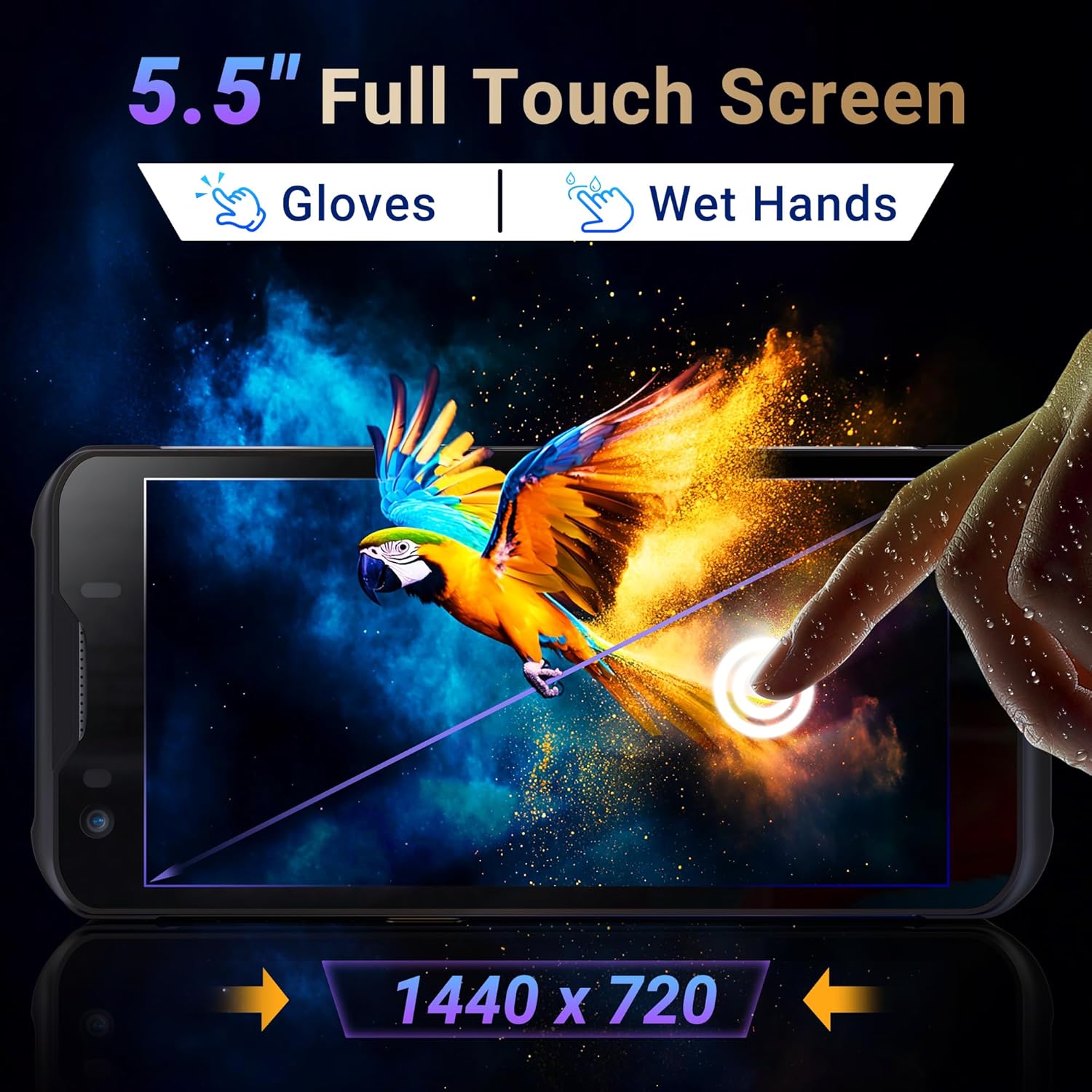
Image 3.3: The Tera P150's 5.5-inch full touch screen, illustrating its responsiveness and clarity.
Fonksyonalite kamera 3.4
The device is equipped with a 13.0 MP rear camera and a 5.0 MP front camera for documentation and communication purposes.

Imaj 3.4: Gwo plan view of the Tera P150, highlighting the 13.0 MP rear camera and 5.0 MP front camera.
4. Antretyen
4.1 Rugged Design and IP67 Rating
The Tera P150 features an IP67 rating, indicating resistance to dust and water ingress. It is also designed to withstand drops from up to 4.9 feet (1.5 meters), making it suitable for demanding environments.
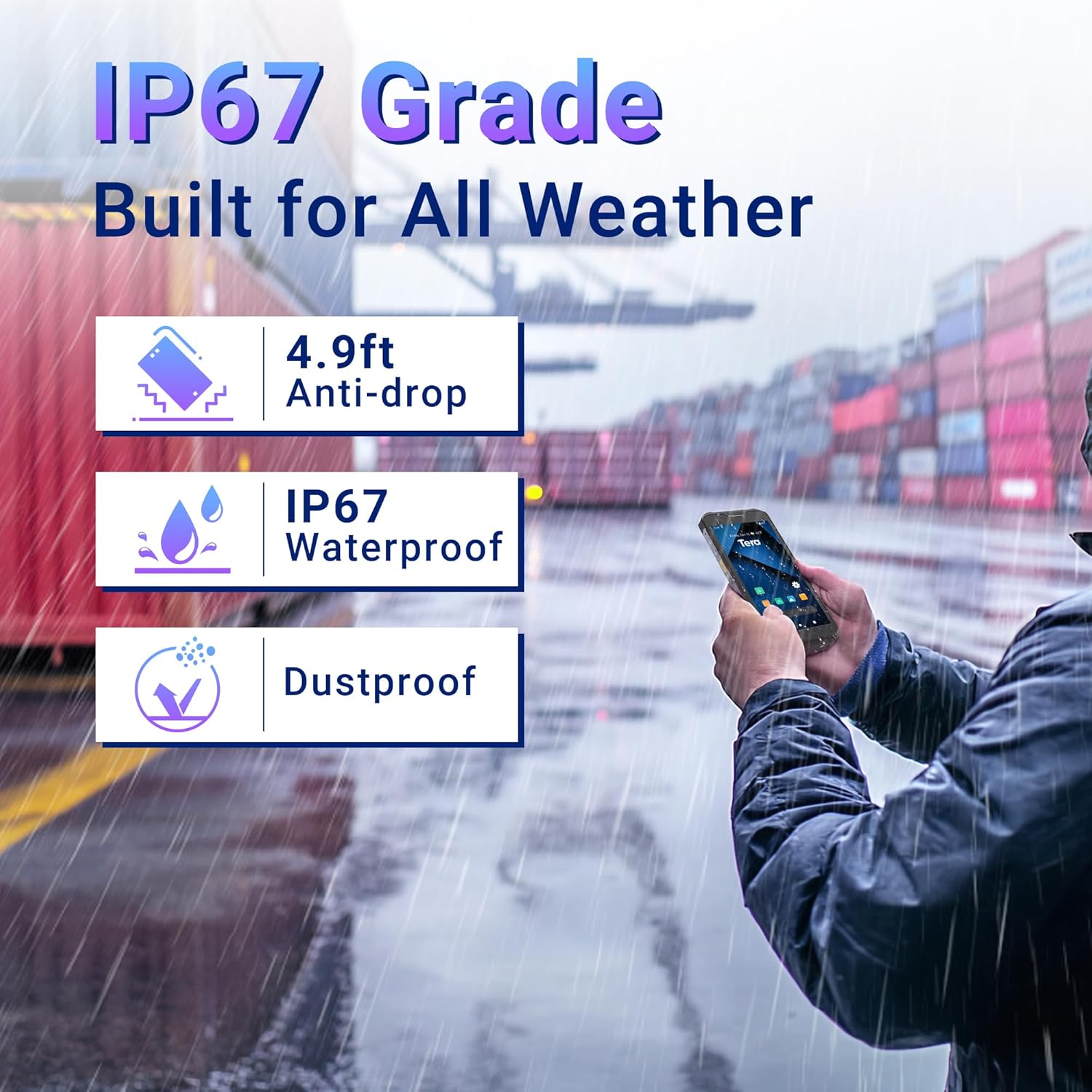
Image 4.1: Visual representation of the Tera P150's IP67 water and dust resistance, and its 4.9ft drop resistance.
Video 4.1: Demonstration of the Tera P150's IP67-rated protection, showcasing its durability against water and drops.
4.2 Netwayaj
Sèvi ak yon mou, damp cloth to clean the device. Avoid harsh chemicals or abrasive materials that could damage the screen or casing.
NAN. Depanaj
5.1 Aparèy la pa limen
- Asire w ke batri a kòrèkteman enstale ak konplètman chaje.
- Connect the device to the charger and attempt to power on.
5.2 Pwoblèm eskanè
- Verify the barcode is clean and undamaged.
- Asire ke gen bon kondisyon ekleraj.
- Check the scanning application settings.
5.3 Pèfòmans Lag
- Fèmen aplikasyon background ki pa nesesè yo.
- Klè kachèt ak tanporè files.
- Rekòmanse aparèy la.
6. Espesifikasyon
| Karakteristik | Detay |
|---|---|
| Nimewo Modèl | P150 |
| Sistèm operasyon | Android 12 |
| Processeur | MTK CPU |
| RAM | 4GB |
| ROM (Depo) | 64GB |
| Barcode Scanner | Zèb SE4710 |
| Ekspozisyon | 5.5-inch Full Touch Screen |
| Evalyasyon Durabilite | IP67, 4.9 ft Drop Resistant |
| Batri | 5000 mAh Removable |
| Kamera dèyè | 13.0 MP |
| Kamera devan | 5.0 MP |
| Koneksyon | 4G, GPS, USB |
| Pwa atik | 1.3 liv |
| Dimansyon pake | 7.6 x 4.2 x 2.9 pous |
Videyo 6.1: Yon overview of the Tera P150's key features, including its IP67 rating, 4GB RAM, 64GB storage, Android 12 OS, and 5.5-inch touch screen.
7. Enfòmasyon sou Garanti
Please refer to the warranty card included with your product for detailed warranty terms and conditions. Keep your proof of purchase for any warranty claims.
8. Sipò
For technical assistance, troubleshooting, or further inquiries, please contact Tera customer support. Contact information can be found on the official Tera websit la oubyen nan gid demaraj rapid la.


