1. Entwodiksyon
The ATTACK SHARK X68 HE is a high-performance 60% mechanical gaming keyboard designed for speed, precision, and customization. Featuring magnetic switches with Hall Effect triggering technology, it offers an 8000Hz polling rate for ultra-low latency and adjustable actuation points from 0.1mm to 3.4mm. Its robust design includes PBT keycaps and full RGB backlighting, making it suitable for both intense gaming and efficient typing across Windows and Mac systems.

Figure 1: Key features of the ATTACK SHARK X68 HE keyboard.
2. Pake kontni
Tanpri verifye ke tout atik yo prezan nan pakè ou a:
- ATTACK SHARK X68 HE Gaming Keyboard
- USB-C Coiled Cable
- Manyèl itilizatè
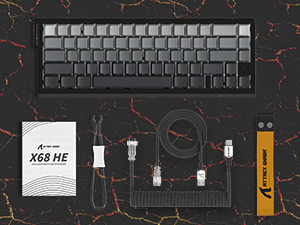
Figi 2: Atik ki enkli nan pake pwodwi a.
3. Enstalasyon
To set up your ATTACK SHARK X68 HE keyboard, follow these simple steps:
- Konekte kab USB-C a: Locate the USB-C port on the back of the keyboard. Insert the smaller end of the provided coiled USB-C cable into this port.
- Konekte ak òdinatè: Insert the standard USB-A end of the cable into an available USB port on your computer (PC or Mac).
- Enstalasyon chofè: The keyboard is plug-and-play for basic functionality. For advanced customization, including DKS, macros, and RGB settings, download the dedicated web driver software from the official ATTACK SHARK websit.
- Plasman: Place the keyboard on a stable, flat surface. Consider using a wrist rest for ergonomic comfort during extended use.
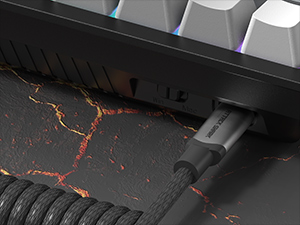
Figure 3: Connecting the USB-C cable to the keyboard.
4. Operasyon Enstriksyon
The ATTACK SHARK X68 HE is a 60% layout keyboard, meaning some functions are accessed via a function (Fn) layer. Familiarize yourself with the key legends and the Fn key combinations for full functionality.
Fonksyon kle debaz yo
- Tape estanda: All alphanumeric keys, symbols, and modifiers (Shift, Ctrl, Alt, Win/Cmd) function as standard.
- Kle Fonksyon (Fn): Press and hold the Fn key to access secondary functions printed on the front or side of certain keycaps. For example, arrow keys, F-keys, and multimedia controls are typically accessed this way.
Polling Rate and Latency
The keyboard operates at an 8000Hz polling rate, providing a rapid 0.125ms response time. This ensures minimal input lag for competitive gaming and fast-paced tasks.

Figure 4: 8000Hz Polling Rate for ultra-fast response.
5. Personnalisation
The ATTACK SHARK X68 HE offers extensive customization options through its web driver software and on-board controls.
Adjustable Actuation Points & Rapid Trigger
Utilizing magnetic switches, the keyboard allows you to customize the actuation point of each key from 0.1mm to 3.4mm with 0.01mm precision. This feature, combined with Rapid Trigger technology, enables faster resets and re-presses, providing a significant advantage in gaming by allowing dynamic keystrokes (DKS), Snap Tap, and Mod-Tap functions.

Figure 5: Adjustable Actuation Point mechanism.
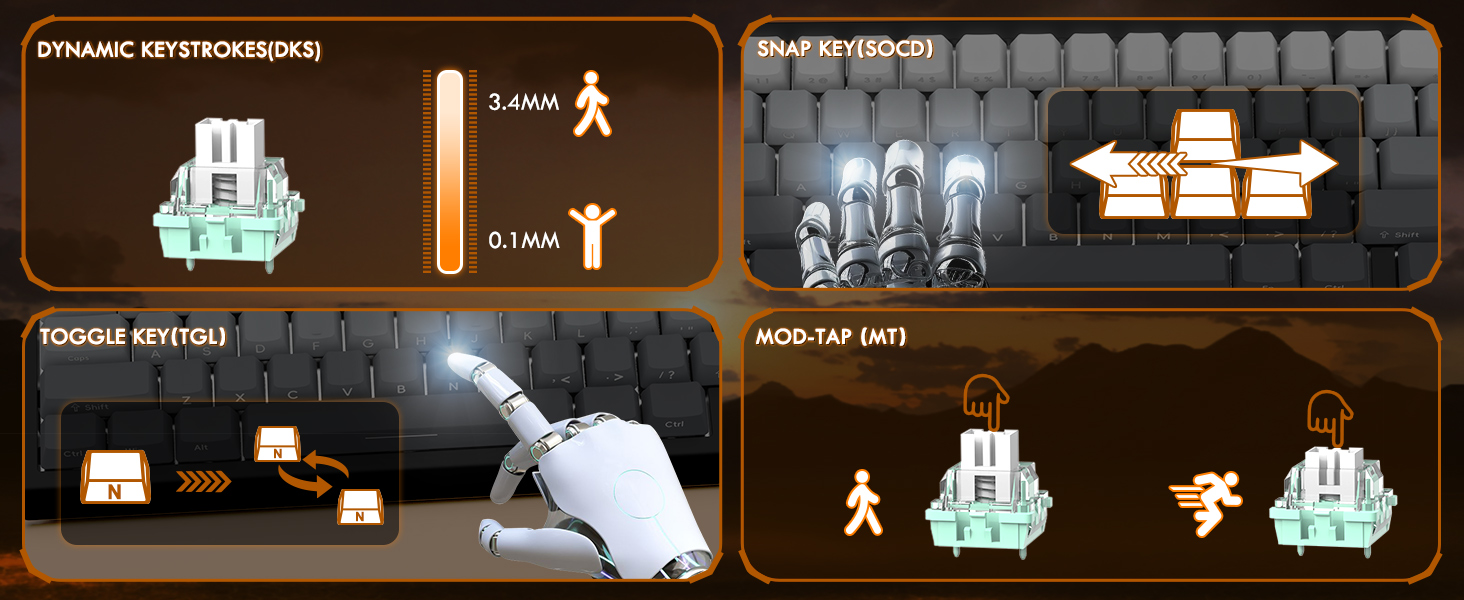
Figure 6: Explanation of DKS, Snap Tap, Toggle Key, and Mod-Tap features.
Rgb ekleraj
The keyboard features 16 million-color RGB lighting with over 20 preset light effects and multiple dynamic modes. You can adjust backlight brightness, speed, and switch between different lighting modes and colors using Fn key combinations or the web lojisyèl chofè.
- Fn + Flèch Anwo/Anba: Adjust Backlit Brightness.
- Fn + Flèch agoch/adwat: Adjust Backlit Speed.
- Fn + \| Switch Light Mode.
- Fn + Enter: Switch Light Color.
- Fn + Retounen: Limyè On/Off.

Figure 7: Full RGB light effects.
Web Lojisyèl chofè
The professional customized web software allows for comprehensive customization on both Windows and Mac. You can easily configure DKS, key combinations, macros, key remapping, and detailed RGB lighting settings. This enables a truly personalized experience for various user needs and gaming styles.

Figi 8: Web driver software interface for customization.
6. Antretyen
Bon antretyen asire lonjevite ak pèfòmans optimal klavye ou a.
Netwayaj
- Netwayaj jeneral: Sèvi ak yon twal mou epi sèk pou siye sifas klavye a regilyèman.
- Retire pousyè: Sèvi ak lè konprese pou retire pousyè ak debri ki ant bouchon kle yo.
- Netwayaj pwofon: For deeper cleaning, you may carefully remove the PBT keycaps using a keycap puller (not included unless specified in package contents). Clean the keycaps with mild soap and water, ensuring they are completely dry before reattaching.
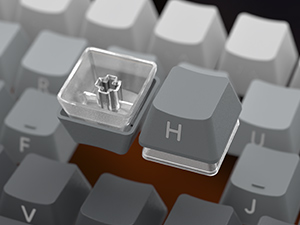
Figure 9: Keycap removal for cleaning.
Depo
Lè w pa itilize klavye a pou yon bon bout tan, sere l nan yon kote ki fre epi sèk, lwen limyè solèy dirèk ak tanperati ekstrèm.
NAN. Depanaj
If you encounter issues with your ATTACK SHARK X68 HE keyboard, please refer to the following common solutions:
- Klavye a pa reponn:
- Asire w kab USB-C a byen konekte ak klavye a ak òdinatè a.
- Eseye konekte klavye a nan yon lòt pò USB sou òdinatè w la.
- Teste klavye a sou yon lòt òdinatè pou elimine pwoblèm espesifik nan sistèm nan.
- Limyè RGB pa travay:
- Check if the RGB lighting is turned off using the Fn + Backspace shortcut.
- Asire w la web driver software is installed and updated, and check lighting settings within the software.
- Verify that the keyboard is receiving sufficient power from the USB port.
- Kle yo pa anrejistre oswa yo tape de fwa:
- Clean under the affected keycaps to remove any debris.
- Adjust the actuation point settings in the web driver software. Sometimes, a very low actuation point can lead to unintended presses or misfires.
- Ensure the keyboard firmware is up to date via the web lojisyèl chofè.
- Software Issues / Customization Not Applying:
- Ensure you are using the correct and latest version of the ATTACK SHARK web driver software for the X68 HE model.
- Run the software as an administrator (on Windows).
- Temporarily disable any antivirus or firewall software that might be interfering with the web chofè.
If the problem persists after trying these steps, please contact ATTACK SHARK customer support for further assistance.
8. Espesifikasyon
| Karakteristik | Deskripsyon |
|---|---|
| Modèl | X68 LI |
| Mak | ATAK REKEN |
| Koneksyon Teknoloji | USB-C (Avèk fil) |
| Deskripsyon klavye | Klavye mekanik Gaming |
| Chanje Kalite | Magnetic Switches (Hall Effect) |
| Pousantaj biwo vòt | 8000Hz |
| Tan repons | 0.125 ms |
| Actuation Point Range | 0.1mm to 3.4mm (0.01mm accuracy) |
| Keycaps | PBT Keycaps (Contour Line 3.0 version) |
| Ekleraj | Full RGB (16 million colors, 20+ preset effects) |
| Anti-Ghosting | Kle konplè Anti-Ghosting |
| Aparèy konpatib | Laptop, PC, Tablet (Windows/Mac) |
| Dimansyon pwodwi | 14.25 x 6.18 x 0.79 pous |
| Pwa atik | 2.01 liv |
| Kantite kle | 66 |
9. Garanti ak sipò
ATTACK SHARK products are designed for durability and performance. For specific warranty information, please refer to the warranty card included with your product or visit the official ATTACK SHARK website. If you require technical support, have questions about product functionality, or need assistance with troubleshooting, please contact ATTACK SHARK customer service through their official channels.
Sipò sou entènèt: Visit the ATTACK SHARK official websit pou FAQ, telechajman chofè, ak enfòmasyon pou kontakte sipò.
Sipò Imèl: Gade anbalaj pwodwi ou a oswa enfòmasyon ofisyèl la. websit pou adrès imel sèvis kliyan an.


