1. Entwodiksyon
This manual provides essential information for the proper installation, operation, and maintenance of your GAMEON Pro Series 27-inch Fast IPS Gaming Monitor (Model: GOAE27QHD165IPS). Please read this manual thoroughly before using the product to ensure optimal performance and safety. Keep this manual for future reference.

Imaj 1.1: Devan view of the GAMEON Pro Series 27-inch Fast IPS Gaming Monitor, showcasing montur mens li yo ak sipò a.
The GAMEON Pro Series 27-inch Fast IPS Gaming Monitor features a QHD 2K (2560x1440p) resolution, a 165Hz refresh rate, and a 0.5ms MPRT response time. It supports Adaptive-Sync and Variable Refresh Rate (VRR) technologies for smooth, tear-free gameplay. Connectivity options include dual HDMI 2.1 ports and dual DisplayPort 1.4 ports, along with an audio-out jack and integrated speakers. This monitor is compatible with various gaming consoles and PCs, including PS5.
2. Pake kontni
Tanpri verifye sa ki nan pake a lè w ap debale l. Si gen nenpòt atik ki manke oswa ki domaje, kontakte machann ou an.
- GAMEON Pro Series 27-inch Fast IPS Gaming Monitor
- Sipò Monitè (Baz ak Kou)
- Adaptè kouran ak kab kouran
- HDMI kab
- DisplayPort kab
- Manyèl itilizatè
3. Enstalasyon
3.1 Asanblaj Monitè a
- Retire monitè a nan anbalaj li avèk prekosyon, epi pwoteje ekran an.
- Kole kou sipò a sou panèl monitè a. Asire w ke li byen klike nan plas li oubyen li byen fikse ak vis si yo genyen.
- Tache baz sipò a nan kou sipò a epi sere vis ki anba baz la.
- Mete monitè a ki fin rasanble a sou yon sifas ki plat e ki estab.
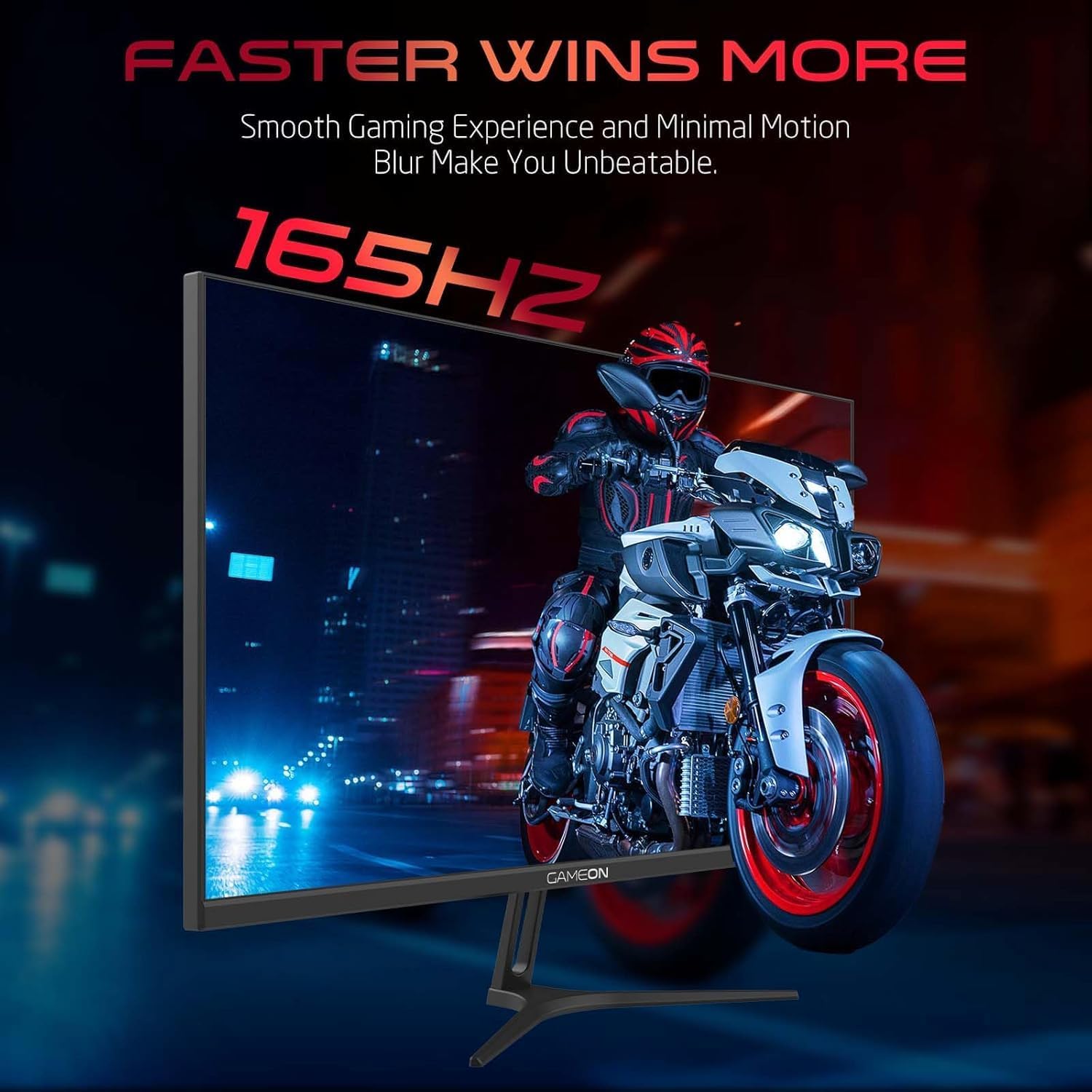
Image 3.1: Illustration of the monitor with its stand, ready for assembly.
3.2 Konekte ak Aparèy
The monitor offers multiple input options. Choose the appropriate cable for your device (PC, gaming console, etc.).

Imaj 3.2: Dèyè view of the monitor, highlighting the input ports and VESA mounting points.

Image 3.3: Detailed diagram illustrating the various input/output ports and their corresponding devices.
- Koneksyon HDMI: Connect one end of the HDMI cable to the HDMI output port of your device (PC, PS5, Xbox, TV box) and the other end to one of the HDMI 2.1 ports on the monitor.
- Koneksyon DisplayPort: Connect one end of the DisplayPort cable to the DisplayPort output of your PC and the other end to one of the DisplayPort 1.4 ports on the monitor.
- Sòti odyo: For external audio, connect headphones or external speakers to the 3.5mm audio-out jack on the monitor.
3.3 Koneksyon pouvwa
- Connect the power adapter to the DC IN port on the monitor.
- Plug the power cable into the power adapter, then plug the other end of the power cable into a power outlet.
4. Operasyon Enstriksyon
4.1 Power On/Off
Peze bouton pouvwa ki sitiye sou monitè a pou limen oswa etenn li. Limyè endikatè pouvwa a ap limen lè monitè a limen.
4.2 Meni OSD (On-Screen Display).
The monitor features a menu button (often a joystick or a series of buttons) usually located on the back or bottom right of the monitor. Use this to navigate the OSD menu and adjust settings.
- Press the menu button to open the OSD menu.
- Sèvi ak kontwòl navigasyon yo pou deplase nan opsyon meni yo.
- Press the menu button again (or a designated 'Enter' button) to select an option.
- Use the navigation controls to adjust values or select sub-menus.
- Select 'Exit' or press the menu button repeatedly to close the OSD menu.
4.3 Anviwònman OSD Komen yo
- Anviwònman Foto: Ajiste klète, kontras, netteté, gama, ak tanperati koulè.
- Anviwònman koulè: Fine-tune RGB values, hue, and saturation.
- Sous Antre: Manually select between HDMI 1, HDMI 2, DisplayPort 1, or DisplayPort 2.
- Odyo: Adjust volume for built-in speakers or connected headphones.
- Karakteristik Gaming: Enable/disable Adaptive-Sync/FreeSync, adjust overdrive settings, and activate crosshair overlays if available.
4.4 PS5 120Hz Setup Guide
To enable 120Hz output on your PlayStation 5 with this monitor, follow these steps:

Image 4.1: Visual guide for configuring 120Hz refresh rate on a PlayStation 5 console.
- Enable 120Hz from PS5 Settings:
- Ale nan Anviwònman > Ekran ak Videyo > Sòti videyo.
- Mete Enable 120Hz Output pou Otomatik.
- Mete Rezolisyon pou 1080p or Otomatik. (Note: While the monitor supports 1440p, some PS5 games may require 1080p for 120Hz output.)
- Enable Performance Mode for Gamers:
- Ale nan Anviwònman > Save Data and Game App Settings > Jwèt Prereglaj.
- Mete Mòd Pèfòmans kòm default la.
- Check In-Game Settings:
- Go to the specific game's Anviwònman jwèt > Anviwònman videyo epi chwazi 120fps or Mòd Pèfòmans.
5. Antretyen
5.1 Netwaye ekran an
- Etenn monitè a epi debranche kab kouran an.
- Sèvi ak yon moso twal mou, ki san pèl damplave avèk dlo oswa yon pwodui netwayaj ekran espesyalize.
- Wipe the screen gently. Do not press hard or use abrasive materials.
- Avoid using alcohol, ammonia, or benzene-based cleaners, as they may damage the screen surface.
5.2 Netwayaj C aasing
- Sèvi ak yon twal mou epi sèk pou siye monitè a.asing.
- Pou tach fè tèt di, alalejè dampRense twal la avèk dlo ak yon savon dou, apresa siye l sèk.
NAN. Depanaj
If you encounter issues with your monitor, refer to the following troubleshooting guide:
| Pwoblèm | Kòz posib | Solisyon |
|---|---|---|
| Pa gen imaj sou ekran an | Pa gen kouran; Sous antre ki pa kòrèk; Kab videyo ki lach | Ensure power cable is securely connected and power outlet is active. Press power button. Check OSD menu to select correct input source (HDMI/DP). Reconnect video cable firmly. |
| Imaj la twoub oswa defòme | Incorrect resolution; Video cable issue | Set display resolution to 2560x1440p in your device's display settings. Try a different video cable. |
| Pa gen son | Volume too low; Incorrect audio output selected; Loose audio cable | Adjust monitor volume via OSD. Ensure monitor is selected as the audio output device on your PC/console. Check external audio cable connection if using headphones/speakers. |
| Ekran siyman | Refresh rate mismatch; Adaptive-Sync/VRR issue | Ensure your device's refresh rate is set to 165Hz. If flickering persists with Adaptive-Sync/VRR enabled, try disabling it in the OSD or your graphics card settings. |
| Monitor not detected by PC/console | Video cable issue; Driver issue | Try a different video cable or port. Update your graphics card drivers. Restart your PC/console. |
7. Espesifikasyon
Below are the technical specifications for the GAMEON Pro Series 27-inch Fast IPS Gaming Monitor (GOAE27QHD165IPS):
| Karakteristik | Spesifikasyon |
|---|---|
| Gwosè ekspozisyon | 27 pous |
| Kalite Panel | Vit IPS |
| Rezolisyon | QHD 2K (2560x1440p) |
| Rafrechisman pousantaj | 165Hz |
| Tan repons | 0.5ms MPRT |
| Pwopòsyon kontras | 1000:1 |
| Klète | 280 (±30) nits typical |
| Viewang yo | Lajè viewing angles (IPS technology) |
| Teknoloji Adaptive Sync | Adaptive-Sync, FreeSync, VRR Compatible |
| Koneksyon | 2x HDMI 2.1, 2x DisplayPort 1.4, 1x Audio Out (3.5mm) |
| Odyo | Built-in 4Ω2W speakers |
| VESA Mount konpatibilite | 100x100mm |
| Antre pouvwa | Ekstèn DC 12V 4A adaptè |
| Maksimòm konsomasyon pouvwa | 48W |
| Dimansyon pwodwi (ak sipò) | 16.2 x 61.4 x 45.3 cm |
| Pwa pwodwi | 5.84 kg |
| Nimewo Modèl | GOAE27QHD165IPS |
8. Garanti ak sipò
The GAMEON Pro Series 27-inch Fast IPS Gaming Monitor comes with a 2-ane garanti apati dat acha a. Garanti sa a kouvri domaj fabrikasyon anba itilizasyon nòmal. Tanpri konsève prèv acha ou pou reklamasyon garanti.
For technical support, warranty inquiries, or service requests, please contact GAMEON customer service through their official website or the retailer where the product was purchased. Provide your monitor's model number (GOAE27QHD165IPS) and a detailed description of the issue to expedite assistance.


