1. Entwodiksyon
The Tera P150 is a robust Android 12 handheld barcode scanner PDA designed for efficient data collection in various environments such as logistics, warehouses, retail, and construction. It features a high-precision Zebra SE4710 scanning head, a powerful octa-core processor, and advanced wireless connectivity options to streamline operations.
2. Pake kontni
Tanpri verifye ke tout atik ki nan lis anba a yo enkli nan pakè ou a. Si gen nenpòt atik ki manke oswa ki domaje, tanpri kontakte sèvis kliyan.
- 1x Tera P150 Android 12 Handheld Barcode Scanner
- 1x USB kab
- 1x Screen Protector
- 1x èkstrakteur plato SIM
- 1x Lanyard
- 1x Manyèl Itilizatè (dokiman sa a)
- 1x SDK (Software Development Kit)
- 1x Rugged Rubber Boot
- 1x braslè pou men

Image: Tera P150 Android Barcode Scanner and its included accessories, such as the USB cable, screen protector, hand strap, and rugged rubber boot.
3. Pwodwi souview
The Tera P150 is designed for ergonomic handling and durability. It features a 5.5-inch full touch screen, a rear-mounted barcode scanner, and various ports and buttons for operation.
Konpozan kle:
- Ekspozisyon 5.5 pous: High-resolution touch screen, responsive even with gloves or wet hands.
- Barcode Scanner: Integrated Zebra SE4710 for 1D, 2D, and QR code scanning.
- Bouton pouvwa: Located on the side for turning the device on/off and screen lock.
- Bouton Volim: Ajiste nivo odyo yo.
- USB-C pò: Pou chaje ak transfè done.
- Plas pou kat SIM/SD: For cellular connectivity and expandable storage.
- Hand Strap Attachment Points: For securing the included hand strap.
4. Enstalasyon
4.1 Premye chaj
Before first use, fully charge the Tera P150. Connect the provided USB cable to the device's USB-C port and a compatible power adapter. A full charge typically takes approximately 3 hours for the 5000mAh battery.

Image: The Tera P150 Barcode Scanner displaying its battery status, indicating it is designed for all-day use with a 5000mAh battery, offering over 300 hours standby and 12 hours working time.
4.2 Mete Kat SIM/SD a
- Jwenn plato kat SIM/SD a sou bò aparèy la.
- Sèvi ak zouti ejèksyon plato SIM lan pou ouvri plato a.
- Carefully place your Nano-SIM card(s) and/or microSD card into the designated slots.
- Dousman pouse plato a tounen nan aparèy la jiskaske li klike an plas.
4.3 Limen/Etenyen
- Pou limen: Press and hold the Power button until the Tera logo appears on the screen.
- Pou etenn: Press and hold the Power button until the power options menu appears. Select "Power off".
- Pou rekòmanse: Press and hold the Power button until the power options menu appears. Select "Restart".
4.4 Premye konfigirasyon Android
Upon first power-on, follow the on-screen prompts to complete the Android 12 setup process. This includes selecting your language, connecting to a Wi-Fi network, and setting up your Google account (optional).
5. Operasyon Enstriksyon
5.1 Eskane kòd bar
The Tera P150 is equipped with a Zebra SE4710 scanning head for rapid and accurate barcode capture.
- Open the scanning application on your device.
- Point the scanner window at the barcode you wish to scan. Ensure the red aiming line or dot covers the entire barcode.
- Press the dedicated scan button (usually on the side or front of the device).
- A successful scan will typically be indicated by an audible beep and/or a visual confirmation on the screen.

Image: A worker in a warehouse environment using the Tera P150 handheld device, demonstrating the use of its integrated Zebra SE4710 scanner to read barcodes on inventory.
5.2 Display and Touchscreen
The 5.5-inch full touch screen offers a clear display and responsive interaction. It supports operation even when wearing gloves or with wet hands, enhancing usability in various work conditions.
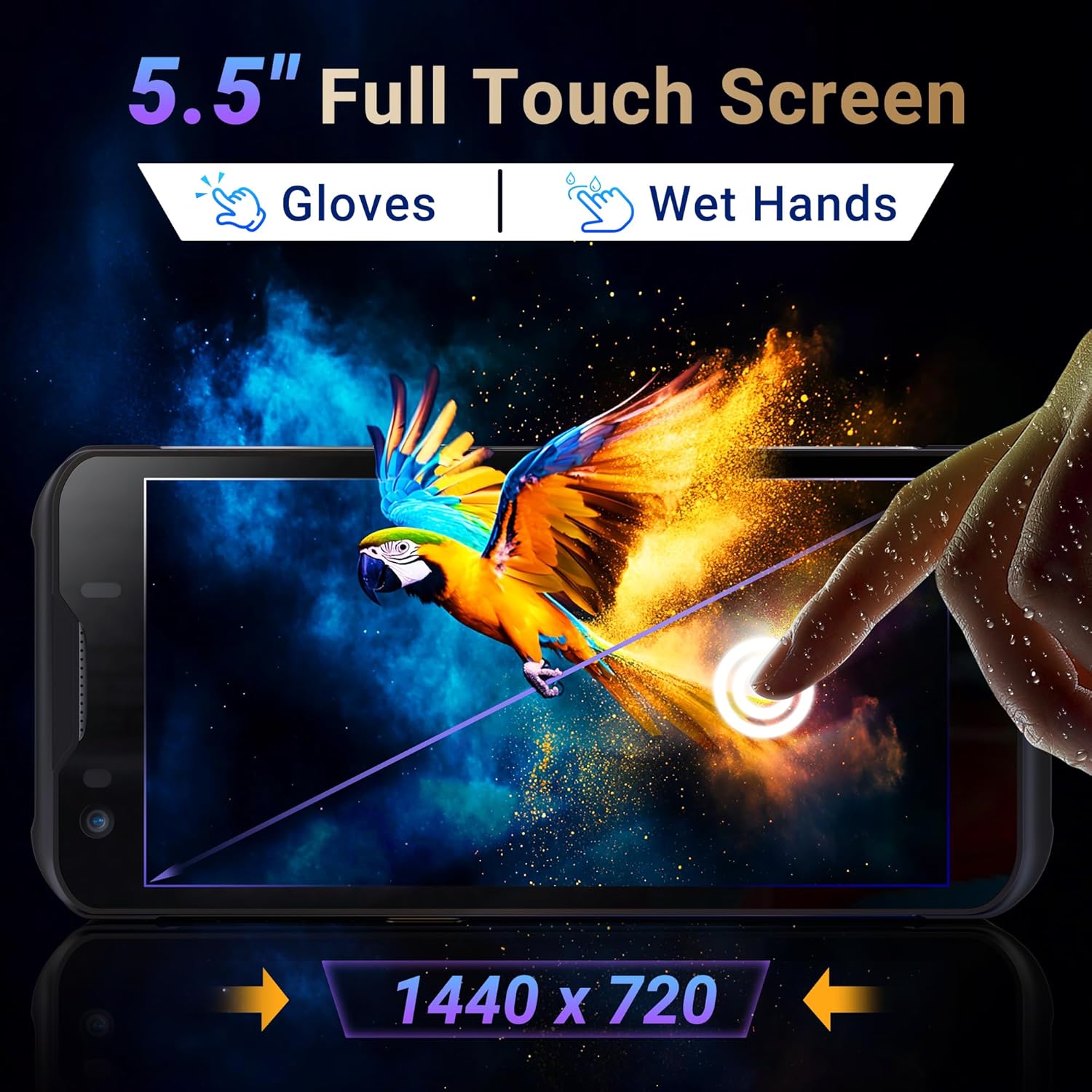
Image: The Tera P150's 5.5-inch full touch screen, highlighting its 1440x720 resolution and compatibility with both gloved and wet-hand operation.
5.3 Koneksyon
The device supports multiple connectivity options for seamless data transmission.
- Wi-Fi: Go to Settings > Network & internet > Wi-Fi to connect to available wireless networks. Supports dual-band Wi-Fi for stable connections.
- Bluetooth 5.0: Go to Settings > Connected devices > Bluetooth to pair with Bluetooth-enabled accessories. Bluetooth 5.0 offers faster speeds and extended range.
- 4G/3G Selilè: Insert a SIM card (as described in Section 4.2) to enable cellular data and communication.
- GPS: The integrated GPS module allows for location tracking and navigation.
5.4 Pèfòmans ak Miltitasking
Powered by an MTK 2.0GHz octa-core processor with 4GB RAM and 64GB storage, the Tera P150 ensures smooth operation and efficient multitasking.

Image: The Tera P150 device highlighting its MTK 2.0GHz Octa-core processor and 4GB RAM + 64GB memory, indicating superior processing and performance compared to other devices.

Image: The Tera P150 device showcasing its Android 12 operating system and 4GB RAM + 64GB storage, illustrating its capability for seamless multitasking with multiple applications open.
6. Antretyen
6.1 Netwaye Aparèy la
To maintain optimal performance and appearance, clean the device regularly.
- Sèvi ak yon ti moso twal mou, ki san pèl damplave avèk dlo oswa yon pwodui netwayaj ekran dou.
- Avoid using harsh chemicals, abrasive cleaners, or solvents, as these can damage the screen and casing.
- Asire w ke aparèy la etenn epi dekonekte li nan nenpòt sous kouran anvan ou netwaye li.
6.2 Swen Batri
The Tera P150 features a 5000mAh battery designed for extended use. Proper battery care can prolong its lifespan.
- Evite tanperati ekstrèm, ni cho ni frèt, paske yo ka diminye pèfòmans batri a.
- Pa dechaje batri a nèt souvan. Chaje l anvan li desann nan nivo ki ba anpil.
- Sèvi sèlman akseswa chaje yo bay oswa ki apwouve yo.
6.3 Karakteristik Durabilite
The Tera P150 is built with industrial-grade materials, featuring IP67 waterproofing and a 1.5-meter drop rating, making it suitable for harsh working environments.
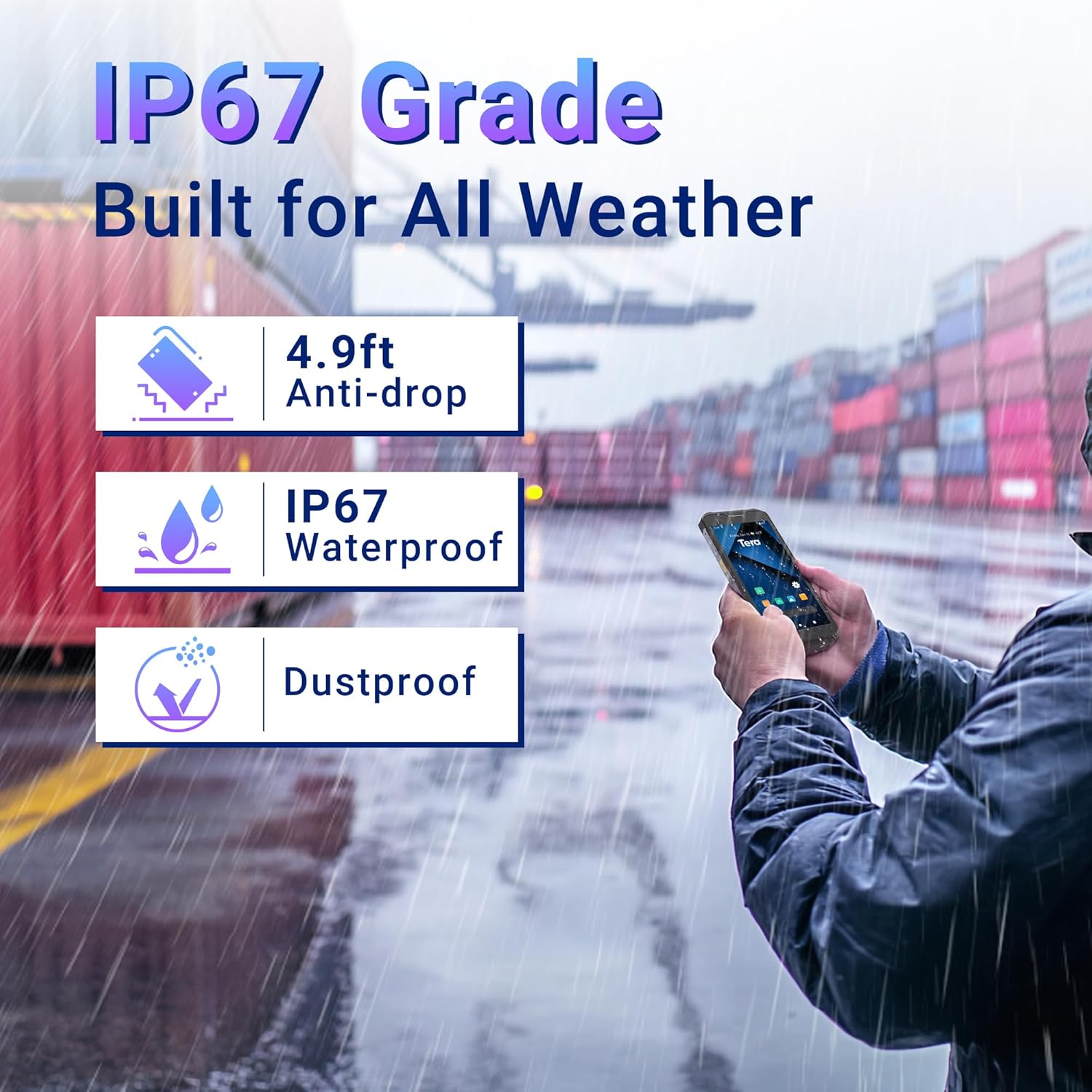
Image: The Tera P150 device highlighting its IP67 grade, 4.9ft anti-drop, IP67 waterproof, and dustproof capabilities, indicating its suitability for all-weather and rugged use.
NAN. Depanaj
This section addresses common issues you might encounter with your Tera P150.
| Pwoblèm | Kòz posib | Solisyon |
|---|---|---|
| Aparèy pa limen | Batri fèb; Sistèm nan kraze | Chaje aparèy la pou omwen 30 minit. Si li toujou pa reponn, fòse l rekòmanse lè w kenbe bouton Pouvwa a pandan 10-15 segonn. |
| Eskanè kòd bar la pa fonksyone | Scanning application not open; Barcode damaged/unreadable; Scanner module issue | Ensure the scanning application is active. Try scanning a different, known-good barcode. Clean the scanner window. Restart the device. |
| Pa ka konekte ak Wi-Fi | Incorrect password; Out of range; Router issue | Verify Wi-Fi password. Move closer to the Wi-Fi router. Restart the device and the router. |
| Touchscreen pa reponn | Pwoblèm lojisyèl tanporè; Entèferans pwoteksyon ekran | Restart the device. Ensure the screen protector is correctly applied and not interfering. |
8. Espesifikasyon
Detailed technical specifications for the Tera P150 Android Barcode Scanner PDA.
- Modèl: P150
- Sistèm operasyon: Android 12
- Processeur: MTK 2.0GHz Octa-core
- RAM: 4GB
- Depo: 64GB
- Ekspozisyon: 5.5-inch Full Touch Screen (1440 x 720 resolution)
- Barcode Scanner: Zebra SE4710 (1D, 2D, QR)
- Batri: 5000mAh (Standby >300H, Working >12H, Charging >3H)
- Koneksyon: 4G, 3G, Dual-band Wi-Fi, Bluetooth 5.0, GPS
- Dirab: IP67 Waterproof, 1.5-meter Drop Rating, Industrial-grade materials
- Aparèy konpatib: Android devices (smartphones, tablets), POS systems
- Dimansyon pasèl: 20 x 11 x 8 cm
- Pwa: 540 g
9. Garanti ak sipò
Tera products are manufactured to high-quality standards. For warranty information, please refer to the warranty card included with your product or visit the official Tera websit.
For technical support, troubleshooting assistance, or inquiries regarding your Tera P150, please contact Tera customer service:
- Nimewo Kontakte: +1 (626)438-1404
- Sipò sou entènèt: Refer to the official Tera websit pou FAQ ak resous sipò.


