Entwodiksyon
This manual provides detailed instructions for the setup, operation, and maintenance of your Rongta Bluetooth Thermal Shipping Label Printer. Please read this manual thoroughly to ensure proper use and to maximize the lifespan of your device. This printer is designed for efficient and reliable thermal label printing, supporting various label sizes and connectivity options.
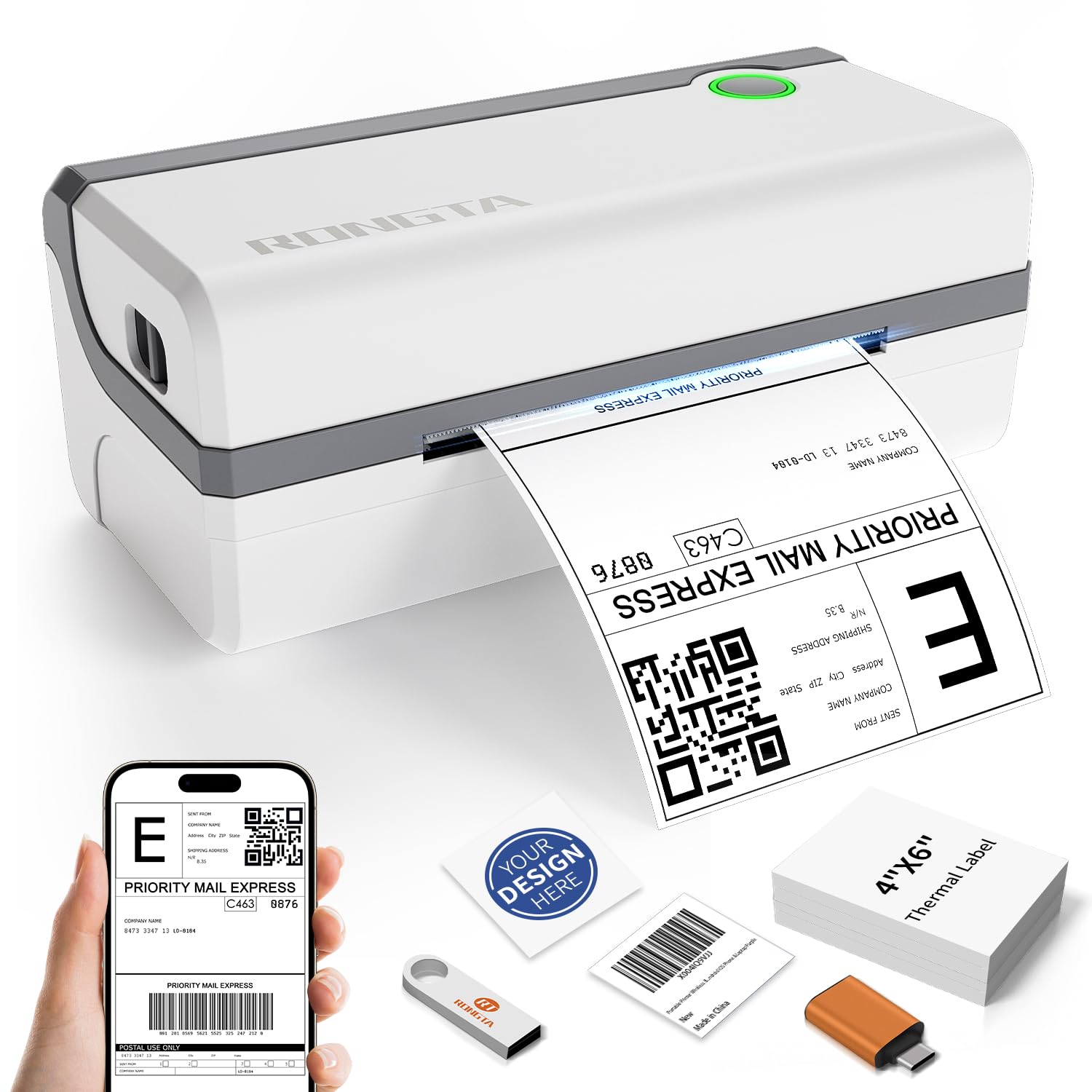
Figi 1: The Rongta thermal label printer in operation, producing a shipping label. Accompanying items include a smartphone demonstrating mobile printing, a USB drive for driver installation, and a stack of blank 4x6 inch thermal labels.
Enstalasyon
1. Debale ak Konpozan
Carefully unpack your printer and verify that all components are present:
- Rongta Thermal Shipping Label Printer
- USB kab
- Adaptè pouvwa
- Sample Labels
- USB Disk (containing Printer Driver, User Manual, How-to Videos)
2. Enstalasyon fizik
- Mete enprimant lan sou yon sifas ki plat e ki estab.
- Connect the power adapter to the printer and then to a power outlet.
3. Loading Labels
The printer supports thermal direct labels from 1.57 inches to 4.1 inches wide. It features automatic label identification for ease of use.
- Louvri kouvèti anwo aparèy pou enprime a.
- Insert the stack of thermal labels, ensuring the printable side is facing up.
- Adjust the label guides to fit the width of your labels snugly.
- Close the top cover. The printer will automatically detect and feed the label to the correct starting position.

Figi 2: This image demonstrates the printer's versatility in handling various label sizes, from 1.18 inches to 4.1 inches wide, including common shipping and product label dimensions.
4. Driver Installation (Computer)
For computer printing, install the necessary drivers from the included USB disk.
- Windows (7 and newer): Insert the USB disk, locate the Windows driver, and follow the on-screen instructions for installation.
- Mac OS (10.11 and newer): Insert the USB disk, locate the Mac OS driver, and follow the installation guide.
5. Bluetooth Connection (Mobile Devices)
For wireless printing from your smartphone or tablet:
- Telechaje ofisyèl la RT Elabel app from your device's app store (available for iOS and Android).
- Asire w ke Bluetooth aktive sou aparèy mobil ou.
- Open the RT Elabel app and search for available Bluetooth devices.
- Select your Rongta printer from the list. If prompted for a pairing code, enter 0000 or 000000.

Figi 3: This image highlights the printer's dual connectivity options: USB for computers (laptops, desktops) and Bluetooth for mobile devices (tablets, smartphones), enabling flexible printing solutions.

Figi 4: This diagram details the printer's connectivity options, showing how it can be connected wirelessly via Bluetooth to mobile devices (Android, iOS, tablets) and via USB cable to various computer operating systems (macOS, Windows, Linux). It also shows the "RT Elabel" app interface.
Enstriksyon Operasyon
1. Printing from Computer
After installing the drivers, you can print labels from various applications on your Windows or Mac computer:
- Open the document or label design you wish to print.
- Ale nan File > Enprime.
- Select your Rongta printer from the list of available printers.
- Adjust print settings such as label size and orientation as needed.
- Klike sou Enprime.
2. Printing from Mobile App
The RT Elabel app allows you to design and print labels directly from your Android or iOS device:
- Ensure your printer is connected via Bluetooth to your mobile device.
- Open the RT Elabel app.
- Select or create your label design.
- Confirm print settings and initiate printing from the app.
3. Kalite ak gwosè etikèt ki sipòte yo
The Rongta printer is compatible with thermal direct labels ranging from 1.57 inches to 4.1 inches in width. Common supported sizes include:
- 4x6 inch shipping labels
- 3x2 inch product labels
- 3x1 inch address labels
- 2x2 inch circle labels
- 2.25x1.25 inch product SKU labels
- 2x1 inch barcode labels
- 1x1 inch QR code labels

Figi 5: This image demonstrates the printer's ability to accommodate a wide range of label sizes, from 1.1 inches to 4.1 inches wide, and showcases different label applications like shipping, product, and decorative labels.
4. Platform Compatibility
The printer is compatible with major shipping and e-commerce platforms, streamlining your workflow for various business needs:
- Amazon
- eBay
- Shopify
- Etsy
- FedEx
- UPS
- ShipStation
- And many more shipping and marketplace platforms.

Figi 6: This image highlights the printer's broad compatibility with popular e-commerce and shipping platforms, including Amazon, eBay, Shopify, FedEx, ShipStation, Etsy, and UPS, making it suitable for diverse business needs.

Figi 7: This collage illustrates the wide range of environments where the Rongta label printer can be utilized, including for home organization, retail product labeling, office filing, and warehouse shipping.
Antretyen
1. Cleaning the Print Head and Roller
To ensure optimal print quality and prolong the life of your printer, it is recommended to clean the print head and rubber roller weekly.
- Etenn enprimant lan epi dekonekte kab kouran an.
- Louvri kouvèti anwo a.
- Siye tèt enprime a dousman avèk yon ti moso twal ki gen alkòl ladan l oswa yon twal mou ki pa gen pousyè.ampfini ak alkòl izopropilik.
- Clean the rubber roller with a damp cloth to remove any dust or label residue.
- Kite tout konpozan yo seche nèt anvan ou fèmen kouvèti a epi rekonekte kouran an.
2. Consommables
This thermal label printer operates without the need for ink, toner, or ribbons, reducing ongoing costs and simplifying maintenance.
Depanaj
If you encounter issues with your Rongta printer, please refer to the following common solutions:
- Pa gen pouvwa: Ensure the power adapter is securely connected to both the printer and a working power outlet.
- Pa gen rezilta enprime: Check if labels are loaded correctly and if the printer is connected to your device (via USB or Bluetooth). Verify that the correct printer is selected in your software's print dialogue.
- Kalite enprime pòv: Clean the print head and rubber roller as described in the Maintenance section. Ensure you are using high-quality thermal direct labels.
- Pwoblèm koneksyon Bluetooth: Restart both the printer and your mobile device. Ensure the RT Elabel app is updated to the latest version. Re-attempt pairing with the code 0000 or 000000.
- Pwoblèm chofè: Reinstall the printer drivers from the provided USB disk or download the latest version from the official Rongta support websit.
For any persistent technical issues or further assistance, please contact Rongta customer support.
Espesifikasyon
| Karakteristik | Spesifikasyon |
|---|---|
| Non modèl | Bluetooth+USB |
| Teknoloji Enpresyon | Tèmik |
| Koneksyon Teknoloji | Bluetooth, USB |
| Gwosè Maksimòm Medya | 4 x 6 inch (supports 1.57" to 4.1" wide) |
| Maksimòm rezolisyon enprime | 203 dpi |
| Maksimòm vitès enprime | 150 mm/s (apeprè 59 ppm) |
| Dimansyon pwodwi | 7.4"D x 10.24"W x 5.3"H |
| Pwa atik | 3.3 liv (1.5 kilogram) |
| Sipòte sistèm operasyon yo | Windows (7 and newer), Mac OS (10.11 and newer), Android, iOS, Linux |
| Konpozan ki enkli | Labels, cable |
Garanti ak sipò
Rongta provides customer support for technical assistance and product inquiries. While specific warranty details are not included in this manual, please retain your proof of purchase for any warranty claims.
For technical issues or support, please refer to the contact information provided with your product packaging or visit the official Rongta websit.


