1. Entwodiksyon
This manual provides detailed instructions for the setup, operation, and maintenance of your GIEC G5300 4K Ultra HD Blu Ray Player. Designed for an enhanced home entertainment experience, this player supports true 4K ultra-high-definition picture quality, HDR10, Dolby Vision, BT.2020 color spaces, and Dolby audio decoding for immersive visuals and sound.
2. Enfòmasyon sou Sekirite
- Ensure proper ventilation around the player to prevent overheating.
- Pa ekspoze inite a lapli oswa imidite pou diminye risk pou dife oswa chòk elektrik.
- Avoid placing heavy objects on top of the player.
- Pa ouvri c laasing; konfye tout antretyen bay pèsonèl kalifye.
- Keep the player away from direct sunlight, heat sources, and strong magnetic fields.
- Sèvi ak adaptè pouvwa a sèlman ak inite a.
3. Pake kontni
Tanpri verifye ke tout atik ki nan lis anba a yo enkli nan pakè ou a:
- GIEC G5300 Blu-ray Player (x1)
- HDMI kab (x1)
- Remote Kontwòl (x1)
- Manyèl itilizatè (x1)
4. Pwodwi souview
4.1 Panèl devan

Figi 4.1: Devan view of the GIEC G5300 Blu Ray Player, showing the disc tray, display, USB port, and control buttons (power, play/pause, eject).
- Plato disk: Insert Blu-ray or DVD discs here.
- Montre Panel: Shows playback status and time.
- USB 3.0 pò: Konekte aparèy depo USB pou lekti medya.
- Bouton kontwòl: Power On/Off, Play/Pause, Eject.
4.2 Panèl dèyè ak koneksyon

Figi 4.2: Dèyè view of the GIEC G5300 Blu Ray Player, highlighting various input/output ports including LAN, HDMI 2.0, HDMI 1.4, USB 3.0, Coaxial, and Optical outputs.
- Pò LAN: For network connection (e.g., firmware updates).
- HDMI 2.0 Output (Video/Audio): Primary HDMI output for 4K video and audio.
- HDMI 1.4 Output (Audio Only): Dedicated HDMI output for audio to an AV receiver.
- Antre USB 3.0: Konekte aparèy depo USB pou lekti medya.
- Sòti kowaksyal: Pwodiksyon odyo dijital.
- Sòti optik: Pwodiksyon odyo dijital.
5. Enstalasyon
5.1 Enstalasyon pil kontwòl remote la
Insert two AAA batteries (not included) into the remote control, ensuring correct polarity.
Video 5.1: This video demonstrates how to install batteries into the remote control and connect the Blu-ray player to a TV using an HDMI cable.
5.2 Connecting to a Display Device (TV/Projector)
- Connect one end of the supplied HDMI cable to the HDMI 2.0 Output (Video/Audio) pò ki sitiye dèyè lektè Blu-ray la.
- Connect the other end of the HDMI cable to an available HDMI input port on your TV or projector.
- For separate audio output, connect another HDMI cable from the HDMI 1.4 Output (Audio Only) port to your AV receiver, or use the Coaxial/Optical outputs.
5.3 Koneksyon pouvwa
- Connect the power cable to the power input on the rear of the Blu-ray player.
- Branche lòt bout kab kouran an nan yon priz miray.
- Turn on your TV/projector and select the correct HDMI input source corresponding to the port you connected the Blu-ray player to.
- Press the Power button on the Blu-ray player or remote control to turn on the unit.
6. Operasyon Enstriksyon
6.1 Lekti Disk
- Ensure the player is powered on and connected to your display device.
- Peze a EJECT bouton ki sou panèl devan an oswa sou kontwòl remote la pou ouvri plato disk la.
- Carefully place a Blu-ray or DVD disc onto the tray with the label side facing up.
- Peze a EJECT button again to close the tray. The player will automatically begin loading and playing the disc.
- Use the remote control for playback functions such as Play, Pause, Stop, Fast Forward, and Rewind.
6.2 Lekti Medya USB
The GIEC G5300 supports playback of various media files soti nan yon aparèy depo USB.
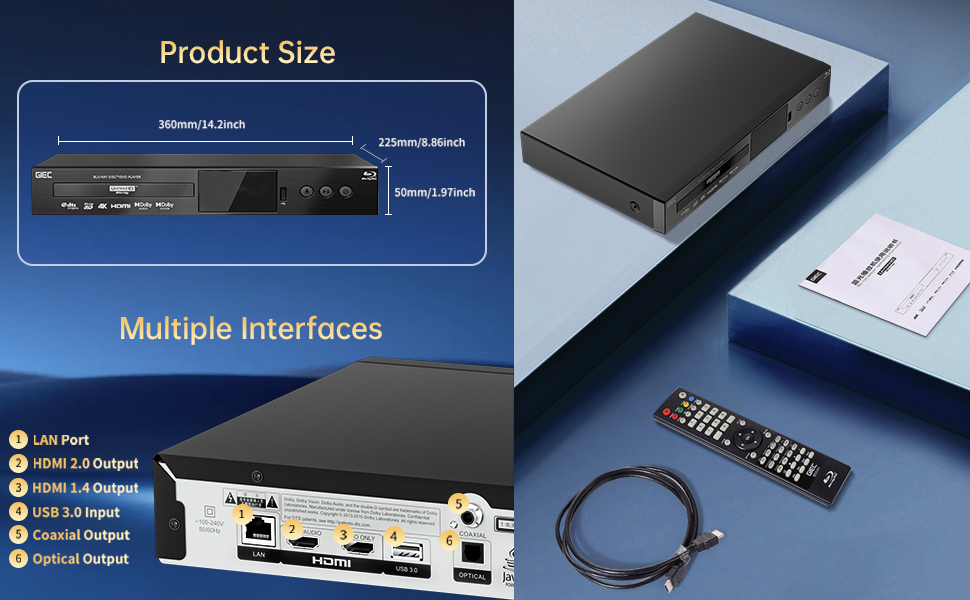
Figure 6.1: Illustration of the multiple disc, video, and audio formats supported by the player.
- Insert your USB storage device into the USB 3.0 Port on the front or rear panel.
- Navigate to the "Video," "Music," or "Photo" section on the player's main menu using the remote control.
- Chwazi ou vle file from the USB device to begin playback.
Fòma sipòte:
- Kalite disk: BD, BD-R, BD-RE, DVD-R/RW, DVD+R/RW, DVD-Video, VCD, CD, CD-R/RW.
- Fòma videyo: MPEG-1, MPEG-2, MPEG-4, VC1, H.264, MOV, MKV, AVI, TS.
- Fòm odyo: AAC, APE, CUE, FLAC, OGG, MP3, WAV.
7. Karakteristik
- 4K Ultra HD Playback: Experience movies and shows in stunning 4K resolution with clearer images and richer colors.
- Sipò HDR10: Enjoy a wider range of brightness and contrast, revealing more detail in both dark and bright scenes.
- Dolby Vision: Enhances image quality by dynamically adjusting brightness and expanding dynamic range for more detailed and vivid pictures.
- BT.2020 Color Spaces: Provides a broader color gamut than standard 1080p Blu-ray, resulting in purer, more natural, and realistic colors.
- Dolby Sound & DTS Decoding: Supports Dolby audio decoding and DTS effects for an immersive 5.1 stereo surround sound experience.
- 3D Blu-ray Playback: Compatible with 3D Blu-ray discs for an immersive three-dimensional viewing experience (requires a 3D-compatible TV and glasses).
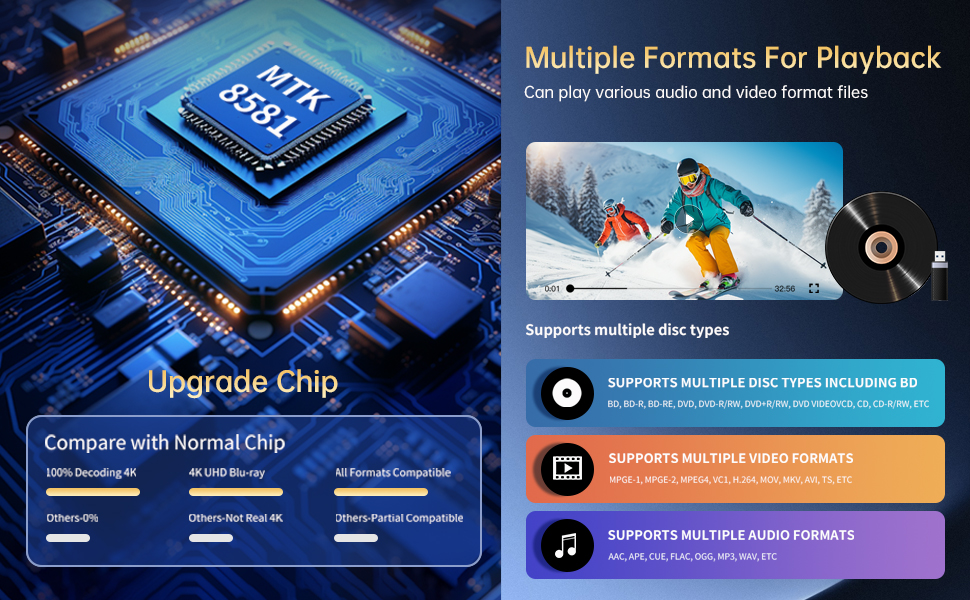
Figure 7.1: Visual comparison illustrating the difference between 8-bit (16.67 million colors) and 10-bit (1.07 billion colors) color depth, highlighting the enhanced detail and delicacy of 10-bit color.

Figure 7.2: The GIEC G5300 Blu Ray Player connected to a TV, showcasing its support for 4K UHD, 3D, HDR, HDR10+, Dolby, and Dolby Vision technologies.
8. Antretyen
- Netwayaj: Sèvi ak yon twal mou epi sèk pou netwaye deyò jwè a. Pa sèvi ak pwodui netwayaj likid oswa ayewosòl.
- Swen Disk: Manyen disk yo nan kwen yo. Netwaye disk yo ak yon twal mou ki pa gen pousyè, siye yo soti nan sant la pou ale deyò.
- Vantilasyon: Ensure the player's ventilation openings are not blocked to prevent overheating.
NAN. Depanaj
If you encounter issues with your Blu-ray player, please refer to the following common solutions:
- Pa gen pouvwa: Check if the power cable is securely connected to both the player and the power outlet. Ensure the outlet is functional.
- Pa gen imaj/son: Verify that the HDMI cable is correctly connected to both the player and the TV/receiver. Ensure the correct HDMI input is selected on your TV/receiver.
- Disk la pa ap jwe: Check if the disc is clean and free of scratches. Ensure the disc is inserted correctly with the label side up. The player supports Region A Blu-ray discs and all region DVD discs.
- Kontwòl Remote pa travay: Check the batteries in the remote control and replace them if necessary. Ensure there are no obstructions between the remote and the player.
10. Espesifikasyon
| Karakteristik | Detay |
|---|---|
| Non mak | GIEC |
| Non modèl | G5300 |
| Pwa atik | 4.18 liv (1.9 kilogram) |
| Dimansyon pwodwi | 14.2 x 8.9 x 2 pous |
| Koulè | Nwa |
| Kalite Medya | Disk Blu-Ray, DVD |
| Rezolisyon | 3840x2160 (4K Ultra HD) |
| Karakteristik espesyal | Anti-Shock, Compact, Dust Proof, Multi-Format Playback, Surround Sound, HDR10, Dolby Vision, BT.2020 Color Spaces |
| Kalite Connector | HDMI (Dual Outputs), USB 3.0, Coaxial, Optical, LAN |
| Koneksyon Teknoloji | HDMI |
11. Garanti ak sipò
For warranty information or technical support, please refer to the documentation included with your purchase or contact GIEC customer service. Keep your proof of purchase for warranty claims.


