1. Pwodwi souview
The Cable Matters 20Gbps USB-C Switch (Model 201343) allows you to share a single USB-C or Thunderbolt 4 monitor or docking station between up to three computers. This device supports high-speed data transfer, video resolutions up to 8K@30Hz on Windows, and 4K@60Hz on macOS, along with 140W Power Delivery charging for the active device. It is designed to streamline your workspace by enabling seamless switching between multiple host devices.

Image: The Cable Matters 20Gbps USB-C Switch, a compact silver device with three input ports and a pigtail output cable, shown alongside its remote control.
Karakteristik kle:
- Transfè Done 20 Gbps: Supports high-speed data transfer for demanding applications.
- Rezolisyon Videyo 8K: Up to 8K@30Hz on Windows, 4K@60Hz on macOS.
- Livrezon pouvwa 140W: Provides fast charging to the active connected laptop.
- 3-in-1-Out Switching: Connects up to three computers to one USB-C peripheral.
- RF Remote Kontwòl: Conveniently switch between devices without additional software.
2. Enstalasyon ak Enstalasyon
Follow these steps to set up your Cable Matters 20Gbps USB-C Switch.
Kontni pake:
- 1 x Cable Matters 20Gbps USB-C Switch (Model 201343) with 1.6ft Pigtail Cable
- 3 x USB4 20Gbps Cables (3.3ft)
- 1 x RF Remote Control
- 2 x Hook-and-Loop Pads
- 1 x Contact Card
- 1 x bwat

Image: A visual representation of all items included in the product package, including the switch, three USB4 cables, remote control, and documentation.
Enstriksyon Koneksyon:
- Connect the Switch to your Peripheral: Connect the pigtail cable from the USB-C Switch to your USB-C or Thunderbolt 4 monitor or docking station.
- Konekte Odinatè yo: Use the included USB4 20Gbps cables to connect each of your three computers to the input ports (labeled 1, 2, 3) on the USB-C Switch.
- Livrezon pouvwa (Si ou vle): If your monitor or docking station provides Power Delivery, the switch will pass up to 140W of power to the currently active computer. Ensure your peripheral is connected to a power source.
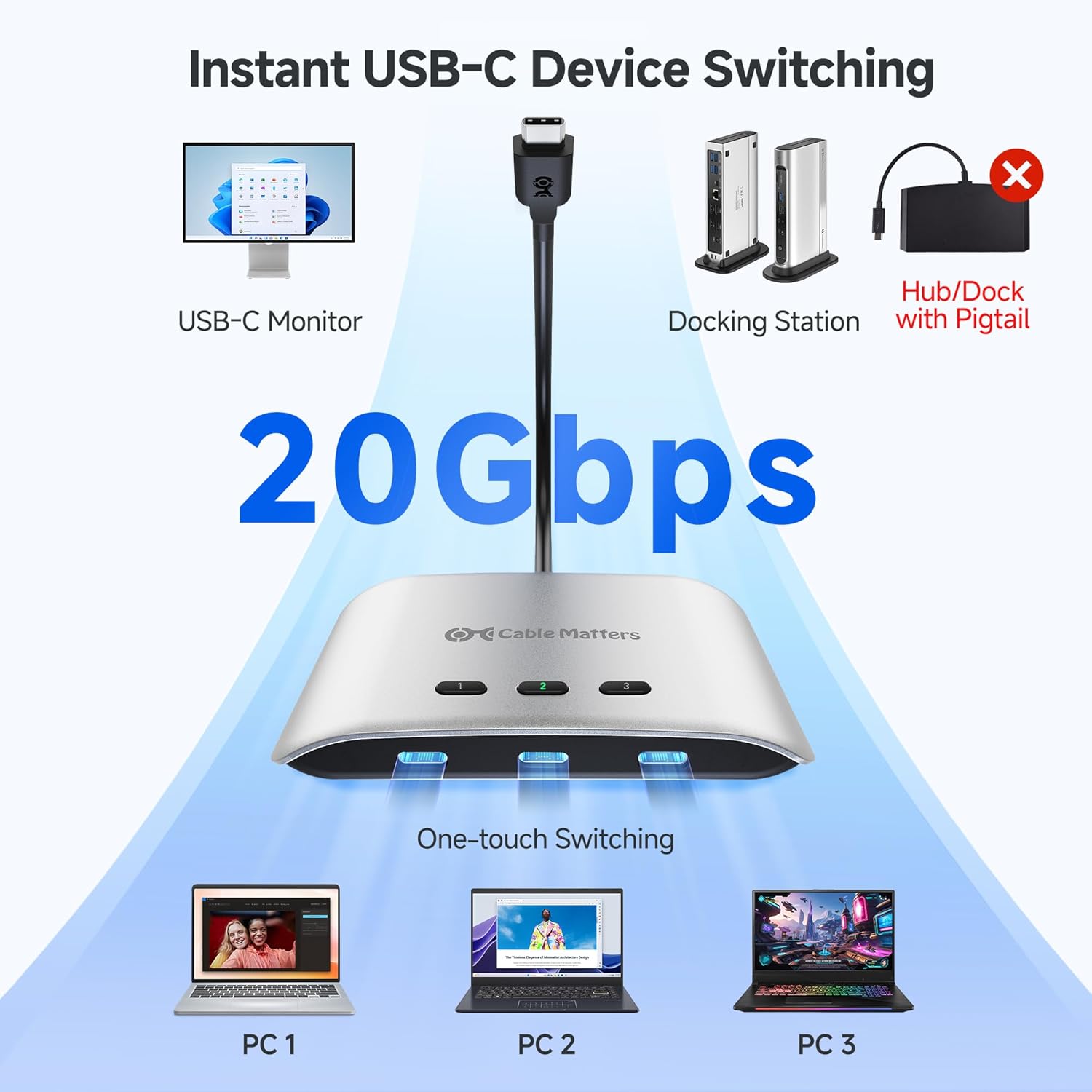
Image: A diagram illustrating the connection flow: three PCs connect to the USB-C switch, which then connects to a USB-C monitor or docking station, enabling one-touch switching.
Nòt Konpatibilite Enpòtan:
- Sèvi ak only the included USB4 20 Gbps cables. Do not use Thunderbolt 3/4/5 cables as this may cause compatibility issues.
- The switch works with USB4 and Thunderbolt 4 docks. However, its 20 Gbps bandwidth (compared to 40 Gbps for most docks) may limit the number of displays or the maximum resolution/refresh rate.
- macOS only supports one external display through this switch.
- Avoid USB-C docks with built-in pigtail/captive cables to prevent compatibility issues.

Image: A comparison diagram showing that Windows/Linux (11th Gen CPU or higher) supports dual 4K@60Hz expansion via a docking station, while macOS supports only one monitor expansion (4K@60Hz).

Image: A diagram illustrating that when using a Thunderbolt 3 device (monitor, laptop, or dock) with the switch, only one external display is supported, and output is limited to 4K@60Hz with a Thunderbolt 3 dock.
3. Itilizasyon switch la
The USB-C Switch offers both manual and remote control options for switching between connected computers.
Manyèl Chanje:
Press the numbered buttons (1, 2, or 3) on the top of the switch to select the desired computer. The corresponding LED indicator will illuminate.
RF Remote Kontwòl:
Use the included RF remote control for convenient switching from a distance.
- Press buttons 1, 2, or 3 on the remote to select the corresponding computer.
- The 'Next' button cycles through the connected computers sequentially.
Pairing a New Remote:
To pair a new remote, connect the switch to a computer. Press and hold the 'Pair' button on the remote for 5 seconds until the LED on the switch stops flashing.

Imaj: Yon gwo plan view of the USB-C switch connected to a monitor, with the remote control shown in the foreground, indicating how to pair a new remote by pressing and holding the 'Pair' button.
Power Delivery Functionality:
The switch supports up to 140W Power Delivery. Note that only the currently selected (active) computer receives charging power. Other connected devices will not charge simultaneously.
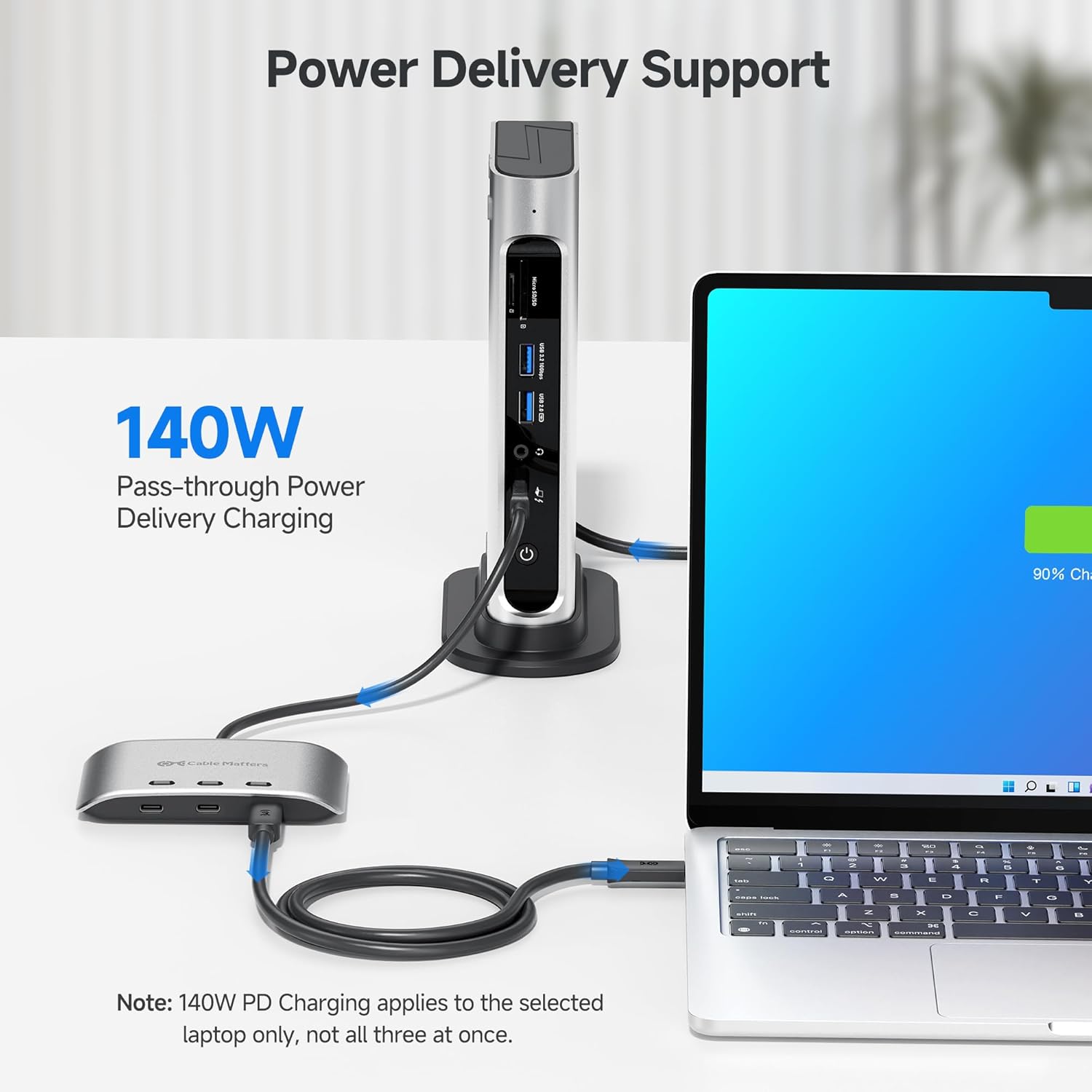
Image: A laptop connected to a docking station via the USB-C switch, showing the laptop charging with a 90% charge indicator, highlighting the 140W pass-through Power Delivery feature.
4. Antretyen
To ensure optimal performance and longevity of your USB-C Switch, follow these maintenance guidelines:
- Kenbe aparèy la nan yon kote ki fre epi sèk, lwen limyè solèy dirèk ak tanperati ekstrèm.
- Clean the exterior with a soft, dry cloth. Avoid using liquid cleaners or abrasive materials.
- Ensure all cables are securely connected to prevent signal loss or intermittent issues.
- Do not attempt to disassemble or repair the device yourself. Refer to qualified service personnel if needed.
NAN. Depanaj
If you encounter issues with your USB-C Switch, refer to the following common problems and solutions:
No Display or Intermittent Video:
- Tcheke kab: Ensure you are using the included USB4 20Gbps cables. Verify all connections are secure.
- Konpatibilite: Confirm your monitor and computer support the selected resolution and refresh rate. Remember macOS supports only one external display.
- Bandwidth Limitation: If using a docking station, the switch's 20Gbps bandwidth may limit the number of displays or maximum resolution compared to a direct 40Gbps connection.
- Sik pouvwa: Disconnect and reconnect all cables, then restart your computers and monitor.
No Data Transfer or Peripheral Functionality:
- Active Port: Ensure the correct input port is selected on the switch.
- Entegrite kab: Inspect USB4 cables for damage.
- Docking Station Type: Avoid USB-C docks with built-in pigtail/captive cables, as these can cause compatibility issues.
Pa gen chaj:
- Active Computer: Only the currently selected computer receives Power Delivery. Ensure the desired computer is active.
- Sous pouvwa: Verify your monitor or docking station is properly powered and capable of providing Power Delivery.
Telekòmand RF la pa fonksyone:
- Batri: Tcheke epi ranplase pil kontwòl remote la si sa nesesè.
- Peyaj: Re-pair the remote control with the switch as described in the 'Operating the Switch' section.
Video: An official product video demonstrating the features and functionality of the Cable Matters 20Gbps USB-C Switch, including its ability to switch between multiple computers, support high resolutions, and provide power delivery.
6. Espesifikasyon
| Karakteristik | Spesifikasyon |
|---|---|
| Nimewo Modèl | 201343 |
| Pousantaj Transfè Done | Jiska 20 Gbps |
| Video Resolution (Windows) | Up to 8K@30Hz / 5K@60Hz / 4K@144Hz |
| Video Resolution (macOS) | Up to 4K@60Hz (single external display) |
| Livrezon pouvwa | Up to 140W (to active device) |
| Kalite Connector | USB-C |
| Chanje Kalite | Eta solid |
| Mòd operasyon | ON-NONE-ON |
| Materyèl | Kuiv (konpozan entèn yo) |
| Dimansyon pake | 6.77 x 5.59 x 1.61 pous |
| Pwa atik | 12.7 ons |
7. Garanti ak sipò
Enfòmasyon sou garanti:
Cable Matters products typically come with a limited warranty. Please refer to the warranty card included in your product packaging or visit the official Cable Matters websit la pou wè kondisyon garanti detaye ki espesifik pou rejyon ou an.
Sipò Kliyan:
For technical assistance, troubleshooting, or product inquiries, please contact Cable Matters customer support through their official websit la oswa enfòmasyon kontak yo bay nan dokimantasyon pwodwi ou a.
Ou ka vizite tou Cable Matters Store on Amazon pou plis enfòmasyon ak resous pwodwi yo.


