Entwodiksyon
This manual provides essential instructions for setting up, operating, maintaining, and troubleshooting your OPPO Reno 12 F 5G CPH2637 smartphone. Please read this guide thoroughly to ensure proper use and to maximize the device's capabilities.
1. Enstalasyon
1.1 Debale ak Premye Enspeksyon
Retire tout bagay yo nan anbalaj la avèk prekosyon. Verifye ke konpozan sa yo prezan:
- Telefòn entelijan OPPO Reno 12 F 5G CPH2637
- USB Kalite-C kab
- Adaptè pouvwa
- Zouti èkstrè SIM
- Gid Quick Start (dokiman sa a)
Enspekte aparèy la pou nenpòt domaj fizik anvan ou kontinye.
1.2 Mete Kat SIM yo
The OPPO Reno 12 F 5G CPH2637 supports Dual SIM functionality.
- Jwenn plato kat SIM lan sou bò aparèy la.
- Mete zouti pou retire kat SIM lan nan ti twou ki akote plato a epi peze dousman jiskaske plato a soti.
- Mete kat Nano-SIM ou yo nan fant ki fèt pou sa sou plato a, epi asire w ke kontak lò yo fè fas anba.
- Pouse plato a tounen nan aparèy la avèk prekosyon jiskaske li kole ak kote a.
1.3 Chaje Aparèy la
Anvan premye itilizasyon an, li rekòmande pou chaje aparèy la nèt.
- Konekte kab USB Kalite-C a nan pò chaje ki anba telefòn nan.
- Konekte lòt bout kab la ak adaptè pouvwa a.
- Ploge adaptè pouvwa a nan yon priz miray.
- Endikatè chaj la ap parèt sou ekran an.
1.4 Limen ak Konfigirasyon Inisyal
To power on the device, press and hold the Power button located on the side until the OPPO logo appears. Follow the on-screen instructions to complete the initial setup, including language selection, Wi-Fi connection, Google account setup, and security settings.
2. Operasyon Enstriksyon
2.1 Navigasyon debaz
The OPPO Reno 12 F 5G CPH2637 features a touchscreen interface. Use gestures such as tapping, swiping, pinching, and spreading to interact with the device. The navigation bar at the bottom of the screen typically includes Back, Home, and Recent Apps buttons.
2.2 Fè apèl epi voye mesaj
Pou fè yon apèl, ouvri Telefòn aplikasyon an, antre nimewo a, epi tape ikòn apèl la. Pou voye yon mesaj, ouvri Mesaj aplikasyon an, tape ikòn nouvo mesaj la, antre non moun k ap resevwa a ak mesaj ou a, epi tape voye.
2.3 Konekte ak Rezo yo
Your device supports both Wi-Fi and 5G cellular networks.
- Wi-Fi: Ale nan Anviwònman> Wi-Fi, aktive Wi-Fi a, chwazi rezo ou vle a, epi antre modpas la si sa nesesè.
- 5G Cellular Data: Ensure your SIM card has an active 5G plan. Go to Settings > Mobile Network > Data usage to manage your cellular data.
2.4 Itilizasyon Kamera a
Louvri a Kamera app from your home screen or app drawer. Tap the shutter button to take a photo. Swipe left or right to switch between different camera modes such as Photo, Video, Portrait, and Night. Tap on the screen to focus on a specific area.
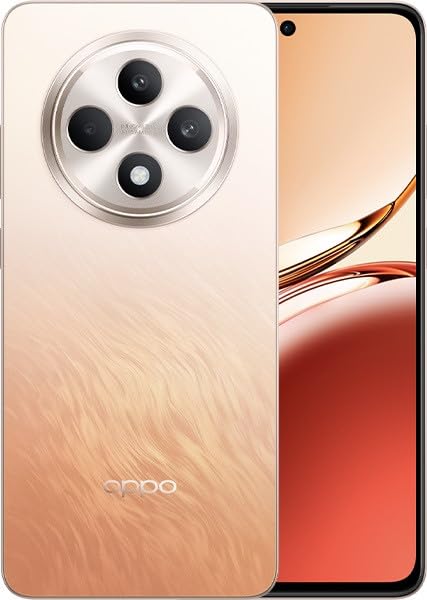
Image: OPPO Reno 12 F 5G CPH2637 smartphone in Amber Orange. This image displays the front and back of the device, highlighting its design and camera module.
2.5 Karakteristik Sekirite Sosyal
The device offers various security options to protect your data:
- Degaje anprent: Anrejistre anprent dwèt ou yo nan Settings > Password & Biometrics > Fingerprint.
- Debloke figi: Enstale rekonesans figi nan Settings > Password & Biometrics > Face.
- Fèmen ekran: Choose a PIN, pattern, or password for screen lock in Settings > Password & Biometrics > Lock screen password.
3. Antretyen
3.1 Netwaye Aparèy la
Use a soft, lint-free cloth to clean the screen and body of your phone. Avoid using harsh chemicals, abrasive materials, or aerosol sprays, as these can damage the device's finish and coatings. For stubborn smudges, slightly dampen twal la ak dlo.
3.2 Mizajou lojisyèl
Tcheke epi enstale mizajou lojisyèl regilyèman pou asire pèfòmans, sekirite ak aksè a nouvo fonksyonalite yo optimal. Ale nan Anviwònman > Konsènan aparèy la > Mizajou pou tcheke si gen mizajou ki disponib.
3.3 Swen Batri
To prolong battery life, avoid exposing the device to extreme temperatures. It is recommended to keep the battery charge between 20% and 80% for daily use. Avoid leaving the phone plugged in for extended periods after it is fully charged.
3.4 Jesyon Depo
Tanzantan review epi efase sa ki pa nesesè files, apps, and media to free up storage space. You can check storage usage in Anviwònman > Konsènan aparèy la > Depo.
NAN. Depanaj
4.1 Aparèy la pa limen
If your device does not turn on, ensure it is sufficiently charged. Connect it to the charger for at least 15 minutes, then try pressing and holding the Power button again for 10-15 seconds.
4.2 Pwoblèm koneksyon rezo
If you experience issues with cellular data or Wi-Fi:
- Aktive oubyen dezaktive Mòd Avyon an.
- Rekòmanse aparèy la.
- For cellular issues, ensure your SIM card is properly inserted and your plan is active.
- For Wi-Fi issues, restart your router and ensure you are within range.
4.3 Aplikasyon ki kraze oswa bloke
If an app is not responding, try force-closing it from the Recent Apps screen. If the issue persists, clear the app's cache and data in Settings > Apps > [App Name] > Storage usageKòm yon dènye rekou, dezenstale epi reenstale aplikasyon an.
4.4 Reset faktori
A factory reset will erase all data on your device and restore it to its original factory settings. Back up all important data before performing a factory reset. Ale nan Anviwònman > Anviwònman sistèm > Fè backup epi Reyajiste > Reyajiste telefòn > Efase tout done yo.
5. Espesifikasyon
| Karakteristik | Spesifikasyon |
|---|---|
| Mak | OPPO |
| Non modèl | Reno 12 F 5G |
| Nimewo Modèl | CPH2637 |
| Kapasite Depo memwa | 256 GB |
| Gwosè memwa RAM enstale | 12 GB |
| Teknoloji selilè | 5G |
| Koneksyon Teknoloji | 5G |
| Kantite plas kat SIM | Doub SIM |
| Koulè | Amber Orange |
| Antre Entèfas Imèn | Touchscreen |
| Faktè fòm | Adwaz |
6. Garanti ak sipò
Your OPPO Reno 12 F 5G CPH2637 is covered by a limited warranty. Please refer to the warranty card included in your product packaging for specific terms and conditions, including warranty period and coverage details. For technical support, service inquiries, or further assistance, please visit the official OPPO support websit la oubyen kontakte liy dirèk sèvis kliyan yo nan rejyon ou an.


