1. Entwodiksyon
This manual provides essential information for the safe and efficient operation of your TESLA QLED Smart TV, Model Q55S939GUS. Please read these instructions thoroughly before using your television and retain them for future reference. This television features a 55-inch (140 cm) QLED display, Google TV operating system, Ultra HD resolution, HDR10, Dolby Atmos audio, built-in Wi-Fi, Bluetooth, and Chromecast.

Imaj 1.1: Devan view of the TESLA QLED Smart TV, highlighting key features.
2. Enfòmasyon sou Sekirite
Always follow basic safety precautions when using this television to reduce the risk of fire, electric shock, and injury. Keep the television away from moisture and heat sources. Ensure proper ventilation. Do not block ventilation openings. Use only attachments/accessories specified by the manufacturer. Refer all servicing to qualified service personnel.
3. Pake kontni
Verifye ke tout atik yo prezan nan pakè a:
- TESLA QLED Smart TV (Model Q55S939GUS)
- Kontwòl Remote
- Pouvwa Câbles
- TV Stand/Base
- Batri pou kontwòl Remote
- Manyèl Itilizatè (dokiman sa a)
4. Enstalasyon
4.1 Enstalasyon fizik
Tache kanpe la: Carefully place the TV screen-down on a soft, flat surface. Align the stand with the mounting holes on the bottom of the TV and secure it with the provided screws. Ensure the stand is firmly attached before placing the TV upright.

Image 4.1: TESLA QLED Smart TV with stand.
Montaj mi: If you plan to wall mount the TV, refer to the instructions provided with your wall mount kit. Ensure the wall mount is compatible with the VESA mounting pattern of your TV. The back of the TV includes mounting points for this purpose.
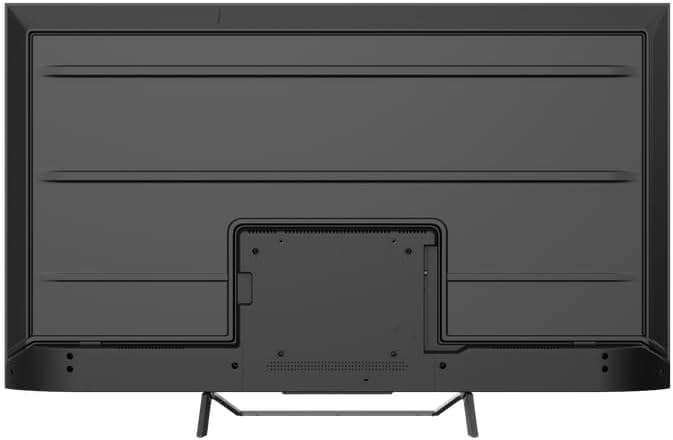
Imaj 4.2: Dèyè view of the TV, indicating mounting points.
4.2 Premye Limen & Koneksyon Rezo a
- Konekte kab kouran an nan televizyon an epi answit nan yon priz kouran.
- Peze bouton pouvwa a sou kontwòl remote la oswa sou televizyon an li menm.
- Follow the on-screen instructions to select your language, country, and connect to your Wi-Fi network. You can also connect via Ethernet for a wired connection.
4.3 Enstalasyon Google TV
During the initial setup, you will be guided through setting up your Google TV account. This allows access to Google Assistant, Google Play Store apps, and personalized content recommendations. You will need a Google account to fully utilize these features.
5. Itilizasyon televizyon an
5.1 Remote Control Overview
The remote control provides access to all TV functions. Insert the provided batteries into the remote control. Familiarize yourself with the button layout for easy navigation.

Image 5.1: TESLA Smart TV Remote Control.
5.2 Fonksyon debaz
- Pouvwa: Peze bouton pouvwa a pou limen oswa etenn televizyon an.
- Volim: Sèvi ak bouton VOL +/- yo pou ajiste nivo son an.
- Chanèl: Use the P +/- buttons to change channels.
- Navigasyon: Sèvi ak pavé direksyon an ak bouton OK a pou navige nan meni yo epi chwazi opsyon yo.
- Kay: Press the Home button to return to the Google TV home screen.
5.3 Smart TV Features (Google TV, Apps, Chromecast)
Your TESLA QLED Smart TV runs on Google TV, offering an intuitive interface and access to a vast library of content.
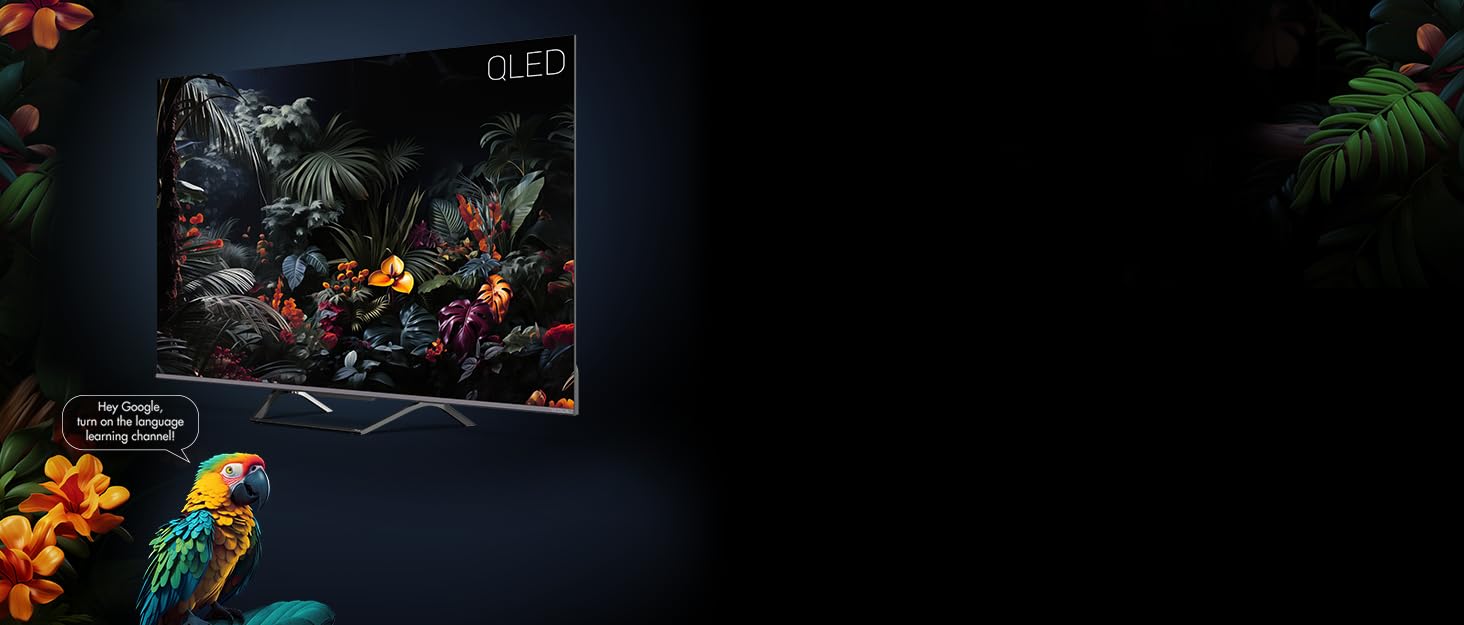
Image 5.2: Google Assistant integration on TESLA QLED TV.
- Entèfas Google TV a: The home screen provides personalized recommendations, quick access to installed apps like Netflix, YouTube, and Prime Video, and live TV options.
- Google Asistan: Sèvi ak kòmandman vokal yo atravè kontwòl remote la pou chèche kontni, kontwole aparèy kay entelijan, jwenn repons, ak plis ankò.
- Chromecast entegre: Cast content (videos, photos, music) directly from your compatible mobile devices or computer to the TV screen.
- Google Play Store: Download and install over 10,000 additional applications and games.
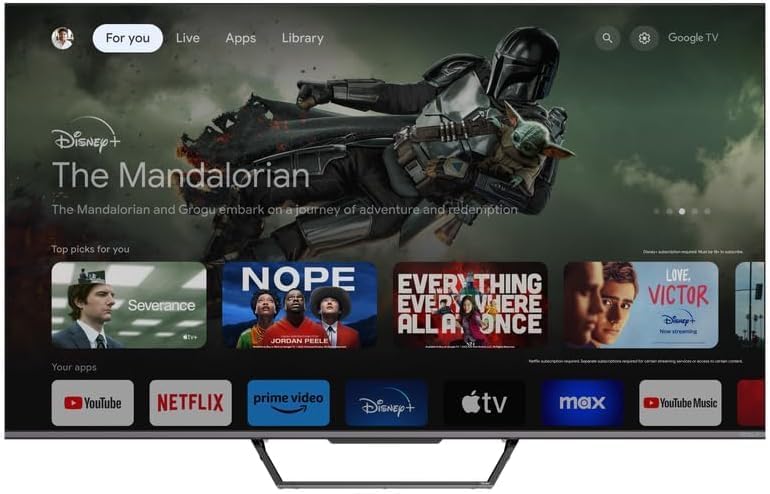
Image 5.3: Google TV home screen with app access.
5.4 Koneksyon
Televizyon an ofri plizyè pò pou konekte aparèy ekstèn:
- Pò HDMI (x3): Connect gaming consoles, Blu-ray players, soundbars, and other HDMI-enabled devices.
- Pò USB (x2): Konekte kle USB yo pou lèktur medya oswa depo ekstèn.
- Wi-Fi: Konekte san fil ak rezo lakay ou pou jwenn aksè entènèt.
- Bluetooth: Connect wireless headphones, speakers, or other Bluetooth accessories.
- Ethernet: Pou yon koneksyon entènèt filaire ki estab.
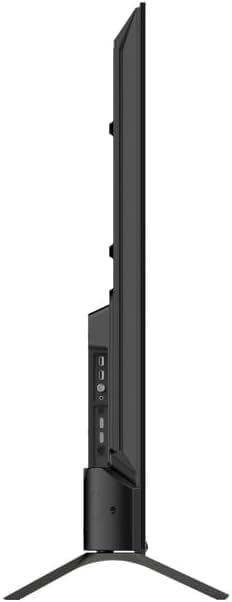
Imaj 5.4: Kote view of TV with connectivity ports.
5.5 Audio and Picture Settings
- Dolby Atmos & Ultra Surround: Experience immersive, three-dimensional audio. Adjust audio settings in the TV menu to optimize sound for your environment.
- Teknoloji QLED: Quantum Dot technology delivers over a billion shades of color, enhanced brightness, and superior contrast.
- HDR10: High Dynamic Range 10 provides a wider range of colors and contrasts, resulting in a more realistic image.
- Mòd foto: Select from various preset picture modes (e.g., Standard, Vivid, Movie, Game) or customize settings like brightness, contrast, color, and sharpness to suit your preferences.
6. Antretyen
6.1 Netwayaj
Toujou debranche televizyon an anvan ou netwaye li. Sèvi ak yon twal mou epi sèk pou siye ekran an ak kabinè a. Pou mak ki difisil pou retire, siye yo yon ti kras.ampen the cloth with water or a specialized screen cleaner. Never use abrasive cleaners, waxes, or solvents.
6.2 Mizajou lojisyèl
Your Google TV will periodically receive software updates to improve performance and add new features. Ensure your TV is connected to the internet to receive these updates. You can check for updates manually in the TV's settings menu.
NAN. Depanaj
Si w rankontre pwoblèm ak televizyon w lan, gade pwoblèm ak solisyon komen sa yo:
| Pwoblèm | Solisyon posib |
|---|---|
| Pa gen pouvwa | Tcheke si kab kouran an byen konekte ak televizyon an ak priz kouran an. Asire w ke priz la ap fonksyone. |
| Pa gen imaj, men gen son | Tcheke sous opinyon an. Asire w ke aparèy ekstèn yo byen konekte epi yo byen limen. |
| Pa gen son, men imaj la la | Check the volume level. Ensure Mute is not activated. Check audio output settings. |
| Remote kontwòl pa travay | Ranplase pil yo. Asire w pa gen okenn obstak ant telekòmand lan ak televizyon an. |
| Pa ka konekte ak Wi-Fi | Tcheke routeur ou ak koneksyon entènèt ou. Antre modpas Wi-Fi a ankò. Eseye rekòmanse televizyon an ak routeur la. |
For further assistance, consult the TESLA support websit oswa kontakte sèvis kliyan.
8. Espesifikasyon
Key technical specifications for the TESLA QLED Smart TV Model Q55S939GUS:
| Karakteristik | Spesifikasyon |
|---|---|
| Mak | TESLA |
| Nimewo Modèl | Q55S939GUS |
| Gwosè ekran | 55 pous (140 cm) |
| Teknoloji ekspozisyon | QLED |
| Rezolisyon | 4K (3840 x 2160) |
| Sistèm operasyon | Google TV |
| Rafrechisman pousantaj | 60 Hz |
| Karakteristik espesyal | Chromecast, Built-in Speaker, Game Mode, Flat Panel, Wide Color Enhancer |
| Teknoloji Audio | Dolby Atmos, Ultra Surround, 2 x 10W Speakers |
| Koneksyon | Bluetooth, HDMI (x3), RF, USB (x2), Wi-Fi, Ethernet |
| Dimansyon pwodwi (D x W x H) | 26.5 x 122.5 x 72 cm |
| Koulè | Ajan metalik |

Image 8.1: Illustrative diagram of TV dimensions and remote control. Note: This product is 55 inches, not 75 inches as shown in the diagram.
9. Garanti ak sipò
For warranty information, please refer to the warranty card included with your product or visit the official TESLA website. Keep your proof of purchase for warranty claims. For technical support, troubleshooting assistance, or service requests, please contact TESLA customer support through their official channels.


