Entwodiksyon
Thank you for choosing the Tibuta K7 Kids Tablet. This device is designed to provide a safe and engaging digital experience for children, featuring parental controls, educational content, and entertainment options. This manual will guide you through the initial setup, operation, and maintenance to ensure optimal performance and longevity of your tablet.
Ki sa ki nan bwat la
Tanpri verifye ke tout atik yo prezan nan pakè a:
- Tibuta K7 Kids Tablet
- Drop-proof Silicone Protective Case
- Kalite-C Kab
- Charger
- Manyèl itilizatè a

Image: Contents of the Tibuta K7 Kids Tablet package. This image displays the tablet, its protective case, a USB-C charging cable, a power adapter, and the user manual, illustrating all items included with the product.
Pwodwi souview
The Tibuta K7 Kids Tablet features a 7-inch HD display, a durable silicone protective case, and an Android 12 Go operating system. It is equipped with dual cameras and supports Wi-Fi connectivity.

Imaj: Devan ak dèyè view of the Tibuta K7 Kids Tablet. The tablet is shown in a pink protective case with a handle and kickstand, displaying a colorful children's cartoon on its screen.
Konpozan tablèt

Image: Diagram of the Tibuta K7 Kids Tablet's external features. This illustration points out the front camera, 3.5mm headphone port, TF card slot, USB 2.0 OTG port, rear camera, volume buttons, power ON/OFF/Reset button, and speaker.
- Kamera devan: Pou apèl videyo ak selfie.
- Pò kas ekoutè 3.5mm: Pou konekte kas ekoutè.
- TF Kat plas: For expanding storage with a microSD card (up to 128GB).
- USB 2.0 OTG Port (Type-C): Pou chaje ak transfè done.
- Kamera dèyè: Pou pran foto ak videyo.
- Bouton Volim: Ajiste volim odyo a.
- Power ON/OFF/Reset Button: Powers the tablet on/off or performs a reset.
- Oratè: Pou pwodiksyon odyo.
Gid Enstalasyon
1. Premye Chajman
Before first use, fully charge the tablet. Connect the provided Type-C cable to the tablet's USB port and the charger to a power outlet. The charging indicator will show the charging status.
2. Powering On / Off
- Pou limen: Peze epi kenbe bouton pouvwa a jiskaske ekran an limen.
- Pou etenn: Peze epi kenbe bouton Power la, answit chwazi "Power off" nan opsyon yo.
- Pou rekòmanse: Peze epi kenbe bouton Pouvwa a, answit chwazi "Rekòmanse" nan opsyon yo.
3. Koneksyon Wi-Fi
- Ale nan Anviwònman > Rezo ak entènèt > Wi-Fi.
- Aktive Wi-Fi a On.
- Chwazi rezo Wi-Fi ou vle a nan lis la.
- Antre modpas rezo a si yo mande w, epi tape Konekte.
4. Kidoz Parental Control App Setup
The tablet comes pre-installed with the Kidoz parental control application. This app allows you to manage content, screen time, and access for your child.
- Lanse a Kidoz app from the home screen.
- Follow the on-screen instructions to create a parent account and set up child profiles.
- Configure settings such as screen time limits, content filtering, and application access.

Image: Parents setting up the Kidoz parental control app on the Tibuta K7 Kids Tablet. The image illustrates a family interacting with the tablet, highlighting features like screen time limits and content filtering.
Enstriksyon Operasyon
Navigasyon
- Ekran manyen: Tap, swipe, and pinch to navigate the interface.
- Ekran Kay: Access frequently used apps and widgets.
- Notifikasyon: Glise desann soti nan tèt ekran an pou view notifikasyon ak paramèt rapid.
Using Kidoz and Applications
The Kidoz app provides a child-friendly interface and access to pre-approved content. Parents can manage available applications and content through the parental control settings.
- Aksè Aplikasyon: Within the Kidoz environment, children can access approved games, educational apps, and media.
- Downloading New Apps: Parents can download additional applications from the Google Play Store, which can then be added to the child's approved list within Kidoz.
- Filtrage kontni: Kidoz allows for filtering of inappropriate content, ensuring a safe browsing and vieweksperyans nan.
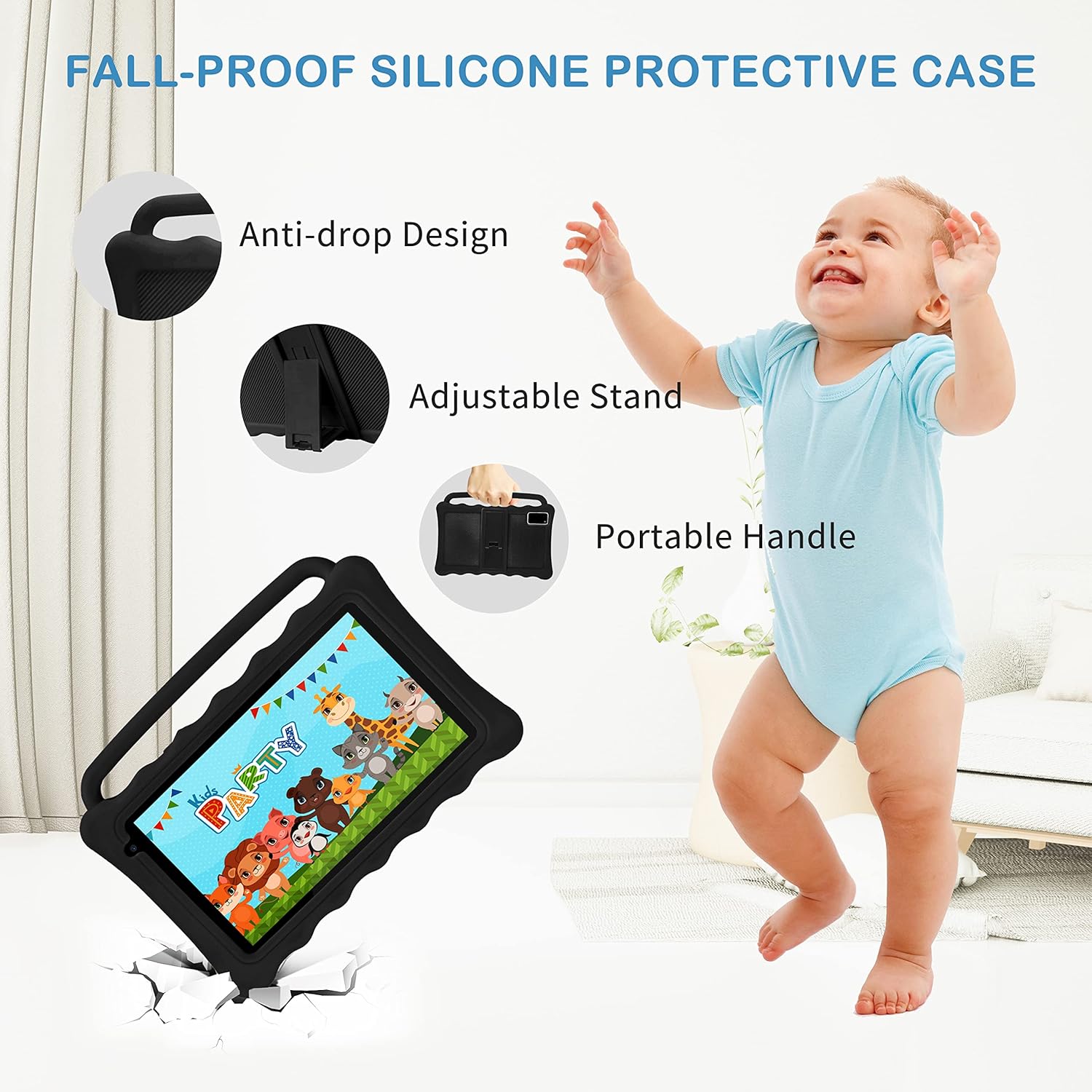
Image: The Tibuta K7 Kids Tablet showcasing its multi-functional capabilities for children. This image highlights pre-installed applications like ABCMouse, YouTube, Netflix, Google Play, and various games, books, and art tools.
Mode Pwoteksyon Je
The 7-inch LCD screen is equipped with Low Blue Light technology to protect children's eyes. Activate the reading mode in settings to reduce screen flicker and harmful blue light, providing a more comfortable vieweksperyans nan.

Image: Two children using the Tibuta K7 Kids Tablet, demonstrating the eye protection feature. The image emphasizes the 1024x600 HD screen and its low blue light technology for comfortable viewing.
Itilizasyon Kamera
The tablet features a 2MP front camera and a 5MP rear camera for capturing photos and videos.
- Louvri a Kamera aplikasyon.
- Tape bouton deklanchè a pou pran yon foto oswa pou kòmanse/sispann anrejistreman videyo.
- Switch between front and rear cameras using the camera icon on the screen.

Image: Children smiling and looking into the Tibuta K7 Kids Tablet camera. This image highlights the tablet's dual cameras (2MP front, 5MP rear) for capturing fun moments.
Antretyen
Netwaye Tablèt la
- Sèvi ak yon twal mou ki pa gen pousyè pou netwaye ekran an ak kò tablèt la.
- Pou tach ki difisil pou retire, yon ti kras dampRense twal la avèk dlo oswa yon pwodui netwayaj ekran ki fèt pou aparèy elektwonik.
- Evite itilize pwodui chimik ki agresif, pwodui netwayaj abrazif, oswa espre ayewosòl.
Swen batri
- Charge the tablet regularly, but avoid leaving it fully charged or fully depleted for extended periods.
- Use only the provided charger and cable to prevent damage to the battery.
- Avoid exposing the tablet to extreme temperatures, as this can affect battery life.
Ka Pwoteksyon
The silicone protective case is designed to safeguard the tablet from drops and impacts. Ensure the tablet is properly seated within the case at all times. The adjustable stand and portable handle enhance usability and portability.

Image: The Tibuta K7 Kids Tablet in a red protective case. This image highlights the anti-drop design, adjustable stand, and portable handle of the silicone case, demonstrating its protective and ergonomic features.
Depanaj
- Tablet does not turn on:
- Ensure the tablet is fully charged. Connect it to the charger and wait a few minutes before attempting to power it on again. If unresponsive, press and hold the Power button for 10-15 seconds to force a restart.
- Ekran an pa reponn:
- Restart the tablet. If the issue persists, ensure the screen is clean and free of debris. If the problem continues, a factory reset might be necessary (data will be lost).
- Pwoblèm koneksyon Wi-Fi:
- Check if Wi-Fi is enabled in settings. Restart your Wi-Fi router. Forget the network on the tablet and reconnect. Ensure you are within range of the Wi-Fi signal.
- Kidoz app not working correctly:
- Ensure the Kidoz app is updated to the latest version. Clear the app's cache and data in Anviwònman > Aplikasyon yo > Kidoz > Depo. If problems persist, reinstall the app or contact Kidoz support.
- Tablet runs slowly or freezes:
- Close unnecessary background applications. Clear cache for frequently used apps. Consider uninstalling unused apps to free up storage. If the issue is severe, a factory reset may resolve it.
Espesifikasyon
| Karakteristik | Detay |
|---|---|
| Mak | Tibuta |
| Non modèl | K7 |
| Sistèm operasyon | Android 12 ale |
| Mak processeur | Allwinner |
| Gwosè ekran | 7 pous |
| Rezolisyon ekran | 1024 x 600 piksèl |
| RAM | 2 GB |
| Kapasite Depo | 32 GB (expandable up to 128 GB via Micro SD) |
| Koneksyon | Wi-Fi (802.11g), Bluetooth |
| Kamera | Front: 2MP, Rear: 5MP |
| Lavi batri | Over 5 hours (usage dependent) |
| Koulè | Rose (as per product listing, other colors may vary) |


