1. Entwodiksyon
This manual provides detailed instructions for the AULA F75 75% Wireless Mechanical Keyboard and the AULA SC580 Wireless Gaming Mouse. Please read this manual carefully before using the product to ensure proper operation and to maximize your user experience.

Image 1.1: The AULA F75 Wireless Mechanical Keyboard and SC580 Wireless Gaming Mouse Combo.
2. Ki sa ki nan bwat la
- AULA F75 san fil mekanik klavye
- AULA SC580 Wireless Gaming Mouse
- USB-C Cable (for charging and wired connection)
- 2.4GHz USB Reseptè
- Keycap Puller
- Chanje Puller
- Spare Switches (as gift)
- Manyèl itilizatè
3. Keyboard Features (AULA F75)
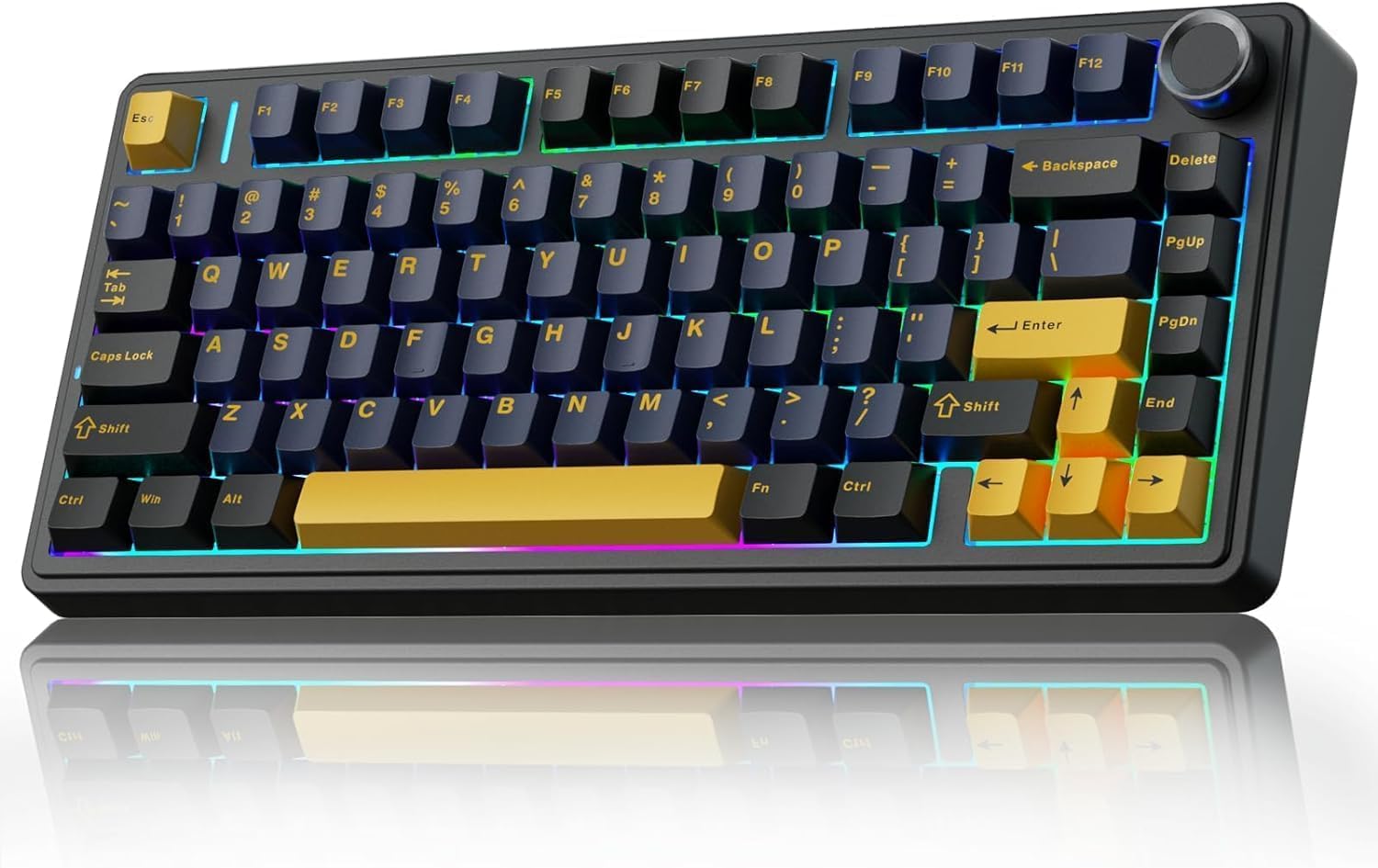
Image 3.1: The AULA F75 Wireless Mechanical Keyboard.
3.1 Tri-mode Connection
- Bluetooth 5.0: Connects to up to three devices simultaneously.
- 2.4GHz san fil: Utilizes a dedicated USB receiver for low-latency connection.
- USB branche: Direct connection via USB-C cable for charging and data.
The F75 keyboard is compatible with PC, laptops, tablets, mobile phones, PS, and XBOX. It features a 4000mAh battery for extended wireless use.

Image 3.2: The compact 75% layout of the AULA F75 keyboard, highlighting its BT5.0/3.0, 2.4GHz, and Type-C connection options.
3.2 Konsepsyon ranplasabl a cho
- Supports 3-pin or 5-pin mechanical switches.
- Pèmèt ranplasman switch fasil san soude.
- Equipped with pre-lubricated stabilizers and LEOBOG Graywood V3 switches for a smooth typing experience.

Image 3.3: The hot-swappable feature of the AULA F75 keyboard, showing included tools and spare switches.
3.3 Gasket Structure & PCB Single Key Slotting
- Gasket structure enhances resilience and stability, providing a softer, more elastic feel.
- Five layers of sound-dampening material (silicone pad, sound-absorbing cotton, IXPE shaft bottom pad, PET voice actor pad, PO base cotton) reduce cavity noise.
- PCB single key slotting further optimizes the typing sound and feel.

Image 3.4: Diagram illustrating the advanced gasket structural design and five layers of sound dampening in the AULA F75 keyboard.
4. Mouse Features (AULA SC580)

Imaj 4.1: Anlè view of the AULA SC580 Wireless Gaming Mouse.
4.1 Tri-mode Connection & Compatibility
- 2.4GHz san fil: For stable, low-latency connection.
- Bluetooth 5.0 (x2): Connects to two Bluetooth devices.
- USB-C branche: For direct connection and charging.
- Can save up to 4 devices and switch quickly via the bottom switch button.
- Compatible with Windows 7/8/10/XP/Vista, Mac OS, Linux, and Android systems.

Image 4.2: The AULA SC580 mouse demonstrating its tri-mode connectivity across various devices.
4.2 Adjustable DPI Levels & High Polling Rate
- 6 Nivo DPI reglabl: 800/1600/2400/3200/6400/10,000 DPI.
- DPI can be adjusted via the DPI button on the mouse or custom software.
- To Sondaj 1000Hz: Ensures low-latency and responsive performance.

Image 4.3: The AULA SC580 mouse highlighting its 6 adjustable DPI levels up to 10,000.

Imaj 4.4: Plis paseview of AULA SC580 mouse features including tri-mode connection, DPI, custom macro, battery life, polling rate, weight, and ergonomic design.
5. Enstriksyon Enstalasyon
5.1 Keyboard Setup (AULA F75)
- Pouvwa sou: Jwenn bouton pouvwa a sou klavye a epi glise l nan pozisyon 'ON'.
- Seleksyon mòd: Use the side button or shortcut keys (refer to keyboard specific function keys) to select your desired connection mode: 2.4GHz, Bluetooth, or Wired.
5.1.1 Konekte atravè yon rezo san fil 2.4GHz
- Ensure the keyboard is in 2.4GHz mode.
- Ploge reseptè USB 2.4GHz la nan yon pò USB ki disponib sou òdinatè w lan.
- The keyboard should automatically connect. If not, press and hold the designated 2.4GHz pairing key (refer to keyboard manual for specific key combination) until the indicator light flashes, then release.
5.1.2 Konekte via Bluetooth
- Ensure the keyboard is in Bluetooth mode.
- Press and hold one of the Bluetooth pairing keys (e.g., Fn + 1, Fn + 2, or Fn + 3) until the indicator light flashes rapidly, indicating pairing mode.
- On your device (PC, tablet, phone), go to Bluetooth settings and search for new devices.
- Select "AULA F75" from the list of available devices to pair.
5.1.3 Connecting via USB-C Wired
- Konekte yon bout kab USB-C a nan pò USB-C klavye a.
- Konekte lòt bout kab USB-C a nan yon pò USB ki disponib sou òdinatè w la.
- Klavye a pral otomatikman chanje an mòd filaire epi li pral kòmanse chaje.
5.2 Mouse Setup (AULA SC580)
- Pouvwa sou: Jwenn bouton pouvwa a anba sourit la epi glise l nan pozisyon 'ON'.
- Seleksyon mòd: Use the switch button on the bottom of the mouse to select your desired connection mode: 2.4GHz, Bluetooth 1, Bluetooth 2, or Wired.
5.2.1 Konekte atravè yon rezo san fil 2.4GHz
- Ensure the mouse is in 2.4GHz mode.
- Plug the 2.4GHz USB receiver (usually stored in the mouse's bottom compartment) into an available USB port on your computer.
- Sourit la ta dwe konekte otomatikman.
5.2.2 Konekte via Bluetooth
- Ensure the mouse is in Bluetooth 1 or Bluetooth 2 mode.
- Press and hold the pairing button (refer to mouse manual for specific button) until the indicator light flashes rapidly.
- Sou aparèy ou an, ale nan paramèt Bluetooth yo epi chèche nouvo aparèy.
- Select "AULA SC580" from the list of available devices to pair.
5.2.3 Connecting via USB-C Wired
- Connect one end of the USB-C cable to the mouse's USB-C port.
- Konekte lòt bout kab USB-C a nan yon pò USB ki disponib sou òdinatè w la.
- Sourit la ap chanje otomatikman nan mòd filaire epi li pral kòmanse chaje.
6. Operasyon Enstriksyon
6.1 Keyboard Operation (AULA F75)
- Chanje mòd: Use the dedicated switch or Fn key combinations to cycle between 2.4GHz, Bluetooth (BT1, BT2, BT3), and Wired modes.
- Volim bouton: Rotate the metal knob in the top right corner to adjust system volume. Press the knob to mute/unmute.
- Function Keys (Fn Combinations): The F75 keyboard features various Fn key combinations for media control, backlight adjustment, and other functions. Refer to the keycap legends for specific commands (e.g., Fn + F1-F12 for media, Fn + arrow keys for backlight).
- Kontwòl ekleraj: Adjust RGB lighting effects, brightness, and speed using designated Fn key combinations.
- Bouton pou echanj cho: To replace a switch, gently pull off the keycap using the keycap puller. Then, use the switch puller to carefully remove the switch. Align the pins of the new switch with the holes on the PCB and press firmly until it clicks into place. Replace the keycap.
6.2 Mouse Operation (AULA SC580)
- Ajisteman DPI: Press the DPI button (usually located behind the scroll wheel) to cycle through the 6 available DPI levels (800/1600/2400/3200/6400/10,000). The indicator lights will change to reflect the current DPI setting.
- Chanje mòd: Use the switch on the bottom of the mouse to select between 2.4GHz, Bluetooth 1, Bluetooth 2, and Wired modes.
- Makro pèsonalize: Utilize the official AULA software (downloadable from the AULA website) to program custom macros and button assignments for enhanced gaming and productivity.
7. Antretyen
- Netwayaj: Use a soft, dry cloth to wipe down the keyboard and mouse. For deeper cleaning, use a can of compressed air to remove dust and debris from between keycaps. For the keyboard, keycaps can be removed with the included keycap puller for thorough cleaning.
- Swen batri: To prolong battery life, avoid fully discharging the devices frequently. Charge them when the battery indicator is low. If storing for an extended period, charge to about 50% and power off.
- Depo: Sere aparèy yo nan yon kote ki fre epi sèk, lwen limyè solèy dirèk ak tanperati ekstrèm.
NAN. Depanaj
- Aparèy la pa konekte:
- Ensure the device is powered on and in the correct connection mode (2.4GHz, BT, Wired).
- Pou 2.4GHz, asire w ke reseptè USB a byen branche.
- For Bluetooth, ensure Bluetooth is enabled on your host device and the device is in pairing mode. Try re-pairing.
- For wired, ensure the USB-C cable is properly connected to both the device and the computer.
- Tcheke nivo batri yo epi chaje yo si sa nesesè.
- Lag oswa Dekoneksyon:
- Move the 2.4GHz receiver closer to the device or use a USB extension cable.
- Diminye entèferans ki soti nan lòt aparèy san fil yo.
- Asire w ke aparèy la chaje nèt.
- Keys or Mouse Buttons Not Responding:
- Restart the device and your computer.
- For keyboard, if a specific key is not working, try hot-swapping the switch with a spare one.
- Ensure no debris is lodged under the keycap or button.
- Backlight pa travay:
- Ensure the backlight is not turned off via Fn key combinations.
- Check battery level; low battery might disable backlighting.
9. Espesifikasyon
9.1 AULA F75 Keyboard Specifications
| Karakteristik | Detay |
|---|---|
| Mak | AULA |
| Modèl | F75 |
| Koneksyon | Bluetooth 5.0, 2.4GHz san fil, USB-C ak fil |
| Kalite klavye | 75% mekanik |
| Chanjman | LEOBOG Graywood V3 (Hot-Swappable 3/5-pin) |
| Estrikti | Joint monte |
| Kapasite batri | 4000mAh |
| Ekleraj | RGB |
| Materyèl | Plastik |
9.2 AULA SC580 Mouse Specifications
| Karakteristik | Detay |
|---|---|
| Mak | AULA |
| Modèl | SC580 |
| Koneksyon | Bluetooth 5.0 (x2), 2.4GHz Wireless, USB-C Wired |
| Nivo DPI | 800/1600/2400/3200/6400/10,000 |
| Pousantaj biwo vòt | 1000Hz |
| Aparèy konpatib | Odinatè, Laptop, Mac, Android |
10. Garanti ak sipò
AULA products are designed for reliability and performance. For warranty information, technical support, or further assistance, please visit the official AULA brand store or contact AULA customer service through their official channels.
Ou ka jwenn plis enfòmasyon ak resous sipò nan AULA Brand Store.


