1. Entwodiksyon
Thank you for choosing the Rabitpos U27-W Wireless 1D 2D QR Barcode Scanner. This manual provides detailed instructions for setting up, operating, and maintaining your device. Please read this manual thoroughly before use to ensure optimal performance and longevity of your scanner.

Image 1.1: The Rabitpos U27-W Wireless Barcode Scanner, shown held comfortably in a user's hand, highlighting its ergonomic design.
2. Pwodwi souview
Karakteristik kle:
- Optik versatile: Reads 1D, 2D, and QR barcodes from both paper and digital screens.
- Koneksyon san fil ak filaire: Supports 2.4GHz wireless via USB dongle and wired USB connection.
- Batri ki dire lontan: Equipped with a 2000mAh rechargeable battery for extended operation.
- Multiple Scanning Modes: Features Key Trigger and Auto-induction scanning modes.
- Opsyon pou telechaje done: Supports Instant Upload and Storage modes for flexible data management.
- Gwo konpatibilite: Works with Windows, Mac, and Linux operating systems.
3. Enstriksyon Enstalasyon
3.1 Konekte eskanè a
The Rabitpos U27-W scanner offers two connection methods: 2.4GHz wireless and wired USB. Both are plug-and-play, requiring no driver installation.
Koneksyon san fil (2.4GHz):
- Insert the 2.4GHz USB receiver into an available USB port on your computer (PC, laptop, or POS system).
- Turn on the barcode scanner. It will automatically pair with the receiver. A successful connection is indicated by a specific beep sound or LED indicator (refer to LED indicator section for details).
Wired Connection (USB Cable):
- Connect one end of the provided USB cable to the scanner's USB port.
- Konekte lòt bout kab USB a nan yon pò USB ki disponib sou òdinatè w lan.
- The scanner will be recognized as a standard HID keyboard device.

Image 3.1: Illustration of the scanner's 2-in-1 connection capability, demonstrating both wired USB 2.0 and 2.4GHz wireless options with a laptop.
4. Operasyon Enstriksyon
4.1 Mòd Eskane
The scanner supports two primary scanning modes to suit different operational needs:
- Mòd deklanche kle: Press the trigger button to activate the scan beam and read a barcode. Release the button to stop scanning.
- Mòd oto-endiksyon: The scanner automatically detects a barcode within its scanning range and activates the beam to read it without requiring a trigger press. This mode is ideal for hands-free operation.
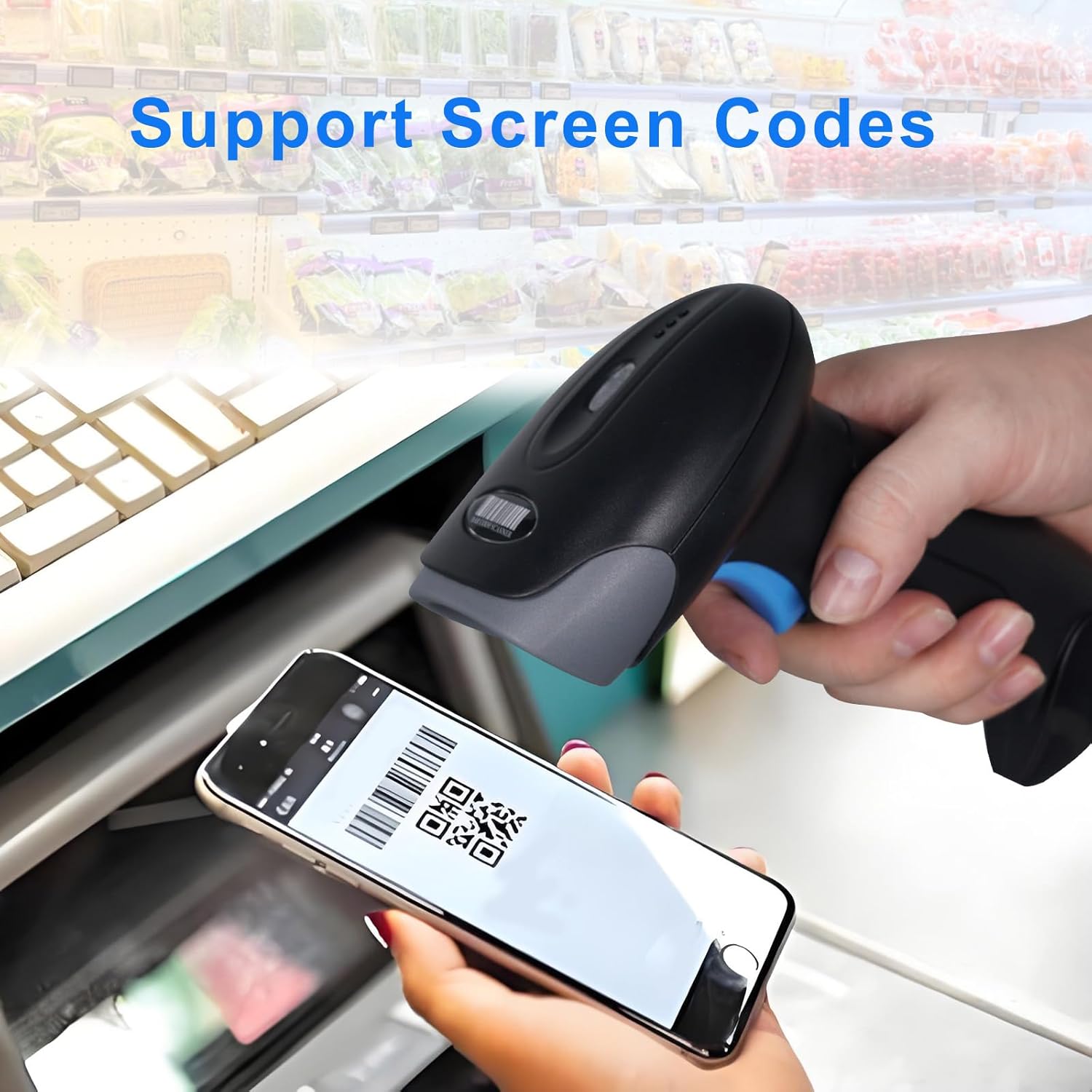
Image 4.1: Visual representation of the two scanning modes: Key Trigger Mode, where the user presses a button, and Auto-induction Mode, where scanning is automatic.
4.2 Data Upload Modes
Choose between two data upload modes based on your workflow:
- Mòd telechaje enstantane: Scanned data is immediately transmitted to the connected device. This is the default mode and suitable for real-time inventory or POS operations.
- Depo Mode: Scanned data is stored internally in the scanner's memory. This mode is useful when working out of range of the receiver. Data can be uploaded later by scanning a specific command barcode (refer to the programming guide for details).

Image 4.2: Depiction of the two data upload modes: Instant Upload, where data is sent immediately, and Storage Mode, where data is saved for later batch upload.
4.3 Supported Barcode Types
The Rabitpos U27-W scanner is capable of decoding a wide range of 1D and 2D barcode symbologies:
- 1D kòd bar: UPC-A, UPC-E, EAN-8, EAN-13, Code 128, Code 39, Code 93, Code 11, Interleaved 2 of 5, Matrix 2 of 5, Standard 2 of 5, Codabar, MSI Plessey, GS1, Databar (RSS), etc.
- 2D kòd bar: PDF417, Data Matrix, QR Code, Aztec Code, Micro QR Code, MaxiCode, etc.
The scanner also supports reading barcodes directly from digital screens, such as mobile phones or tablets.

Image 4.3: The scanner demonstrating its ability to read QR codes and other barcodes directly from a mobile phone screen.

Image 4.4: The scanner's superior decoding ability is shown as it accurately reads a 1D barcode from a printed sheet.
4.4 Beep Settings
The scanner provides audible feedback for successful scans and other operations. You can configure the beep sound settings:
- Turn On Sound: Enables audible beeps.
- Etenn son: Disables audible beeps for silent operation.
Refer to the scanner's programming guide (usually a separate sheet of barcodes) to change these settings by scanning the appropriate configuration barcodes.

Image 4.5: Visual guide for adjusting the scanner's beep settings, allowing users to enable or disable sound feedback.
5. Antretyen
5.1 Netwayaj eskanè a
To maintain optimal scanning performance, keep the scanner's window clean. Use a soft, lint-free cloth, slightly dampened with water or a mild, non-abrasive cleaning solution. Avoid harsh chemicals or abrasive materials that could scratch the scanning window.
5.2 Swen Batri
The scanner is equipped with a 2000mAh rechargeable battery, providing approximately 72 hours of continuous operation and up to 1 month of standby time on a full charge. To prolong battery life:
- Chaje batri a konplètman anvan premye itilize.
- Evite vide batri a nèt regilyèman.
- Sere eskanè a nan yon kote ki fre epi sèk lè w pa itilize li pou yon bon bout tan.
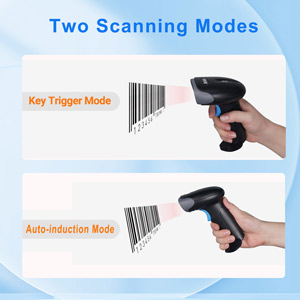
Image 5.1: An illustration emphasizing the scanner's built-in rechargeable battery and its long-lasting capacity.
NAN. Depanaj
If you encounter issues with your Rabitpos U27-W scanner, refer to the following common problems and solutions:
| Pwoblèm | Kòz posib | Solisyon |
|---|---|---|
| Scanner does not connect wirelessly. | USB receiver not properly inserted; scanner not powered on; out of range; pairing lost. | Ensure receiver is firmly plugged in. Turn scanner on. Move closer to receiver. Re-pair the scanner by scanning the pairing barcode (refer to programming guide). |
| Eskanè a pa li kòd bar yo. | Barcode damaged or unclear; incorrect scanning mode; scanner window dirty; unsupported barcode type. | Ensure barcode is clear. Check scanning mode (Key Trigger/Auto-induction). Clean scanner window. Verify barcode type is supported. |
| Slow scanning response. | Low battery; interference; system lag. | Charge the scanner fully. Reduce wireless interference. Test on a different computer. |
| No scan indicator (light/beep). | Scanner not powered on; beep sound disabled. | Ensure scanner is powered on. Enable beep sound via programming barcode. |
| Data not uploading in Storage Mode. | Upload command barcode not scanned; memory full. | Scan the 'Upload Data' programming barcode. Clear memory if full (refer to programming guide). |
7. Espesifikasyon
| Karakteristik | Detay |
|---|---|
| Nimewo Modèl | HBA-U27W |
| Koneksyon | 2.4GHz Wireless, USB Cable |
| Batri | 2000mAh Rechargeable (1 A battery included) |
| Tan travay kontinyèl | Jiska 72 èdtan |
| Tan sibstiti | Jiska 1 mwa |
| Aparèy konpatib | Desktop, Laptop, POS systems |
| Sistèm operasyon yo | Windows, Mac OS, Linux |
| Pwa atik | 0.634 ons |
| Dimansyon pake | 7.68 x 4.21 x 3.31 pous |
8. Garanti ak sipò
Rabitpos products are designed for reliability and performance. For warranty information, technical support, or service inquiries, please refer to the contact information provided with your product packaging or visit the official Rabitpos website. Please have your model number (U27-W) and purchase details ready when contacting support.


