1. Entwodiksyon
The TP-Link VIGI NVR2016H is a 16-channel network video recorder designed for comprehensive surveillance systems. It supports 4K HDMI video output and offers a 16MP decoding capacity, ensuring high-resolution video capture and playback. This NVR utilizes H.265+ video compression for efficient storage and network usage, is ONVIF compatible for broad camera integration, and features plug-and-play functionality for simplified setup. It also includes two-way audio and remote monitoring capabilities.

Figi 1: Devan view nan Anrejistrè Videyo Rezo TP-Link VIGI NVR2016H la.
2. Karakteristik kle
The VIGI NVR2016H offers a range of features to enhance your surveillance experience:
- 4K HDMI Video Output & 16MP Decoding Capacity: Provides sharp image definition up to 8MP (4K) and supports 8-channel at 2MP decoding for simultaneous live view ak lèktur.
- 16-Channel Simultaneous Playback: Pèmèt reviewing footage from up to 16 cameras concurrently, with options to increase replay speed and locate events via the video schedule.
- Konpresyon Videyo H.265+: Reduces video file size without compromising quality, optimizing network bandwidth and storage space.
- ONVIF konpatibilite: Ensures seamless integration with VIGI and other ONVIF-compliant IP cameras, facilitating flexible network expansion.
- Plug & Play: Automatically detects and activates new VIGI IP Cameras, simplifying the installation process.
- De-fason Audio: Supports voice intercom for communication and deterrence.
- Siveyans Adistans: Aksè viv views and playback via the VIGI app or client software from anywhere.
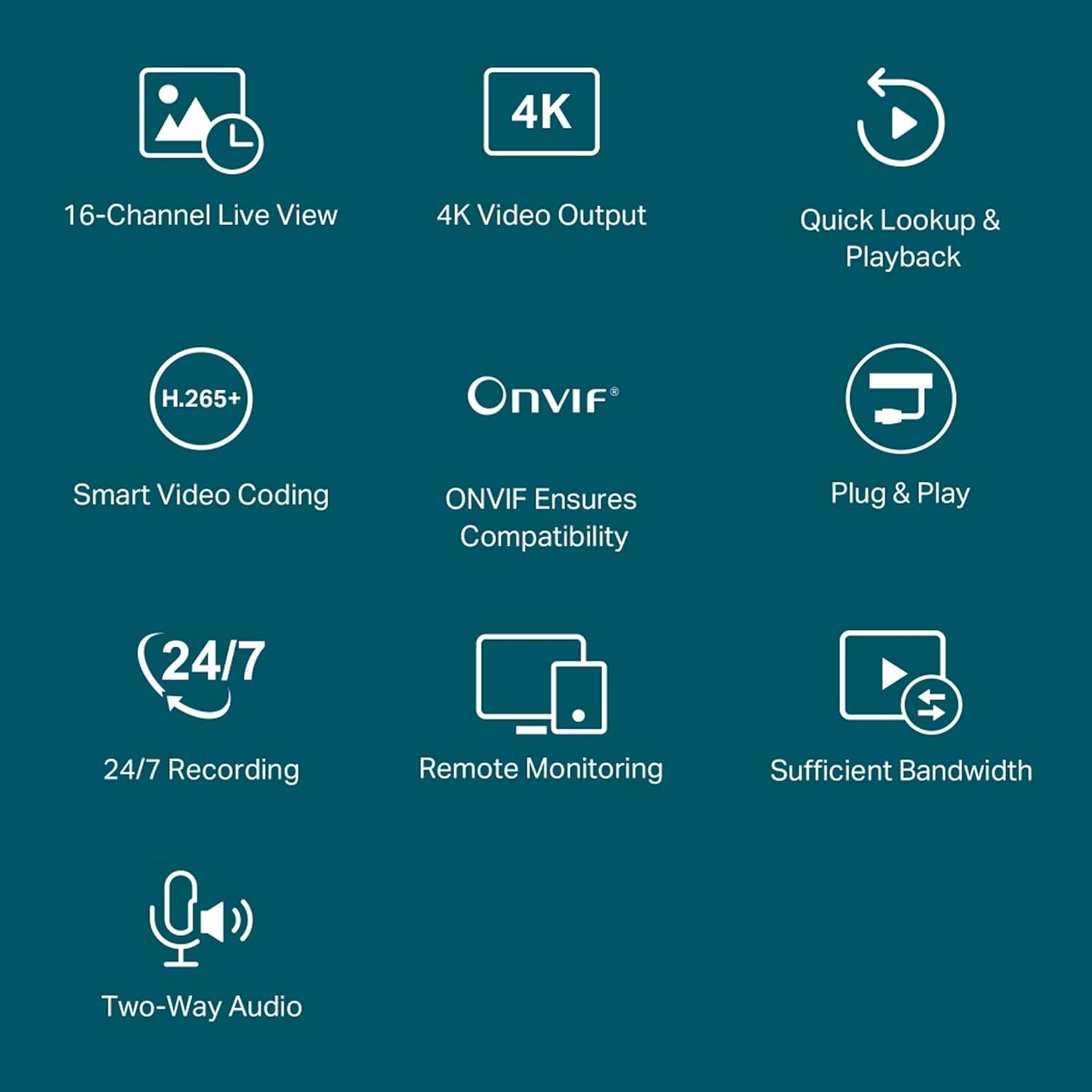
Figure 2: Visual representation of the NVR's core functionalities.
3. Pwodwi souview
Familiarize yourself with the physical components and ports of the VIGI NVR2016H.

Figure 3: Rear panel connections and their functions.
- Pwovizyon pou pouvwa: Konekte adaptè kouran ki founi an isit la.
- Pò USB 2.0: Two ports for connecting a mouse, keyboard, or external hard disk.
- HDMI and VGA Ports: For simultaneous video output to a monitor.
- eSATA Port: Connect an external storage device for expanded capacity.
- AUDIO IN and AUDIO OUT: For two-way audio functionality.
- Pò LAN: For Ethernet connection to your network.
4. Gid Enstalasyon
Follow these steps to set up your VIGI NVR2016H:
4.1 Koneksyon Inisyal Materyèl la
- Enstale Disk Di (HDD): Louvri NVR c laasing and securely install one or two SATA HDDs (up to 10TB each) using the provided screws. Ensure the HDD is properly connected to the SATA data and power cables.
- Konekte Monitè a: Konekte yon monitè nan pò HDMI oswa VGA NVR la.
- Konekte sourit: Plug the USB mouse into one of the NVR's USB ports.
- Konekte sou rezo a: Use an Ethernet cable to connect the NVR's LAN port to your router or network switch.
- Pouvwa sou: Konekte adaptè kouran an nan NVR a epi branche li nan yon priz kouran. NVR a ap limen otomatikman.
4.2 Camera Connection and Initialization (Plug & Play)
The VIGI NVR supports Plug & Play for VIGI IP Cameras, simplifying the addition of new cameras.

Figure 4: Plug & Play camera connection process.
- Koneksyon senp: Connect your VIGI IP Cameras to the same network as the NVR (e.g., via a TP-Link Switch).
- Auto Initialize: On the NVR interface, enable the "Auto Initialize" function. The NVR will automatically detect and add new VIGI IP Cameras.
- Fè: Once detected, the cameras will be activated and ready for use, making installation faster and easier.
5. Operasyon Enstriksyon
5.1 Viv View
NVR a pèmèt ou view live feeds from up to 16 cameras simultaneously on a single screen.

Figure 5: 16-Channel Simultaneous Live View.
Navigate the on-screen display using the connected mouse to select specific camera feeds, adjust display layouts, or access camera settings.
5.2 Lektur
Review anrejistre footage efficiently with the NVR's playback features.

Figure 6: 16-Channel Simultaneous Playback Timeline.
Access the playback menu to select specific dates and times. The timeline displays recorded events, allowing for quick navigation. You can increase playback speed to review footage faster and easily find specific incidents.
5.3 Anrejistreman
The NVR supports continuous recording and efficient storage management.

Figure 7: 24/7 Continuous Recording and Storage Capacity.
- Anrejistreman kontinyèl 24/7: The NVR automatically and continuously stores footage soti nan kamera konekte.
- Konpresyon H.265+: This advanced video compression technology reduces file sizes significantly, allowing for more footage to be stored on the same disk space while maintaining video quality.
- Kapasite Depo: Supports up to 20 TB of storage across two HDDs (10TB per HDD).
5.4 Odyo De-fason
Utilize the two-way audio feature for interactive communication through connected cameras that support this function.

Figure 8: Two-Way Audio in action.
Connect a microphone to the AUDIO IN port and speakers to the AUDIO OUT port on the NVR to enable this feature. This allows for voice intercom support, useful for deterring intruders or communicating with individuals near the cameras.
5.5 Siveyans Remote
Access and manage your surveillance system remotely using the VIGI app or VIGI Security Manager software.

Figure 9: Remote Management via VIGI App and Software.
- Viv Views and Real-Time Alerts: Monitor your cameras in real-time and receive instant notifications for detected events.
- Easy & Smart Playback: Review anrejistre footage conveniently from your mobile device or computer.
- Customized Monitoring Patterns: Configure specific monitoring schedules and alert settings.
- Four-Way Management: Manage your cameras flexibly via the web UI, NVR UI, VIGI app, and VIGI Security Manager.
6. Antretyen
6.1 Jesyon Disk Di (HDD)
Regularly check the status of your installed HDDs through the NVR's interface to ensure optimal recording performance. If an HDD fails or reaches its capacity, you may need to replace it or configure overwriting settings.
6.2 Mizajou Firmware
TP-Link regularly provides software updates to improve performance, add features, and enhance security. It is recommended to check for and install available firmware updates through the NVR's system settings or the TP-Link support website to ensure your device operates with the latest functionalities and security patches.
NAN. Depanaj
7.1 NVR Stuck on TP-Link Screen During Boot
If the NVR gets stuck on the TP-Link logo screen during its initial boot or after an update, this can sometimes be a minor software glitch. To resolve this:
- Pouvwa Off: Disconnect the power adapter from the NVR.
- Access Reset Button: Louvri NVR c la avèk prekosyon.asing to locate the internal reset button.
- Peze Reyajiste: Press and hold the reset button for a few seconds.
- Rekòmanse aparèy: Reconnect the power adapter. The NVR should now boot normally.
7.2 Pwoblèm Deteksyon Mouvman
If motion detection behaves erratically (e.g., continuous detection without apparent reason), review your camera's motion detection settings. Adjust sensitivity levels, detection zones, and schedules to optimize performance and reduce false alarms. Ensure camera firmware is up to date.
7.3 No LAN Cable Included
While some NVR packages may not include a LAN cable, a wired internet connection is essential for the system's proper functioning. Ensure you have a standard Ethernet cable to connect the NVR to your network.
8. Espesifikasyon
| Karakteristik | Detay |
|---|---|
| Nimewo Modèl | VIGI NVR2016H |
| Manifakti | TP-LINK CORPORATION LIMITED |
| Dimansyon pwodwi | 14.2 x 36.8 x 40 cm |
| Pwa atik | 1.89 kg |
| Kantite Chanèl | 16 |
| Kapasite Depo memwa | 20 TB (2 x 10TB HDDs) |
| Koneksyon Teknoloji | Branche |
| Aparèy konpatib | Kamera |
9. Ki sa ki nan bwat la
Pake pwodwi a gen ladan atik sa yo:
- VIGI Rezo Videyo Anrejistrè
- Adaptè pouvwa
- HDD Vis
- Sourit
- Gid Enstalasyon Rapid
10. Sipò ak Garanti
For technical support, warranty information, or further assistance, please contact TP-Link customer service.
- Enpòtatè / Manifakti: TP-Link India Private Limited
- Adrès: Office No.1, Tower 2, Level 2, Raiaskaran Tech Park, Andheri Kurla Road, M.V Road, Andheri East-400072
- Nimewo gratis: 1800-209-4168
- Imèl: sipò.in@tp-link.com
Please refer to the official TP-Link website or the Quick Installation Guide for the most up-to-date support resources and warranty details applicable to your region.


