Entwodiksyon
The YANZEO SR290 is a versatile handheld terminal designed for efficient data capture, combining UHF RFID reading capabilities with 1D/2D QR barcode scanning. This device offers multiple connectivity options and reading modes, making it suitable for various environments such as retail stores, supermarkets, and warehouses. Its robust design ensures durability for daily operational demands.

Figure 1: YANZEO SR290 Handheld Terminal Barcode Scanner. This image displays the main unit of the scanner along with its USB dongle and cables, highlighting its compact and ergonomic design.
Enstalasyon
Kontni pake
Anvan ou kòmanse, tanpri asire w ke tout bagay yo prezan nan pake a:
- YANZEO SR290 Handheld Terminal
- USB Chaje Kab
- 2.4G Wireless USB Dongle
- Manyèl Itilizatè (dokiman sa a)
Chaje Aparèy la
The SR290 is equipped with a 2000mAh lithium-ion battery. For optimal performance, fully charge the device before first use.
- Connect the USB charging cable to the scanner's charging port.
- Konekte lòt bout kab USB a nan yon adaptè kouran USB konpatib (pa enkli) oubyen nan yon pò USB òdinatè.
- The indicator lights on the device will show charging status. A full charge typically takes several hours.

Figure 2: The SR290 scanner connected to a laptop via USB, illustrating its connectivity options and highlighting its 2000mAh battery capacity for long-lasting performance.
Power On/Off
Locate the power button on the device. Press and hold the power button for a few seconds to turn the scanner on or off. The device will emit an audible beep and indicator lights will illuminate upon successful power-on.
Operating Modes and Connectivity
Opsyon Koneksyon
The YANZEO SR290 offers three primary methods for connecting to your host device:
- Bluetooth: For wireless connection to Bluetooth-enabled devices like smartphones, tablets, or computers. Effective range is approximately 0-20 meters in an open environment.
- 2.4G san fil: Utilizes a dedicated USB dongle for wireless connection to computers. Offers an extended range of approximately 0-80 meters in an open environment.
- USB filaire: Direct connection via USB cable for reliable and secure data transmission, also used for charging.
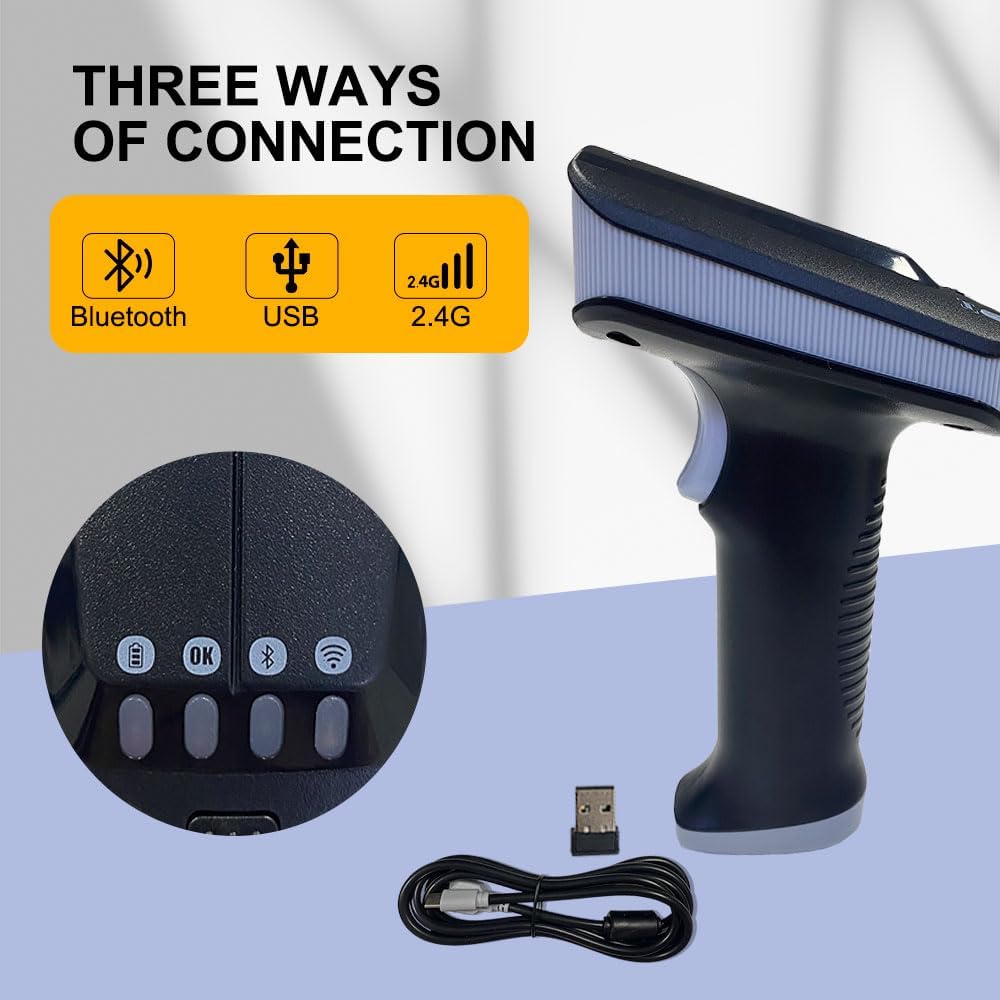
Figure 3: Illustration of the three connection methods: Bluetooth, USB, and 2.4G wireless, along with the 2.4G USB dongle and USB cable.

Figure 4: Diagram showing the wireless communication distances for 2.4G (0-80m) and Bluetooth (0-20m) in an open environment.
Multiple Reading Modes
The SR290 supports various data capture modes to meet diverse operational needs:
- RFID Tags Sèlman: Dedicated mode for reading UHF RFID tags.
- 1D-2D QR Barcodes Only: For scanning traditional 1D barcodes and 2D QR codes.
- RFID Tags and 1D 2D QR Codes Simultaneously: A combined mode for comprehensive data capture.
To switch between modes, use the dedicated mode switching key on the device. Refer to the indicator lights for the active mode.

Figure 5: Visual representation of the scanner's ability to read 1D barcodes, 2D QR codes, and RFID tags.

Figi 6: Detaye view of the mode switching key and instructions for selecting UHF-Mode, Barcode Mode, or UHF+Barcode Mode.
Pwosesis eskanè
To scan a barcode or RFID tag:
- Ensure the scanner is powered on and connected to your host device.
- Select the appropriate reading mode (RFID, Barcode, or combined).
- Point the scanner's reading window at the barcode or RFID tag.
- Press the trigger button. The scanner will emit a light beam or RFID signal.
- Upon successful read, the scanner will provide vibration feedback and/or an audible beep, and the indicator lights will change. The data will be transmitted to the connected device.
Karakteristik ak Endikatè
The SR290 is designed with user feedback and clear indicators:
- Feedback Vibration: The device provides tactile feedback upon successful scans, confirming data capture.
- Four-Color Indicator Lights: A set of four distinct colored lights (Red, Yellow, Blue, Green) provide visual cues for battery status, connection status, and scanning feedback.

Figi 7: Close-up view of the SR290's indicator lights and a visual representation of its vibration feedback capability.
Dirab ak konsepsyon
The YANZEO SR290 is built for demanding environments, featuring:
- Outstanding Durability: Engineered to withstand a 1.5-meter drop onto a concrete floor, ensuring resilience in active work settings.
- Konsepsyon ergonomique: The handheld form factor is designed for comfortable grip and prolonged use, reducing operator fatigue.

Figure 8: Depiction of the SR290's drop-proof design, illustrating its ability to withstand a 1.5-meter fall onto a hard surface.
Antretyen
Netwaye Aparèy la
To maintain optimal performance and hygiene, regularly clean your SR290 scanner:
- Sèvi ak yon ti moso twal mou, ki san pèl damprense avèk dlo oswa yon solisyon netwayaj dou ki pa abrazif.
- Wipe the exterior of the device, paying attention to the scanning window.
- Do not use harsh chemicals, solvents, or abrasive materials, as these can damage the device.
- Ensure no liquid enters the charging port or other openings.
Swen batri
To maximize the lifespan of the lithium-ion battery:
- Evite dechaje batri a nèt souvan.
- Sere aparèy la nan yon kote ki fre epi sèk lè w pa itilize li pou yon bon bout tan.
- Charge the device regularly, even if not in daily use, to prevent deep discharge.
Depanaj
This section addresses common issues you might encounter with your YANZEO SR290 scanner.
Aparèy pa Limen
- Tcheke batri: Ensure the battery is charged. Connect the scanner to a power source and allow it to charge for at least 30 minutes before attempting to power on again.
- Bouton pouvwa: Konfime w ap peze epi kenbe bouton pouvwa a pou dire ki nesesè a (jeneralman 2-3 segonn).
Pwoblèm eskane
- Incorrect Mode: Verify that the scanner is set to the correct reading mode (RFID, 1D/2D Barcode, or combined) for the item you are trying to scan.
- Distans/Ang: Adjust the distance and angle between the scanner and the barcode/RFID tag. Ensure the entire code/tag is within the scanning area.
- Domaj: Inspect the barcode or RFID tag for damage, smudges, or poor print quality.
- Faktè anviwònman: Strong ambient light can sometimes interfere with barcode scanning. Try scanning in a different lighting condition.
Pwoblèm Koneksyon
- Koneksyon Bluetooth:
- Ensure Bluetooth is enabled on your host device and the scanner is in Bluetooth pairing mode.
- Delete previous pairings on your host device and re-pair.
- Check the distance between the scanner and host device; ensure it's within the 20m range.
- 2.4G Wireless Koneksyon:
- Ensure the 2.4G USB dongle is securely plugged into your computer.
- Verify the scanner is in 2.4G wireless mode.
- Check the distance between the scanner and the dongle; ensure it's within the 80m range.
- Koneksyon USB filaire:
- Asire w kab USB a byen konekte ak ni eskanè a ni ak aparèy lame a.
- Eseye yon pò USB diferan sou òdinatè w lan.
- Teste avèk yon lòt kab USB si ou genyen.
Espesifikasyon
Detailed technical specifications for the YANZEO SR290:
| Karakteristik | Spesifikasyon |
|---|---|
| Nimewo Modèl | SR290 |
| Dimansyon pake | 7.68 x 4.21 x 3.27 pous |
| Pwa atik | 12.1 ons |
| Kalite batri | 1 batri ityòm Polymère (enkli) |
| Kapasite batri | 2000mAh |
| Koneksyon Teknoloji | Bluetooth, USB Cable, 2.4G Wireless |
| Wireless 2.4G Range | 0-80m (open environment) |
| Gamme Bluetooth | 0-20m (open environment) |
| Aparèy konpatib | Odinatè, Laptop, Telefòn entelijan |
| Sous pouvwa | Batri Powered |
| Manifakti | YANZEO |
| Dat Premye Disponib | 15 fevriye 2024 |
Garanti ak sipò
YANZEO products are manufactured to high quality standards. For information regarding warranty coverage, technical support, or service, please contact YANZEO customer support.
You can find more information and contact details on the official YANZEO websit:


