Entwodiksyon
This manual provides detailed instructions for the OWC Gemini Thunderbolt (USB-C) Docking Station and External RAID Storage Solution. It covers setup, operation, maintenance, troubleshooting, and technical specifications to ensure optimal performance and longevity of your device.
Enfòmasyon sou Sekirite
- Li tout enstriksyon yo ak anpil atansyon anvan ou sèvi ak aparèy la.
- Pa ekspoze aparèy la nan imidite oswa tanperati ekstrèm.
- Sèvi ak adaptè pouvwa a sèlman ak aparèy la.
- Pa eseye ouvri oswa repare aparèy la tèt ou. Konfye tout antretyen bay pèsonèl kalifye.
- Asire bon vantilasyon alantou aparèy la pou anpeche surchof.
Kontni pake
Verifye ke tout atik yo prezan nan pakè ou a:
- OWC Gemini Thunderbolt (USB-C) Docking Station
- Adaptè pouvwa
- Thunderbolt (USB-C) Cable
- Manyèl Itilizatè (dokiman sa a)
- Drives (pre-installed for 32TB model)
Pwodwi souview
The OWC Gemini is a versatile docking station and external storage solution designed for high-performance data management and expanded connectivity.

Imaj: Devan view of the OWC Gemini Thunderbolt Docking Station, showcasing its sleek black design and OWC branding.
Karakteristik kle
- Dual Drive Bays: Supports 2.5-inch and 3.5-inch SATA drives for flexible storage configurations.
- Hardware RAID: Offers RAID 0, RAID 1, SPAN, and JBOD modes for optimized performance or data redundancy.
- Thunderbolt (USB-C) Connectivity: Two Thunderbolt 3 (USB-C) ports for host connection, daisy-chaining, and power delivery (up to 27W).
- Koneksyon elaji: Includes two USB 3.2 Gen 2 Type-A ports, one HDMI port, one 2.5 Gigabit Ethernet port, and one SD 4.0/UHS-II media slot.
- High-Resolution Display Support: HDMI 2.1 supports up to 8K @ 120Hz, and Thunderbolt 3 supports up to 8K @ 60Hz or 4K @ 120Hz.
Port Layout
The OWC Gemini provides a comprehensive set of ports for various connectivity needs.

Imaj: Dèyè view of the OWC Gemini Docking Station, highlighting the 7 ports of connectivity including Thunderbolt, USB, HDMI, and Ethernet.
- Thunderbolt 3 (USB-C) Host Port: Konekte ak òdinatè w la.
- Thunderbolt 3 (USB-C) Downstream Port: For daisy-chaining, additional displays, or charging USB-C devices.
- Pò USB 3.2 Gen 2 Kalite-A (x2): Pou konekte periferik USB yo.
- HDMI 2.1 pò: Pou konekte yon ekran ekstèn.
- 2.5 Gigabit Ethernet Port: For high-speed network connectivity.
- SD 4.0/UHS-II Media Slot: Located on the front panel for convenient access.
- DC 12V Antre pouvwa: Konekte ak adaptè pouvwa a.

Image: Close-up of the front panel of the OWC Gemini, showing the easily accessible SD card slot.
Enstalasyon
1. Drive Installation (if applicable)
For models without pre-installed drives, follow these steps to install 2.5-inch or 3.5-inch SATA drives.

Image: The OWC Gemini unit illustrating its two flexible drive bays, compatible with both 2.5-inch and 3.5-inch drives.
- Ensure the device is powered off and disconnected from your computer.
- Open the drive bay door(s) according to the product's physical design.
- Insert your 2.5-inch or 3.5-inch SATA drives into the bays, ensuring they are securely seated.
- Close the drive bay door(s).
2. Konfigirasyon RAID
The OWC Gemini supports hardware RAID. Refer to the specific RAID configuration utility or physical switches on the device (if present) to set your desired RAID level (RAID 0, RAID 1, SPAN, or JBOD).
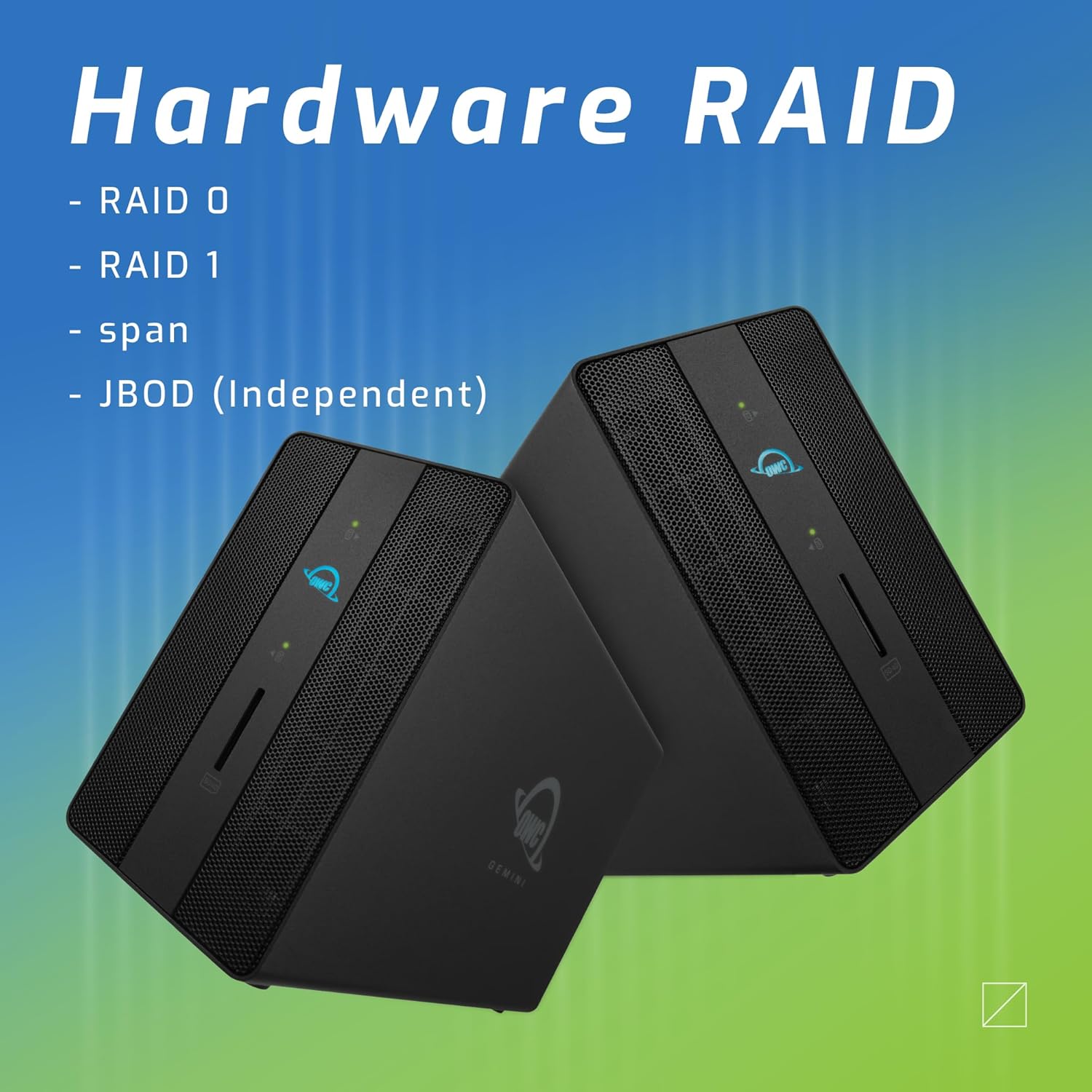
Image: Two OWC Gemini units, emphasizing the hardware RAID capabilities for configurations like RAID 0, RAID 1, SPAN, and JBOD.
RAID Levels Explained:
- RAID 0 (Striping): Combines drives for maximum speed and capacity, but offers no data redundancy.
- ATAK 1 (Mirroring): Duplicates data across drives for redundancy, sacrificing half the total capacity for data protection.
- SPAN (Concatenation): Combines drives into a single large volume without striping or mirroring.
- JBOD (Jis yon pakèt disk): Treats each drive as an independent volume.
3. Konekte ak òdinatè w la
- Connect the power adapter to the DC 12V power input on the OWC Gemini and then to a power outlet.
- Connect one end of the Thunderbolt (USB-C) cable to the host port on the OWC Gemini.
- Connect the other end of the Thunderbolt (USB-C) cable to a Thunderbolt (USB-C) port on your computer.
- The device should power on automatically.
4. Initializing Drives
After connecting, your operating system may prompt you to initialize and format the new drives. Follow the on-screen instructions. For macOS, use Disk Utility. For Windows, use Disk Management.
Enstriksyon Operasyon
Transfè Done
Once the drives are initialized and formatted, they will appear as accessible volumes on your computer. You can drag and drop files to and from these volumes as you would with any other storage device.
Sèvi ak pò yo USB
Connect USB peripherals such as external drives, keyboards, or mice to the two USB 3.2 Gen 2 Type-A ports. These ports support data transfer speeds up to 10 Gb/s.
Konekte yon ekspozisyon ekstèn
Use the HDMI 2.1 port to connect an external monitor. The Gemini supports resolutions up to 8K @ 120Hz via HDMI.
Koneksyon rezo
Connect an Ethernet cable from your network router or switch to the 2.5 Gigabit Ethernet port on the Gemini for high-speed wired network access.
Using the SD Card Slot
Insert an SD 4.0/UHS-II compatible SD card into the front-facing slot for quick data transfer from cameras or other devices.
Daisy-Chaining and Power Delivery

Image: A close-up of the OWC Gemini's Thunderbolt ports, illustrating their use for daisy-chaining, connecting additional displays, and charging USB-C devices.
The second Thunderbolt 3 (USB-C) port allows you to:
- Daisy-chèn additional Thunderbolt devices.
- Konekte yon additional display (up to 8K @ 60Hz or 4K @ 120Hz).
- Charge USB-C devices with up to 27 watts of power.
Antretyen
- Netwayaj: Sèvi ak yon twal mou epi sèk pou netwaye deyò aparèy la. Pa sèvi ak pwodui netwayaj likid oswa ayewosòl.
- Vantilasyon: Ensure that the ventilation grilles are not obstructed to prevent overheating.
- Mizajou mikrolojisyèl: Periodically check the OWC websit pou mizajou firmwèr pou asire pèfòmans ak konpatibilite optimal.
- Ejeksyon an sekirite: Always safely eject the OWC Gemini from your operating system before disconnecting it or powering it off to prevent data corruption.
Depanaj
Aparèy pa rekonèt
- Ensure all cables are securely connected, especially the Thunderbolt cable to both the Gemini and your computer.
- Verify the power adapter is correctly connected and the device is receiving power.
- Try connecting the Gemini to a different Thunderbolt port on your computer.
- Rekòmanse òdinatè w lan.
- Check your operating system's Disk Utility (macOS) or Disk Management (Windows) to see if the drives are detected but uninitialized or unformatted.
Vitès transfè done ki ba
- Ensure you are using a Thunderbolt 3 compatible cable and port.
- Check the RAID configuration. RAID 1 (mirroring) will have slower write speeds than RAID 0 (striping).
- Close any unnecessary applications that might be consuming system resources.
- Asire w ke chofè òdinatè w la ajou.
Pwoblèm ekspozisyon
- Verify the HDMI cable is securely connected to both the Gemini and your monitor.
- Check your display settings in your operating system.
- Ensure your monitor supports the resolution and refresh rate you are attempting to use.
- Try a different HDMI cable or monitor if available.
Pwoblèm koneksyon rezo
- Ensure the Ethernet cable is securely connected to both the Gemini and your network device.
- Tcheke paramèt rezo òdinatè w la.
- Rekòmanse routeur/modèm ou a.
Espesifikasyon
| Karakteristik | Detay |
|---|---|
| Mak | OWC |
| Nimewo Modèl | OWCTB3GM000H32 |
| Kapasite Depo | 32.0TB (as configured) |
| Kondwi Bays | 2 (supports 2.5" and 3.5" SATA drives) |
| Nivo RAID | SPAN, RAID 0, RAID 1, JBOD (Hardware RAID) |
| Entèfas hôte | Thunderbolt 3 (USB-C) |
| Pousantaj Transfè Done | Up to 40 Gb/s (Thunderbolt 3), Up to 10 Gb/s (USB 3.2 Gen 2) |
| Pò | (1) Thunderbolt 3 (USB-C) Host, (1) Thunderbolt 3 (USB-C) Downstream, (2) USB 3.2 Gen 2 Type-A, (1) HDMI 2.1, (1) 2.5 Gigabit Ethernet, (1) SD 4.0/UHS-II |
| Montre Sipò | HDMI 2.1: Up to 8K @ 120Hz; Thunderbolt 3: Up to 8K @ 60Hz or 4K @ 120Hz |
| Livrezon pouvwa | Up to 27W via Thunderbolt 3 |
| Aparèy konpatib | Desktop, Laptop, Tablet (with Thunderbolt/USB-C port) |
| Koulè | Nwa |
| Pwa | 9.35 liv (apeprè) |
| UPC | 810100983697 |
Garanti ak sipò
Enfòmasyon sou Garanti
OWC products are covered by a limited warranty. Please refer to the official OWC websit la oswa dokiman acha ou a pou kondisyon ak tèm garanti espesifik yo. Kenbe prèv acha ou a pou reklamasyon garanti.
Sipò teknik
For technical assistance, troubleshooting, or further inquiries, please visit the official OWC support websit oswa kontakte sèvis kliyan yo.


