1. Entwodiksyon
Thank you for choosing the Qulose Wireless Bluetooth Keyboard. This keyboard is specifically designed to enhance your experience with Microsoft Surface Pro 8, Surface Pro 9, Surface Pro X, and Surface Pro 11 devices. It features a magnetic detachable design, a responsive multi-touch trackpad, and a long-lasting rechargeable battery, providing a seamless and efficient typing experience.
Tanpri li manyèl sa a avèk atansyon anvan ou itilize pwodwi a pou asire bon fonksyonman li epi pou maksimize dire lavi li.

Image 1.1: Qulose Wireless Bluetooth Keyboard
2. Konpatibilite pwodwi
This keyboard is engineered for specific Microsoft Surface Pro models. Ensure your device is compatible before attempting to connect.
- Modèl Sipòte: Microsoft Surface Pro 8, Surface Pro 9, Surface Pro X, Surface Pro 11 (13-inch tablets).
- NOT Compatible With: Surface Pro 7+, Surface Pro 7, Surface Pro 6, Surface Pro 5, Surface Pro 4, Surface Pro 3, or any other Surface models not listed as supported.

Image 2.1: Compatible and Incompatible Surface Pro Models
3. Enstalasyon ak Koneksyon
3.1 Chaje klavye a
Before first use, fully charge the keyboard. The keyboard has a built-in 250 mAh rechargeable lithium-ion battery.
- Locate the USB-C charging port on the keyboard.
- Connect the included USB-C cable to the keyboard's charging port and the other end to a USB power source (e.g., computer USB port, wall adapter).
- Limyè endikatè chaj la ap limen. Yon fwa li fin chaje nèt, limyè a ka chanje koulè oswa etenn, sa depann de modèl la.
A full charge provides over 25 hours of working time and over 180 days of standby time.

Image 3.1: Keyboard Charging Port and Battery Capacity
3.2 Bluetooth Pairing
The Qulose keyboard connects to your Surface Pro via Bluetooth, offering a stable and reliable wireless connection.
- Asire w klavye a chaje epi li limen.
- On your Microsoft Surface Pro, go to Anviwònman > Bluetooth ak aparèy.
- Limen Bluetooth.
- On the Qulose keyboard, press the Fn kle ak la C key simultaneously to enter pairing mode. The Bluetooth indicator light on the keyboard will blink.
- On your Surface Pro, select Ajoute aparèy > Bluetooth.
- Select "Qulose Keyboard" (or similar name) from the list of available devices.
- Swiv nenpòt enstriksyon ki parèt sou ekran an pou konplete pwosesis koneksyon an. Limyè endikatè Bluetooth ki sou klavye a ap sispann flache yon fwa koneksyon an reyisi.
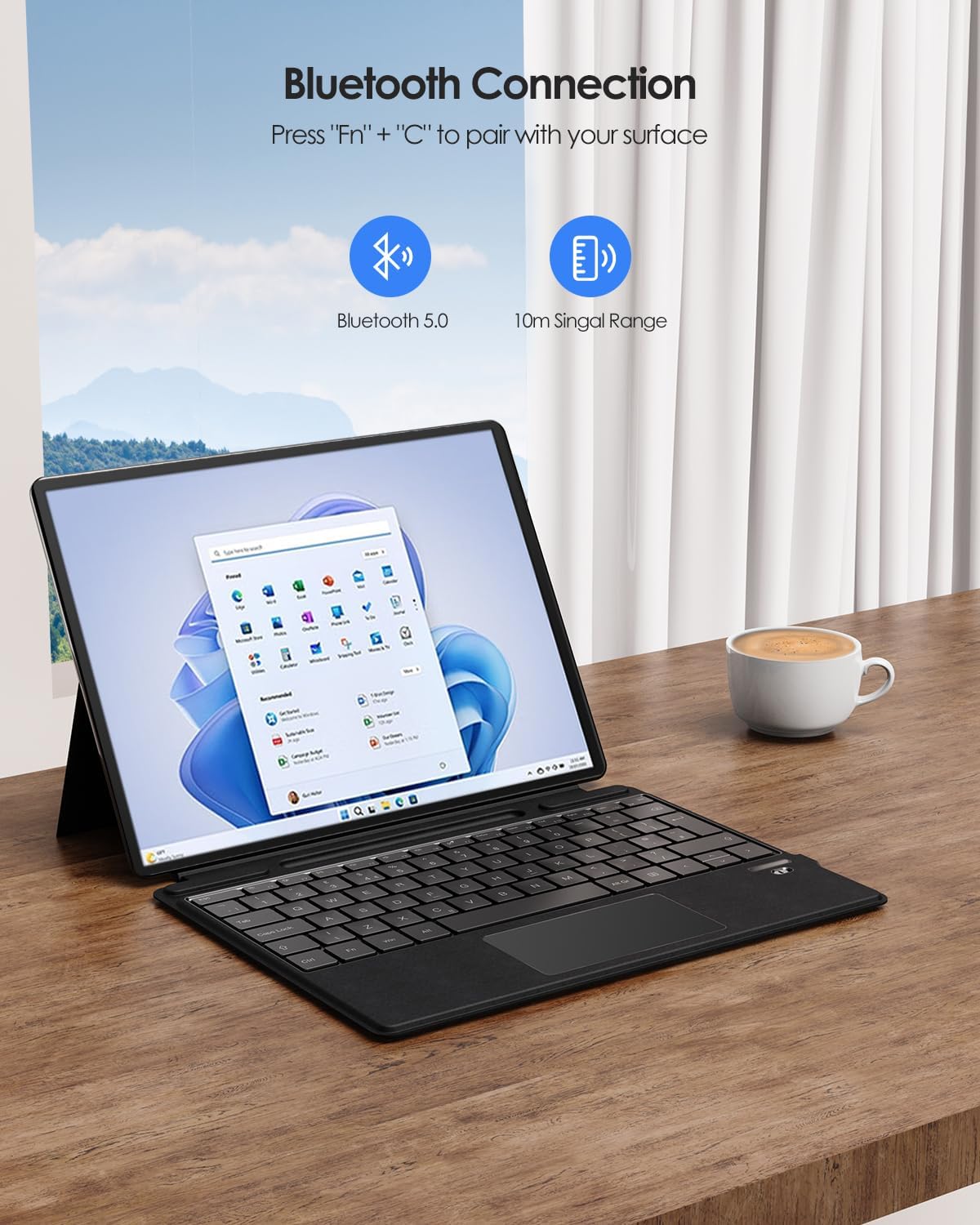
Image 3.2: Bluetooth Connection Instructions
4. Itilizasyon klavye a
4.1 Atachman mayetik
The keyboard features a powerful magnetic attachment strip, allowing you to easily connect and detach it from your Surface Pro. This design enables quick transitions between tablet and laptop modes and provides multiple typing angles for comfort and productivity.

Image 4.1: Multiple Angles with Magnetic Attachment
4.2 Trackpad Multi-Touch
The integrated multi-touch trackpad allows for easy navigation and precise control, enhancing your workflow. It supports various gestures for a smoother interaction with your Surface Pro.
Fonksyon rejè palmis: To prevent accidental inputs, the trackpad is equipped with a palm rejection feature. You can lock or unlock the trackpad by pressing Fn + F7.
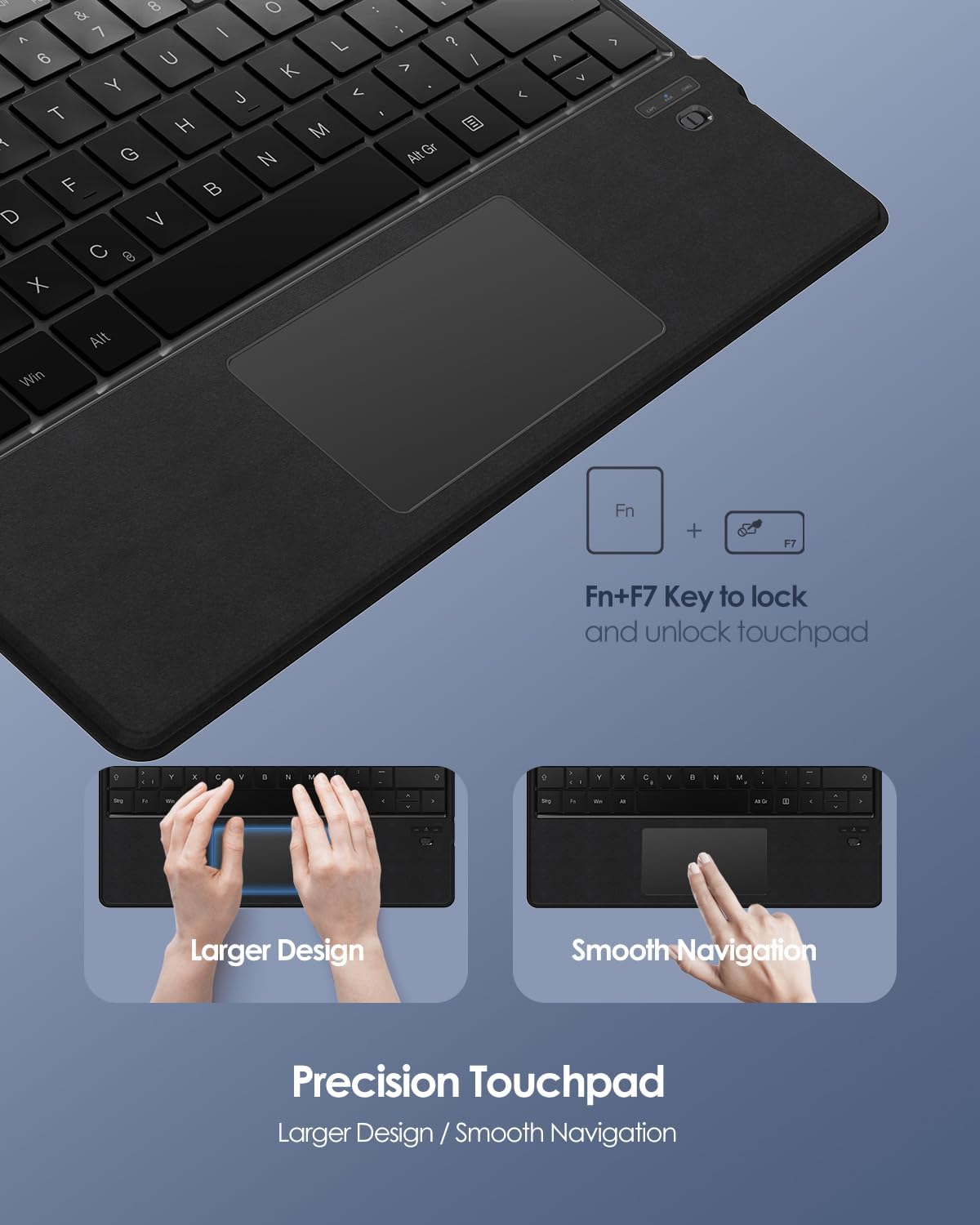
Image 4.2: Precision Touchpad and Palm Rejection
4.3 rakoursi kle
The keyboard includes 12 shortcut keys for quick access to common functions, improving efficiency and convenience.
4.4 Integrated Pen Holder
A convenient integrated pen holder is included to keep your stylus easily accessible. Please note that this holder is for storage only and does not provide charging capabilities for your pen.
5. Antretyen
Proper care and maintenance will ensure the longevity and optimal performance of your keyboard.
- Netwayaj: Sèvi ak yon ti moso twal mou, ki san pèl dampened with water or a mild cleaning solution to wipe the surface of the keyboard. Avoid harsh chemicals or abrasive materials.
- Swen batri: To preserve battery life, avoid fully discharging the battery frequently. Charge the keyboard using only the provided USB-C cable. Do not expose the keyboard to extreme temperatures (hot or cold) as this can affect battery performance.
- Depo: Lè w pa itilize klavye a pou yon bon bout tan, sere l nan yon kote ki fre epi sèk.
NAN. Depanaj
If you encounter any issues with your Qulose keyboard, please refer to the following common troubleshooting steps:
- Klavye a pa konekte/pa konekte:
- Asire w klavye a byen chaje.
- Make sure Bluetooth is enabled on your Surface Pro.
- Re-enter pairing mode on the keyboard (Fn + C) and try pairing again.
- Forget the device on your Surface Pro's Bluetooth settings and attempt to pair from scratch.
- Restart both your Surface Pro and the keyboard.
- Trackpad Not Responding:
- Check if the trackpad is locked. Press Fn + F7 to toggle the trackpad lock.
- Asire w ke men w pwòp epi sèk.
- Restart the keyboard and your Surface Pro.
- Kle yo pa reponn:
- Asire w klavye a byen konekte via Bluetooth.
- Tcheke nivo batri a epi chaje l si l ba.
- Netwaye tout debri ki ta ka anba kle yo.
- Pwoblèm chaj:
- Asire w kab USB-C a byen konekte ak klavye a ak sous kouran an.
- Eseye yon diferan USB-C kab oswa adaptè pouvwa.
- Asire w ke sous kouran an fonksyone.
If the issue persists after trying these steps, please contact Qulose customer support for further assistance.
7. Espesifikasyon
| Karakteristik | Deskripsyon |
|---|---|
| Mak | Qulose |
| Nimewo Modèl | QUSFKBPRO8BL-UK |
| Aparèy konpatib | Microsoft Surface Pro 8, Surface Pro 9, Surface Pro X, Surface Pro 11 |
| Koneksyon Teknoloji | Bluetooth |
| Karakteristik espesyal | Rechargeable, Multi-touch Trackpad, Magnetic Attachment, Integrated Pen Holder |
| Kalite batri | Lityòm-ion |
| Kapasite batri | 250 mAh |
| Tan travay | 25+ hours (after full charge) |
| Tan sibstiti | 180+ jou |
| Dimansyon (L x W x H) | 28.9 cm x 22.6 cm x 0.6 cm |
| Materyèl | Plastik |
| Layout klavye | Layout UK |
8. Garanti ak sipò
Enfòmasyon espesifik sou garanti pou pwodui sa a pa disponib nan manyèl sa a. Tanpri gade lis pwodui a sou sit entènèt détayan an. website or the official Qulose websit la pou wè tèm ak kondisyon garanti detaye yo.
For technical support, troubleshooting assistance beyond what is provided in this manual, or inquiries regarding product defects, please contact Qulose customer support through their official channels. Keep your purchase receipt or order number handy as it may be required for warranty claims.


