1. Entwodiksyon
This manual provides essential information for the installation, operation, and maintenance of your Qolsys IQ Panel 4. The IQ Panel 4 is an all-in-one touchscreen security and smart home control panel designed for comprehensive connectivity and reliability.
It features a 7-inch HD touchscreen, an 8-megapixel panel camera with Flex-Tilt, and a QuadSound speaker system. The panel supports various wireless technologies including LTE, Wi-Fi, Z-Wave, Bluetooth, PowerG, and legacy security wireless protocols.
2. Enfòmasyon sou Sekirite
- Sous pouvwa: Only use the specified power adapter provided with the device. Using an incorrect power source may damage the unit and void the warranty.
- Plasman: Install the panel in a dry, indoor location away from direct sunlight, extreme temperatures, and high humidity. Ensure proper ventilation around the device.
- Netwayaj: Dekonekte kouran an anvan ou netwaye. Sèvi ak yon twal mou epi sèk. Pa sèvi ak pwodui netwayaj likid oswa espre ayewosòl.
- Sèvis: Pa eseye fè sèvis pwodui sa a tèt ou. Refere tout sèvis yo bay pèsonèl sèvis kalifye.
- Kamera: The integrated camera is for security and monitoring purposes. Ensure privacy settings are configured according to your preferences.
3. Pake kontni
Verifye ke tout atik yo prezan nan pakè a:
- Qolsys IQ Panel 4 (IQP4004)
- Pwovizyon pou pouvwa
- Materyèl pou monte (vis, lank)
- Quick Guide (if applicable)
4. Enstalasyon
4.1 Monte Panel la
The IQ Panel 4 can be wall-mounted or placed on a table using the SmartMount installation system. For wall mounting, ensure the chosen location is central and within Wi-Fi range.
- Identify a suitable location for the panel.
- Use the mounting bracket (if included) as a template to mark drill holes.
- Fè twou gid epi mete lank miray si sa nesesè.
- Fikse sipò montaj la sou miray la avèk vis yo bay yo.
- Carefully attach the IQ Panel 4 to the mounting bracket.
4.2 Limen
Connect the power supply to the panel's power input port and then plug it into a standard electrical outlet. The panel will automatically power on and begin its boot sequence.
4.3 Inisyal Konfigirasyon
Swiv enstriksyon ki parèt sou ekran an pou konplete konfigirasyon inisyal la, ki anjeneral gen ladan l:
- Chwazi lang ou.
- Konekte nan yon rezo Wi-Fi.
- Mete dat ak lè.
- Creating a master user code.
5. Operating the IQ Panel 4
The 7-inch touchscreen provides intuitive control over your security system and smart home devices.
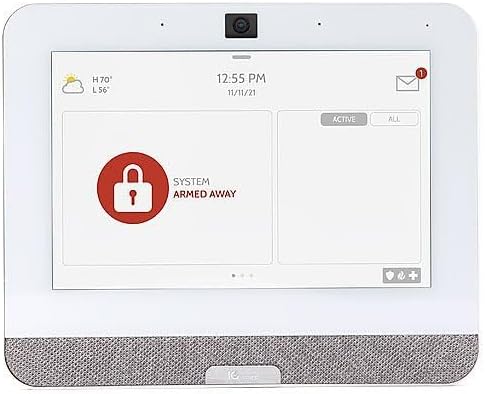
Figure 5.1: The IQ Panel 4 display when the system is armed in 'Away' mode, indicated by a red padlock icon and corresponding text.
5.1 Ame ak Dezame
- Bra rete: Arms the perimeter sensors while allowing movement inside. Tap the "Arm Stay" icon and enter your code.
- Bra lwen: Arms all sensors, including interior motion detectors. Tap the "Arm Away" icon and enter your code.
- Dezame: To disarm the system, tap the "Disarm" icon and enter your master code.
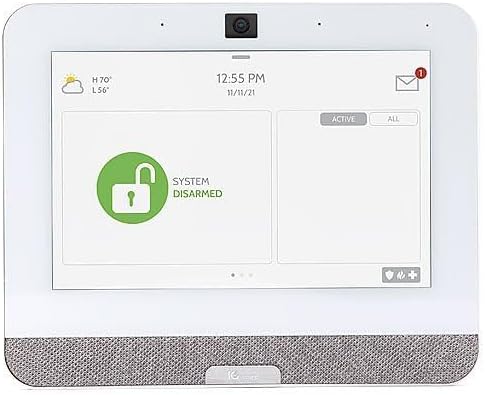
Figure 5.2: The IQ Panel 4 display when the system is disarmed, indicated by a green unlocked padlock icon and corresponding text.
5.2 Karakteristik Kamera
The 8-megapixel panel camera supports various functions:
- Dezame Foto yo: The camera can capture an image when the system is disarmed.
- Gade anlè: Pèmèt kontwòl a distans viewing of the panel's camera feed.
- Videyo Alam: Records video clips during alarm events.
- Flex-Tilt: Ajiste ang kamera a pou pi bon viewing.
5.3 Kontwòl Kay Entelijan
The IQ Panel 4 integrates with Z-Wave devices, allowing control of lights, locks, thermostats, and more directly from the panel or a connected smartphone app.
5.4 Bluetooth Touchless Disarming
Enable Bluetooth Touchless Disarming in settings to automatically disarm your system when your paired smartphone is detected within range.
6. Antretyen
- Netwayaj ekran: Sèvi ak yon twal mou ki pa gen pousyè pou netwaye ekran tactile a. Pou tach ki difisil pou retire, siye yon ti kras.ampRense twal la avèk dlo. Pa flite pwodui netwayaj yo dirèkteman sou ekran an.
- Mizajou lojisyèl: The IQ Panel 4 receives over-the-air (OTA) software updates. Ensure your panel is connected to Wi-Fi to receive these updates, which provide new features and security enhancements.
- Batri Backup: The panel includes a backup battery. Periodically check the battery status in the system settings. If the battery needs replacement, contact qualified service personnel.
NAN. Depanaj
| Pwoblèm | Kòz posib | Solisyon |
|---|---|---|
| Panel pa alimante | No power from outlet; power supply disconnected or faulty. | Check power outlet; ensure power supply is securely connected to panel and outlet. |
| Pa ka konekte ak Wi-Fi | Incorrect Wi-Fi password; out of range; router issue. | Verify password; move panel closer to router; restart router. |
| System not arming | Open sensor (door/window); system error. | Check all sensors are closed; review system messages for errors. |
| Touchscreen pa reponn | Pwoblèm lojisyèl tanporè. | Perform a soft reboot (refer to system settings for option) or power cycle the device. |
8. Espesifikasyon
- Modèl: IQP4004
- Gwosè ekran: 7 Inches (HD, Capacitive glass multi-touch)
- Kamera: Kamera Panel 8 Megapiksèl ak Flex-Tilt
- Depo: 16GB NAND Flash
- Odyo: QuadSound 4x front-facing 4W speakers, 85-decibel siren
- Koneksyon Wireless: LTE, Wi-Fi, Z-Wave, Bluetooth, PowerG, 319.5MHz
- Dimansyon (pake): 12.32 x 7.24 x 2.13 pous
- Pwa (Atik): 1.72 liv
- Koulè: Blan
- Aparèy konpatib: Smartphone (for app control)
9. Garanti ak sipò
Qolsys products are covered by a limited warranty. For specific warranty terms and conditions, please refer to the warranty card included with your product or visit the official Qolsys websit.
For technical support, troubleshooting assistance, or service inquiries, please contact your authorized Qolsys dealer or installer. You may also find additional resources, FAQs, and support documentation on the Qolsys official websit.
Note: Unauthorized modifications or repairs to the device will void the warranty.


