1. Entwodiksyon
This manual provides essential information for setting up, operating, and maintaining your Veidoo Kids Tablet PC. Designed with children in mind, this 10-inch Android tablet features an eye-protection IPS screen and a durable EVA shockproof case. It comes with pre-installed educational apps and robust parental controls to ensure a safe and engaging learning environment.
Karakteristik kle yo enkli:
- 10.1-inch eye-protection screen to reduce eye fatigue.
- Android operating system for broad app compatibility.
- Dual cameras (2.0 MP front, 5.0 MP rear) for photos and video calls.
- Built-in 5000mAh rechargeable battery providing up to 6 hours of use.
- 8GB (4+4) RAM and 64GB internal memory, expandable up to 512GB via SD card.
- Pre-installed iWawa app with comprehensive parental control features.
- Sturdy, environmentally friendly EVA shockproof case with a 360° rotatable bracket.
2. Pake kontni
Tanpri verifye ke tout atik ki nan lis anba a yo enkli nan pakè ou a:
- 1 x Veidoo 10-inch Tablet PC with Protective EVA Case
- 1 x 5V/2A Charger
- 1 x OTG Cable
- 1 x Kab Done Kalite-C
- 1 x manyèl itilizatè
- 1 x AR Zoo Card

Image: The Veidoo Kids Tablet PC in its blue EVA case, alongside the charger, cables, user manual, and AR zoo card.
3. Pwodwi souview
Familiarize yourself with the various components and ports of your Veidoo Kids Tablet PC:

Image: A diagram illustrating the key components of the tablet, including (1) Rear Camera, (2) Support, (3) Speaker, (4) Front Camera, (5) Volume & On/Off buttons, and (6) Type-C port.
- Kamera dèyè: Located on the back of the tablet, used for taking photos and videos.
- Support (Rotatable Bracket): Integrated into the EVA case, allows for 360-degree rotation to adjust viewang ing.
- Oratè: Provides audio output for media and applications.
- Kamera devan: Sitiye anlè ekran an, yo itilize li pou apèl videyo ak selfie.
- Volume & On/Off Buttons: Control audio volume and power the device on/off.
- Kalite-C Port: Used for charging the tablet and data transfer.
- Kas ekoutè Jack: For connecting wired headphones (not explicitly labeled in the diagram but visible in other images).
4. Enstalasyon
4.1 Premye chaj
Before first use, fully charge the tablet using the provided 5V/2A charger and Type-C data cable. The charging indicator will typically show progress on the screen.
4.2 Limen/Etenyen
- Pou limen: Press and hold the Power button (located on the side) until the screen lights up.
- Pou etenn: Peze epi kenbe bouton Power la, answit chwazi "Power off" nan opsyon ki parèt sou ekran an.
4.3 Konekte ak Wi-Fi
- Ale nan Anviwònman.
- Tape sou Rezo & Entènèt or Wi-Fi.
- Aktive Wi-Fi a On.
- Chwazi rezo Wi-Fi ou vle a nan lis la.
- Antre modpas la si yo mande w, epi tape Konekte.
4.4 Initial Setup and Pre-installed Apps
Upon first boot, follow the on-screen prompts to complete the initial setup, including language selection and Google account login. The tablet comes pre-installed with the iWawa app, designed specifically for children, and supports downloading additional apps from the Google Play Store.
5. Operasyon Enstriksyon
5.1 Navigasyon debaz
The tablet uses a touchscreen interface. Common gestures include:
- Tape: Pou chwazi yon atik oubyen louvri yon aplikasyon.
- Glise: Pou defile nan paj oswa lis.
- Zoom-pou-Zoom: Pou agrandi oswa diminye imaj yo oubyen web paj.
- Long Press: To access additional options for an item.
5.2 Using the iWawa App (Parental Control)
The iWawa app is a dedicated environment for children, offering educational content and parental control features. Parents can manage screen time, filter content, and control app access.
- Enter iWawa App: Locate and tap the iWawa icon on the tablet's home screen.
- Parental Settings: Within iWawa, parents can set up profiles for each child, add or block applications, filter web content, set time limits for tablet usage, and lock the device.
- Kontni edikatif: iWawa provides a large number of games and learning activities, promoting learning through play.

Image: A visual guide demonstrating how to enter the iWawa app, navigate its internal software, access a large number of games, and engage in learning by playing.

Image: A banner highlighting the iWawa Parental Control System, showing options for managing content, applications, websites, and media games to make children's learning more focused and efficient.
5.3 Downloading Multiple Applications
The Veidoo Kids Tablet supports downloading various applications from the Google Play Store, including popular educational and entertainment apps like YouTube and Netflix.

Image: The tablet screen displaying numerous app icons, indicating the ability to download multiple applications from the Google Play Store.
5.4 AR Zoo App
The tablet includes an AR Zoo card and app, providing an interactive augmented reality experience where children can learn about animals.
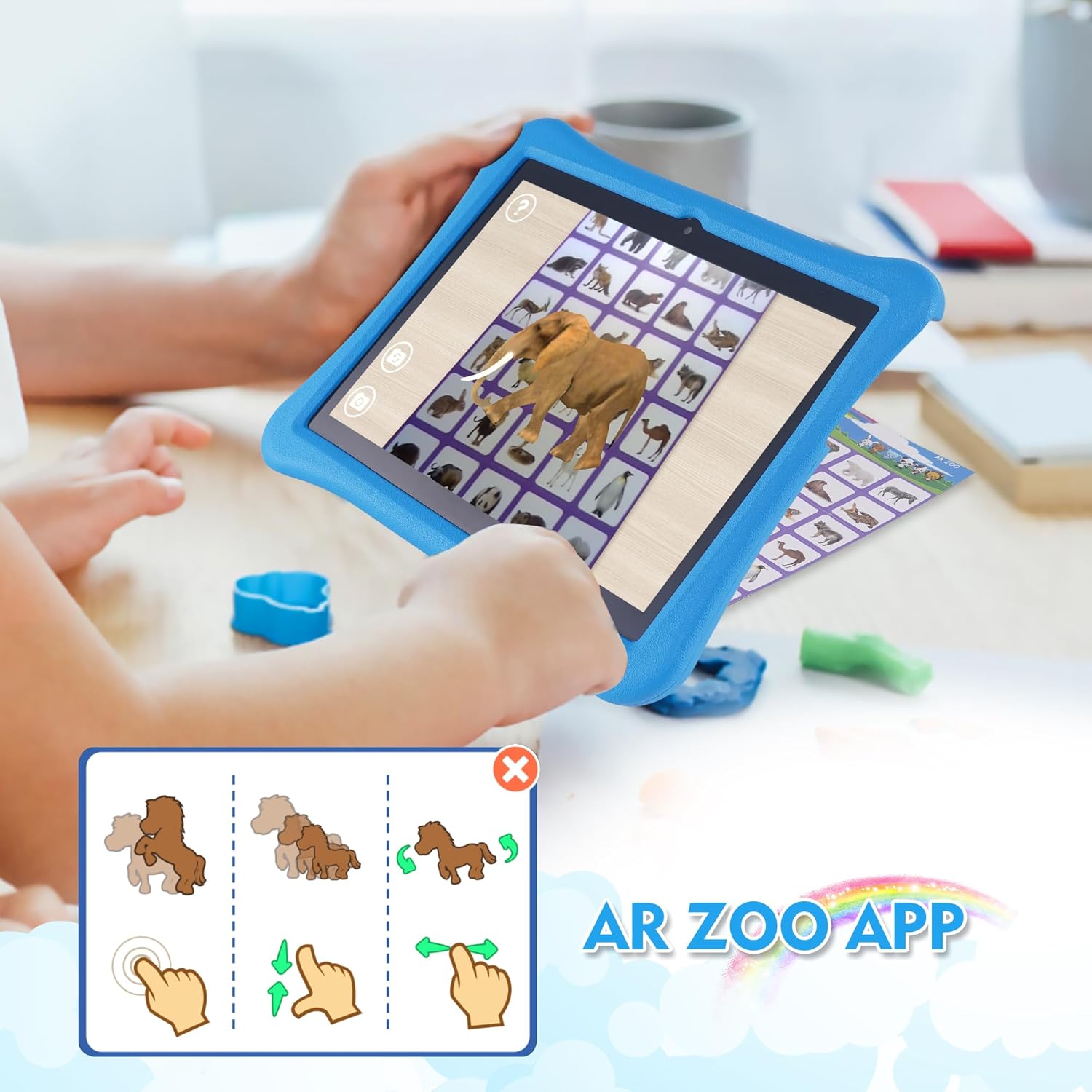
Image: A child using the tablet to interact with the AR Zoo app, showing a 3D elephant model appearing on the screen, overlaid on a physical AR card.
5.5 Videyo Demonstrasyon Pwodwi
Video: A comprehensive demonstration of the Veidoo Kids Tablet, showcasing its features, the anti-fall EVA case, various ports, and the iWawa app interface with educational games and a calculator.
6. Antretyen
6.1 Netwaye Tablèt la
Pou netwaye ekran an, sèvi ak yon twal mou ki pa gen pousyè. Pou tach ki difisil pou retire, siye yon ti kras.ampRense twal la avèk dlo oswa yon pwodui netwayaj ekran ki fèt pou aparèy elektwonik. Evite itilize pwodui chimik ki agresif oswa materyèl abrazif.
6.2 Swen Batri
- Evite dechaje batri a nèt souvan.
- Do not expose the tablet to extreme temperatures (hot or cold).
- Sèvi sèlman ak plato ki vini ak plato a oswa yon plato konpatib ki sètifye.
6.3 EVA Shockproof Case Care
The EVA case is designed for durability and protection. Clean it with a damp cloth and mild soap if necessary. Ensure the case is dry before re-inserting the tablet. The case is lighter and more resistant to falling and impacting than typical silicone cases.
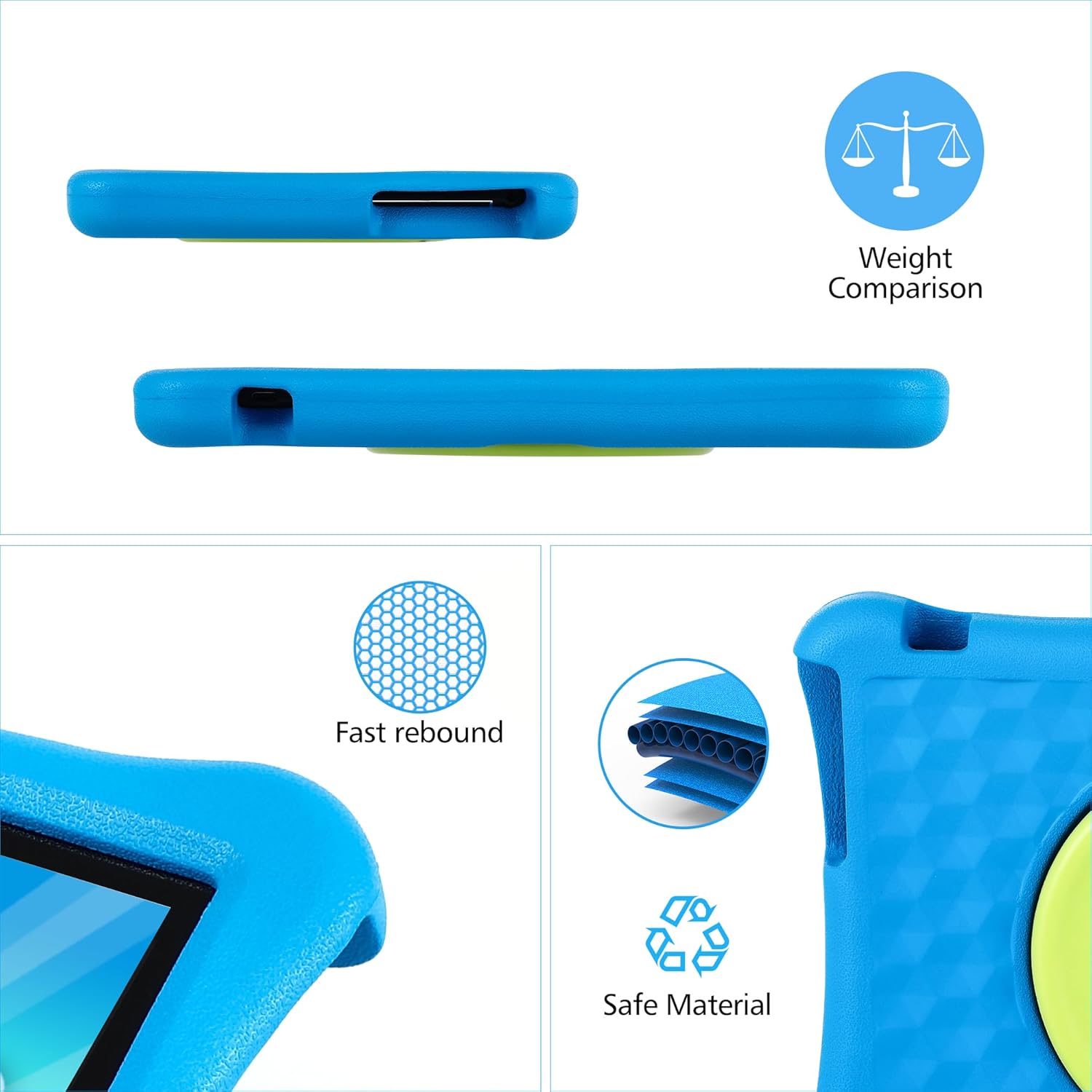
Image: A visual representation of the EVA case's properties, highlighting its fast rebound capability and composition from safe, environmentally friendly materials.
NAN. Depanaj
Tablèt 7.1 la pa limen
- Asire w tablèt la byen chaje. Konekte l nan plato a pou omwen 30 minit.
- Peze epi kenbe bouton Pouvwa a pandan 10-15 segonn pou fòse rekòmanse.
7.2 Pwoblèm Koneksyon Wi-Fi
- Tcheke si Wi-Fi a aktive nan Anviwònman yo.
- Rekòmanse routeur Wi-Fi ou a.
- Bliye rezo a nan paramèt tablèt la epi rekonekte.
7.3 Aplikasyon ki kraze oswa bloke
- Fèmen epi relouvri aplikasyon an.
- Efase kach ak done aplikasyon an nan Anviwònman > Aplikasyon.
- Asire w ke lojisyèl tablèt la ajou.
7.4 Ekran an pa reponn
- Perform a forced restart (hold Power button).
- Asire w ekran an pwòp epi li pa gen okenn debri.
8. Espesifikasyon
| Karakteristik | Spesifikasyon |
|---|---|
| Mak | Veidoo |
| Non modèl | T80 PLUS |
| Sistèm operasyon | Android |
| Gwosè ekran | 10 pous |
| Rezolisyon ekran | 1280 x 800 piksèl |
| Gwosè memwa flash | 64 GB |
| RAM | 8GB (4+4 Expand) |
| Mak processeur | Allwinner |
| Kantite processeurs | 4 |
| Dèyè WebCam Rezolisyon | 5 MP |
| Devan WebCam Rezolisyon | 2 MP |
| Kalite san fil | 802.11ac |
| Mwayèn lavi batri | 5 èdtan |
| Pwa atik | 1.87 liv |
| Dimansyon pwodwi | 10.9 x 10.07 x 1.73 pous |
| Koulè | Ble |
9. Garanti ak sipò
For warranty information and technical support, please refer to the warranty card included in your package or contact Veidoo customer service directly. You can typically find contact details on the manufacturer's official websit entènèt la oubyen atravè magazen kote ou te achte pwodwi a.
Tanpri kenbe prèv ou achte pou reklamasyon garanti.


