1. Entwodiksyon
This manual provides essential information for the safe and effective use of your EZVIZ E6 Indoor Security Camera. Please read it thoroughly before operating the device and retain it for future reference. The EZVIZ E6 is designed for indoor surveillance, offering advanced features such as 3K video resolution, motion detection, and night vision.
2. Pake kontni
Lè w ap debale l, tanpri verifye si tout atik ki nan lis anba a yo la epi yo an bon eta:
- EZVIZ E6 Indoor Security Camera Unit
- Adaptè pouvwa
- Twous montaj (vis, ploge miray)
- Gid Quick Start
If any components are missing or damaged, please contact EZVIZ customer support.
3. Aparèy souview
Familiarize yourself with the physical components of your EZVIZ E6 camera.
Devan View

Imaj 1: The front of the EZVIZ E6 camera, featuring the main camera lens and the EZVIZ brand logo on the lower silver section.
Side View (Reset Button)

Imaj 2: Yon bò view of the EZVIZ E6 camera, clearly showing the 'RESET' button located on the silver base.
Dèyè View (Pò)
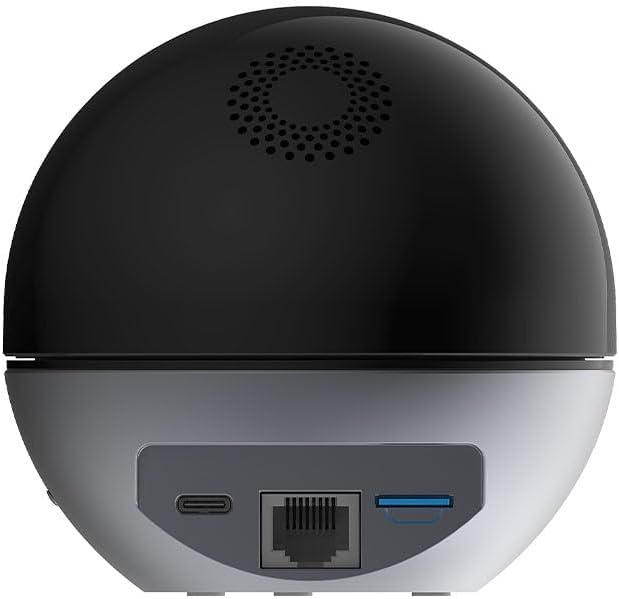
Imaj 3: The rear of the EZVIZ E6 camera, displaying the USB-C power input, an Ethernet port for wired network connection, and a Micro SD card slot for local storage.
Anba View (Mounting Base)

Imaj 4: The underside of the EZVIZ E6 camera, illustrating the circular mounting base designed for wall installation and an area for product labels.
4. Enstalasyon
4.1 Limen
- Connect the provided power adapter to the USB-C port on the back of the camera.
- Branche adaptè kouran an nan yon priz miray. Kamera a pral limen epi kòmanse sekans demaraj li.
4.2 Enstalasyon Aplikasyon ak Kreyasyon Kont
- Download the EZVIZ app from the App Store (iOS) or Google Play Store (Android).
- Open the EZVIZ app and follow the on-screen instructions to create a new account or log in to an existing one.
4.3 Ajoute Kamera a nan Aplikasyon an
- In the EZVIZ app, tap the '+' icon (usually in the top right corner) to add a new device.
- Scan the QR code located on the bottom of your EZVIZ E6 camera or on the cover of the Quick Start Guide.
- Follow the in-app prompts to connect the camera to your Wi-Fi network. Ensure your Wi-Fi network is 2.4GHz or 5GHz compatible.
- Once connected, the camera will be added to your EZVIZ account and ready for use.
4.4 Physical Installation (Optional Wall Mount)
The EZVIZ E6 camera is designed for indoor use and can be placed on a flat surface or wall-mounted.
- Chwazi yon kote: Chwazi yon kote andedan ki klè view of the area you wish to monitor and within range of your Wi-Fi signal.
- Prepare sifas la: If wall-mounting, use the provided drilling template (if included in the mounting kit) to mark screw positions.
- Enstale vis: Drill pilot holes and insert wall plugs if necessary. Secure the mounting plate (if applicable) or screws into the wall.
- Atache Kamera a: Align the camera's base with the mounting screws or plate and secure it in place.
5. Operasyon Enstriksyon
5.1 Karakteristik kle
- Rezolisyon Videyo 3K: Bay videyo klè ak detaye footage.
- Deteksyon Mouvman: Avèti ou lè yo detekte yon mouvman nan chan mayetik kamera a. view.
- Vizyon lannwit: Enables monitoring in low-light or dark conditions up to 10 meters.
- De-fason Audio: Allows communication through the camera using the built-in microphone and speaker.
- Mòd konfidansyalite: Physically covers the camera lens for complete privacy when needed.
- Panoramik/Enklinasyon/Zoom (PTZ): Ajiste kamera a adistans viewing angle via the app.
5.2 Using the EZVIZ App
The EZVIZ app is your primary interface for controlling and monitoring your E6 camera.
- Viv View: Tap on your camera in the app to access the real-time video feed.
- Anrejistreman: Manually record video or configure motion-triggered recording. Footage can be stored on a Micro SD card (up to 256GB, sold separately) or via EZVIZ CloudPlay subscription.
- Lektur: Aksè anrejistre footage soti nan kat Micro SD ou oswa depo nwaj ou.
- Mòd konfidansyalite: Activate this feature in the app to physically rotate the camera lens into its housing, ensuring privacy.
- Notifikasyon: Enable push notifications to receive alerts on your smartphone when motion is detected.
- Kontwòl vwa: The camera is compatible with Amazon Alexa for voice commands.
6. Antretyen
6.1 Netwayaj Kamera a
Pou kenbe yon pèfòmans optimal, netwaye lantiy kamera a ak deyò li detanzantan.
- Asire w kamera a etenn anvan ou netwaye li.
- Use a soft, dry, lint-free cloth to wipe the lens and camera body.
- Do not use harsh chemicals, cleaning solvents, or aerosol cleaners, as these may damage the device.
6.2 Mizajou lojisyèl
EZVIZ regularly releases firmware updates to improve performance and add new features. It is recommended to keep your camera's firmware updated through the EZVIZ app.
6.3 Konsiderasyon Anviwònman
The EZVIZ E6 is designed for indoor use only and is not waterproof. Avoid exposing the camera to moisture, extreme temperatures, or direct sunlight.
NAN. Depanaj
If you encounter issues with your EZVIZ E6 camera, refer to the following common solutions:
- Camera fails to connect to Wi-Fi:
- Asire w ke rezo Wi-Fi ou a aktif epi li nan zòn ou an.
- Verifye ke ou te antre modpas Wi-Fi ki kòrèk la.
- Try moving the camera closer to your Wi-Fi router.
- Rekòmanse routeur ou a ak kamera a.
- Perform a factory reset on the camera (see 7.2 Reset faktori).
- Move kalite videyo:
- Tcheke vitès koneksyon entènèt ou. Ou bezwen yon koneksyon ki estab e ki gen gwo vitès pou difizyon an 3K.
- Ensure the camera lens is clean (refer to 6.1 Netwayaj Kamera a).
- Adjust video quality settings in the EZVIZ app.
- PTZ (Pan/Tilt/Zoom) controls are unresponsive:
- Ensure the camera has a stable network connection.
- Restart the camera via the EZVIZ app or by unplugging and replugging the power.
- Check for available firmware updates for the camera.
- Pa gen alèt deteksyon mouvman:
- Verify that motion detection is enabled in the EZVIZ app settings for your camera.
- Adjust the detection sensitivity and detection zones.
- Ensure app notifications are enabled on your smartphone.
7.2 Reset faktori
If troubleshooting steps do not resolve the issue, you may need to perform a factory reset. This will restore the camera to its default settings.
- Locate the 'RESET' button on the side of the camera (refer to Imaj 2).
- With the camera powered on, use a pin or a thin object to press and hold the reset button for approximately 5-10 seconds until you hear a voice prompt or see the indicator light change.
- The camera will restart. You will then need to re-add the camera to your EZVIZ app as a new device.
8. Espesifikasyon
| Karakteristik | Spesifikasyon |
|---|---|
| Mak | EZVIZ |
| Non modèl | E6 |
| Nimewo Modèl Atik | CS-E6-R100-8C5W2F |
| Rezolisyon anrejistreman videyo | 3K |
| Koneksyon Teknoloji | San fil (Wi-Fi) |
| Teknoloji kominikasyon san fil | Wi-Fi |
| Andedan kay la / Deyò Itilizasyon | Andedan kay la |
| Karakteristik espesyal | Detektè Mouvman, Vizyon Lannwit |
| Vizyon lannwit Range | 10 mèt |
| Sous pouvwa | AC Power (5 Volts, 5 Watts) |
| Aparèy konpatib | Smartphone |
| Kalite kontwolè | Amazon Alexa |
| Kalite kat memwa | Mikwo SD |
| Faktè fòm | Dome |
| Koulè | Nwa |
| Materyèl | Metal |
| Nivo rezistans dlo | Pa enpèmeyab |
| Dimansyon atik (L x W x H) | 17.7 x 15.6 x 15.4 santimèt |
| Kalite aliye | Mi mòn |
9. Garanti ak sipò
9.1 Garanti manifakti
The EZVIZ E6 camera comes with a 2-ane garanti manifaktiTanpri konsève prèv acha ou a pou reklamasyon garanti. Garanti a kouvri domaj nan materyèl ak nan fabrikasyon anba itilizasyon nòmal.
9.2 Sipò pou Kliyan
For technical assistance, troubleshooting beyond this manual, or warranty inquiries, please visit the official EZVIZ support websit la oubyen kontakte sèvis kliyan yo. Ou ka jwenn plis enfòmasyon ak resous sipò sou EZVIZ Brand Store.


