1. Entwodiksyon
This manual provides detailed instructions for the safe and efficient operation of your NexiGo Aurora Pro Ultra Short Throw 4K Tri-Color Laser Projector. Please read this manual thoroughly before using the product and retain it for future reference.
The NexiGo Aurora Pro is designed to deliver a high-quality home cinema experience with its 4K resolution, tri-color laser technology, and ultra-short throw capabilities.
2. Enfòmasyon sou Sekirite
Enstriksyon enpòtan pou sekirite:
- Do not look directly into the projector lens when the projector is on. The laser light source is powerful and can cause eye damage.
- Asire w ke gen bon vantilasyon toutotou pwojektè a. Pa bloke ouvèti vantilasyon yo.
- Sèvi sèlman ak adaptè kouran ki vini ak pwojektè a.
- Pa ekspoze pwojektè a ak lapli oswa imidite pou anpeche dife oswa chòk elektrik.
- Keep the projector away from heat sources such as radiators, heat registers, stoves, or other apparatus that produce heat.
- Dekonekte pwojektè a pandan tanpèt zèklè oswa lè ou pa itilize li pou yon bon bout tan.
- Refere tout sèvis yo bay pèsonèl sèvis kalifye.
3. Pake kontni
Verifye ke tout atik yo prezan nan pakè ou a:
- NexiGo Aurora Pro Projector
- Kontwòl Remote
- Pouvwa kab
- Manyèl Itilizatè (dokiman sa a)
- Si ou vle: 100/120 Fresnel Screen (if purchased as a bundle)
- Si ou vle: 3D Glasses (if purchased as a bundle)
4. Pwodwi souview
4.1 Konpozan Pwojektè yo
Familiarize yourself with the main components of your NexiGo Aurora Pro projector.

Imaj 1: Devan view of the NexiGo Aurora Pro projector, showcasing its sleek design and front speaker grille.

Imaj 2: Dèyè view of the NexiGo Aurora Pro projector, highlighting the various input and output ports for connectivity.
The projector features multiple connectivity options including HDMI ports, USB ports, and an Ethernet port for network connectivity. One HDMI port supports eARC.
4.2 Kontwòl Remote
The included remote control allows for easy navigation and control of the projector's functions. It features backlit keys for use in dark environments.
5. Enstalasyon
5.1 Plasman
The Aurora Pro is an Ultra Short Throw (UST) projector, designed to project a large image from a very short distance to the screen or wall. Proper placement is crucial for optimal image quality.

Imaj 3: Diagram illustrating the recommended placement distances for various screen sizes (80-150 inches) for the NexiGo Aurora Pro projector.
Refer to the table below for recommended distances from the screen based on desired image size:
| Gwosè ekran (dyagonal) | A: Screen to Front | B: Screen to Rear | C: Screen to Top | D: Screen to Foot | E: Y+D |
|---|---|---|---|---|---|
| 80" | 20.00 | 3.96 | 6.95 | 11.76 | 50.98 |
| 90" | 21.92 | 5.88 | 7.91 | 12.72 | 56.71 |
| 100" | 23.84 | 7.80 | 8.87 | 13.68 | 62.66 |
| 110" | 25.76 | 9.72 | 9.83 | 14.64 | 68.57 |
| 120" | 27.56 | 11.52 | 10.91 | 15.72 | 74.54 |
| 135" | 30.44 | 14.40 | 12.35 | 17.16 | 83.35 |
| 150" | 33.32 | 17.28 | 13.79 | 18.60 | 92.10 |
Note: The unit for values in the table is inches. Measurements do not include the screen border size.
5.2 Konekte pouvwa
- Konekte kab kouran an nan pò antre kouran pwojektè a.
- Branche lòt bout kab kouran an nan yon priz elektrik ki gen tè.
5.3 Konekte Aparèy
The Aurora Pro offers various ports for connecting external devices:
- HDMI: Connect Blu-ray players, gaming consoles, streaming devices, or computers. HDMI 1 supports eARC.
- USB: Connect USB drives for media playback or external accessories.
- Odyo optik: Konekte ak sistèm odyo ekstèn yo.
- Ethernet: Pou koneksyon rezo filaire.
Asire w tout kab yo byen konekte anvan ou limen pwojektè a.
6. Operasyon Enstriksyon
6.1 Limen/Etenyen
- Pou limen pwojektè a, peze bouton pouvwa a sou pwojektè a oswa sou kontwòl remote la.
- To power off, press the power button again. A confirmation prompt may appear.
6.2 Asistan Enstalasyon Inisyal
Upon first power-on, the projector will guide you through an initial setup wizard to configure language, network settings, and image adjustments.
6.3 Ajisteman Imaj
The Aurora Pro features automatic screen adoption and dynamic dimming. Manual adjustments can be made via the settings menu.
- Konsantre: Adjust the focus using the remote control or on-screen menu to achieve a sharp image.
- Koreksyon Keystone: If the image is not perfectly rectangular, use keystone correction to adjust. Note that excessive keystone correction can reduce image quality.
- Screen Alignment: Fine-tune the image position to fit your screen perfectly.
6.4 Seleksyon Sous Antre
Press the "Input" button on the remote control to select between connected HDMI devices, USB media, or internal smart TV applications.
6.5 Anviwònman odyo
The projector includes built-in 60W stereo speakers with Dolby Atmos support. You can adjust volume and audio modes through the settings menu. For external audio systems, connect via HDMI eARC or optical audio output.

Imaj 4: Visual representation of the immersive sound experience provided by the projector's 60W speakers, supporting Dolby Atmos and DTS HD.
6.6 Fonksyonalite ak aplikasyon entelijan
The projector includes a smart TV interface. Navigate using the remote control to access pre-installed applications or download new ones from the app store.
Nòt: Some streaming applications may require specific external devices for 4K content or may have compatibility limitations.
6.7 Mòd Jwèt
For an optimized gaming experience, enable Gaming Mode in the settings. This mode reduces input lag to 8ms (tested at 1080p 240Hz) and supports 4K@120Hz input, providing smoother motion.
Imaj 5: A user engaged in gaming on a large projected screen, demonstrating the projector's low latency and 4K 120Hz input capabilities for a smooth gaming experience.
7. Antretyen
7.1 Netwayaj Pwojektè a
- Eksteryè: Use a soft, dry cloth to wipe the projector's exterior. Do not use abrasive cleaners or solvents.
- Lantiy: Gently clean the projector lens with a lens cleaning cloth specifically designed for optical surfaces. Avoid touching the lens directly with your fingers.
7.2 Air Filter (if applicable)
Check the user manual for specific instructions regarding air filter cleaning or replacement, if your model is equipped with one. Regular cleaning ensures optimal performance and prevents overheating.
7.3 Mizajou Firmware
Periodically check for firmware updates through the projector's settings menu. Updates can improve performance, add features, and resolve issues.
NAN. Depanaj
Si ou rankontre pwoblèm ak pwojektè ou a, gade pwoblèm ak solisyon komen sa yo:
| Pwoblèm | Kòz posib | Solisyon |
|---|---|---|
| Pa gen imaj ki parèt | Power cable loose, incorrect input source, device not connected. | Check power connections. Select correct input source. Ensure source device is on and connected. |
| Imaj la twoub | Out of focus, dirty lens, incorrect placement. | Adjust focus. Clean the lens. Verify projector placement according to guidelines. |
| Pa gen son | Volume too low, incorrect audio output setting, external audio system issue. | Increase volume. Check audio output settings on projector and source. Verify external audio system connections. |
| Remote kontwòl pa travay | Low batteries, obstruction, remote not paired. | Replace batteries. Remove obstructions. Re-pair remote if necessary (refer to remote control section in full manual). |
| Smart apps not working or slow | Network connectivity issues, outdated app, insufficient memory. | Check Wi-Fi/Ethernet connection. Update the app. Restart the projector. |
For further assistance, please contact NexiGo customer support.
9. Espesifikasyon
| Karakteristik | Detay |
|---|---|
| Nimewo Modèl | PJ92 |
| Rezolisyon ekspozisyon | 3840 x 2160 (4K UHD) |
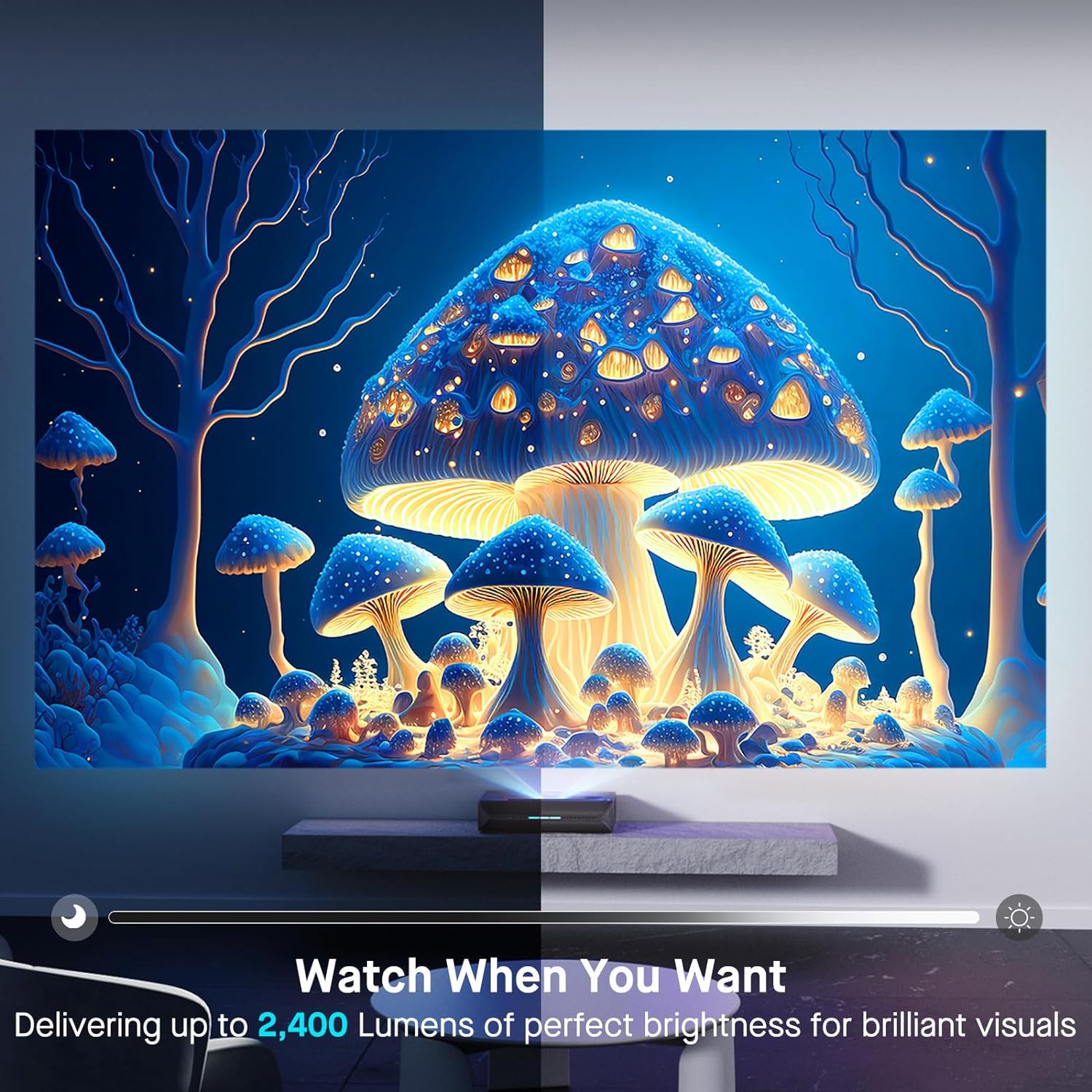
| Klète | 2400 Lumen |
| Sous limyè | Tri-Color Laser (ALPD 4.0 RGB+) |
| Natif Natal Pwopòsyon Kontrè | 3000:1 |
| Pwopòsyon kontras dinamik | >6000:1 (with dynamic laser dimming) |
| Gamut koulè | 107% Rec.2020 |
| Sipò HDR | Vizyon Dolby, HDR10+, HLG |
| Sipò 3D | 3D aktif |
| Antre Lag | 8ms (tested at 1080p 240Hz) |
| Max Input Resolution/Refresh Rate | 4K @ 120Hz |
| MEMC | Yes (120Hz) |
| Sòti odyo | 60W Stereo Speakers (2x15W Woofers, 2x15W Tweeters), Dolby Atmos, eARC |
| Koneksyon | HDMI (3, one with eARC), USB, Optical Audio, Ethernet |
| Dimansyon pwodwi | 21.54 x 16.04 x 4.81 pous |
| Pwa atik | 22 liv |
| Vizib ekran dyagonal | 80" - 150" (381 cm max) |
| Dire lavi lazè | 25,000 èdtan |
10. Garanti ak sipò
NexiGo provides customer support and warranty services for its products. For specific warranty terms and conditions, please refer to the warranty card included with your product or visit the official NexiGo websit.
Sipò Kliyan:
- For technical assistance, troubleshooting, or product inquiries, please contact NexiGo customer support.
- Contact information can typically be found on the NexiGo websit la oubyen sou anbalaj pwodwi a.
- NexiGo offers 24-hour customer support and lifetime technical support.
Retounen ak Echanj:
- Refer to your purchase agreement or retailer's policy for details on returns and exchanges. NexiGo typically offers a 30-day return or exchange period.


