Entwodiksyon
This guide provides comprehensive instructions for the Qolsys IQPH062 Telus IQ4 Hub PowerG, a 7-inch all-in-one touchscreen security and smart home platform. The IQ4 Hub serves as the central control unit for various home automation and security features, including lights, locks, thermostats, and security systems. This manual will assist users in understanding the device's features and operational procedures.
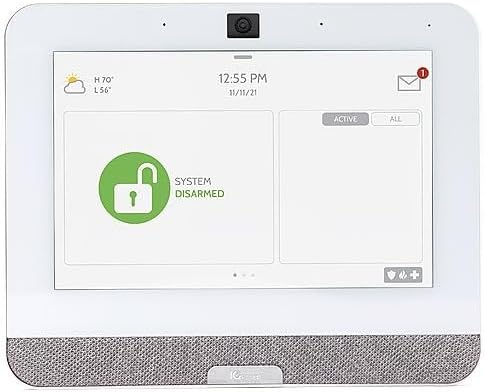
Figi 1: Devan view of the Qolsys IQPH062 Telus IQ4 Hub PowerG, showing the 7-inch touchscreen interface with a 'System Disarmed' status.
Karakteristik kle
- Enstalasyon fasil: Ki fèt pou yon konfigirasyon senp.
- All-in-One Platform: Integrates security and smart home controls into a single device.
- Viv View & Live Answer: Supports doorbell and camera integration for real-time viewing and communication directly on the screen.
- Touchless Disarming: Offers convenient disarming options without physical interaction.
- Mizik difizyon: Provides entertainment capabilities through integrated music streaming.
Enstalasyon
Follow these steps for initial setup and pairing of accessories with your IQ4 Hub.
Premye Limen ak Koneksyon Rezo a
- Connect the IQ4 Hub to a power source using the provided corded electric adapter.
- The device will boot up and guide you through initial setup, including Wi-Fi network connection.
Matériel Pwodwi pou Telefòn
The IQ4 Hub supports various wireless accessories. The following video demonstrates how to add remote controls, door sensors, motion detectors, and RFID cards.
Video 1: Instructions for programming various sensors and remote controls to the alarm system. This includes adding remote controls, door sensors, motion detectors, and RFID cards to the IQ4 Hub.
Adding Remote Controls
- Navigate to the 'Parts' or 'Remote' section on the touchscreen.
- Select the option to add a new remote control.
- Activate the remote control as instructed on the screen to complete pairing.
Adding Door Sensors
- Access the 'Detector' section on the touchscreen.
- Choose the option to add a new door sensor.
- Trigger the door sensor (e.g., separate the two parts) to initiate pairing.
Adding Motion Detectors
- From the 'Detector' section, select to add a new motion detector.
- Activate the motion detector (e.g., by moving in front of it) to complete the pairing process.
Adding RFID Cards
- Go to the 'RFID' section within 'Parts'.
- Select the option to add a new RFID card.
- Present the RFID card to the designated area on the IQ4 Hub to pair it.
Pairing a Wireless Siren
The following video illustrates the process of pairing a wireless siren with your alarm system.
Video 2: Demonstration of how to pair a wireless siren with the D1D9 Burglar Alarm System, which is compatible with the IQ4 Hub.
- Ensure the wireless siren is powered on.
- Press and hold the 'Set' button on the back of the siren until you hear two 'DI DI' sounds and the LED flashes quickly.
- Release the 'Set' button.
- On the IQ4 Hub, navigate to the siren pairing menu and follow the on-screen prompts to complete the pairing.
Opere
The 7-inch touchscreen provides an intuitive interface for controlling your smart home and security system.
Navigasyon debaz
- Swipe left or right to access different screens and menus.
- Tap icons to select functions or open applications.
- The home button (usually a house icon) returns you to the main dashboard.
Ame ak Dezame
- To arm the system, select the 'Arm' option and choose your desired mode (e.g., Stay, Away).
- Disarm the system by entering your code or using a paired RFID card or remote control. The IQ4 Hub also supports touchless disarming features.
Kontwòl Kay Entelijan
Control connected smart devices such as lights, locks, and thermostats directly from the touchscreen interface. Refer to specific device manuals for pairing instructions.
Media and Communication
- Viv View & Live Answer: Access live feeds from connected doorbell cameras and other security cameras. Engage in two-way communication through the hub.
- Mizik difizyon: Utilize the integrated music streaming feature for audio playback.
Antretyen
Regular maintenance ensures optimal performance and longevity of your IQ4 Hub.
- Netwayaj: Use a soft, dry, lint-free cloth to clean the touchscreen. Avoid abrasive cleaners or sprays directly on the screen.
- Mizajou lojisyèl: Periodically check for and install software updates to ensure your system has the latest features and security enhancements.
- Sovgad pouvwa: The IQ4 Hub typically includes a backup battery. Ensure it is functioning correctly and replace it if necessary according to manufacturer guidelines.
Depanaj
If you encounter issues with your IQ4 Hub, consider the following common solutions:
- Pa gen pouvwa: Verify the power adapter is securely connected to both the hub and a working electrical outlet.
- Pwoblèm Koneksyon: Check your Wi-Fi router and internet connection. Restarting the router and the IQ4 Hub may resolve temporary network problems.
- Capteur a pa reponn: Ensure the sensor's battery is charged and it is within range of the IQ4 Hub. Re-pairing the sensor may be necessary.
- Ekran taktil la pa reponn: Attempt a soft reset by holding the power button (if available) or disconnecting and reconnecting power.
Espesifikasyon
| Karakteristik | Detay |
|---|---|
| Manifakti | Qolsys |
| Dimansyon pwodwi | 2.54 x 19.05 x 15.49 cm (1 x 7.5 x 6.1 pous) |
| Nimewo Modèl Atik | IQPH062 |
| Sous pouvwa | Fil elektrik |
| Metòd enstalasyon | Oto-adezif |
| Konpozan ki enkli | Bag (refer to packaging for full list) |
| Peyi orijin | Kanada |
| Aparèy konpatib | Smartphone |
Garanti ak sipò
For warranty information, please refer to the documentation included with your Qolsys IQPH062 Telus IQ4 Hub PowerG or visit the official Qolsys website. For technical support, contact your authorized dealer or the manufacturer's customer service.


