Entwodiksyon
This manual provides essential instructions for setting up, operating, maintaining, and troubleshooting your new Tesla 65-inch 4K UHD Smart TV (Model 65E635SUS). Please read this manual thoroughly before using the television to ensure proper operation and to maximize your vieweksperyans nan. Kenbe manyèl sa a pou referans nan lavni.
Enfòmasyon enpòtan sou sekirite: Always follow basic safety precautions when using this product to reduce the risk of fire, electric shock, and injury. Do not attempt to service this product yourself. Refer all servicing to qualified service personnel.
1. Enstalasyon
1.1 Debalaj ak Verifikasyon Kontni
Retire televizyon an nan anbalaj li avèk prekosyon. Asire w ke tout konpozan yo la:
- Tesla 65-inch 4K UHD Smart TV
- Kontwòl Remote
- Batri AAA pou kontwòl Remote
- Sipò pou televizyon (2 moso)
- Vis pou Sipò Televizyon
- Kòd pouvwa
- Manyèl Itilizatè (dokiman sa a)

Imaj 1.1: Devan view of the Tesla 65-inch Smart TV with its stand.
1.2 Mete Sipò Televizyon an an Plak
- Mete televizyon an fas anba sou yon sifas ki plat e mou pou evite domaje ekran an.
- Aliyen chak moso sipò a ak fant ki koresponn yo anba televizyon an.
- Sere chak moso sipò a ak vis yo bay yo. Asire w ke yo byen sere.

Imaj 1.2: Dèyè view nan televizyon an, ki montre pwen atachman sipò a.
Nòt: If you plan to wall-mount the TV, refer to the wall-mount kit instructions (sold separately) and skip this step. Ensure proper ventilation when wall-mounting.
1.3 Konekte pouvwa
Connect the power cord to the TV's power input and then to a wall outlet. The TV will enter standby mode.
1.4 Inisyal Enstalasyon
Lè w limen televizyon an pou premye fwa, li pral gide w nan pwosesis konfigirasyon inisyal la:
- Seleksyon Lang: Chwazi lang ou prefere.
- Rezo Koneksyon: Konekte ak rezo Wi-Fi ou a oubyen sèvi ak yon kab Ethernet pou yon koneksyon filaire.
- Koneksyon kont Google: Sign in with your Google account to access Google Play Store, Google Assistant, and other Android TV features.
- Chèn Scan: Scan for available TV channels if you are using an antenna or cable connection.
- Anviwònman konfidansyalite: Review epi ajiste paramèt konfidansyalite yo jan ou vle.
2. Operasyon Enstriksyon
2.1 Remote Control Overview
The provided remote control allows you to navigate the TV's features. Insert the AAA batteries into the remote control before use.

Image 2.1: Bluetooth remote control for the Tesla Smart TV.
- Bouton pouvwa: Limen oswa etenn televizyon an (mòd sibstiti).
- Pav Navigasyon (Anwo/Anba/Agoch/Dwat/OK): Navige nan meni yo epi chwazi atik yo.
- Bouton tounen: Retounen nan ekran anvan an.
- Bouton Kay: Aksè ekran prensipal Android TV a.
- Volim monte/desann: Ajiste nivo volim.
- Bouton bèbè: Aktive oubyen koupe son an.
- Bouton Asistan Google la: Aktive kontwòl vokal.
- Bouton rakoursi aplikasyon yo: Direct access to popular streaming services (e.g., Netflix, YouTube).
2.2 Android TV 11 Interface Navigation
The Android TV 11 interface provides access to apps, settings, and content. Use the navigation pad on your remote to move through the home screen.
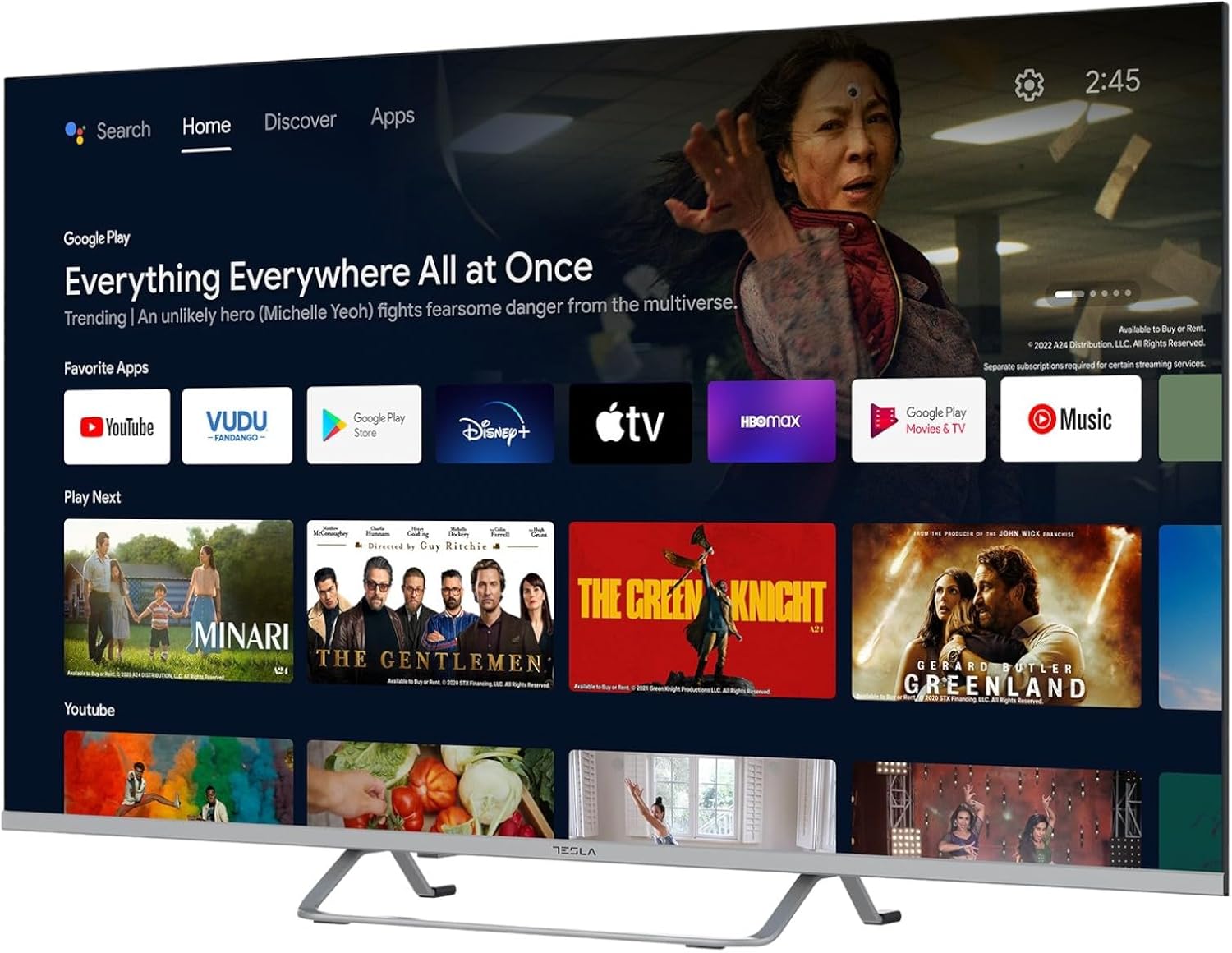
Image 2.2: The Android TV 11 home screen, displaying various applications and content suggestions.
- Ekran Kay: Displays recommended content, installed apps, and input sources.
- Apps Section: Access all installed applications.
- Anviwònman: Configure TV settings, network, accounts, and device preferences.
2.3 Itilizasyon Asistan Google la
Press the Google Assistant button on your remote and speak into the microphone to control your TV, search for content, get information, and more.
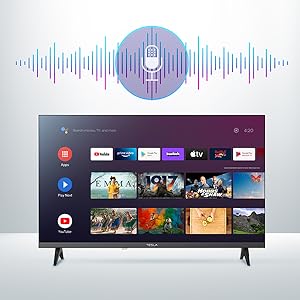
Image 2.3: Visual representation of Google Assistant activation on the TV screen.
Examples kòmandman:
- "Louvri Netflix"
- "Chèche pou fim aksyon"
- "Ki jan tan an ye?" or "Ki jan tan an ye?"
- "Turn up the volume"
2.4 Chromecast entegre
Use Chromecast built-in to cast content from your compatible smartphone, tablet, or computer directly to your TV. Ensure your device is connected to the same Wi-Fi network as the TV.

Image 2.4: A smartphone casting content to the TV via Chromecast.
2.5 Konekte Aparèy Ekstèn yo
Televizyon ou an ofri plizyè opsyon koneksyon:
- Pò HDMI (x4): Connect Blu-ray players, game consoles, set-top boxes, etc.
- Pò USB (x2): Connect USB drives for media playback or external keyboards/mice.
- Ethernet (LAN): Pou yon koneksyon entènèt filaire.
- Wi-Fi: Pou koneksyon entènèt san fil.
- Bluetooth: Konekte kas ekoutè san fil, oratè, oswa lòt aparèy Bluetooth.

Imaj 2.5: Pwofesyonèl bò kotefile of the TV, highlighting accessible ports.
2.6 Anviwònman Imaj ak Son
Access the TV's settings menu to customize picture and sound options.
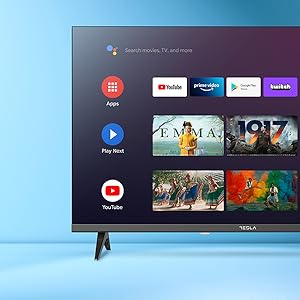
Imaj 2.6: Egzanpample of the TV's settings menu for customization.
- Mòd foto: Select from Standard, Vivid, Sport, Movie, Game, or User (custom) modes. Adjust brightness, contrast, color, and sharpness.
- HDR10: The TV supports HDR10 for enhanced contrast and color with compatible content.
- Mòd son: Choose from Standard, Music, Movie, Sport, or User (custom) modes. Use the equalizer to fine-tune audio frequencies.
- Oratè: The TV features 2 x 12W speakers.
3. Antretyen
3.1 Netwaye televizyon an
- Ekran: Siye ekran an dousman avèk yon twal mou ki pa gen pousyè. Pou mak ki difisil pou retire, siye l dousman.ampRense twal la avèk dlo oswa yon pwodui netwayaj ekran espesyalize. Pa janm flite pwodui netwayaj la dirèkteman sou ekran an.
- Kò: Siye kò televizyon an ak yon twal mou epi sèk. Evite itilize pwodui netwayaj abrazif oswa solvan.
- Toujou debranche televizyon an nan priz kouran anvan ou netwaye li.
3.2 Mizajou lojisyèl
Your Tesla Smart TV may receive software updates to improve performance and add new features. Ensure your TV is connected to the internet to receive these updates automatically or check for them manually in the settings menu.
NAN. Depanaj
Anvan ou kontakte sipò a, eseye solisyon sa yo pou pwoblèm komen yo:
| Pwoblèm | Solisyon posib |
|---|---|
| Pa gen pouvwa | Check if the power cord is securely connected to the TV and the wall outlet. Ensure the outlet is working. |
| Pa gen imaj, men gen son | Asire w ou chwazi bon sous antre a. Tcheke koneksyon kab yo ak aparèy ekstèn yo. Eseye rekòmanse televizyon an. |
| Pa gen son, men imaj la la | Tcheke nivo volim nan epi asire w ke televizyon an pa sou silans. Verifye paramèt odyo yo ak koneksyon oratè ekstèn yo si sa aplikab. |
| Remote kontwòl pa travay | Ranplase pil yo. Asire w pa gen okenn obstak ant telekòmand lan ak televizyon an. Rekonekte telekòmand Bluetooth la si sa nesesè (gade paramèt televizyon yo). |
| Pwoblèm koneksyon rezo | Rekòmanse routeur ak modèm ou. Tcheke modpas Wi-Fi a. Eseye yon koneksyon Ethernet filaire si sa posib. |
| Aplikasyon yo ralanti oswa yo ap plante | Close unused apps. Clear app cache (Settings > Apps > [App Name] > Clear cache). Restart the TV. |
5. Espesifikasyon
| Karakteristik | Detay |
|---|---|
| Mak | TESLA |
| Nimewo Modèl | 65E635SUS |
| Gwosè ekran | 65 pous (165 cm) |
| Teknoloji ekspozisyon | dirije |
| Rezolisyon | 4K (3840 x 2160) |
| Rafrechisman pousantaj | 60 Hz |
| Sistèm operasyon | Android TV 11 |
| Karakteristik espesyal | High Dynamic Range (HDR10), Google Play, Chromecast Built-in, Google Assistant, Personalized Surround Sound |
| Koneksyon | Wi-Fi, Bluetooth, Ethernet (LAN) |
| Pò HDMI | 4 |
| Pò USB | 2 |
| Sòti odyo | 2 x 12W Oratè |
| Dimansyon pwodwi (ak sipò) | 25D x 25W x 144.5H cm (approximate) |
6. Garanti ak sipò
For warranty information, please refer to the warranty card included with your product or visit the official Tesla websit la. Kenbe prèv acha ou pou reklamasyon garanti.
For technical support or service inquiries, please contact Tesla customer service through their official channels. Contact details can typically be found on the manufacturer's websit oswa nan anbalaj pwodwi a.


