1. Entwodiksyon
This manual provides detailed instructions for the setup, operation, maintenance, and troubleshooting of your Qulose Ultra-Slim Wireless Bluetooth Keyboard. This keyboard is designed for seamless compatibility across iOS, iPadOS, Android, and Windows operating systems, offering a comfortable and efficient typing experience for various devices including tablets, smartphones, desktops, and laptops.

Image: The Qulose Ultra-Slim Wireless Bluetooth Keyboard, showcasing its compact and sleek design in white silver.
2. Enfòmasyon sou Sekirite
- Do not expose the keyboard to liquids, moisture, or extreme temperatures.
- Evite lage klavye a oswa soumèt li a gwo chòk.
- Kenbe soti nan atenn timoun yo.
- Dispose of the battery according to local regulations. Do not incinerate.
- Use only the provided USB Type-C cable for charging.
3. Pake kontni
Tanpri tcheke kare a pou atik sa yo:
- 1 x Qulose Ultra-Slim Wireless Bluetooth Keyboard
- 1 x USB-A pou Type-C Chargement Kab
- 1 x Manyèl Itilizatè (dokiman sa a)
4. Pwodwi souview ak Karakteristik
The Qulose Ultra-Slim Wireless Bluetooth Keyboard features a compact layout with responsive scissor-switch keys for a comfortable and quiet typing experience. It includes dedicated multimedia keys for quick access to various functions.
4.1 Karakteristik kle
- Inivèsèl konpatibilite: Automatically recognizes iOS, iPadOS, Android, and Windows systems.
- Koneksyon Bluetooth 5.0 ki estab: Provides a reliable connection up to 33 feet (10 meters).
- Responsive Scissor-Switch Keys: Designed for quiet and comfortable typing.
- Batri rechargeable entegre: 300mAh Lithium-ion battery for long standby time.
- Fonksyon Auto-Dòmi: Conserves power by entering sleep mode after 30 minutes of inactivity.
- Kontra enfòmèl ant ak pòtab: Slim design (11.29 x 5 x 0.77 inches) and lightweight (12 ounces).
4.2 Multimedia Keys Overview
The top row of keys provides quick access to various functions. These functions may vary slightly depending on the operating system.
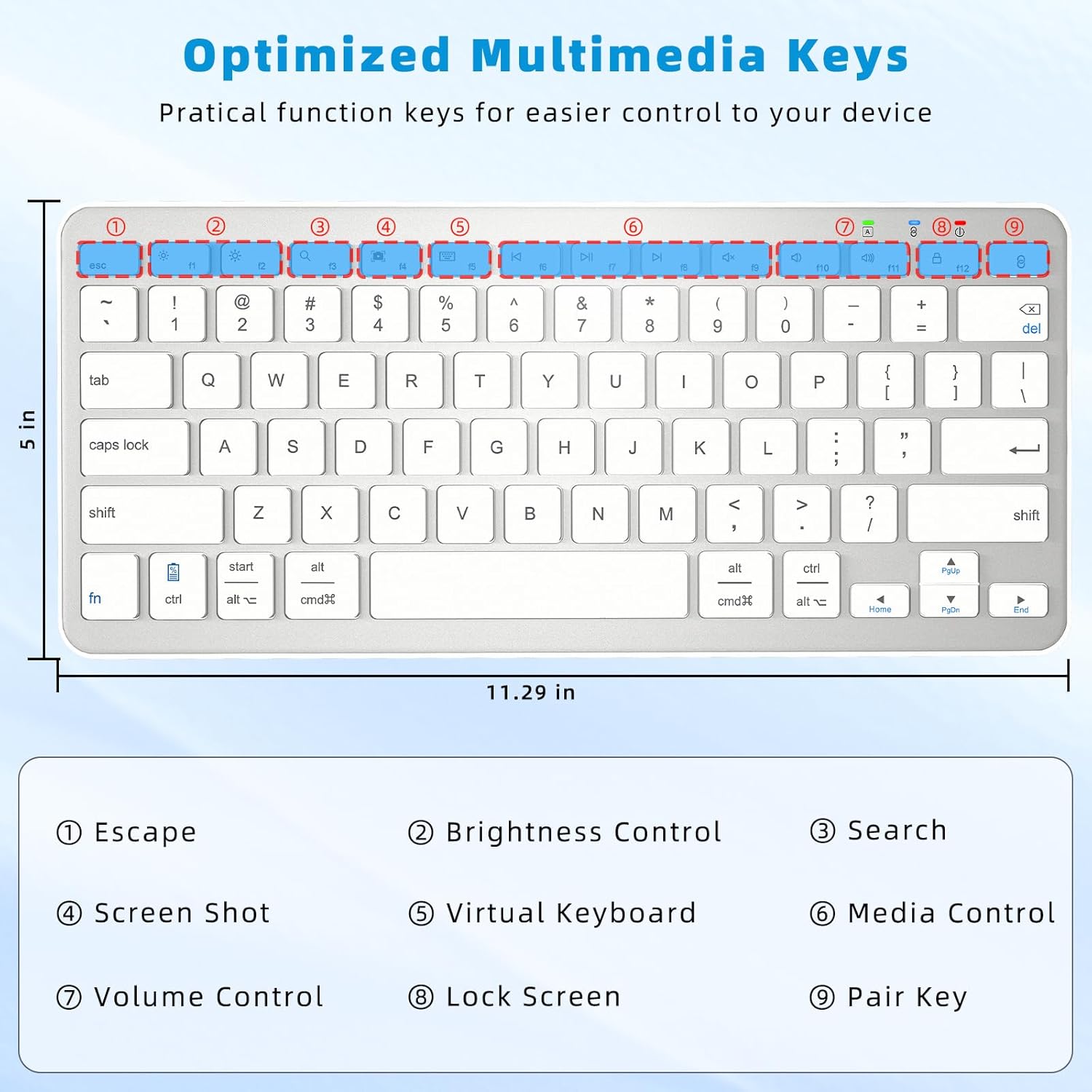
Image: A diagram highlighting the multimedia keys on the keyboard, including Escape, Brightness Control, Search, Screenshot, Virtual Keyboard, Media Control, Volume Control, Lock Screen, and Pair Key.
- Chape: Functions as an Escape key. Note: This is not a home screen function for iOS. For iOS, use Command + H to return to the home screen.
- Kontwòl klète: Ajiste klète ekran an.
- Rechèch: Ouvri fonksyon rechèch la.
- Ekran: Pran yon ekran (screenshot).
- Klavye vityèl: Aktive klavye vityèl sou ekran an.
- Kontwòl medya: Jwe/Pòz, Tras anvan, Tras apre.
- Kontwòl Volim: Silans, Diminye volim, Monte volim.
- Fèmen ekran: Bloke ekran aparèy la.
- Pair Key: Lanse mòd koneksyon Bluetooth la.
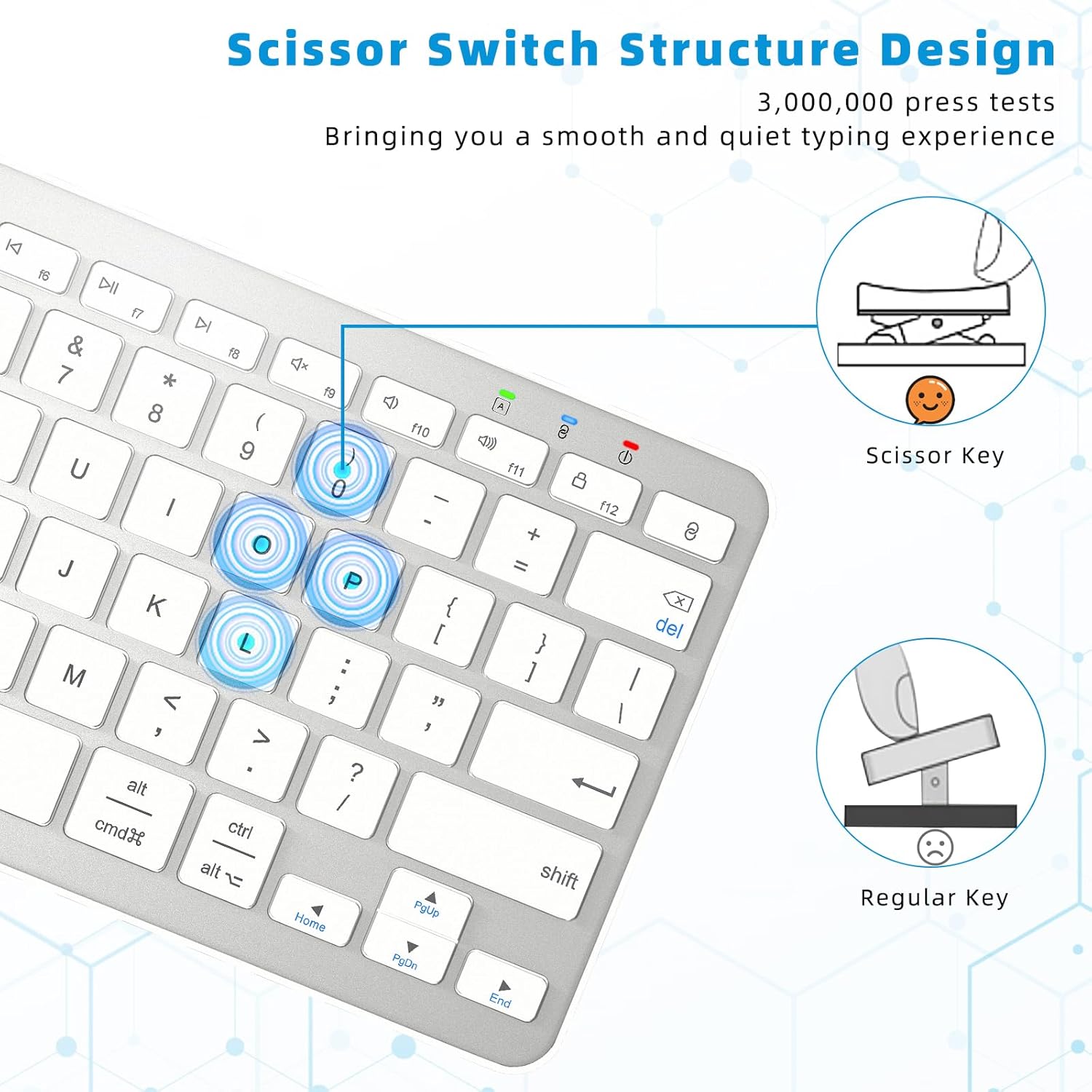
Image: A close-up diagram comparing the scissor-switch key structure, which provides a smooth and quiet typing experience, to a regular key mechanism.
5. Enstalasyon
5.1 Chaje klavye a
Before first use, or when the battery indicator light flashes red, charge the keyboard fully.
- Locate the USB Type-C charging port on the keyboard (typically on the top edge).
- Connect the provided USB-A to Type-C cable to the keyboard and a USB power source (e.g., computer USB port, USB wall adapter).
- Limyè endikatè chaj la ap limen pandan chaj la epi li ap etenn lè li fin chaje nèt.
- A full charge takes approximately 3-4 hours and provides over 100 hours of continuous use or about 150 days of standby time.
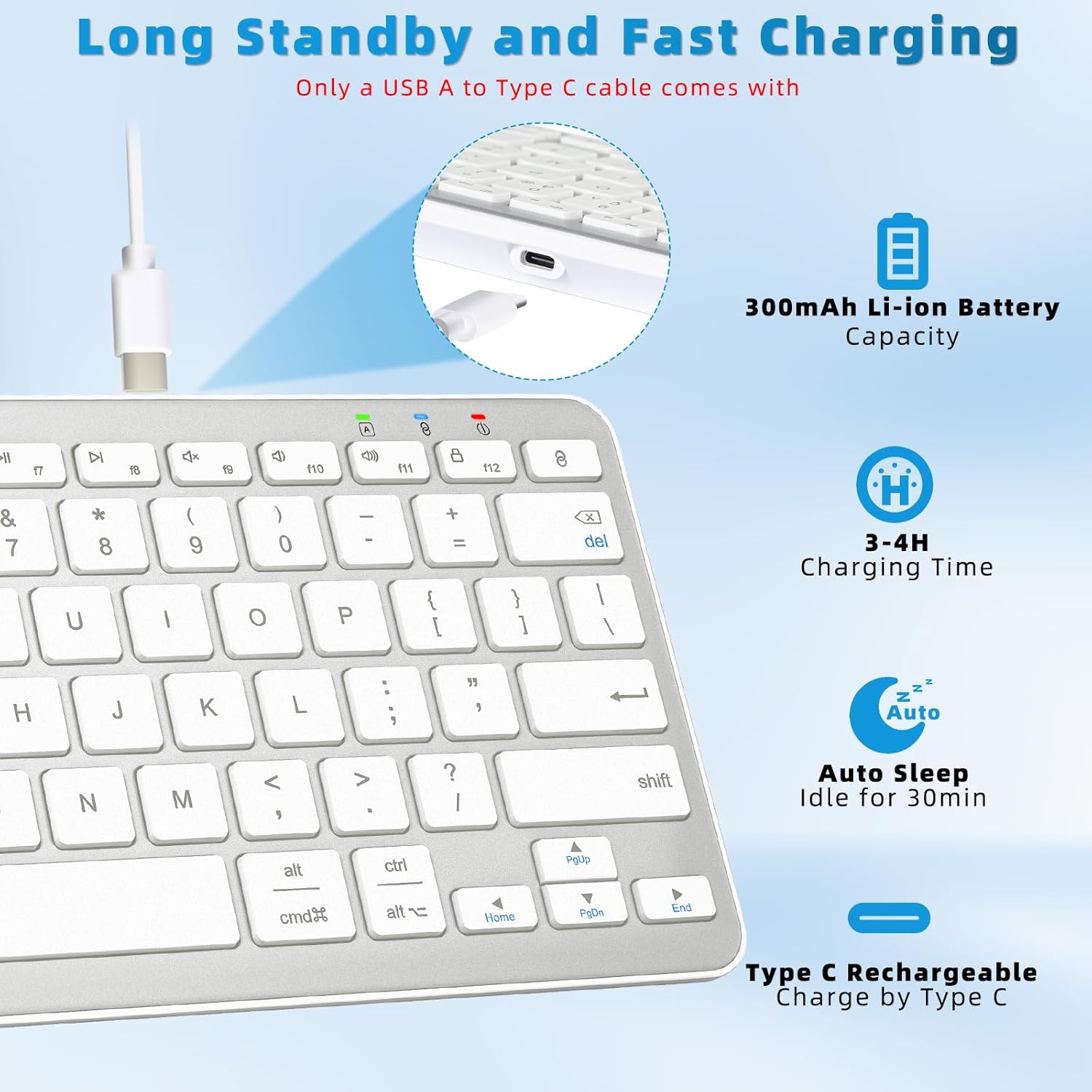
Image: A diagram illustrating the Type-C charging port, the 300mAh Li-ion battery capacity, 3-4 hour charging time, and 30-minute auto-sleep feature.
5.2 Bluetooth Pairing Instructions
Follow these steps to connect your keyboard to your device via Bluetooth:

Image: A visual guide demonstrating the four steps to connect the Qulose Bluetooth keyboard to a device.
- Pouvwa sou: Locate the ON/OFF switch on the back of the keyboard and slide it to the "ON" position. The power indicator light will briefly illuminate.
- Aktive mòd pè: Peze epi kenbe la Pè kle (usually marked with a Bluetooth symbol or '8' on the F-row) for 3 seconds. The Bluetooth indicator light will start flashing, indicating it's in pairing mode.
- Aktive Bluetooth sou aparèy ou an: On your device (iPad, phone, computer), go to Settings > Bluetooth and ensure Bluetooth is turned ON.
- Chwazi klavye: In the list of available Bluetooth devices, select "Qulose Keyboard" (or similar name). Your device will indicate when the pairing is successful.
Nòt: This wireless Bluetooth keyboard can only be connected to one device at a time. If your desktop computer/PC does not have Bluetooth functionality, an additional Bluetooth receiver (not included) is required.
6. Itilizasyon klavye a
6.1 Konpatibilite Sistèm
The keyboard automatically recognizes the operating system of the connected device (iOS, iPadOS, Android, Windows), so you do not need to manually select compatibility modes. This ensures optimal functionality across different platforms.
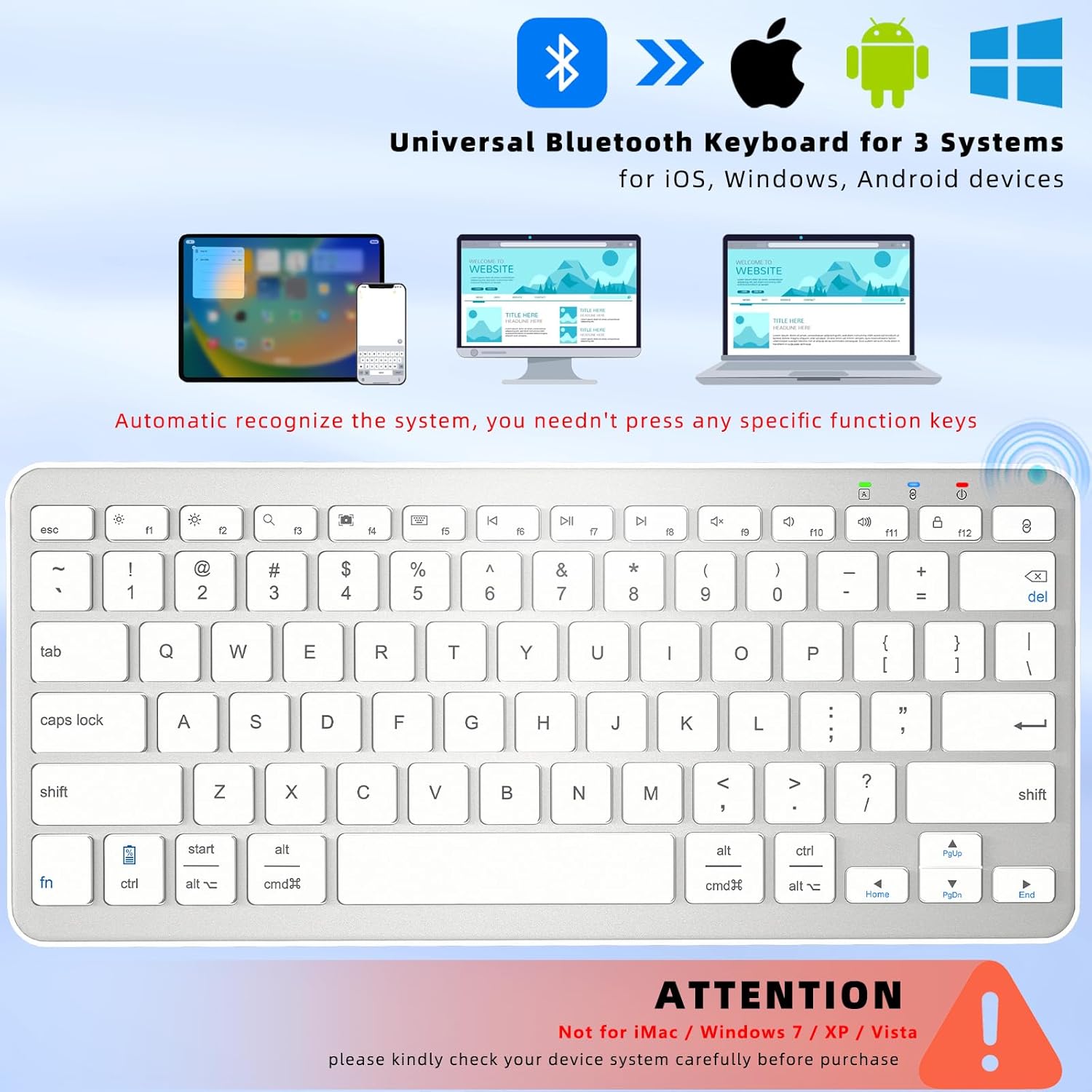
Image: A visual representation of the keyboard's universal compatibility with iOS, Android, and Windows operating systems, showing it can connect to iPads, smartphones, and laptops.
Nòt enpòtan: The keyboard is pa konpatib with iMac, Windows 7, Windows XP, or Windows Vista systems. Please verify your device's operating system before purchase.
6.2 Fonksyon Oto-Dòmi
To conserve battery life, the keyboard features an intelligent auto-sleep mode. If left inactive for 30 minutes, it will automatically enter sleep mode. To wake the keyboard, simply press any key and wait for 2-3 seconds for it to reconnect to your device.
7. Antretyen
7.1 Netwayaj
- Siye sifas klavye a dousman avèk yon twal mou ki pa gen pousyè.
- Pou pousyè tè ki difisil pou retire, yon ti kras dampht twal la ak dlo oswa yon pwodui netwayaj dou, ki pa abrazif.
- Pa flite pwodui netwayaj yo dirèkteman sou klavye a.
- Sèvi ak lè konprese pou retire debri ki ant kle yo.
7.2 Depo
- Sere klavye a nan yon kote ki fre epi sèk, lwen limyè solèy dirèk ak tanperati ekstrèm.
- If storing for an extended period, ensure the keyboard is fully charged before storage and recharge it every few months to maintain battery health.
NAN. Depanaj
Si ou rankontre pwoblèm ak klavye ou a, tanpri al gade pwoblèm ak solisyon komen sa yo:
| Pwoblèm | Kòz posib | Solisyon |
|---|---|---|
| Klavye a pa limen. | Batri ap vide. | Charge the keyboard for 3-4 hours. |
| Klavye a pa konekte via Bluetooth. | Bluetooth is off on device; keyboard not in pairing mode; device already connected to another keyboard; incompatible OS. | Ensure Bluetooth is ON on your device. Put keyboard in pairing mode (hold Pair Key for 3s). Disconnect other Bluetooth keyboards. Check OS compatibility (not compatible with Windows 7/XP/Vista, iMac). |
| Kle yo pa reponn oswa yo pa tape byen. | Low battery; connection issue; software glitch. | Recharge the keyboard. Re-pair the keyboard with your device. Restart your device. |
| Klavye a dekonekte souvan. | Low battery; too far from device; interference. | Recharge the keyboard. Ensure keyboard is within 33 feet (10m) of your device. Move away from other wireless devices that may cause interference. |
9. Espesifikasyon
| Karakteristik | Detay |
|---|---|
| Modèl | B0C9959R94 |
| Dimansyon | 11.29 x 5 x 0.77 pous (28.68 x 12.7 x 1.96 cm) |
| Pwa | 12 ons (340 gram) |
| Koneksyon Teknoloji | Bluetooth 5.0 |
| Range opere | Jiska 33 pye (10 mèt) |
| Kalite batri | Batri ityòm-ion rechargeable 300mAh entegre |
| Tan pou chaje | 3-4 èdtan |
| Tan operasyon | Apeprè. 100 èdtan (itilizasyon kontinyèl) |
| Tan sibstiti | Approx. 150 jou |
| Kalite kle | Sizo-switch |
| Kantite kle | 78 |
| Sistèm konpatib yo | iOS, iPadOS, Android, Windows (excluding Windows 7/XP/Vista, iMac) |
10. Garanti ak sipò
Qulose products are designed for reliability and performance. For specific warranty details, please refer to the warranty card included with your product packaging or visit the official Qulose website. If you require technical assistance or have questions not covered in this manual, please contact Qulose customer support through the following channels:
- Qulose Store on Amazon: Visit the Qulose Store
- Kesyon Jeneral: Refer to the contact information provided on your product packaging or the Qulose brand store for the most up-to-date support options.


