1. Entwodiksyon
This manual provides essential instructions for the safe and efficient use of your SONY VAIO Pro PK VJPK11 laptop. Please read this manual thoroughly before operating your device and retain it for future reference. It covers setup, operation, maintenance, and troubleshooting to ensure optimal performance and longevity of your laptop.
2. Pwodwi souview
The SONY VAIO Pro PK VJPK11 is a portable computing device designed for productivity and multimedia. Familiarize yourself with its components and features.

Figi 2.1: Devan view of the SONY VAIO Pro PK VJPK11 laptop. This image displays the laptop open, revealing the screen, keyboard, and touchpad. The VAIO logo is visible on the screen, and an Intel Core i5 sticker is on the palm rest.
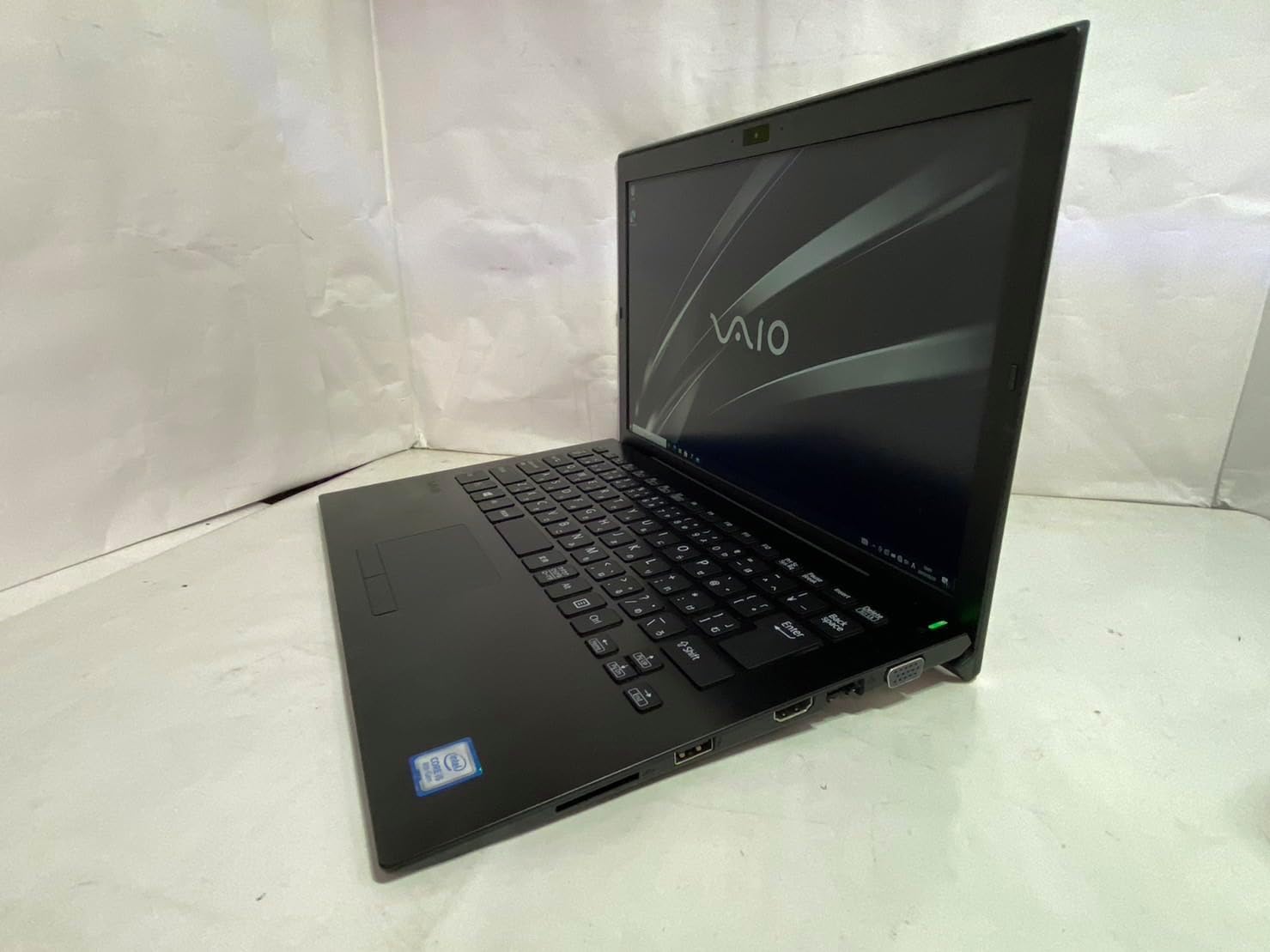
Figi 2.2: Bò gòch view of the SONY VAIO Pro PK VJPK11 laptop. This image shows the left side of the laptop, highlighting various ports such as USB, HDMI, and a VGA port, along with a ventilation grille.

Figi 2.3: Top view of the SONY VAIO Pro PK VJPK11 laptop with the lid closed. This image displays the sleek black finish of the laptop's lid, featuring the prominent silver VAIO logo in the center.
3. Enstalasyon
3.1 Debake
Carefully remove the laptop and all accessories from the packaging. Ensure all components are present:
- SONY VAIO Pro PK VJPK11 Laptop
- Adaptè AC ak fil elektrik
- Dokimantasyon (manyèl sa a, enfòmasyon sou garanti a)
3.2 Konekte sou pouvwa
- Konekte adaptè AC a nan pò antre kouran an sou laptop ou a.
- Branche kòd kouran an nan adaptè AC a.
- Mete kòd kouran an nan yon priz elektrik ki gen tè.
- Allow the battery to charge fully before initial use, or use the laptop while connected to power.
3.3 Initial Boot-Up and Windows Setup
Press the power button to turn on the laptop. Follow the on-screen instructions to complete the Windows 10 Pro setup process. This typically involves selecting your region, language, accepting license agreements, and creating a user account.
4. Operasyon Enstriksyon
4.1 Power On/Off
- Pou limen: Press the power button located on the laptop.
- Pou fèmen: Klike sou bouton Start la, answit sou Power, epi chwazi 'Shut down'.
- Pou rekòmanse: Click the Start button, then Power, and select 'Restart'.
- Pou dòmi: Click the Start button, then Power, and select 'Sleep', or close the laptop lid.
4.2 Klavye ak Touchpad
The laptop features a standard QWERTY keyboard and a multi-touch touchpad. Use the touchpad for cursor control and gestures. Refer to Windows settings for customizing touchpad sensitivity and gestures.
4.3 Konekte periferik
- Aparèy USB: Connect USB devices (e.g., mouse, external drive) to the available USB 3.0 ports.
- Ekspozisyon ekstèn: Use the HDMI or VGA port to connect an external monitor or projector. Press Kle Windows + P to manage display modes.
- Rezo filaire (LAN): Connect an Ethernet cable to the LAN port for a wired internet connection.
- Kat SD: Insert an SD card into the dedicated SD card slot for data transfer.
4.4 Sèvi ak Webcam and Bluetooth
- WebCam: Entegrasyon an webcam can be used for video calls and conferencing. Access it through applications like Camera or communication software.
- Bluetooth: Enable Bluetooth in Windows settings to connect wireless devices such as headphones, speakers, or mice.
5. Antretyen
5.1 Netwaye òdinatè pòtab la
Sèvi ak yon ti moso twal mou, ki san pèl dampened with water or a screen cleaner to clean the display and exterior surfaces. Avoid harsh chemicals or abrasive materials. Ensure the laptop is powered off and unplugged before cleaning.
5.2 Swen Batri
To prolong battery life, avoid extreme temperatures. If storing the laptop for an extended period, ensure the battery is charged to approximately 50%.
5.3 Mizajou lojisyèl
Regularly check for and install Windows updates and driver updates from the SONY support websit la pou asire estabilite ak sekirite sistèm nan.
5.4 Sovgad Done
Detanzantan, fè kopi done enpòtan ou yo sou yon disk ekstèn oswa yon depo nan nwaj la pou evite pèt done.
NAN. Depanaj
This section addresses common issues you might encounter with your SONY VAIO Pro PK VJPK11.
6.1 Pa gen pouvwa
- Ensure the AC adapter is securely connected to the laptop and a working power outlet.
- Verifye si priz kouran an fonksyone byen lè w branche yon lòt aparèy.
- Si batri a fin dechaje nèt, kite l chaje pou kèk minit anvan ou eseye limen l.
6.2 Pwoblèm ekspozisyon
- Si ekran an vid, eseye ajiste klète ekran an avèk kle fonksyon yo.
- If an external monitor is connected, ensure the correct display output mode is selected (Windows key + P).
- Rekòmanse laptop la.
6.3 Pwoblèm koneksyon Wi-Fi
- Asire w ke Wi-Fi a aktive nan paramèt Windows yo.
- Rekòmanse routeur ou ak modèm ou.
- Tcheke si lòt aparèy yo ka konekte sou menm rezo Wi-Fi a.
- Mete ajou chofè rezo san fil ou yo.
6.4 Laptop Running Slow
- Fèmen aplikasyon ki pa nesesè k ap fonksyone nan background nan.
- Tcheke Manadjè Tâch la pou pwosesis ki konsome anpil CPU oswa RAM.
- Fè yon pwogram netwayaj disk ak defragmantasyon (pou HDD, pa nesesè pou SSD).
- Asire w ke Windows ak chofè yo ajou.
7. Espesifikasyon
Key technical specifications for the SONY VAIO Pro PK VJPK11 laptop:
| Karakteristik | Spesifikasyon |
|---|---|
| Modèl | SONY VAIO Pro PK VJPK11 (VJPK11C11N) |
| Processeur | Intel Core i5-8250U (1.60GHz) |
| RAM | 8.00GB DDR3 SDRAM |
| Depo | 256GB SSD (SATA) |
| Ekspozisyon | 14.0-inch Wide (1920x1080 pixels) |
| Grafik | Intel Integrated Graphics |
| Sistèm operasyon | Windows 10 Pro 64bit |
| Pò | VGA, HDMI, USB 3.0, LAN, SD Card Slot |
| Koneksyon | LAN, Bluetooth |
| Webkam | Entegre Webkam |
8. Garanti ak sipò
For information regarding your product's warranty, please refer to the warranty card included with your purchase or visit the official SONY support website. For technical assistance, contact SONY customer support or your authorized dealer.
Sipò sou entènèt: https://www.sony.com/electronics/support


