1. Entwodiksyon
Thank you for choosing the Qulose Wireless Bluetooth Keyboard. This manual provides essential information for setting up, operating, and maintaining your new keyboard. Please read it carefully before use.
1.1 Pwodwi souview
This wireless keyboard is designed to enhance your Microsoft Surface Pro experience, transforming your tablet into a versatile laptop. It features a magnetic attachment, Bluetooth 5.1 connectivity, a precision trackpad, and a built-in pen holder.

Imaj: Anwo-anba view of the Qulose Wireless Bluetooth Keyboard, showcasing its full QWERTY layout and integrated trackpad.
1.2 Konpatibilite
This keyboard is compatible with the following Microsoft Surface Pro models:
- Surface Pro 11 (2024) 13"
- Surface Pro 10 (2024 new release) 13"
- Surface Pro 9 (2022) 13"
- Surface Pro 8 (2021) 13"
- Surface Pro X (2019-2021) 13"
Note: This Bluetooth keyboard is NOT compatible with Surface Go series or Surface Pro 7+/7/6/5/4/3 tablets.

Image: A visual chart detailing compatible and incompatible Microsoft Surface Pro models for the keyboard.
2. Ki sa ki nan bwat la
- Qulose Wireless Bluetooth Keyboard for Surface Pro
- Type-C Charging Cable (Charger not included)
- Manyèl itilizatè
3. Enstriksyon Enstalasyon
3.1 Chaje klavye a
Before initial use, fully charge the keyboard. Connect the provided Type-C charging cable to the keyboard's charging port and a suitable USB power source (e.g., computer USB port, USB wall adapter). The battery status indicator will show charging status.
- Kapasite batri: 180mAh Li-ion
- Tan pou chaje: Apeprè 3 èdtan
- Battery Life: Up to 6 months on a single charge (based on typical usage)
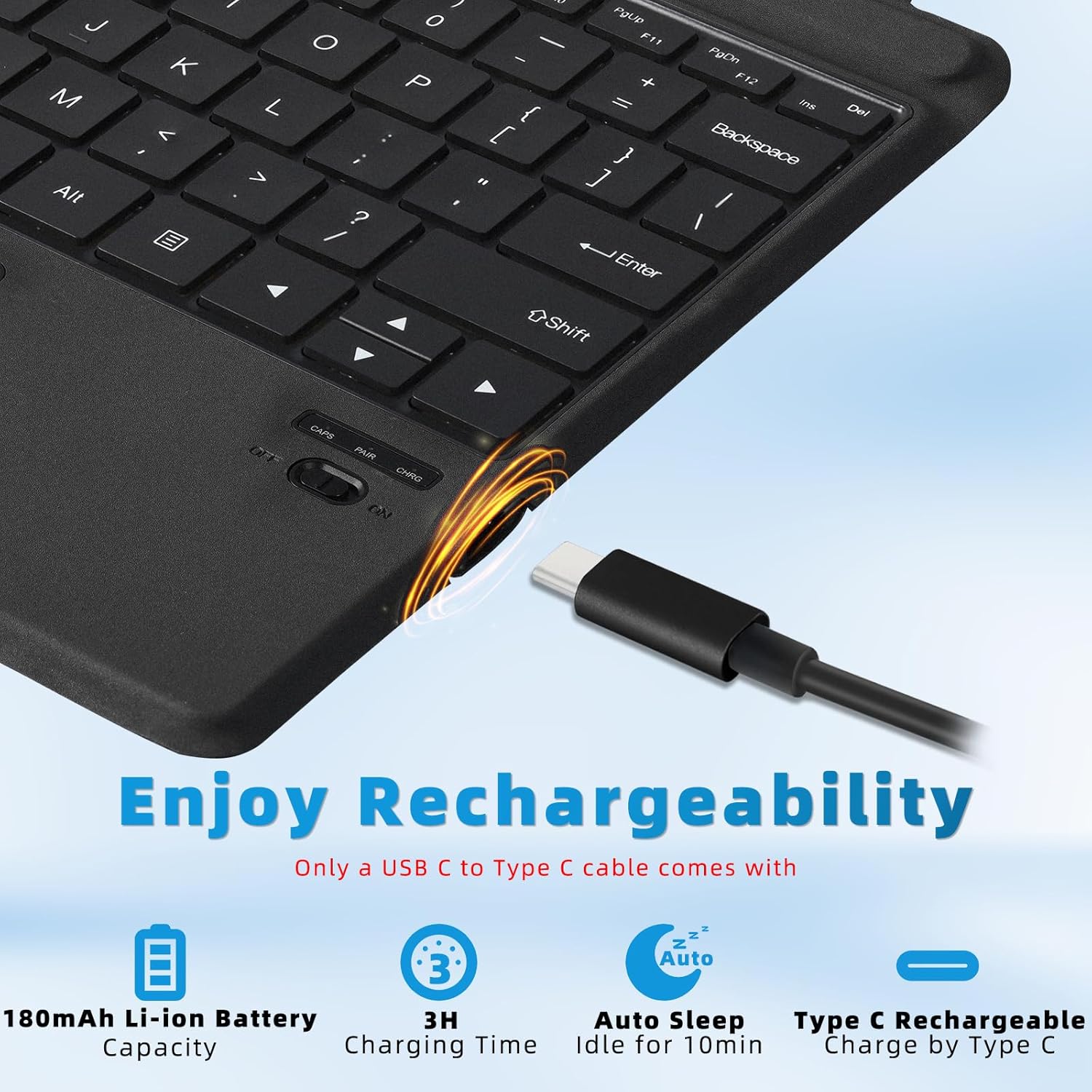
Imaj: Gwo plan view of the keyboard's Type-C charging port and battery indicators.
3.2 Attaching the Keyboard to your Surface Pro
The keyboard features a powerful magnetic attachment strip. Align the top edge of the keyboard with the magnetic connector on your Surface Pro. The keyboard will snap securely into place, transforming your device into a laptop-like setup.

Image: Illustration showing the magnetic attachment of the keyboard to a Surface Pro tablet, highlighting the strong magnetic connection.
3.3 Bluetooth Pairing
Follow these steps to pair your Qulose keyboard with your Surface Pro:
- Limen switch pouvwa a: Locate the power switch on the side of the keyboard and slide it to the 'ON' position.
- Activate Bluetooth Pairing: Press the "Fn" + "C" keys simultaneously on the keyboard to activate Bluetooth pairing mode. The Bluetooth LED indicator will start blinking.
- Enable Bluetooth on your Surface Pro: Sou Surface Pro ou a, ale nan Anviwònman > Bluetooth ak aparèy epi asire w ke Bluetooth la limen 'aktive'.
- Chwazi klavye a: In the list of available Bluetooth devices, select "Bluetooth Keyboard" to initiate pairing.
- Konfime Koneksyon: Once paired, the Bluetooth LED indicator on the keyboard will stop blinking and remain solid for a few seconds, then turn off. Your device will show "Connected".

Image: A four-step visual guide demonstrating how to connect the Qulose keyboard via Bluetooth, from turning on the power to selecting the device on the Surface Pro.
The keyboard uses Bluetooth 5.1 for a strong and stable connection, effective within a range of up to 33 feet (10 meters).
4. Operasyon
4.1 Keyboard Layout and Shortcut Keys
The keyboard features a full QWERTY layout with ergonomic scissors-switch keys for comfortable and fluid typing. It also includes a row of shortcut keys for quick access to various functions.
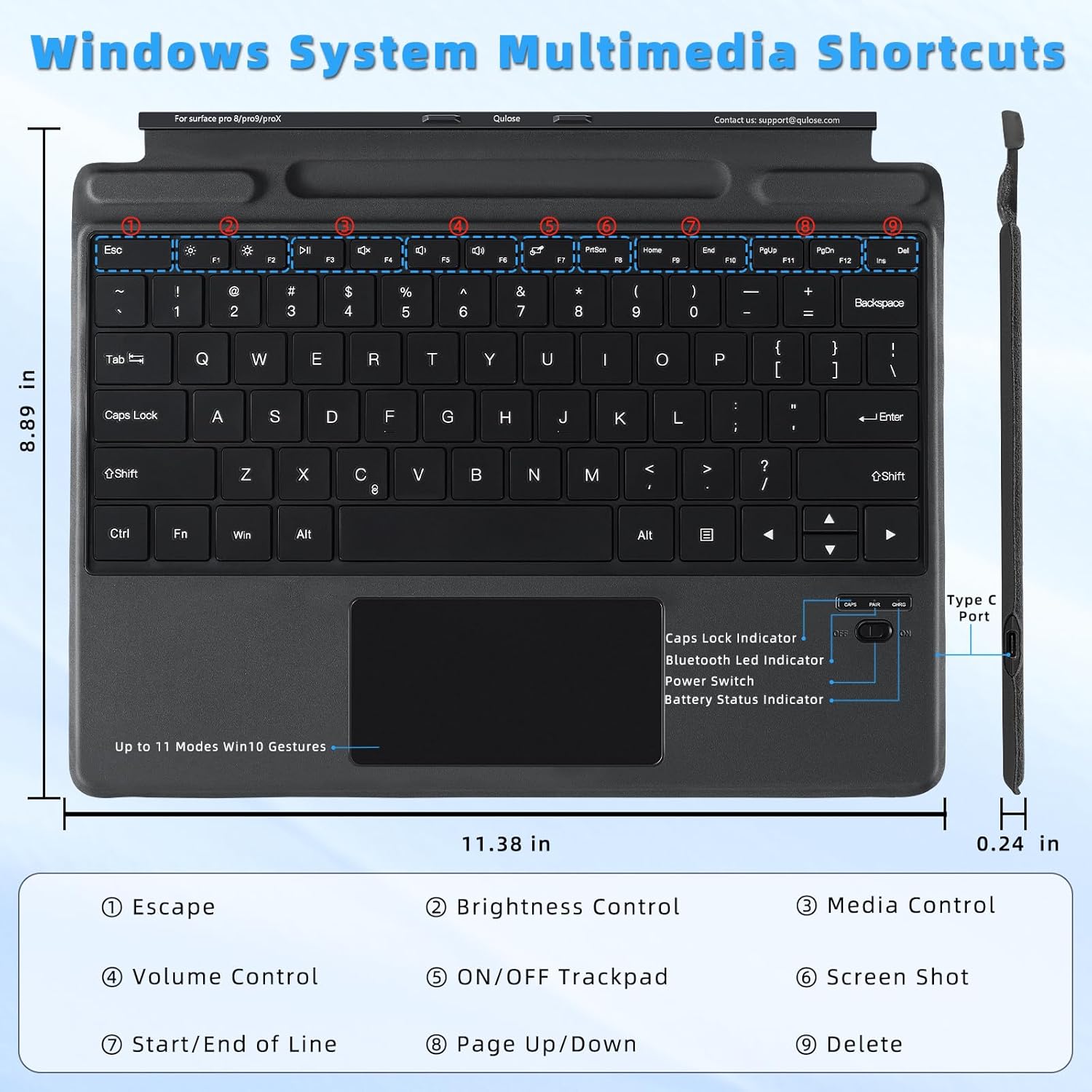
Image: Detailed diagram of the keyboard layout, highlighting the function keys and their corresponding actions such as brightness control, media control, and volume control.
Common shortcut functions include:
- Fn+F1: Chape anba
- Fn + F2/F3: Kontwòl klète
- Fn + F4/F5/F6: Media Control (Previous, Play/Pause, Next)
- Fn+F7: Trackpad ON/OFF
- Fn+F8: Piki ekran
- Fn + F9/F10: Start/End of Line
- Fn + F11/F12: Paj moute/desann
- Fn + Del: Efase
4.2 Fonksyonalite Trackpad la
The precision trackpad supports multi-touch gestures, allowing for intuitive navigation within Windows. You can customize these gestures in your Windows settings.

Image: A diagram illustrating various multi-point touchpad gestures for Windows, including drag, one-finger click, two-finger click, two-finger slide, three-finger click, and three-finger swipe.
To prevent accidental touches while typing, you can enable or disable the trackpad function by pressing "Fn" + "F7".

Image: An illustration showing how to press "Fn" + "F7" to lock or unlock the trackpad, preventing unintended input during typing.
4.3 Pòt plim
The keyboard includes a built-in pen holder for convenient storage of your stylus. This helps prevent loss and keeps your pen accessible.
Notice: The pen slot is for storage only and does not support charging. Pen is not included.

Imaj: Yon gwo plan view of the keyboard's integrated magnetic pen holder, designed for secure storage of a stylus.
4.4 reglabl Viewang yo
The Surface Pro's built-in kickstand, combined with the keyboard, allows for multiple viewing angles. Adjust the kickstand to find the most comfortable position for typing or viewkontni.

Image: Two illustrations demonstrating the ergonomic design of the keyboard and Surface Pro, showing flexible and stable adjustable viewang ing pou itilize konfòtab.
5. Antretyen
5.1 Netwayaj
To clean the keyboard, gently wipe the keys and trackpad with a soft, damp, lint-free cloth. Avoid using harsh chemicals or abrasive materials that could damage the surface.
5.2 Swen Batri
Pou pwolonje lavi batri:
- Evite dechaje batri a nèt souvan.
- Sere klavye a nan yon kote ki fre epi sèk lè w pa itilize li pou yon bon bout tan.
- Chaje klavye a regilyèman, menm si ou pa itilize li chak jou.
5.3 Jesyon pouvwa
The keyboard features an auto-sleep function to conserve energy:
- If the keyboard is not used for 10 minutes, it will enter sleep mode.
- To reactivate, press any key.
- The keyboard will automatically switch off when your connected Surface Pro is turned off.
NAN. Depanaj
6.1 Klavye a pa konekte via Bluetooth
- Asire w klavye a chaje epi li limen.
- Verifye si Bluetooth la aktive sou Surface Pro ou a.
- Press "Fn" + "C" on the keyboard to re-enter pairing mode.
- Remove any previous "Bluetooth Keyboard" entries from your Surface Pro's Bluetooth device list and attempt to pair again.
- Ensure the keyboard is within the 33-foot (10-meter) operating range.
6.2 Trackpad Not Responding
- Press "Fn" + "F7" to ensure the trackpad is not locked.
- Restart the keyboard by turning it off and then on again.
- Check your Surface Pro's Windows settings for trackpad configurations.
6.3 Keys Not Responding or Lagging
- Ensure the keyboard is fully charged. Low battery can affect performance.
- Check for any obstructions under the keys.
- Reconnect the Bluetooth connection by turning the keyboard off and on, and re-pairing if necessary.
- Ensure there are no other devices causing Bluetooth interference nearby.
7. Espesifikasyon
| Karakteristik | Detay |
|---|---|
| Dimansyon pwodwi | 13.8"L x 9.78"W x 0.7"H (35.05 x 24.84 x 1.78 cm) |
| Pwa atik | 1.3 liv (0.59 kg) |
| Koneksyon Teknoloji | Bluetooth 5.1 |
| Deskripsyon klavye | San fil |
| Batri | 180mAh Lityòm Ion (enkli) |
| Port chaje | Kalite-C |
| Materyèl | Plastik |
| Koulè | Nwa |
| Karakteristik espesyal | Bluetooth keyboard with touchpad, Magnetic detachable, Rechargeable, Ergonomic design, Pen holder |
| Aparèy konpatib | Microsoft Surface Pro 11/10/9/8/X |
8. Garanti ak sipò
8.1 Enfòmasyon sou Garanti
Please refer to the product packaging or the Qulose official websit pou detay espesifik garanti ak tèm.
8.2 Sipò pou Kliyan
For any questions, technical assistance, or support needs, please contact Qulose customer service:
- Imèl: support@qulose.com
- Sou entènèt: Vizite la Qulose Store on Amazon pou plis enfòmasyon ak resous sipò.


