1. Entwodiksyon
This manual provides detailed instructions for the setup, operation, maintenance, and troubleshooting of your Tera HW0009 Wireless Barcode Scanner. Please read this manual thoroughly before using the device to ensure optimal performance and longevity.

Figure 1: Tera HW0009 Barcode Scanner with Charging Cradle.
2. Pake kontni
Verifye ke tout atik yo prezan nan pakè a:
- Barcode Scanner x1
- Charging Cradle x1
- Chaje kab x1
- Manyèl itilizatè x1

Figure 2: Included components: Barcode Scanner, Charging Cradle, USB Cable, and User Manual.
3. Enstalasyon
3.1 Chaje Aparèy la
Before first use, fully charge the barcode scanner.
- Connect the charging cable to the charging cradle.
- Plug the other end of the charging cable into a USB power source (e.g., computer, USB wall adapter).
- Place the barcode scanner into the charging cradle. The scanner's screen will indicate charging status.
The scanner features a 2500mAh battery, providing extended operation. The charging cradle allows for convenient charging when the scanner is not in use.

Figure 3: Barcode scanner placed in its charging cradle.
3.2 Mòd Koneksyon
The Tera HW0009 supports three connection methods: Bluetooth, 2.4G Wireless, and USB Wired.

Figure 4: The scanner supports Bluetooth, 2.4G Wireless, and USB Wired connections.
3.2.1 Bluetooth Koneksyon
Pou konekte via Bluetooth:
- Pouvwa sou scanner la.
- Navigate to the "Connection" setting on the scanner's screen using the keypad.
- Select "Bluetooth" (HID, SPP, or BLE depending on your device's compatibility).
- On your host device (smartphone, tablet, computer), enable Bluetooth and search for available devices.
- Select "Tera HW0009" from the list to pair.
The scanner is compatible with Windows, Mac OS, iOS, Android, and Linux operating systems.
Koneksyon san fil 3.2.2 2.4G
Pou konekte via 2.4G san fil:
- Insert the 2.4G USB dongle into an available USB port on your computer or POS system.
- Pouvwa sou scanner la.
- Navigate to the "Connection" setting on the scanner's screen using the keypad.
- Select "2.4G Wireless". The scanner should automatically connect to the dongle.
The 2.4G wireless connection offers a transmission distance of up to 328ft in barrier-free environments and 114ft in environments with obstacles.
3.2.3 USB Wired Connection
To connect via USB wired mode:
- Connect the charging cable directly from the scanner to a USB port on your computer.
- The scanner will function as a wired device and also charge simultaneously.
3.3 Anviwònman Lang
The Tera HW0009 supports multiple keyboard languages. To change the language:
- Press the "Up" and "Down" buttons simultaneously to access the main menu.
- Navigate to "Language" using the Up/Down buttons.
- Press "Confirm" to enter the language selection.
- Select your desired language (e.g., English, Italiano, Deutsch, Español, Français, 日本語, 中文) and press "Confirm".
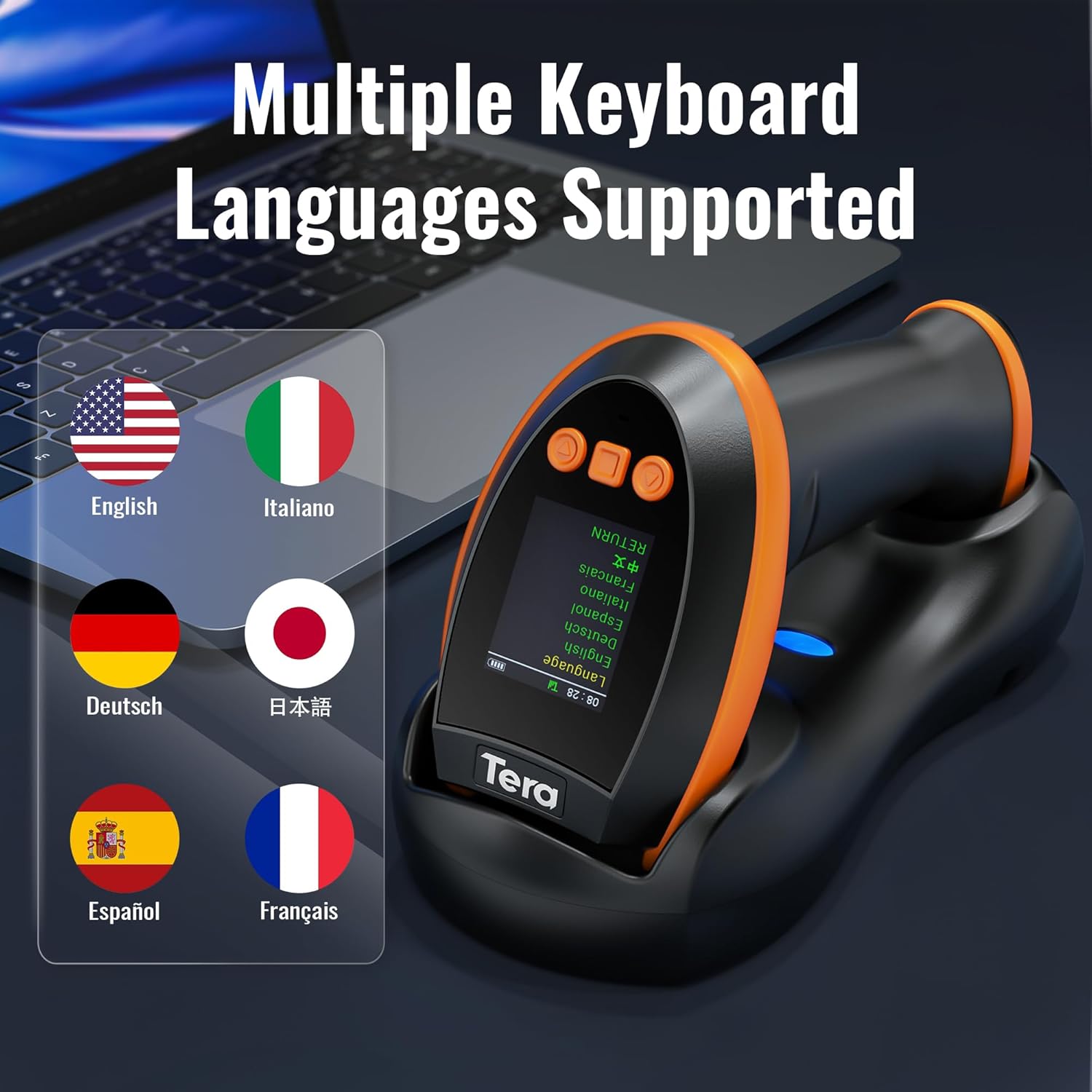
Figure 5: The scanner supports various keyboard languages for output.
4. Operasyon Enstriksyon
4.1 Eskane debaz
The Tera HW0009 is capable of reading 1D, 2D, and QR codes from various surfaces, including paper, screens, reflective materials, and even underwater.
- Dirije fenèt eskanè a sou kòd bar ou vle eskane a.
- Press the trigger button. A red aiming beam will appear.
- Ensure the aiming beam covers the entire barcode.
- A successful scan will be indicated by an audible beep (if enabled), vibration (if enabled), and the scanned data appearing on the screen.

Figure 6: The scanner can read 1D and 2D barcodes from both paper and digital screens.

Figure 7: The scanner's advanced CMOS imaging engine reads various barcode types, including damaged and colorful ones (e.g., barcode 9188084715148).
4.2 Screen Display Features
The integrated screen provides real-time information and allows for direct configuration.
- Estati Koneksyon: Indicates the current connection mode (Bluetooth, 2.4G, USB).
- Tan: Montre tan aktyèl la.
- Nivo batri: Montre chaj batri ki rete a.
- Browse Scans: Pèmèt reviewing previously scanned barcodes.
- Stored/Total Barcodes: Shows the count of stored barcodes and the total number of scans.
Use the "Up", "Down", and "Confirm" buttons on the keypad to navigate through the screen menus and settings.

Figi 8: Plis paseview of the scanner's display features and keypad controls.
4.3 Volume and Vibration Settings
You can adjust the scanner's feedback settings directly from the screen.
- Press the "Up" and "Down" buttons simultaneously to access the main menu.
- Navigate to "Sounds" using the Up/Down buttons.
- Press "Confirm" to enter the sound settings.
- Adjust volume (Mute, Low, Middle, High) and enable/disable vibration as desired.

Figure 9: Options for adjusting scanner volume and vibration feedback.
4.4 Data Upload Modes
The scanner supports two data upload modes:
- Mòd telechaje enstantane: Scanned barcodes are immediately transmitted to the connected host device.
- Depo Mode: Scanned barcodes are stored in the scanner's internal memory. Data can be uploaded later as a batch. This is useful for inventory tasks where real-time connection is not always available.
Refer to the full user manual for instructions on switching between modes and uploading stored data.

Figure 10: The scanner offers both instant and storage upload modes.
4.5 Adding Prefix/Suffix
The scanner can be programmed to add custom prefixes or suffixes to scanned data. This feature is useful for data organization and integration with specific software.
- Prefiks: Characters added before the scanned barcode data.
- Sifiks: Characters added after the scanned barcode data. Common suffixes include Tab or Enter for automatic field progression.
Configuration of prefixes and suffixes is done by scanning specific programming barcodes found in the comprehensive user manual.

Figi 11: Egzample of adding a prefix to scanned barcode data.

Figi 12: Egzample of adding a suffix to scanned barcode data.

Figi 13: Egzamples of adding Tab or Enter as suffixes for automated input.
4.6 Date & Time as Prefix or Suffix
The scanner can embed the current date and time with scanned data, either as a prefix or a suffix. This is useful for timestamping inventory or tracking.
To set the date and time, you may need to scan specific configuration barcodes or use a dedicated tool provided by Tera support, as noted in some user feedback.

Figi 14: Egzamples of date and time being added as a prefix or suffix to scanned data.
5. Antretyen
5.1 Swen Batri
- Charge the scanner regularly, especially when not in use for extended periods.
- Avoid completely draining the battery frequently, as this can reduce its lifespan.
- Sere eskanè a nan yon kote ki fre epi sèk lè w pa ap itilize li.
5.2 Netwayaj
- Use a soft, dry, lint-free cloth to clean the scanner's exterior.
- For the scanning window, use a lens cleaning cloth and a mild cleaning solution if necessary. Avoid abrasive materials.
- Do not immerse the scanner in liquids.
5.3 Depo
When storing the scanner for a long time, ensure it is partially charged (around 50%) and kept in a cool, dry environment away from direct sunlight and extreme temperatures.
NAN. Depanaj
- Eskanè a pa limen: Ensure the battery is charged. Connect to the charging cradle and check for charging indicators.
- Scanner not connecting to host device:
- Verify the correct connection mode (Bluetooth, 2.4G, USB) is selected on the scanner and host device.
- For Bluetooth, ensure the scanner is in pairing mode and discoverable.
- For 2.4G, ensure the USB dongle is properly inserted and recognized by the host device.
- Try restarting both the scanner and the host device.
- Eskanè a pa li kòd bar yo:
- Asire w ke kòd bar la pwòp, li pa domaje, epi li byen limen.
- Check the distance and angle between the scanner and the barcode.
- Verify that the barcode type is supported by the scanner (refer to specifications).
- Clean the scanning window for any obstructions.
- Settings lost after battery drain: If the battery completely drains, some settings might revert to default. Refer to the user manual for programming barcodes to reconfigure settings like continuous scan, read speed, and sleep mode.
- Incorrect date/time: If the date and time are incorrect, contact Tera support for specific instructions or tools to synchronize the time.
7. Espesifikasyon
| Karakteristik | Detay |
|---|---|
| Nimewo Modèl | HW0009 |
| Dimansyon pwodwi | 3.5"D x 4.7"W x 7.4"H |
| Pwa atik | 1.57 liv |
| Koneksyon Teknoloji | 2.4G Wireless, Bluetooth, USB Kab |
| Aparèy konpatib | Odinatè, Laptop, Telefòn entelijan, Tablèt |
| Sous pouvwa | Mache ak pil (2500mAh) |
| Manifakti | Tera |
| Supported Barcodes (2D) | QR code, Data Matrix, PDF417 (including on driver’s license), Aztec, Maxicode, Micro QR, Micro PDF417 |
| Supported Barcodes (1D) | UPC/EAN, Code 128/EAN128, GS1-128, ISBT-128, Standard 2 of 5, Matrix 2 of 5, Code 39, Code 32, Code 93, Code 11, Codabar, PLESSEY, MSI, GSI Databar, ITF-14, GS1 |
8. Garanti ak sipò
Your Tera HW0009 Barcode Scanner is covered by a manufacturer's warranty. For specific warranty details, please refer to the warranty card included in your package or visit the official Tera websit.
For technical support, troubleshooting assistance, or any questions regarding your product, please contact Tera customer service through their official channels. Contact information can typically be found on the manufacturer's websit oswa nan anbalaj pwodwi a.


