1. Entwodiksyon
The HP Smart Tank 5106 is a versatile multifunction inkjet printer designed for efficient printing, scanning, and copying. This printer features an integrated ink tank system for high-volume, low-cost printing. It supports wireless connectivity, allowing for convenient printing from various devices. This manual provides essential information for setting up, operating, maintaining, and troubleshooting your HP Smart Tank 5106 printer.
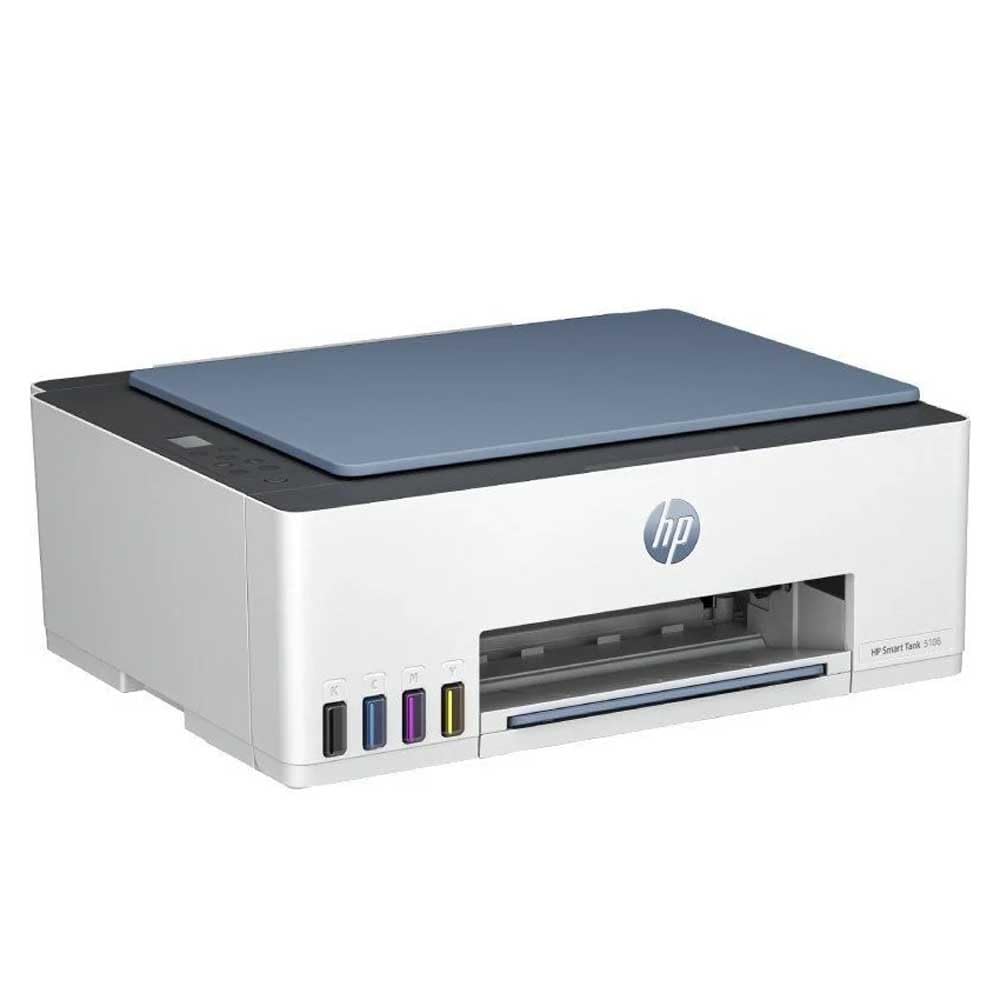
Figi 1: Devan view of the HP Smart Tank 5106 Multifunction Printer. This image shows the printer's overall design, including the output tray and the HP logo.
2. Enstalasyon
2.1 Debalaj enprimant lan
- Retire enprimant lan nan anbalaj li yo.
- Retire tout tep pwoteksyon ak materyèl anbalaj ki sou deyò ak anndan enprimant lan. Gade gid demaraj rapid la pou kote espesifik yo.
- Mete enprimant lan sou yon sifas ki plat e ki estab.
2.2 Ranpli tank lank yo
The HP Smart Tank 5106 uses an integrated ink tank system. Follow these steps to fill the ink tanks:
- Open the ink tank cover located on the left side of the printer.
- Open the cap of the ink tank you wish to fill (Black, Cyan, Magenta, Yellow).
- Uncap the corresponding HP ink bottle and invert it over the tank's nozzle. The ink will flow automatically into the tank. Do not squeeze the bottle.
- Once the tank is full, remove the bottle and close the tank cap securely.
- Repeat for all other ink tanks.
- Fèmen kouvèti tank lank la.
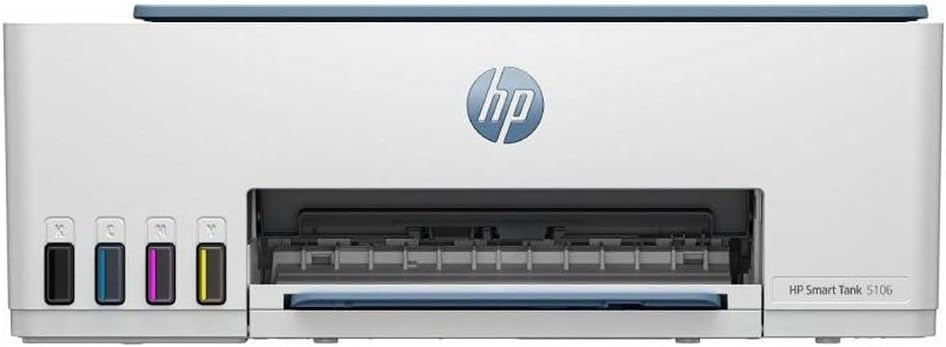
Figi 2: Devan view of the HP Smart Tank 5106, highlighting the visible ink tanks on the left side for easy monitoring and refilling.
2.3 Connecting Power and Initial Power On
- Connect the power cord to the printer's power port and then to an electrical outlet.
- Peze bouton Pouvwa a pou limen enprimant lan.
- Follow the on-screen instructions on the printer's control panel for initial setup, including language selection and print head alignment.

Figi 3: Dèyè view of the HP Smart Tank 5106, showing the power input and USB port for connectivity.
2.4 Software Installation and Network Connection
- Telechaje la Aplikasyon HP Smart from your device's app store (iOS, Android) or from hpsmart.com for Windows/macOS.
- Open the HP Smart app and follow the prompts to add your printer.
- Select your Wi-Fi network and enter the password when prompted to connect the printer to your wireless network.
- Alternatively, connect the printer to your computer using a USB cable for a wired connection.
3. Operasyon Enstriksyon
3.1 Chaje Papye
- Pull out the input tray and extend the paper guides.
- Load a stack of plain white paper into the input tray with the print side facing down.
- Adjust the paper guides until they rest gently against the edges of the paper stack.
- Pouse plato antre a tounen nan enprimant lan.
3.2 Enprime Dokiman
- Sou òdinatè w oswa aparèy mobil ou, ouvri dokiman an oswa imaj ou vle enprime a.
- Chwazi la Enprime option (usually found under File menu or by pressing Ctrl+P/Cmd+P).
- Choose your HP Smart Tank 5106 printer from the list of available printers.
- Adjust print settings such as paper size, print quality, and number of copies. For duplex printing, select the two-sided printing option if available in your print dialog.
- Klike sou Enprime.
3.3 Kopi Dokiman
- Mete dokiman an fas anba sou vit eskanè a, aliyen l avèk gid la.
- Fèmen kouvèti eskanè a.
- Sou panèl kontwòl enprimant lan, chwazi Kopi opsyon.
- Choose the number of copies and whether you want a color or black-and-white copy.
- Peze a Kòmanse Kopi bouton.
3.4 Eskane Dokiman
- Mete dokiman an fas anba sou vit eskanè a.
- Fèmen kouvèti eskanè a.
- Open the HP Smart app on your computer or mobile device.
- Chwazi la Eskane opsyon.
- Adjust scan settings such as resolution, color mode, and destination folder.
- Klike sou Eskane to begin the process. The scanned document will be saved to your specified location.
4. Antretyen
4.1 Monitoring and Refilling Ink Levels
Regularly check the ink levels through the transparent ink tanks on the front of the printer or via the HP Smart app. Refill ink tanks as described in Section 2.2 when levels are low to prevent print quality issues.
4.2 Cleaning Print Heads
If you notice streaky or faded prints, the print heads may need cleaning. This can be done through the printer's control panel or the HP Smart app. Refer to the app's maintenance section for detailed instructions.
4.3 Cleaning the Printer Exterior and Scanner Glass
- Siye deyò enprimant lan avèk yon twal mou ki pa gen pousyè.
- Pou vit eskanè a, sèvi ak yon twal mou ki siye yon ti kras.ampnetwaye ak pwodui netwayaj pou vit. Evite flite pwodui netwayaj la dirèkteman sou vit la.
4.4 Mizajou Firmware
Ensure your printer's firmware is up to date for optimal performance and security. Firmware updates can be managed through the HP Smart app.
NAN. Depanaj
5.1 Pwoblèm komen ak solisyon
- Enprimant lan pa reponn: Check power connections, ensure the printer is turned on, and verify network connectivity (Wi-Fi or USB). Restart both the printer and your computer/router.
- Konfiti papye: Carefully open all access doors and remove any jammed paper. Ensure paper is loaded correctly and not overfilled.
- Kalite enprime pòv: Perform print head cleaning and alignment through the HP Smart app or printer control panel. Check ink levels and refill if necessary. Use appropriate paper type and quality settings.
- Pwoblèm koneksyon: Ensure your printer and device are on the same Wi-Fi network. Restart your router. If using USB, try a different port or cable.
5.2 Mesaj erè
If an error message appears on the printer's display or in the HP Smart app, consult the HP support website or the app's help section for specific troubleshooting steps related to that error code.
5.3 Resetting the Printer
In some cases, a factory reset may resolve persistent issues. Refer to the HP support documentation for your specific model for instructions on how to perform a factory reset, as this can vary and may clear network settings.
6. Espesifikasyon
| Karakteristik | Spesifikasyon |
|---|---|
| Non modèl | Smart tank 5106 |
| Dimansyon pwodwi | 50.3D x 125.7W x 121.4H santimèt |
| Pwa | 7.01 Kilogram |
| Koneksyon Teknoloji | USB, Wi-Fi |
| Teknoloji Enpresyon | Ankr |
| Karakteristik espesyal | Touchscreen |
| Vitès Enpresyon Maksimòm (Koulè) | 15 paj pa minit |
| Vitès Enpresyon Maksimòm (Monochrome) | 16 paj pa minit |
| Vitès Kopi Maksimòm (Monochrome) | 16 paj pa minit |
| Kapasite maksimòm fèy | 100 |
| Duplex Enpresyon | Wi |
| Max Media Size | Legal (216 x 356 mm) |
| Kalite eskanè | Flatbed |
| Rezolisyon Maksimòm Enpresyon Koulè | 600 dpi |
| Rezolisyon Maksimòm Enpresyon Nwa ak Blan | 1200 x 1200 dpi |
| Aparèy konpatib | Computers, Laptops, Tablets, Smartphones |
7. Garanti ak sipò
7.1 Pwodwi Garanti
Your HP Smart Tank 5106 printer comes with a standard manufacturer's warranty. Please refer to the warranty card included in your product packaging or visit the official HP website for detailed information regarding warranty terms, conditions, and duration in your region.
7.2 Sipò teknik
For technical assistance, troubleshooting beyond this manual, or to order replacement parts and supplies, please contact HP Customer Support. You can find contact information and online resources on the official HP support websit:
- Sipò HP Websit: support.hp.com
- Aplikasyon HP Smart: The app provides access to troubleshooting tools, support articles, and direct contact options.
When contacting support, please have your printer's model number (Smart Tank 5106) and serial number ready. The serial number is typically located on a label on the back or bottom of the printer.