1. Entwodiksyon
This manual provides comprehensive instructions for the setup, operation, and maintenance of your Tibuta 15.6 Inch WiFi Digital Photo Frame. Please read this manual thoroughly before using the device to ensure proper functionality and to maximize your user experience.

Image 1.1: Tibuta 15.6 Inch WiFi Digital Photo Frame in use, showing its touchscreen capabilities and companion app integration.
2. Enfòmasyon sou Sekirite
Obsève prekosyon sekirite sa yo pou evite domaj nan aparèy la oswa blesi pèsonèl:
- Pa ekspoze aparèy la nan dlo oswa imidite twòp.
- Evite mete aparèy la toupre sous chalè oswa anba limyè solèy dirèk pou yon bon bout tan.
- Itilize sèlman adaptè pouvwa yo bay la.
- Pa eseye demonte oswa repare aparèy la tèt ou. Kontakte sipò kliyan pou asistans.
- Kenbe aparèy la lwen timoun ak bèt kay.
3. Pake kontni
Verifye ke tout atik yo prezan nan pakè a:
- Tibuta 15.6 Inch WiFi Digital Photo Frame
- Adaptè pouvwa
- Manyèl Itilizatè (dokiman sa a)
- Kanpe
4. Pwodwi souview
Familiarize yourself with the components of your digital photo frame.
4.1 Devan View

Imaj 4.1: Devan view and key features of the Tibuta 15.6 Inch Digital Photo Frame.
- 15.6 Inch HD Touch Screen: High-definition display with 1280x800 resolution and IPS technology for wide viewang ing.
- Entèfas tactile: Allows for direct interaction with the frame's menus and settings.
4.2 Dèyè View ak Pò yo

Imaj 4.2: Dèyè view of the Tibuta Digital Photo Frame with labeled ports and features.
- Pouvwa switch: Limen oswa etenn aparèy la.
- Mi monte: Pwen montaj pou enstalasyon sou miray la.
- Amplifiers: Oratè entegre pou lekti odyo.
- Mikwo SD kat plas: Supports Micro SD cards up to 128GB for expanded storage.
- Jack kas ekoutè: Pou konekte aparèy odyo ekstèn.
- Type-A USB Port: For connecting USB drives or other peripherals.
- Mini USB pò: For data transfer (if applicable).
- DC pouvwa pò: Konekte ak adaptè pouvwa a.
- Kanpe: Attachable stand for desktop placement.
5. Enstalasyon
5.1 Premye pouvwa sou
- Attach the stand to the back of the photo frame for stable placement on a flat surface.
- Connect the power adapter to the DC Power Port on the back of the frame.
- Ploge adaptè pouvwa a nan yon priz miray.
- Press the Power Switch to turn on the device.
- Follow the on-screen prompts to select your language, time zone, and connect to a Wi-Fi network.
5.2 Konekte ak Wi-Fi
- From the main menu, navigate to "Settings" and then "Wi-Fi".
- Chwazi rezo Wi-Fi ou vle a nan lis la.
- Antre modpas Wi-Fi a avèk klavye ki sou ekran an.
- Tap "Connect". Once connected, a Wi-Fi icon will appear on the screen.
5.3 Enstale Aplikasyon Konpayon an
To share photos and videos remotely, download the dedicated companion app.

Image 5.1: Download the Uhale App from Google Play or the App Store.
- On your smartphone or tablet, open the Google Play Store (pou aparèy Android) oubyen Apple App Store (pou aparèy iOS).
- Chèche pou "Uhale App" (or the specified app name in your frame's instructions).
- Telechaje epi enstale aplikasyon an.
- Follow the in-app instructions to pair your device with the digital photo frame. This typically involves entering a unique code displayed on your photo frame.
6. Operasyon Enstriksyon
6.1 Sharing Photos and Videos via App
Once the frame is connected to Wi-Fi and paired with the app:
- Louvri aplikasyon konpayon an sou smartphone ou.
- Select the photos or videos you wish to share.
- Tape bouton "Voye" oswa "Pataje" nan aplikasyon an.
- The selected media will be transferred to your digital photo frame and displayed.
The frame supports various display modes, including timing, zooming, and cropping, which can often be adjusted via the app or directly on the frame's settings.
6.2 Using External Storage (Micro SD Card)
The frame has 16GB of built-in storage and supports Micro SD cards up to 128GB.
- Insert a Micro SD card into the designated slot on the back of the frame.
- The frame will automatically detect the card.
- Navigate to the "Gallery" or "Files" section on the frame to access content from the Micro SD card.
- Ou ka kopye files from the Micro SD card to the internal storage or play them directly.
6.3 Automatic Rotation (Gravity Sensing)
The frame features gravity sensing for automatic rotation, adjusting the display orientation based on how the frame is positioned (landscape or portrait).
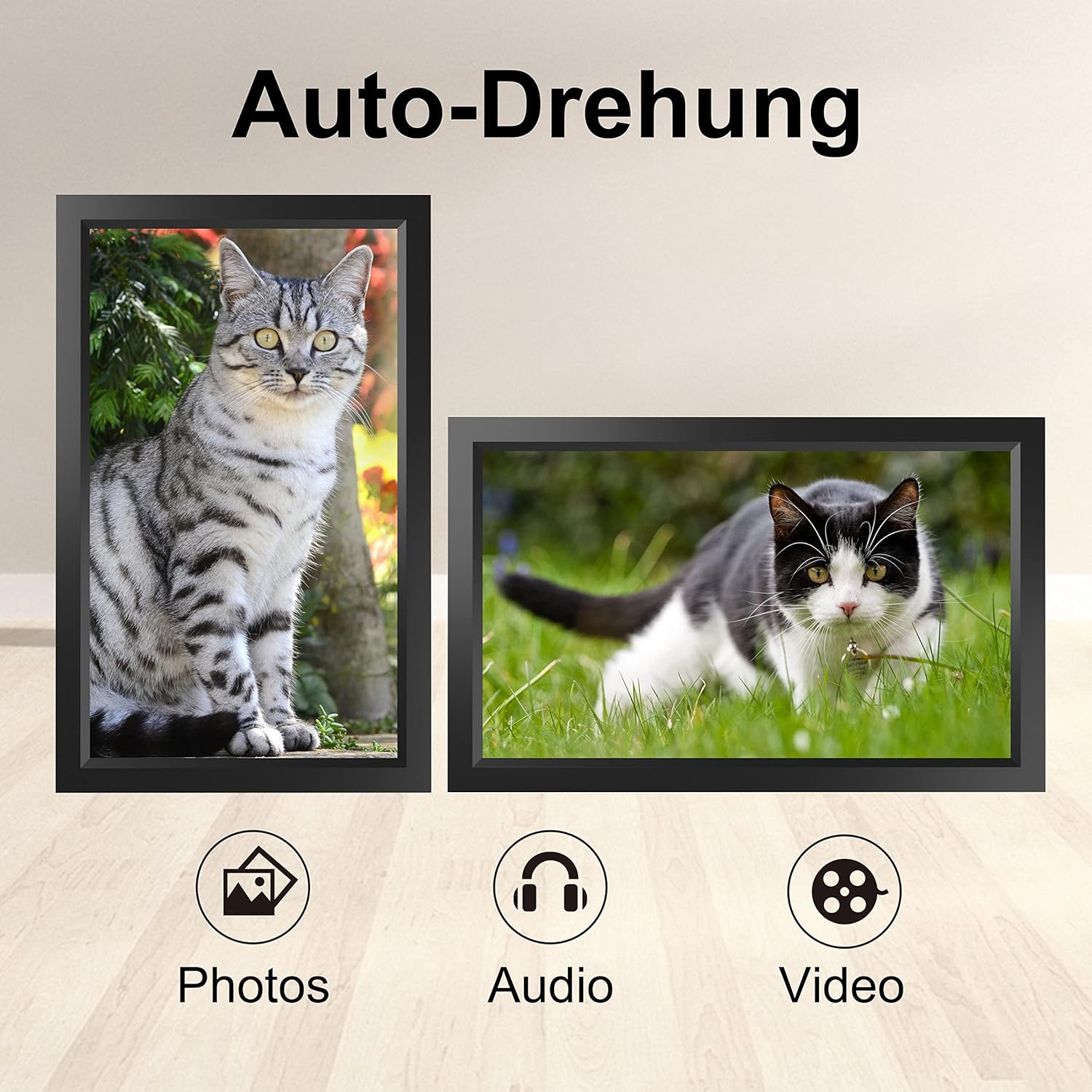
Image 6.1: Automatic display rotation based on frame orientation.
Ensure the gravity sensing feature is enabled in the frame's settings if you wish to utilize this functionality.
6.4 Anviwònman ekspozisyon
Customize ou viewing experience through the frame's settings menu:
- Entèval diaporama: Adjust how long each photo is displayed.
- Efè Tranzisyon: Choose different effects between photos.
- Klate: Ajiste klète ekran an.
- Sleep Mode/Timer: Set schedules for the frame to turn on/off automatically.
- Zoom/Rekoupe: Options to adjust how photos fit the screen.
7. Antretyen
7.1 Netwaye ekran an
To clean the touchscreen, gently wipe it with a soft, lint-free cloth. For stubborn smudges, slightly dampRense twal la avèk dlo oswa yon solisyon pou netwaye ekran. Evite itilize pwodui chimik ki agresif oswa materyèl abrazif.
7.2 Swen Jeneral
- Keep the frame in a dry environment.
- Protect it from dust by occasionally wiping the frame's body with a soft cloth.
- Evite jete aparèy la oswa soumèt li a gwo enpak.
NAN. Depanaj
| Pwoblèm | Kòz posib | Solisyon |
|---|---|---|
| Ankadreman an pa limen. | Adaptè kouran an pa konekte oswa li gen pwoblèm. | Asire w adaptè kouran an byen konekte ak ankadreman an ak yon priz kouran ki fonksyone. Eseye yon lòt priz. |
| Pa ka konekte ak Wi-Fi. | Modpas ki pa kòrèk, deyò limit la, oswa pwoblèm rezo. | Verify the Wi-Fi password. Move the frame closer to the router. Restart your router. |
| Photos/videos not appearing. | App not paired, incorrect file format, or storage issue. | Ensure the app is correctly paired. Check if the media files are in a supported format. Verify sufficient storage space on the frame or SD card. |
| Ekran taktil la pa reponn. | Pwoblèm lojisyèl tanporè. | Restart the frame by holding the power button or unplugging and replugging the power adapter. |
| Automatic rotation not working. | Feature disabled or sensor issue. | Check the frame's settings to ensure gravity sensing/auto-rotation is enabled. |
9. Espesifikasyon
| Karakteristik | Detay |
|---|---|
| Nimewo Modèl | TID15.6 |
| Gwosè ekran | 15.6 pous |
| Kalite ekspozisyon | IPS Touch ekran |
| Rezolisyon | 1280x800 |
| Depo Entèn | 16GB (approx. 20,000 photos) |
| Depo ekstèn | Mikwo SD kat jiska 128GB |
| Koneksyon | Wi-Fi |
| Karakteristik espesyal | Gravity Sensing Automatic Rotation, Touchscreen |
| Dimansyon (L x W x H) | 39.12 x 24.64 x 2.51 cm |
| Pwa | 1.48 kg |
| Sous pouvwa | Battery Powered (includes 1 Lithium Ion battery) |
Remak: Espesifikasyon yo sijè a chanje san avètisman davans.
10. Garanti ak sipò
10.1 Pwodwi Garanti
The Tibuta Digital Photo Frame comes with a one-year product warranty. This warranty covers manufacturing defects and operational issues arising from normal use. If any issues arise during this period, please contact our after-sales support team for assistance.
10.2 Sipò pou Kliyan
For technical support, warranty claims, or any other inquiries, please refer to the contact information provided on the Tibuta official website or your purchase documentation. When contacting support, please have your model number (TID15.6) and purchase date available.


