1. Entwodiksyon
Thank you for choosing the Delton Ergonomic Vertical Rechargeable Wireless Mouse S12. This manual provides detailed instructions for setting up, operating, and maintaining your new mouse. Designed for comfort and efficiency, this vertical mouse promotes a more natural hand and wrist posture, reducing strain during extended computer use.
Please read this manual thoroughly before use to ensure optimal performance and longevity of your device.
2. Pake kontni
Verifye ke tout atik yo prezan nan pakè ou a:
- Delton Ergonomic Vertical Wireless Mouse
- USB Dongle (2.4GHz receiver)
- USB Chaje Kab
- Manyèl Itilizatè (dokiman sa a)
3. Pwodwi souview
The Delton S12 mouse features an ergonomic vertical design, six programmable buttons, and adjustable DPI settings for precise control. It connects wirelessly via a 2.4GHz USB dongle and is powered by a rechargeable battery.

Image: The Delton S12 Ergonomic Vertical Wireless Mouse, shown with its accompanying USB dongle.
3.1 Konsepsyon ergonomik
The vertical orientation of the mouse is designed to align your hand and wrist in a natural handshake position, which can help reduce muscle strain and discomfort often associated with traditional mice.

Image: A hand comfortably gripping the Delton vertical mouse, demonstrating the natural, ergonomic wrist position it promotes.
3.2 Koneksyon san fil
The mouse connects wirelessly to your device via a 2.4GHz USB dongle, offering a stable connection up to 30 feet (10 meters). This provides flexibility and reduces cable clutter.

Image: The Delton vertical mouse wirelessly connected to a laptop, with the USB dongle inserted into the laptop's port.
3.3 rechargeable batri
Equipped with a built-in rechargeable Lithium-Ion battery, the mouse offers up to 30 days of daily use and 12 months of standby time on a single charge. It can also be used while charging.

Image: The Delton vertical mouse being charged via a USB cable, illustrating its rechargeable feature.
3.4 Six Buttons Functionality
The mouse features six responsive buttons for enhanced productivity:
- Klike sou bò gòch
- Dwa Klike
- Rou defile (ak fonksyon klike)
- DPI Bouton Bouton
- Bouton Avant
- Bouton bak

Image: A detailed diagram highlighting the location and function of the six buttons on the Delton vertical mouse.
3.5 Customizable DPI Levels
Adjust the mouse sensitivity with three DPI settings: 800, 1200, and 2400. An indicator light changes color to show the current DPI level.
- Ble: 800 DPI
- Wouj: 1200 DPI
- Vèt: 2400 DPI
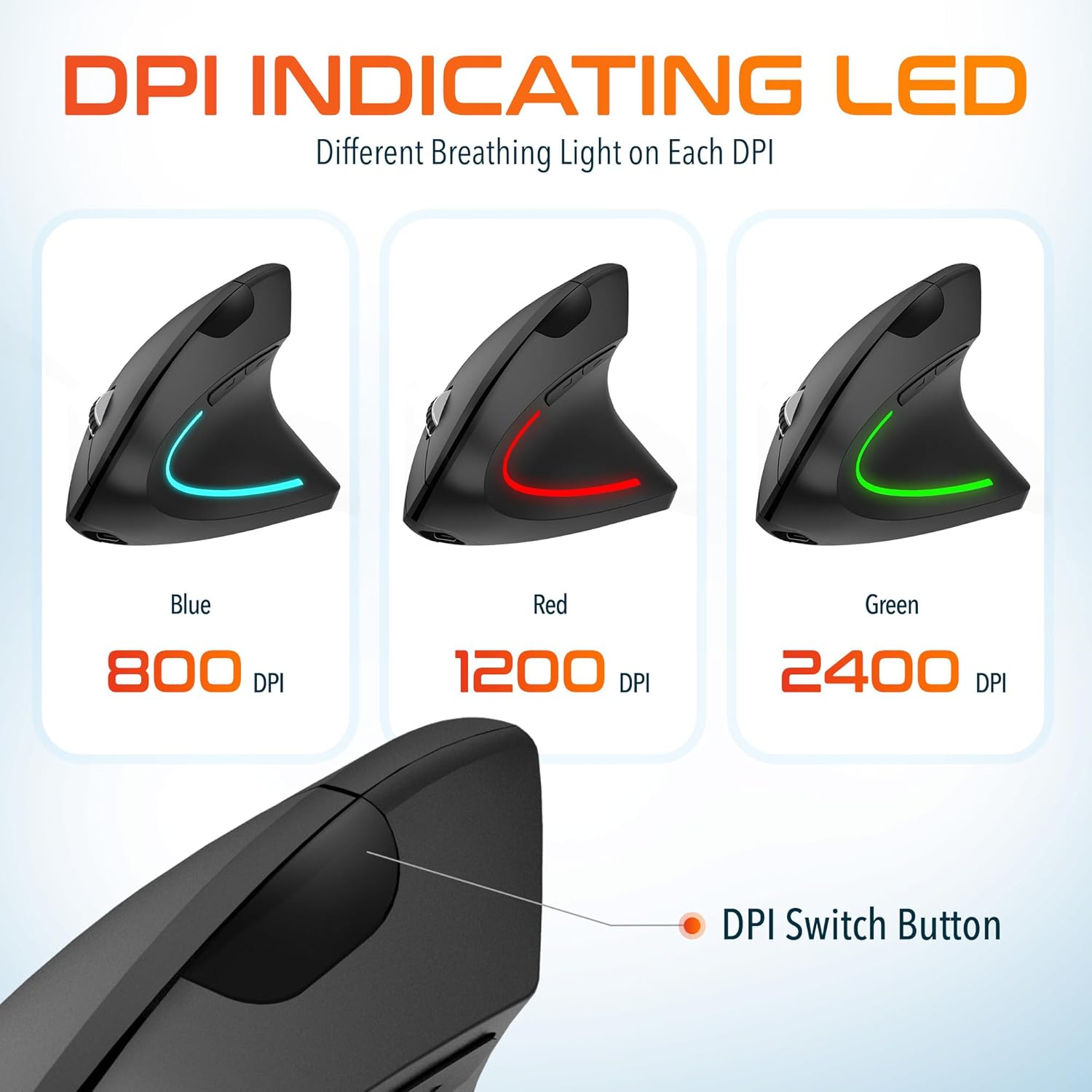
Image: The Delton vertical mouse displaying its LED indicator in blue (800 DPI), red (1200 DPI), and green (2400 DPI) to show current sensitivity settings.
4. Enstriksyon Enstalasyon
4.1 Chaje Sourit la
- Connect the provided USB charging cable to the charging port on the front of the mouse.
- Plug the other end of the USB cable into a USB power source (e.g., computer USB port, wall adapter, power bank).
- The LED indicator will illuminate during charging and turn off when fully charged. A full charge typically takes approximately 1 hour.
4.2 Connecting the USB Dongle
- Locate the USB dongle, usually stored in a compartment on the underside of the mouse.
- Insert the USB dongle into an available USB port on your computer (PC, Laptop, Mac, Chromebook).
- The system will automatically detect and install the necessary drivers. This process may take a few moments.
4.3 Limen/Etenyen
Jwenn switch pouvwa a anba sourit la. Glise switch la nan pozisyon 'ON' pou limen sourit la. Glise l nan pozisyon 'OFF' lè w pa ap itilize l pou konsève lavi batri a.
5. Operasyon Enstriksyon
5.1 DPI Ajisteman
To change the mouse sensitivity (DPI), press the DPI switch button located on the top of the mouse, behind the scroll wheel. Each press cycles through the available DPI settings (800, 1200, 2400), indicated by the changing color of the LED light.
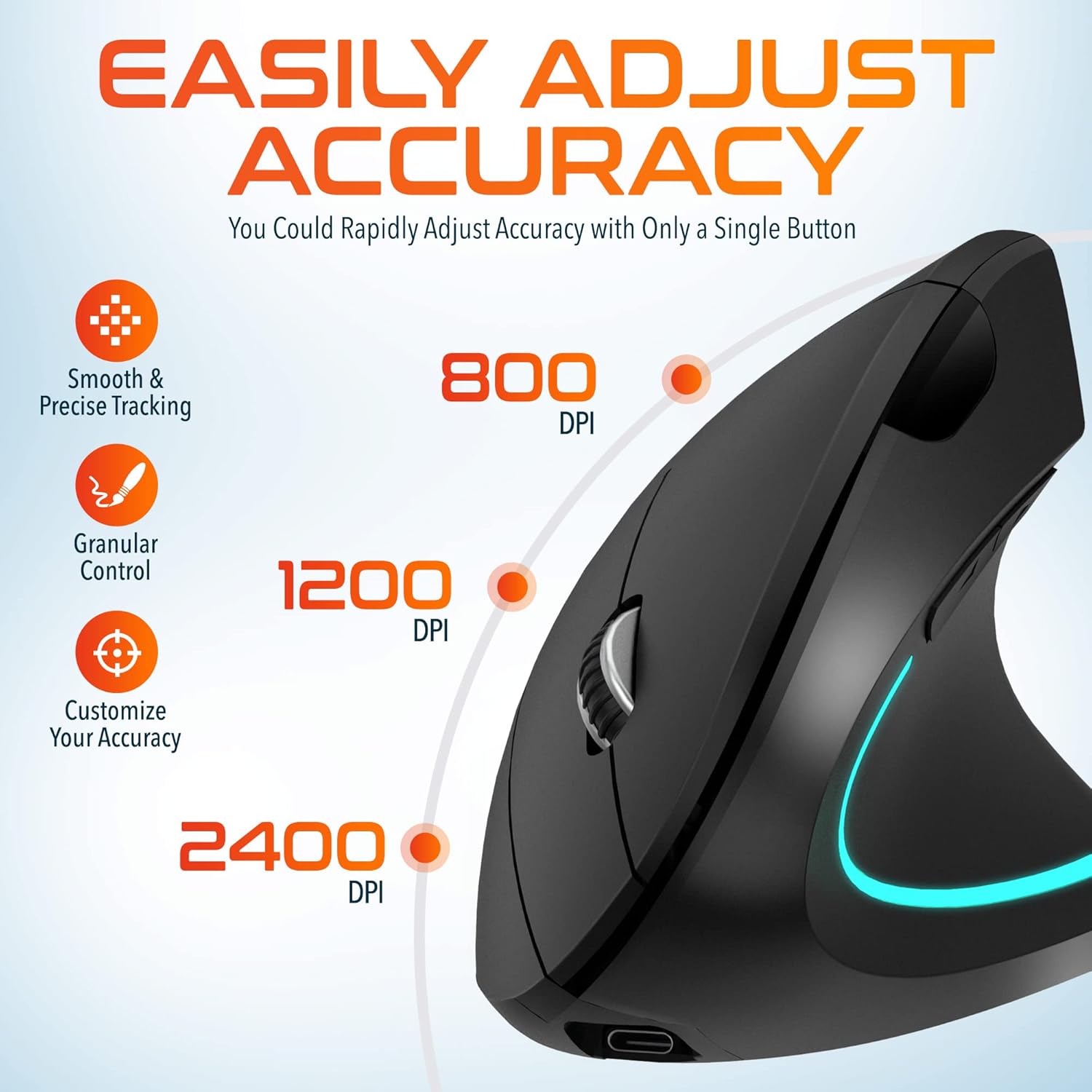
Image: A visual representation of the three adjustable DPI settings (800, 1200, 2400) and their corresponding cursor precision levels.
5.2 Fonksyon bouton
- Klike Goch: Fonksyon klike prensipal estanda.
- Klike sou dwa: Fonksyon klike segondè estanda.
- wou woulo liv: Defile anlè oswa anba nan dokiman yo epi web paj yo. Peze wou defile a fonksyone tankou yon klike nan mitan.
- Bouton Avant: Navige pi devan nan web navigatè oswa file eksploratè.
- Bouton dèyè: Navige bak nan web navigatè oswa file eksploratè.

Imaj: Yon gwo plan view of the mouse's scroll wheel and the conveniently placed forward and backward shortcut keys.
6. Antretyen
- Netwayaj: Sèvi ak yon twal mou epi sèk pou netwaye sourit la. Pou pousyè tè ki difisil pou retire, siye l yon ti kras.ampRense twal la avèk dlo. Evite itilize pwodui chimik ki agresif oswa materyèl abrazif.
- Depo: When not in use for extended periods, store the mouse in a cool, dry place. Ensure the power switch is in the 'OFF' position to preserve battery life.
- Swen batri: Evite dechaje batri a nèt souvan. Chaje sourit la regilyèman pou kenbe batri a an bon eta.
NAN. Depanaj
| Pwoblèm | Kòz posib | Solisyon |
|---|---|---|
| Sourit pa reponn | Low battery; USB dongle not connected; Mouse not powered on; Driver issue | Charge the mouse; Ensure dongle is securely plugged in; Turn on the mouse; Try a different USB port; Restart computer |
| Koneksyon tanzantan | Interference; Dongle too far from mouse; Low battery | Move mouse closer to dongle; Remove obstacles; Charge the mouse; Avoid using near other 2.4GHz devices |
| DPI a pa chanje | DPI button not pressed correctly; Mouse unresponsive | Press the DPI button firmly; Check battery and connection |
| Mouse cursor erratic | Dirty optical sensor; Uneven surface | Clean the optical sensor with a soft cloth; Use on a clean, flat mouse pad or surface |
8. Espesifikasyon
| Karakteristik | Detay |
|---|---|
| Nimewo Modèl | S12 |
| Koneksyon | 2.4GHz san fil (Clé USB) |
| Nivo DPI | 800 / 1200 / 2400 |
| Bouton | 6 (Agoch, Adwat, Motè woulo, DPI, Avanse, Aryè) |
| Kalite batri | Ion ityòm rechargeable (enkli) |
| Wireless Range | Jiska 30 pye (10 mèt) |
| Dimansyon pwodwi | 5 x 2.6 x 3.25 pous |
| Pwa atik | 4.9 ons |
| Konpatibilite | PC, Laptop, Mac, Chromebook (Windows, macOS, iOS) |
9. Garanti ak sipò
Delton products are designed for reliability and performance. For warranty information or technical support, please refer to the contact details provided with your purchase or visit the official Delton websit la. Kenbe resi acha ou kòm prèv acha pou reklamasyon garanti.