Entwodiksyon
This manual provides detailed instructions for the setup, operation, and maintenance of your Taiahiro ML-981 Retro Mechanical Keyboard. Please read this guide thoroughly to ensure proper use and to maximize your keyboard's functionality.
Kontni pake
Verifye ke tout atik ki nan lis anba a yo enkli nan pakè ou a:
- Taiahiro ML-981 Retro Mechanical Keyboard
- Manyèl itilizatè
- Keycap Puller
- Spare Mechanical Blue Switches
- USB-C pouvwa kab
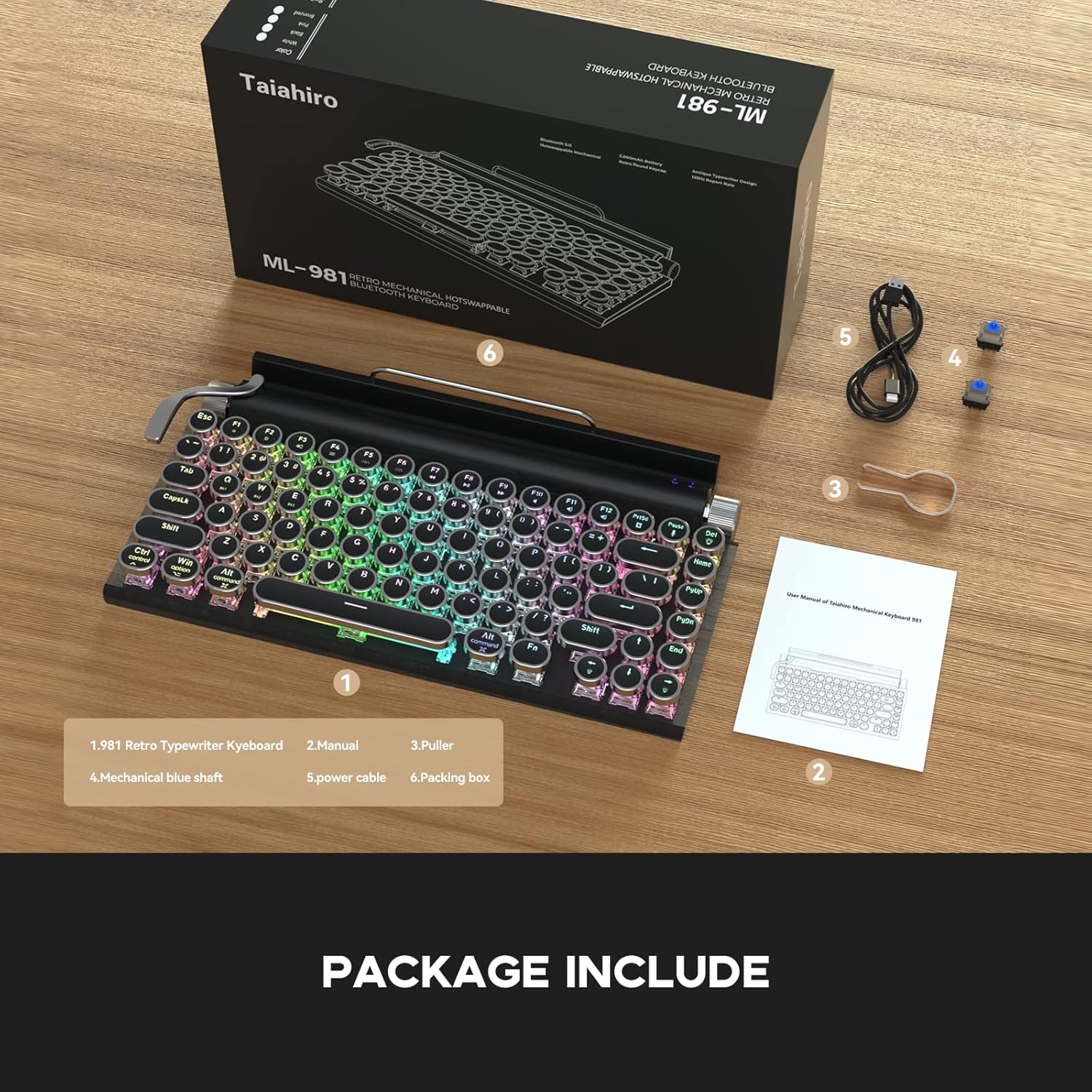
The image displays the Taiahiro ML-981 keyboard along with its accessories, including the user manual, keycap puller, spare mechanical blue switches, and USB-C charging cable.
Pwodwi souview
The Taiahiro ML-981 keyboard features a retro design with modern functionality, offering multiple connectivity options and customizable backlighting.
Karakteristik kle:
- Dual-mode connectivity: USB-C wired and Bluetooth 5.0.
- Multi-device support: Connects up to 3 Bluetooth devices simultaneously.
- Integrated bracket for holding smartphones or tablets.
- Mechanical blue switches for tactile feedback.
- Adjustable RGB backlight with multiple lighting modes.
- Dedicated knobs for brightness and volume control.
- Compatibility with Windows, macOS, and Android operating systems.

This image illustrates the main features of the keyboard, such as its dual connectivity, multi-device pairing, and integrated stand.
Konpozan klavye:
- Klere bouton: Located on the right side, used to adjust backlight brightness.
- Volim bouton: Located on the right side, used to adjust audio volume.
- Backlight Lever: Located on the left side, used to cycle through backlight modes.
- Integrated Bracket: Located at the top, designed to hold mobile devices.
- Wired Mode/Charging Port: USB-C port for wired connection and charging.
- System Switch Button: Toggles between Windows and Mac layouts.
- Power and Connection Switch Button: Controls power and switches between connection modes.

Yon detaye view of the keyboard's physical controls and ports, including the knobs, lever, and switches.
Enstalasyon ak Koneksyon
Chaje klavye a:
Connect the provided USB-C cable to the charging port on the keyboard and to a USB power source. The keyboard can be used while charging.
Limen/Etenyen:
Locate the Power and Connection Switch Button on the side of the keyboard. Slide it to the 'ON' position to power on the device. Slide to 'OFF' to power off.
System Compatibility Switch:
Use the System Switch Button to select the appropriate operating system mode (Windows or Mac) for optimal key mapping.
Koneksyon filaire:
Connect the USB-C cable from the keyboard to your computer's USB port. The keyboard will automatically switch to wired mode.
Bluetooth 5.0 Koneksyon:
The keyboard supports connecting up to three devices via Bluetooth. To pair a device:
- Ensure the keyboard is powered on and in Bluetooth mode (indicated by the Power and Connection Switch Button).
- On your device (PC, laptop, tablet, or phone), enable Bluetooth and search for available devices.
- Select 'Taiahiro Keyboard' from the list of devices.
- Swiv nenpòt envit ki sou ekran pou konplete pwosesis kouple a.
To switch between paired Bluetooth devices, use the designated function keys (refer to the keyboard layout for specific key combinations, often Fn + 1/2/3).

This image demonstrates the keyboard's dual-mode connectivity, showing both wired USB-C and wireless Bluetooth 5.0 connections.

The image highlights the keyboard's ability to pair with multiple devices, such as a tablet and a smartphone, for seamless switching.
Enstriksyon Operasyon
Kontwòl ekleraj:
The keyboard features multiple LED backlight modes. To adjust:
- Chanje mòd: Pull the backlight lever (located on the left side) to cycle through different lighting effects.
- Ajiste klète/vitès: Rotate the brightness knob (located on the right side) to increase or decrease the backlight intensity or animation speed.

This image displays the keyboard's vibrant LED backlighting, highlighting the various lighting modes available.
Kontwòl Volim:
Rotate the volume knob (located on the right side) to adjust the audio output volume of your connected device.
Using the Integrated Bracket:
The keyboard includes an integrated bracket at the top, designed to securely hold your smartphone or tablet while you type.
This video demonstrates the Taiahiro Retro Typewriter Keyboard in use, showcasing its typing experience and how it functions with a tablet and smartphone in the integrated holder.
Antretyen
Netwayaj:
To clean your keyboard, power it off and disconnect it from any devices. Use a soft, dry cloth to wipe down the surface. For deeper cleaning, a slightly damp cloth can be used, ensuring no moisture enters the key switches or internal components. Avoid harsh chemicals.
Ranplasman switch:
The Taiahiro ML-981 keyboard features hot-swappable mechanical switches, allowing for easy replacement without soldering. Use the provided keycap puller to remove the keycap, then use the switch puller to carefully extract the switch. Align the pins of the new switch with the sockets and press firmly until it clicks into place. Replace the keycap.

This image illustrates the process of replacing a mechanical switch on the keyboard using the provided tools.
Depanaj
- Klavye a pa konekte via Bluetooth:
Ensure the keyboard is charged and powered on. Verify that the Power and Connection Switch Button is in the correct Bluetooth mode. On your device, turn Bluetooth off and on again, then attempt to re-pair. Ensure no other devices are interfering with the connection. - Kle yo pa reponn:
Check if the keyboard is properly connected (wired or Bluetooth). If using Bluetooth, ensure it's paired and selected. If wired, ensure the USB-C cable is securely connected. Try restarting the keyboard. - Limyè dèyè a pa fonksyone oswa li bloke:
Ensure the keyboard is powered on. Try pulling the backlight lever to cycle through modes. Adjust the brightness knob. If the issue persists, power cycle the keyboard. - Incorrect key output (e.g., 'Z' types 'Y'):
Verify that the System Switch Button is set to the correct operating system (Windows or Mac) for your connected device.
Espesifikasyon
| Dimansyon pwodwi | 12.6 x 7 x 1.5 pous |
| Pwa atik | 2.23 liv |
| Manifakti | Taiahiro |
| Batri | 1 batri ityòm Polymère (enkli) |
| Koneksyon Teknoloji | Bluetooth 5.0, USB-C filaire |
| Deskripsyon klavye | Mekanik |
| Aparèy konpatib | Laptop, PC, Telefòn entelijan, Tablèt |
| Karakteristik espesyal | Backlit, Integrated Stand, Round Key, Hot-swappable Switches |
| Koulè | Nwa briyan |
| Klavye ekleraj | RGB |
| Style | Retro |
| Materyèl | Metal |
Garanti ak sipò
For warranty information and technical support, please refer to the contact details provided on the product packaging or the official Taiahiro websit. Kenbe resi acha ou pou reklamasyon garanti.


